
Transcrição de MP4 para Texto: Um Guia do Criador para Conteúdo Poderoso
Transforme seu vídeo com nosso guia sobre transcrição de MP4 para texto. Aprenda fluxos de trabalho práticos, ferramentas e dicas para reaproveitar seu conteúdo para o máximo alcance.
Kate, Praveen
April 23, 2025
Transformar um MP4 em texto não é apenas uma tarefa técnica – é como você libera o verdadeiro valor preso dentro do seu conteúdo de vídeo. Torna cada palavra falada pesquisável, acessível e pronta para ser transformada em dezenas de novos ativos, como posts de blog e atualizações de mídia social, tudo a partir de uma única gravação.
Por que Transcrever MP4 para Texto é um divisor de águas para o Conteúdo
Para criadores de conteúdo modernos, podcasters e profissionais de marketing, transformar vídeo em texto é uma estratégia fundamental, não apenas uma forma de manter registros. É o segredo para fazer seu conteúdo trabalhar mais para você. Pense nisso: cada palavra que você fala em um vídeo se torna instantaneamente pesquisável pelo Google, dando um grande impulso ao seu SEO.
O que a Transcrição de MP4 Desbloqueia para o Seu Conteúdo?
Visibilidade de Pesquisa
Cada palavra falada se torna indexável, ajudando os motores de busca a entender e classificar seu conteúdo de forma mais eficaz.
Reaproveitamento de Conteúdo
Transforme um único vídeo em blogs, newsletters, legendas e posts sociais sem gravar novamente.
Acessibilidade e Alcance
As transcrições tornam seu conteúdo utilizável para leitores, falantes não nativos e necessidades de acessibilidade.
Economia de Tempo e Dinheiro
A transcrição automatizada elimina horas de trabalho manual e terceirização cara.
Imagine a eficiência incrível de pegar um webinar e transformá-lo em dez posts de blog, trechos para redes sociais de um mês inteiro e uma série completa de newsletters por e-mail — tudo isso sem ter que filmar um minuto extra.
Esse fluxo de trabalho elimina completamente as maiores dores de cabeça da transcrição manual. Todos nós já passamos por isso: é dolorosamente lento, surpreendentemente caro e a precisão pode ser inconsistente. Uma ferramenta como a Transcript.LOL faz com que todo o processo pareça quase mágica.
Aqui está uma rápida olhada em como seu ecossistema de conteúdo pode explodir apenas começando com um fluxo de trabalho simples de MP4 para texto.
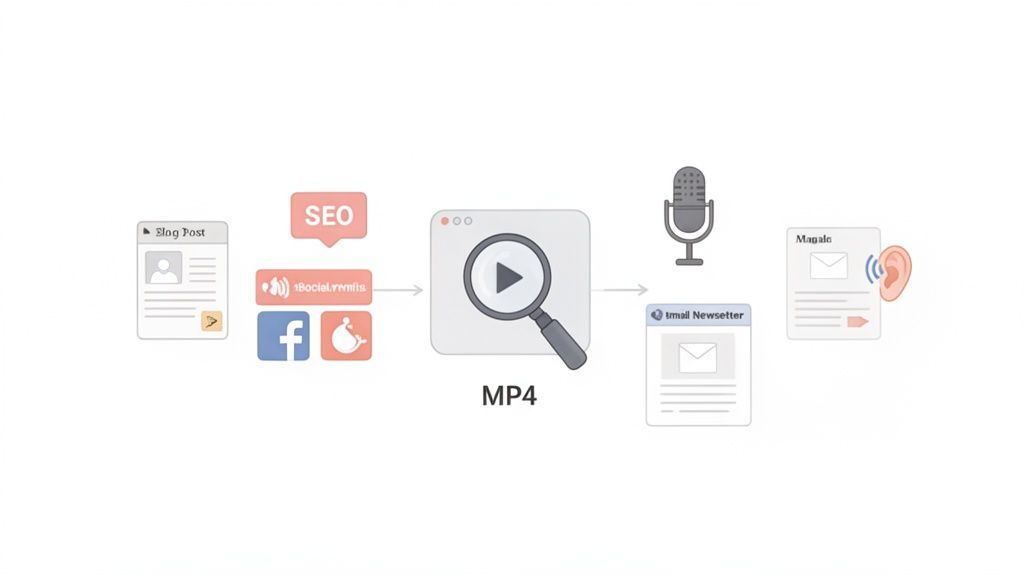
Como você pode ver, um único arquivo de vídeo se torna a semente para uma máquina de conteúdo multicanal, tudo impulsionado por uma transcrição precisa.
Expanda Seu Alcance e Acessibilidade
Uma transcrição em texto torna seu conteúdo imediatamente disponível para um público muito mais amplo. Isso inclui pessoas com deficiência auditiva ou até mesmo aquelas que preferem ler em vez de assistir a um vídeo. Isso não é apenas para cumprir uma formalidade de inclusão; constrói boa vontade genuína e atende aos padrões modernos de acessibilidade.
Por que o Texto Ainda Supera o Vídeo Sozinho?
O conteúdo em texto é mais rápido de consumir, mais fácil de pesquisar e mais simples de reutilizar em diferentes plataformas. Uma transcrição garante que sua mensagem não desapareça assim que o vídeo terminar.
Além disso, uma transcrição ajuda falantes não nativos a acompanhar sua mensagem, garantindo que suas ideias sejam compreendidas claramente por um público global. É um pequeno passo que faz uma grande diferença na experiência do usuário.
Ponto Chave: A transcrição não é apenas para SEO. Trata-se de criar uma experiência mais inclusiva e amigável que respeite as diversas necessidades do seu público.
A capacidade de transcrever seus arquivos MP4 desbloqueia um mundo inteiro de estratégias de reutilização de conteúdo, permitindo que você extraia o máximo de valor do seu trabalho original. E a demanda por isso está crescendo. O mercado de transcrição dos EUA atingiu US$ 30,42 bilhões em 2024, impulsionado pela explosão de conteúdo de vídeo. Com mais de 500 horas de vídeo sendo carregadas a cada minuto, ferramentas automatizadas não são mais um luxo — são essenciais para acompanhar.
Preparando seu MP4 para uma Transcrição Impecável
Antes mesmo de pensar em carregar esse arquivo MP4, alguns minutos de preparação podem economizar uma montanha de dores de cabeça de edição mais tarde. É uma verdade simples: a qualidade do seu áudio de origem é o fator mais importante para obter uma transcrição limpa e precisa.
Pense nisso assim: se você mal consegue entender o que alguém está dizendo, como pode esperar que uma IA faça melhor? Mesmo as melhores ferramentas de transcrição do mundo precisam de áudio claro para fazer sua mágica. Você não precisa de um estúdio profissional, mas um pouco de esforço faz uma grande diferença.
Otimize a Qualidade do seu Áudio
O objetivo aqui é simples: eliminar o ruído de fundo e garantir que cada locutor seja ouvido alto e claro. Aquele zumbido baixo do ar condicionado, o som fraco do tráfego lá fora, ou mesmo apenas uma sala barulhenta podem confundir a IA e introduzir erros.
- Silencie a Sala: Antes de apertar o botão de gravar, faça uma rápida verificação de som. Desligue ventiladores, unidades de ar condicionado e qualquer outra coisa que crie um zumbido constante. Um espaço silencioso é seu melhor amigo.
- Consiga um Microfone Melhor: O microfone embutido do seu laptop serve em caso de emergência, mas é notório por captar todos os ecos e ruídos de fundo. Um microfone USB externo básico fará uma diferença enorme na clareza vocal.
- Fale Alto e Claramente: Certifique-se de que todos estejam falando diretamente para o microfone em um volume constante e uniforme. Pessoas falando umas sobre as outras é um dos desafios mais difíceis para qualquer IA de transcrição desvendar.
Transcrições Ruins
Mesmo a melhor IA tem dificuldades com gravações barulhentas. Áudio claro reduz drasticamente erros e tempo de edição.
Conseguir o áudio correto na origem é o segredo para obter resultados de transcrição quase perfeitos. Um arquivo MP4 limpo ajuda ferramentas de IA como o Transcript.LOL a cumprir a promessa de conversão de texto rápida e precisa.
Resumindo? Áudio melhor significa melhores resultados, sempre. Você pode se aprofundar no que afeta a precisão do speech-to-text em nosso guia detalhado, mas tudo começa com o fornecimento de um arquivo limpo para a IA trabalhar. Seguir estas etapas simples garante que você obtenha uma transcrição polida que requer limpeza mínima.
Certo, vamos deixar a teoria de lado e colocar a mão na massa. É aqui que você verá o quão ridiculamente simples é obter uma transcrição de mp4 para texto com uma ferramenta realmente construída para fluxos de trabalho modernos. Esqueça menus confusos ou uma curva de aprendizado íngreme; vamos transformar seu arquivo de vídeo em uma transcrição polida e pronta para uso em apenas alguns cliques.
Primeiro de tudo, você precisa colocar seu arquivo MP4 no sistema. O Transcript.LOL oferece muita flexibilidade aqui. Você pode fazer upload diretamente do seu computador, puxar arquivos do Google Drive ou Dropbox, ou simplesmente colar um link de uma plataforma como o YouTube. Chega de baixar e fazer upload novamente - uma verdadeira economia de tempo e largura de banda.
Recursos Principais que Tornam a Transcrição de MP4 sem Esforço
IA de última geração
Alimentado pelo Whisper da OpenAI para precisão líder na indústria. Suporte para vocabulários personalizados, arquivos de até 10 horas e resultados ultra rápidos.

Importar de múltiplas fontes
Importe arquivos de áudio e vídeo de várias fontes, incluindo upload direto, Google Drive, Dropbox, URLs, Zoom e mais.

Exportar em múltiplos formatos
Exporte suas transcrições em múltiplos formatos incluindo TXT, DOCX, PDF, SRT e VTT com opções de formatação personalizáveis.
Antes de fazer o upload, porém, um pouco de trabalho preparatório pode garantir uma transcrição limpa desde o início.
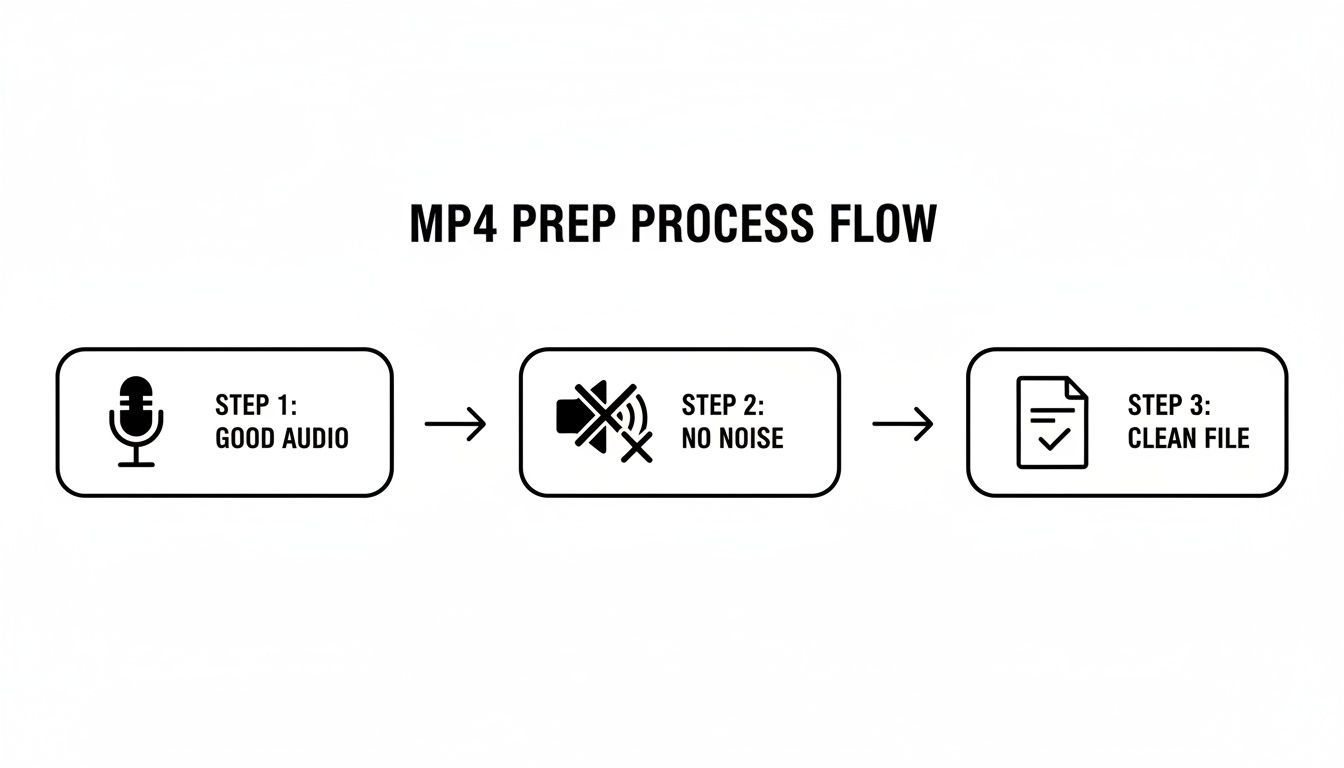
Sério, focar em boa qualidade de áudio, ruído de fundo mínimo e um arquivo limpo é o segredo para uma transcrição impecável. Lixo entra, lixo sai, como dizem.
Iniciando e Refinando Sua Transcrição
Assim que seu arquivo for selecionado, a próxima parte é igualmente rápida. Você escolherá o idioma falado no vídeo e, se houver várias pessoas falando, ativará a detecção de locutor. Este recurso é uma mão na roda para entrevistas, podcasts ou gravações de reuniões, pois separa e rotula automaticamente o diálogo de cada pessoa.
Com essas configurações definidas, a IA entra em ação. Você provavelmente ficará surpreso com a rapidez – um vídeo de uma hora é frequentemente transcrito em apenas alguns minutos. Essa velocidade é um grande motivo pelo qual a transcrição por IA está mudando a forma como trabalhamos. O mercado global de transcrição por IA, avaliado em US$ 4,5 bilhões em 2024, está a caminho de atingir US$ 19,2 bilhões até 2034, tudo impulsionado pela nossa necessidade de registros instantâneos e pesquisáveis. Para equipes corporativas, ferramentas como Transcript.LOL estão reduzindo o tempo de acompanhamento de reuniões em até 50%.
Após a IA fazer sua passagem inicial, você chega diretamente ao editor interativo.
Dica Profissional: O editor interativo é onde a mágica acontece, e ele foi construído para velocidade. Basta clicar em qualquer palavra na transcrição, e o áudio será reproduzido instantaneamente a partir desse ponto exato. Isso permite verificar a precisão e fazer correções rapidamente, sem sair da página.
Editando e Finalizando Seu Texto
O editor faz com que a limpeza da sua transcrição pareça menos um trabalho. Se a IA tropeçou em um termo específico ou em um nome, você simplesmente digita sobre o erro. Para arquivos com vários locutores, você verá rótulos genéricos como "Locutor 1" e "Locutor 2". Simplesmente clique em um rótulo, digite o nome correto, e a alteração será aplicada em todo o documento.
Este é o polimento final que transforma uma saída bruta de IA em um ativo profissional que você pode realmente compartilhar. Todo o processo é visual e interativo, o que honestamente o faz parecer mais uma tarefa criativa do que uma obrigação. Para um mergulho mais profundo em todo o processo, confira nosso guia sobre como transcrever um vídeo para texto para algumas dicas extras.
Desbloqueie Seu Conteúdo com Recursos Avançados e Opções de Exportação
Obter uma transcrição precisa é apenas o começo. A verdadeira mágica acontece quando você usa esse texto como ponto de partida para toda a sua estratégia de conteúdo. Uma simples transcrição de mp4 para texto pode rapidamente se tornar o centro para a criação de uma tonelada de novos ativos, tudo a partir de um único arquivo.
Recursos que Transformam Transcrições em Ativos de Conteúdo

Detecção de falantes
Identifique automaticamente diferentes falantes nas suas gravações e rotule-os com seus nomes.

Ferramentas de edição
Edite transcrições com ferramentas poderosas incluindo buscar e substituir, atribuição de falantes, formatos de texto rico e destaque.
Resumos e Chatbot
Gere resumos e outros insights da sua transcrição, prompts personalizados reutilizáveis e chatbot para o seu conteúdo.
Pense nisso: você termina uma reunião com um cliente e instantaneamente tem uma lista de itens de ação e pontos-chave. Ou você finaliza um podcast de uma hora e, em minutos, tem um resumo limpo para as notas do seu programa, uma dúzia de trechos para redes sociais e até mesmo um quiz para engajar seu público. É aqui que a transcrição deixa de ser uma simples tarefa de registro e se transforma em um poderoso motor de criação de conteúdo.
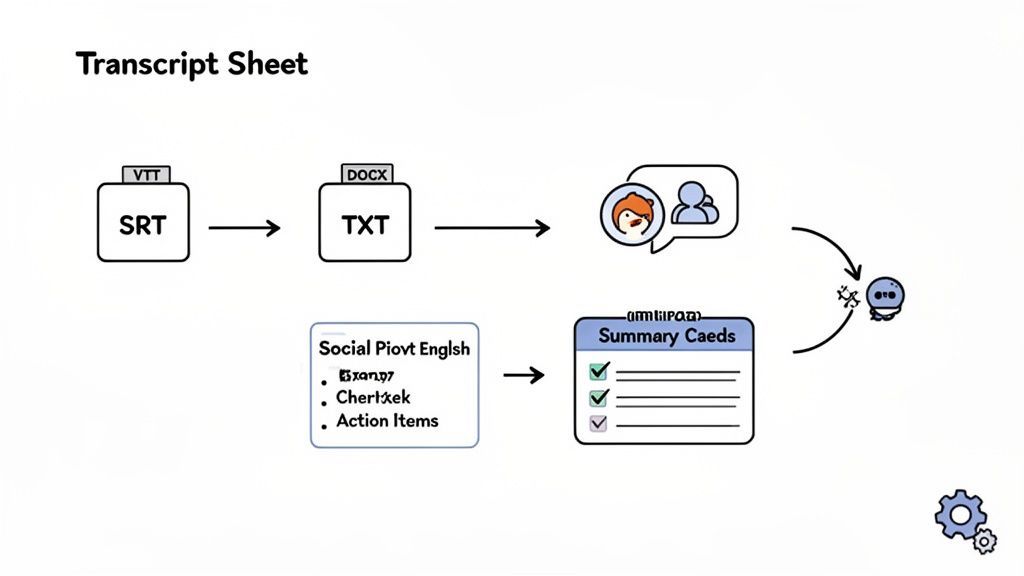
Escolha o Formato de Exportação Perfeito
Assim que sua transcrição estiver pronta, como você a exporta depende inteiramente do que você quer fazer a seguir. Escolher o formato certo desde o início economiza muito tempo e garante que seu conteúdo esteja perfeitamente preparado para seu destino final.
- TXT: Esta é sua opção universal e sem frescuras. Perfeita para quando você só precisa do texto bruto para copiar e colar em um e-mail, documento ou CMS sem se preocupar com formatação estranha.
- DOCX: Quando você precisa de algo mais polido, DOCX é o caminho a seguir. É ideal para relatórios formais, artigos ou qualquer documento onde você adicionará notas, colaborará com outras pessoas e precisará manter uma formatação específica.
- SRT/VTT: Estes são os padrões ouro para legendas de vídeo. Eles incluem os carimbos de data/hora cruciais que sincronizam o texto com seu vídeo, o que é essencial para acessibilidade e para aumentar o engajamento em plataformas como o YouTube.
Depois que seu MP4 for transcrito, você pode facilmente baixar legendas de vídeo para usar em várias plataformas e melhorar a acessibilidade. Aprender a criar um arquivo SRT a partir da sua transcrição é uma habilidade crítica para qualquer criador de vídeo.
Escolhendo o Formato de Exportação Certo para Suas Necessidades
Ainda não tem certeza de qual tipo de arquivo escolher? Este pequeno guia detalha com base no que você está tentando realizar.
| Formato | Melhor Para | Caso de Uso Comum |
|---|---|---|
| TXT | Texto bruto, fácil copiar e colar, sem formatação | Elaborar e-mails, criar posts de blog simples |
| DOCX | Documentos formatados, colaboração em equipe | Escrever artigos, relatórios de reuniões, e-books |
| SRT | Legendas de vídeo com tempo preciso | Adicionar legendas a vídeos do YouTube ou Vimeo |
| VTT | Legendas de vídeo avançadas para web | Adicionar legendas com estilo a players web |
Pense nesses formatos como ferramentas diferentes para trabalhos diferentes. Ter o certo torna todo o processo de criação de conteúdo mais tranquilo.
Essa abordagem estratégica para reutilizar conteúdo tem um grande retorno. Sites que adicionam transcrições de MP4 viram seus rankings de busca subirem em até 12 posições, gerando uma quantidade séria de tráfego novo. Eu vi podcasters e profissionais de marketing relatarem aumentos de 20-40% no tráfego orgânico apenas transformando seus vídeos em posts de blog compartilháveis. É um fluxo de trabalho que realmente entrega resultados.
Dicas Profissionais para um Fluxo de Trabalho de Transcrição Mais Inteligente
Tirar o máximo proveito da sua transcrição de mp4 para texto não se trata de trabalhar mais duro, mas sim de adotar alguns hábitos inteligentes que economizam uma quantidade enorme de tempo no futuro. É a diferença entre ser um usuário casual e um superusuário.
A estratégia mais eficaz que encontrei é construir um vocabulário personalizado. Se você transcreve regularmente conteúdo com nomes de marcas específicas, jargões técnicos ou os mesmos palestrantes convidados, adicionar esses termos a uma lista personalizada aumentará sua precisão para níveis quase perfeitos. Essa única alteração pode reduzir drasticamente seu tempo de edição.
Organize-se, Encontre Tudo Mais Rápido
Ser organizado é outra grande economia de tempo. Se você é um criador que gerencia vários projetos – digamos, uma série de podcasts ao lado de trabalho para clientes – usar pastas é essencial. Isso mantém seu espaço de trabalho limpo e evita que você perca tempo procurando o arquivo certo.
E falando em encontrar coisas, não subestime a função de busca global. Imagine tentar encontrar uma citação específica que você sabe que disse meses atrás. Em vez de vasculhar horas de vídeo, você pode pesquisar em todas as transcrições da sua conta e localizá-la em segundos.
Estes não são recursos complicados. São hábitos simples e práticos que profissionalizam seu fluxo de trabalho. Usar pastas, vocabulários personalizados e busca consistentemente lhe devolve seu recurso mais valioso: tempo.
Claro, mesmo com um ótimo fluxo de trabalho, uma revisão final é crucial para uma transcrição polida. Para um mergulho profundo em como fazer esses ajustes de última hora, confira nosso guia sobre as melhores práticas para revisão em transcrição.
Mesmo com uma ferramenta tão direta quanto o Transcript.LOL, sempre surgem algumas perguntas sobre como transformar arquivos MP4 em texto. Vamos abordar algumas das mais comuns que ouvimos dos criadores.
Quão Preciso Isso Realmente É?
Essa é a grande questão, e a resposta é honestamente muito boa. Uma IA moderna como a nossa atinge consistentemente mais de 95% de precisão em MP4s com áudio claro.
O maior fator é sempre a qualidade do áudio. Se você tiver ruído de fundo mínimo e as pessoas não estiverem falando umas sobre as outras, você obterá um resultado fantástico. Para aqueles vídeos de aprofundamento com muitos jargões específicos, usar um recurso de vocabulário personalizado é a arma secreta. Você basicamente ensina a IA seus termos específicos, e a precisão fica ainda melhor.
E Sobre Transcrever um Vídeo com Vários Falantes?
Sem problema algum. Isso é tratado por um recurso chamado detecção de falante (ou diarização, se você quiser o termo técnico). A IA descobre automaticamente quando uma nova pessoa começa a falar e atribui um rótulo como 'Falante 1' ou 'Falante 2'.
A partir daí, você simplesmente entra no editor e troca esses rótulos genéricos pelos nomes reais dos falantes. Leva alguns segundos e lhe dá um script perfeitamente organizado para entrevistas, painéis ou reuniões de equipe.
Qual é o Melhor Formato para Legendas de Vídeo?
Se o seu objetivo é adicionar legendas ao seu vídeo, você vai querer exportar sua transcrição como um arquivo SRT (.srt) ou VTT (.vtt). Ambos os formatos incluem os carimbos de data/hora cruciais que sincronizam o texto perfeitamente com seu vídeo.
- SRT: Este é o confiável de longa data. É o formato mais amplamente suportado e a aposta mais segura para plataformas como YouTube e LinkedIn.
- VTT: Um formato mais moderno que oferece opções de estilo adicionais. É uma ótima escolha para players de vídeo baseados na web.
Quanto Tempo Leva para Transcrever um Arquivo MP4?
Você ficará surpreso com a rapidez. Embora a velocidade exata dependa do tamanho do seu arquivo, um vídeo MP4 completo de uma hora é frequentemente transcrito em apenas alguns minutos. Essa rápida entrega significa que você pode passar da gravação para a edição e reutilização do seu conteúdo sem longas e frustrantes esperas.
Pronto para ver a rapidez e precisão da sua próxima transcrição? Obtenha sua primeira transcrição gratuitamente com Transcript.LOL e comece a desbloquear todo o potencial do seu conteúdo de vídeo hoje mesmo. Comece aqui.