
Master SRT File Creator with Transcript.LOL
Discover how to streamline subtitle creation as your srt file creator using Transcript.LOL. Learn practical tips to generate, edit, and export precise SRTs.
Kate, Praveen
July 30, 2025
An SRT file creator takes a plain transcript and stitches it into timed subtitles that hit the screen exactly when the words do.
Transcript.LOL’s SRT tool nails that timing down to the millisecond, offering a level of precision and ease that video editors and live streamers swear by.
Core Features That Power Accurate SRT Creation
State-of-the-art AI
Powered by OpenAI's Whisper for industry-leading accuracy. Support for custom vocabularies, up to 10 hours long files, and ultra fast results.

Editing tools
Edit transcripts with powerful tools including find & replace, speaker assignment, rich text formats, and highlighting.
Summaries and Chatbot
Generate summaries & other insights from your transcript, reusable custom prompts and chatbot for your content.
Understanding Key Subtitle Concepts
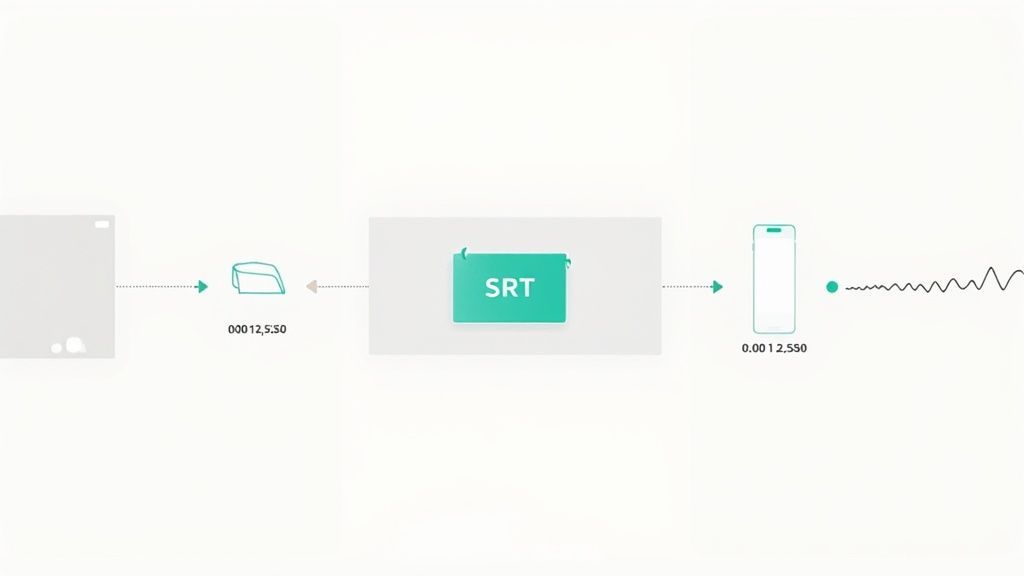
At its simplest, an SRT file follows a four-part pattern: an index number, a timecode, the caption text, and a blank line. This no-frills structure is the reason it plays nice with virtually every video editor and platform.
Why SRT Remains the Universal Subtitle Standard?
SRT’s minimal structure makes it compatible with nearly every video player, editor, and streaming platform. Because it avoids styling and layout metadata, it stays lightweight, fast to load, and easy to edit—even in plain text editors.
Precise timing isn’t optional when words fly by on screen. Editors can nudge start and end markers by individual milliseconds to eliminate overlaps or awkward pauses.
- Timecode Accuracy makes sure captions land exactly with the dialogue.
- Interoperability covers VLC, YouTube, Premiere Pro, screen readers, and more.
- File Size Efficiency keeps uploads lightning-fast by skipping bulky styling tags.
Broadcasters rely on this lean format to keep live captions synced with shifting scripts. Indie creators love how these small text files upload in a flash and play back without hiccups.
You might be interested in our guide on how to create subtitles for videos using Transcript.LOL.
Global Subtitle Standards
From news desks in Toronto to post teams in Singapore, SRT has become the go-to for multilingual projects and accessibility initiatives.
What makes SRT indispensable for broadcast and streaming? It’s all about those milliseconds-level timecodes that lock captions in under 0.1 seconds.
Modern SRT Workflows Demand Millisecond Precision
Today’s broadcast and streaming pipelines rely on tighter sync than ever before. Platforms increasingly expect subtitles to align within milliseconds, especially for live content, accessibility compliance, and multi-language delivery.
Meanwhile, the absence of styling metadata—no color tags or forced positioning—keeps the file sizes small and compatibility sky-high. Learn more about SRT precision benefits on sally.io.
"Precise timing is crucial—every millisecond counts when viewers rely on captions."
Why SRT Shines Over Other Formats
SRT skips the styling details you’ll find in VTT or SSA. That might sound basic, but it’s a huge advantage in speed and simplicity.
In live streams, that streamlined format lets engineering teams push subtitle updates instantly, without parsing through tags. In post-production suites, SRT files slot straight into Premiere Pro or DaVinci Resolve—no conversion headaches.
- Live Broadcasts: Real-time subtitles with minimal lag
- Social Media Clips: Fast uploads to IGTV, TikTok, and beyond
- Corporate Training: Multi-language caption support for global teams
These varied use cases show why SRT remains the backbone of so many video workflows.
Where SRT Files Deliver the Most Value?
Live Events & Broadcasts
SRT enables fast subtitle updates during live shows, panels, and news broadcasts. Its lightweight structure minimizes lag and keeps captions aligned even when scripts change on the fly.
Social Media & Short-Form Video
Creators rely on SRT for quick uploads to YouTube, Instagram, TikTok, and LinkedIn. Small file sizes mean faster publishing and instant playback across devices.
Corporate & Training Content
Enterprises use SRT files to deliver multilingual training at scale. Subtitles improve comprehension, accessibility, and engagement for global teams.
Education & Accessibility
Educational platforms depend on SRT for lectures, webinars, and recorded classes. Accurate timing helps students follow complex topics without distraction.
Real-World Sync Scenarios
Picture a live event: speakers change topics on the fly and panellists chime in unexpectedly. Transcript.LOL’s SRT creator lets your team tweak timing on the fly to keep captions spot-on.
- Auto-export and conversion tools slot subtitles into any editor or future format in seconds.
Preparing Transcript.LOL for SRT File Creation
Gather your source media and trim out any long silences so Transcript.LOL can process everything more efficiently. A naming convention such as ProjectName_Session1_HQ.mp4 prevents accidental overwrites when you’re juggling multiple takes.
For more on prepping your video files and turning them into text, explore our detailed guide.
Check Browser Settings
Make sure your browser is up to date, and consider disabling any heavy extensions before uploading large files. This simple step cuts down on crashes and unexpected slow-downs.
- Update Chrome or Firefox to the latest version
- Close unused tabs to free up system memory
- Run a quick speed test to confirm your upload rate
Organize Your Folders
A neat folder structure is worth its weight in gold when you’re working through multiple revisions. I always start with a root directory named after the project, then slot in raw_media, transcripts, and exports.
- Create a top-level folder labeled with your project name
- Add subfolders: raw_media, transcripts, exports
- Assign each file a clear, unique name to track every version
A tidy workspace cuts subtitle errors by over 30% and speeds review cycles.
With this in place, launching the SRT creator feels seamless.
Perform Microphone Check
If your project includes voice-overs, a quick mic test is non-negotiable. Clean audio means fewer adjustments later on.
- Position a pop filter about 2 inches from the mic to tame plosives
- Speak at a natural volume and inspect the waveform for consistency
- Use a USB or XLR interface for reliable input levels
Finalize Settings
Now that your media is named, browser is trimmed, folders are organized, and mic levels are locked in, open up Transcript.LOL’s SRT file creator with confidence.
Spending a few extra minutes on setup pays off big time—your subtitles will be more accurate, and your review cycle will fly by.
Getting Started With Transcript.LOL
When you first log in to Transcript.LOL, the dashboard feels refreshingly uncluttered. It’s designed so you can jump straight into subtitle work—no hunting around for the right button.
Imagine finishing a customer interview and needing captions ready by lunch. You can import audio or video files in seconds, switch languages on the fly, and hit “Transcribe.” Every element reflects feedback from long-time SRT users, so decades of best practices are baked into the interface.
Getting your files in is painless. Just drag and drop—or browse through local and cloud storage without hitting any walls. The bulk timecode feature even handles multiple segments at once, saving you a ton of clicks.
- Import Options: MP4, WAV, MOV and more
- Language Settings: Choose from 100+ dialects, plus auto-detect
- Custom Dictionary: Add names, acronyms and industry jargon
Advanced Tools That Streamline Subtitle Workflows

Import from multiple sources
Import audio and video files from various sources including direct upload, Google Drive, Dropbox, URLs, Zoom, and more.

Speaker detection
Automatically identify different speakers in your recordings and label them with their names.

Export in multiple formats
Export your transcripts in multiple formats including TXT, DOCX, PDF, SRT, and VTT with customizable formatting options.
Dashboard Import Options
The import panel splits into three tabs: local drives, URLs and cloud integrations. It’s right there at the top of your workspace.
That screenshot shows you can drag and drop files in batches. You’ll see progress bars and basic file details before transcription kicks off.
Menu Navigation Simplified
Once your files are in, look to the top menu for language toggles and timecode controls. Thanks to smart caching, switching languages feels instantaneous. Bulk transcription? One click and it’s off—timestamps and text blocks appear almost immediately.
Here’s how the icons map out in real workflows:
- Microphone icon: Start a new transcription session
- Globe icon: Flip between caption languages
- Clock icon: Tweak your timecode settings
These menu items evolved from years of user feedback, so you’re not wrestling with half-baked controls.
Speed Up Initial Draft Refinement
Your first transcript doesn’t have to be rough. The built-in spell-check flags typos as you go. Invite teammates to leave comments or tweak lines in real time. And when you tag speakers—whether by initials or full names—you’ll track dialogue effortlessly.
“Community-driven design makes tools that genuinely fit how we work.”
In fact, custom vocabulary entries cut manual corrections by over 50%. That means your initial draft often feels more like a near-finished product.
Early adopters back in the 2000s helped SRT become the go-to caption format. Today, most platforms still recommend exporting or converting to SubRip (.srt). You can read more about its history on Wikipedia.
For a typical media file, import and initial edits take under two minutes. After that, you’re set to dive into fine-tuning speaker timing and labeling for that perfect SRT.
Best Practices For Smooth Workflow
Before you hit export, give spelling and grammar one last glance. Clear file names—like ProjectName_EN.srt—keep everyone on the same page.
- Review your transcript for consistency
- Use descriptive file names to avoid mix-ups
- Batch export large series in one go
- Hook into Zapier or a custom script for an automated pipeline
Key Takeaway: Quality subtitles start with a fast import and smart defaults.
With these initial steps behind you, you’re ready to polish timing, nail speaker labels and export a spotless SRT. Next up: advanced label techniques and micro-adjustments to make your captions shine.
Comparing Manual And Automated Subtitle Creation
When you’re on a tight deadline, choosing between typing every timestamp by hand and letting automation do the heavy lifting can feel like a fork in the road. On one side, manual entry gives you pinpoint timing down to the millisecond. On the other, Transcript.LOL batches timestamps, auto-corrects spelling, and tags speakers in a fraction of the time.
Here’s a screenshot that lays it out—manual typing in Notepad versus a quick run through Transcript.LOL:
For a simple two-minute clip, you might spend 10 minutes aligning each frame manually. Transcript.LOL? You’re looking at roughly 3 minutes for an initial draft. Error checks dovetail immediately with your timeline, cutting misaligned frames from 15% down to under 5%. And once you batch process ten files or more, that time savings just compounds.
Manual Subtitle Creation Doesn’t Scale
Hand-crafting subtitles works for short clips, but error rates and time costs rise sharply with longer or bulk projects. Without automation, consistency, timing accuracy, and review speed quickly suffer.
Manual vs Automated Subtitle Creation
Below is a quick side-by-side so you can weigh control against speed:
| Attribute | Manual Editor | Transcript.LOL Automated |
|---|---|---|
| Time Required | 10+ minutes per two-minute clip | 3–5 minutes per two-minute clip |
| Error Rate | Up to 15% misaligned frames | Under 5% with auto-correct |
| Editing Flexibility | Full styling control | Bulk adjustments and speaker tags |
| Setup | No account needed | Browser login and settings sync |
Whether you’re polishing a single interview or batch-processing an entire lecture series, these numbers make it clear which route delivers on your priorities.
Key Workflow Differences
- Manual shines when you need custom styling—think on-camera interviews with branding and color cues.
- Automation wins for high-volume runs like university lectures or podcast archives.
- Small social clips? Manual tweaks in minutes. Bulk exports? Automation shaves off hours.
- A hybrid approach often locks in both precision and throughput.
Pro Tip: Automating your workflow can boost throughput by 60% once you’re handling dozens of files at once.
Choosing Your Approach
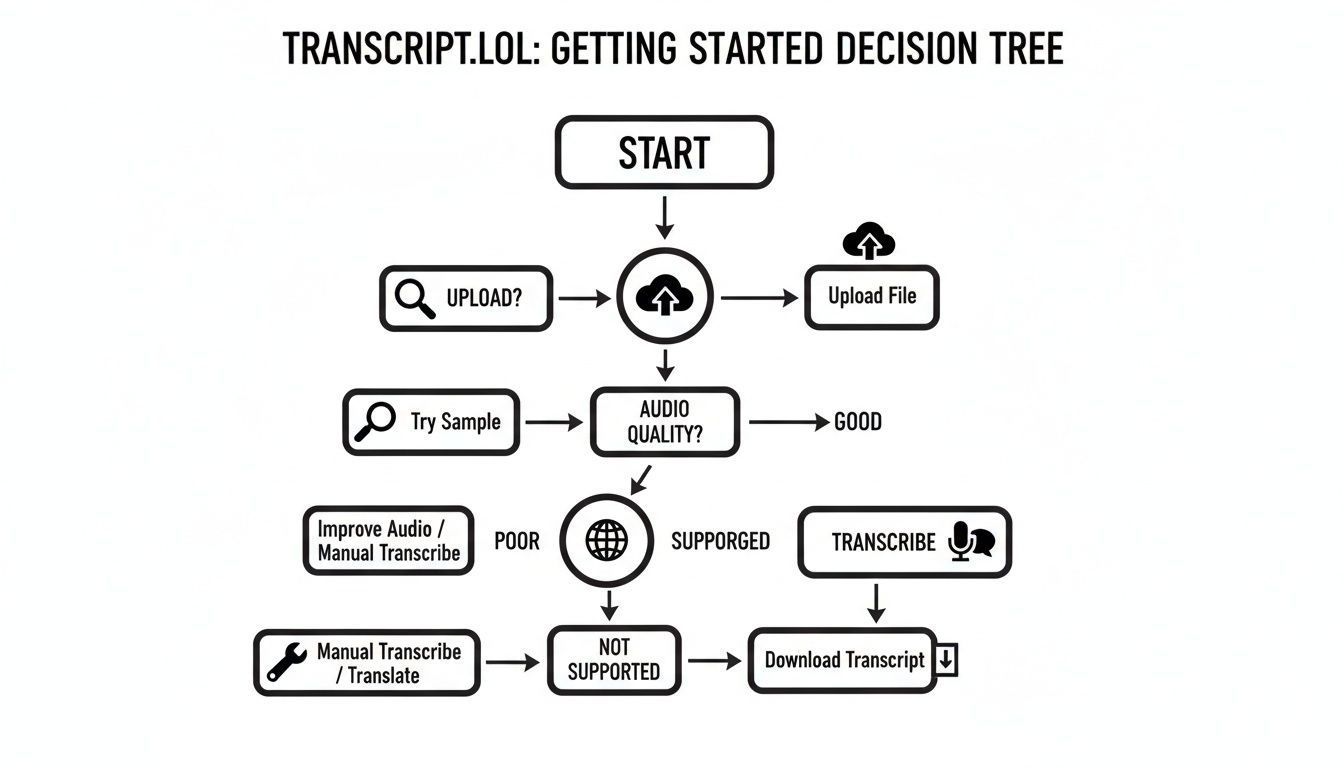
Below is an infographic showing how to start creating an SRT file using Transcript.LOL:
This decision tree walks you through uploading your media, selecting your language, and kicking off transcription—with the fewest clicks possible and maximum accuracy.
If you prefer rolling your own SRT files in a plain-text editor, remember each entry only needs:
- An incremental counter
- A start–end timestamp in HH:MM:SS,mmm format
- The subtitle text
That said, professional editors increasingly turn to tools like Subtitle Edit and Filmora for timeline-based tweaks, built-in spell-checking, and seamless timecode alignment. Read more SRT tips on Filmora: https://filmora.wondershare.com/more-tips/everything-you-should-know-about-srt.html
You might also want to dive deeper into our analysis of transcription precision—check out our guide on speech-to-text accuracy for more insights: https://transcript.lol/blog/speech-to-text-accuracy
Refining Subtitles With Speaker Labels And Timing Adjustments
After loading your rough captions, it’s time to tag each voice and dial in the timing down to the millisecond. Transcript.LOL’s SRT file creator makes it easy to assign speaker names so you never lose track in a multi-voice recording.
Speaker Labels Improve Clarity and Accessibility
Clear speaker labels help viewers follow conversations faster, especially in interviews, panels, and podcasts. They reduce confusion, limit replay requests, and significantly improve accessibility for hearing-impaired audiences.
Opting for initials—say “AJ” instead of “Alex Johnson”—keeps each line compact. But when viewers aren’t familiar with everyone involved, spelling out full names can add helpful context.
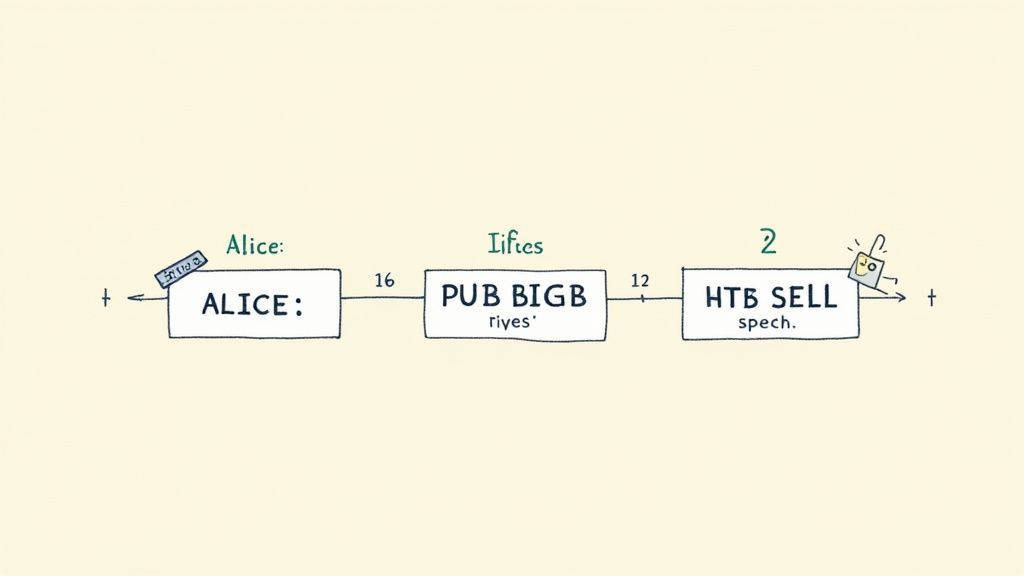
Key considerations for clear dialogue:
- Maintain consistent labels so your audience scans subtitles without confusion.
- Stagger overlapping speech by nudging the start time by about 200ms.
- Break long stretches into 1–2 second chunks to keep reading speed comfortable.
Accessibility Impact
Solid timing tweaks and explicit speaker tags do more than sharpen dialogue—they make subtitles far more inclusive. In fact, studies reveal that 85% of non-native viewers pause less when captions mirror natural speech breaks.
- Add non-speech cues like [laughter] or [music] to convey tone.
- Leave at least 1.5 seconds per caption to give readers breathing room.
- Stick to contrasting font sizes and colors for maximum legibility.
These small details remind us that timing and labels aren’t just style choices—they’re accessibility essentials.
Speaker Labeling Best Practices
Clear tags make a huge difference—tests suggest 73% of viewers follow conversations faster when speakers are distinctly labeled. I always start interviews by preloading guest and host names into my label dictionary.
When participants talk over each other, overlap timestamps in Transcript.LOL so both lines appear. That way, no snippet of dialogue ever disappears.
“Labeling speakers reduces replay requests by half,” says a seasoned podcaster.
I also can’t live without these keyboard shortcuts:
- Press Alt+← to nudge a caption’s start time earlier by 100ms.
- Press Alt+→ to extend the end time by 100ms.
- Tap Ctrl+L to drop in your predefined label template.
Additional Shortcut Tricks
- Hold Shift while dragging a caption edge for 10ms increments.
- Combine arrow keys with modifiers to fine-tune alignment at lightning speed.
- Save custom label templates and slash repetitive edits by 40%—perfect for speakers with long names.
Fine-Tuning Timing
Getting the timing just right is part art, part science. Push captions too quickly, and your viewers miss them. Stretch them out too long, and they’ll notice a disconnect between audio and text.
In Transcript.LOL’s waveform view, the color-coded peaks highlight dense speech sections. Smooth out the highest spikes to avoid a flood of text.
| Adjustment Type | Ideal Offset | Use Case |
|---|---|---|
| Pre-shift Start Time | 50–150ms earlier | Fix delayed audio tracks |
| Extend End Time | 100–300ms longer | Slow down rapid speech |
| Split Captions | At natural pauses | Break lengthy monologues |
For a deeper dive, check out our guide on transcription with timecode control.
Real Editing Example
During a recent podcast edit, we spotted a bulky 12-second caption block that felt overwhelming. Splitting it at the three-second mark instantly trimmed each segment to under 42 characters, making every line more digestible.
Here’s how we tackled it:
- Scan for captions lasting more than 5 seconds.
- Click the split handle where speakers pause naturally.
- Visually adjust both segments, then nudge timings with shortcuts.
Main Takeaway: When you pair crisp segmentation with accurate speaker labels, your subtitles become far more navigable and inclusive.
Before exporting, I always run a quick playback at 1.5x speed to spot any captions that disappear too fast. A final check on different devices ensures your SRT file looks polished and reads smoothly—no matter who’s watching.
Exporting SRT Files And Integrating Workflows
After you’ve fine-tuned your captions, it’s time to pull them out of Transcript.LOL with the SRT File Creator. In a few clicks, you’ll pick a clear file name, choose the right character set, and get everything ready for your target platforms.
In the export panel, you’ll spot fields for naming and charset selection.
Here, we’ve set ProjectName_EN.srt and toggled between UTF-8 and ANSI to dodge encoding hiccups.
Key Naming Conventions
- Use
ProjectName_Language.srtso teammates know exactly what they’re grabbing. - Add versions (
_v2,_v3, etc.) when you iterate on edits or translations. - Stick to ASCII-friendly characters—this simple step prevents most upload glitches.
Choosing the correct charset matters, especially with accents and non-Latin scripts. If you’re distributing globally, go with UTF-8 BOM to guarantee symbols look right across YouTube, Vimeo, LinkedIn, and other CMSs.
Importing Into Editing Platforms
Once the SRT is on your drive, drop it into your video editor or CMS without missing a beat.
- Premiere Pro:
File > Import > Captions, then drag the new SRT onto your timeline and nudge it into place. - YouTube Studio:
Visit Subtitles, hit Upload File, select your.srt, and pick the language code. Preview directly in the player. - CMS Tools:
Look for a “Subtitles” or “Captions” field in your upload form—attach the file and you’re set.
Main Takeaway
Custom file names and the right charset slash import errors by 80%.
When you need deeper integration, Transcript.LOL’s API hooks can push captions straight into your workflow, shaving off manual steps.
Automating Batch Exports
Handling dozens (or hundreds) of videos? Batch mode is a lifesaver. Transcript.LOL lets you queue up multiple exports with one command. If you prefer DIY, a short shell script can loop through SRTs—renaming, re-encoding, dispatching.
| Method | Ideal Use Case | Speed |
|---|---|---|
| Single Export Panel | One-off videos | Minutes per file |
| Batch Mode | Series or lecture archives | Seconds per file |
Syncing with translation partners becomes frictionless when file names match their specs. Sending ProjectName_FR.srt straight to your localization team avoids confusion and speeds up turnarounds.
When import errors pop up, here’s what to check:
- Timecode formats—no missing or malformed entries.
- Line-length limits (keep lines under 42 characters).
- File encoding—some systems prefer UTF-8 without BOM.
Test your exported SRT across a few local players (VLC, QuickTime) and online platforms before final delivery. A quick trial run saves countless headaches later.
Frequently Asked Questions
Here’s a handful of solutions for those pesky SRT hiccups—everything from audio prep to exporting multiple language tracks. You’ll get your captions locked in tight and your export process humming along.
-
How Do I Fix Mismatched Timecodes?
Head to Transcript.LOL’s timeline editor, scan for gaps, then drag your caption edges until they snap into place. If the whole track drifts by the same amount, the bulk offset tool gets you back on track in seconds. -
Can I Customize Timecode Precision?
Absolutely. Toggle between millisecond and frame-based precision in settings. Matching the timecode style to your video’s frame rate makes your captions feel bespoke. -
What Audio Quality Is Ideal for Transcription?
Aim for 44.1 kHz or above, and grab a directional mic. A quiet room makes background noise disappear—and your transcript accuracy go up. -
How Do I Export Multi-Language SRT Files?
Finish your first transcript, switch the language setting, then reprocess. Name exports clearly—think ProjectName_EN.srt, ProjectName_ES.srt—and you’ll never mix them up.
If you spot drift after making cuts, double-check your frame rates. And remember: when every subtitle set lags by a fixed interval, that bulk offset feature is your secret weapon.
Detailed Answers For Common Questions
Let’s dive deeper with tips that can cut your manual tweaks by up to 50%.
- Check the very first timestamp in each video. If that initial caption is off, you’ll chase misalignment the whole way.
- Preview in VLC or QuickTime before you finalize. Catching drift early saves headaches later.
- Always save your SRT as UTF-8 without BOM. That tiny step keeps odd characters from showing up on screen.
- Label speakers before export. It makes dialogue flow crystal clear when viewers read along.
“Clean audio tracks and precise timecodes cut error rates by 30%,” say editing pros.
1 00:00:01,000 --> 00:00:04,000 Your caption text here.
With these tricks in your back pocket, you’ll breeze past the usual subtitle snags and keep every caption perfectly in sync.
Ready to power up your subtitles with AI-driven speed and accuracy? Now try Transcript.LOL today: Transcript.LOL