
Converter Vídeo em Texto Grátis da Maneira Simples
Descubra como converter vídeo em texto grátis usando ferramentas de IA simples. Este guia mostra como obter transcrições rápidas e precisas para SEO, conteúdo e muito mais.
Kate, Praveen
October 11, 2023
Ferramentas gratuitas de transcrição com IA podem ser uma tática essencial para qualquer criador de conteúdo. Faça o upload do seu vídeo, deixe a ferramenta transcrever o áudio e você terá uma transcrição pronta para edição, perfeita para SEO, mídias sociais e muito mais.
Ele transforma o conteúdo falado em um ativo descoberto e acessível que você pode adaptar em posts de blog, citações ou trechos de e-mail.
Por que Transformar Seu Conteúdo de Vídeo em Texto
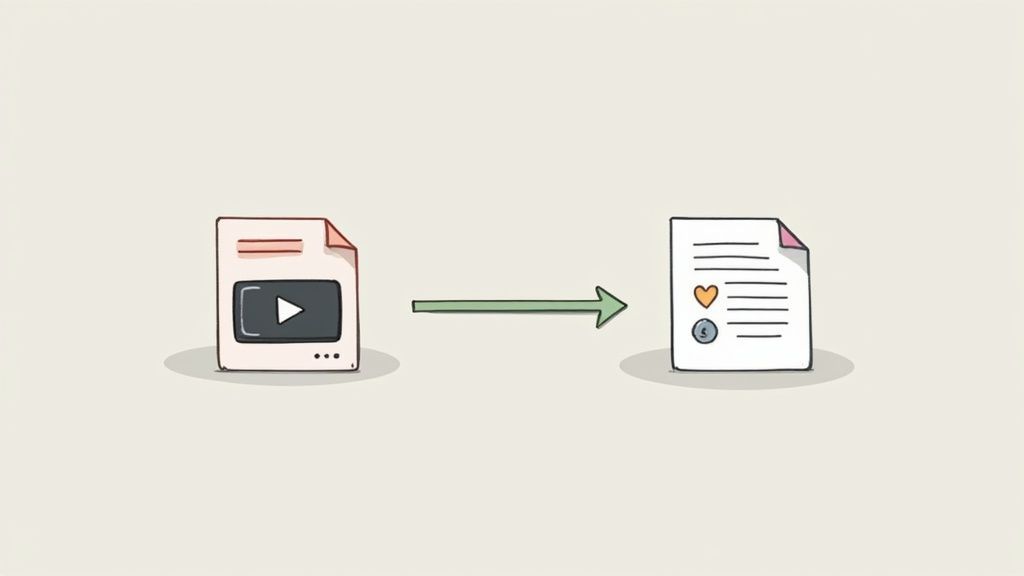
Pense em uma transcrição como o molho secreto que transforma seu vídeo em ouro de SEO. A acessibilidade é apenas o começo — é a chave que desbloqueia seu conteúdo para leitores e robôs de busca igualmente.
Ponto Chave: Converter vídeo em texto não apenas ajuda na acessibilidade; transforma insights falados em conteúdo pesquisável e indexável.
Aumente Sua Visibilidade nos Motores de Busca
Motores de busca como o Google não podem assistir ao seu último tutorial ou entrevista, mas se destacam na leitura de texto. Ao fornecer a eles uma transcrição detalhada, você está entregando um roteiro rico em palavras-chave que guia os rastreadores para cada dica e ponto de discussão.
Recursos Principais Que Tornam a Transcrição Fácil
IA de última geração
Alimentado pelo Whisper da OpenAI para precisão líder na indústria. Suporte para vocabulários personalizados, arquivos de até 10 horas e resultados ultra rápidos.

Importar de múltiplas fontes
Importe arquivos de áudio e vídeo de várias fontes, incluindo upload direto, Google Drive, Dropbox, URLs, Zoom e mais.

Exportar em múltiplos formatos
Exporte suas transcrições em múltiplos formatos incluindo TXT, DOCX, PDF, SRT e VTT com opções de formatação personalizáveis.
Faça um tutorial de 10 minutos sobre pintura de armários de cozinha DIY: a transcrição capturará todas aquelas frases de cauda longa que seu público usa. De repente, o tráfego orgânico começa a encontrá-lo em vez de concorrentes.
Se você quiser se aprofundar em como tornar o conteúdo de vídeo pesquisável, confira nosso guia sobre conversão de vídeo para texto.
Reutilize Conteúdo Facilmente
Assim que você tiver essa transcrição, você estará sentado em uma mina de ouro de ideias de conteúdo. Um único vídeo pode alimentar vários canais:
- Posts de Blog: Transforme o diálogo bruto em um artigo estruturado e otimizado para SEO.
- Atualizações Sociais: Extraia citações memoráveis ou estatísticas para plataformas como Twitter ou LinkedIn.
- Newsletters por E-mail: Crie resumos concisos para engajar sua lista de e-mail.
- Ímãs de Leads: Empacote insights chave em um guia PDF polido para capturar leads.
Essa abordagem pode estender um vídeo de 20 minutos para dias de posts sem começar do zero.
Você Sabia?
A transcrição por IA não economiza apenas tempo — ela turbina sua estratégia de conteúdo. Uma única transcrição pode ser reutilizada em artigos de SEO, posts sociais, campanhas de e-mail e até mesmo ímãs de leads. Trata-se de trabalhar de forma mais inteligente, não mais difícil.
Em uma escala maior, o mercado de IA de Texto para Vídeo foi avaliado em US$ 122,5 milhões em 2022, destacando o quão essencial a adaptação eficiente de conteúdo se tornou. Saiba mais sobre o crescimento da tecnologia de IA de texto para vídeo.
Começando com uma Ferramenta de Transcrição Gratuita
Começar com uma nova ferramenta não deve ser um problema. As melhores opções para converter vídeo em texto gratuitamente são aquelas que simplesmente saem do seu caminho. Sem exigências de cartão de crédito, sem longos formulários de inscrição — apenas um caminho claro para realizar seu trabalho.
Essa é exatamente a ideia por trás de ferramentas como o Transcript.LOL. Você acessa a página e há uma caixa de upload grande e amigável olhando para você. Sem distrações, sem obstáculos. Ela foi projetada para uma coisa: levar você de um arquivo de vídeo a uma transcrição final em minutos.
Todo o processo é refrescantemente simples. Você simplesmente arrasta seu arquivo de vídeo e o solta no navegador, ou clica para selecioná-lo do seu computador.
Preparando seu Vídeo para Upload
Antes de clicar em upload, um pequeno preparo pode fazer toda a diferença. Embora a maioria das ferramentas seja bastante flexível, saber o que funciona melhor é fundamental para obter uma transcrição limpa.
- Formatos Comuns: A maioria das ferramentas lida facilmente com formatos de vídeo padrão como MP4, MOV e AVI. Você não deve ter problemas com eles.
- Clareza do Áudio: Este é o ponto crucial. A qualidade da sua transcrição está diretamente ligada à clareza do seu áudio. Se puder, use um vídeo com ruído de fundo mínimo. Quanto mais limpo o áudio, melhor o resultado.
E se você estiver começando apenas com um arquivo de áudio, as mesmas regras se aplicam. Temos um guia completo sobre como transcrever áudio para texto gratuitamente se você quiser se aprofundar em arquivos apenas de áudio.
Esta é a primeira coisa que você verá. Toda a interface é construída para ação imediata.
Este design simples não é um acidente. É uma escolha deliberada para fornecer a maneira mais rápida de obter sua transcrição sem complicações.
O que Acontece Após o Upload
Assim que seu arquivo estiver dentro, a IA entra em ação. Ela começa a analisar a trilha de áudio dentro do seu vídeo, transformando todas aquelas palavras faladas em texto. Dependendo da duração do seu vídeo, isso geralmente leva apenas alguns momentos.
Dica Profissional: Para um vídeo de 10 minutos, uma boa ferramenta deve retornar um primeiro rascunho em menos de um minuto. Essa velocidade é crucial porque permite que você pule direto para a fase de edição, onde você polirá o texto e o tornará perfeito.
O que você recebe de volta é uma transcrição bruta, mas sólida, pronta para você limpar e usar.
Do Upload à Transcrição Utilizável: Um Guia Passo a Passo
Assim que seu vídeo estiver no sistema, a verdadeira mágica começa. A transcrição inicial gerada pela IA é o seu material bruto — um ponto de partida fantástico, mas raramente perfeito logo de cara. É aqui que o editor interativo se torna seu melhor amigo, ajudando você a preencher a lacuna entre um rascunho automatizado e um documento polido e profissional.
Você provavelmente notará que a IA faz um trabalho surpreendentemente bom com algumas das partes mais complicadas. Ela frequentemente identifica diferentes falantes e faz um bom trabalho ao pontuar o diálogo, mesmo com um pouco de ruído de fundo. Mas para os 10% finais de precisão, seu toque humano é o que faz toda a diferença.
Este gráfico oferece uma visão rápida de quão simples é todo o processo.
💡 Maneiras de Usar Sua Transcrição
Pronto para Blog
Transforme suas conversas faladas em posts de blog polidos. Uma transcrição fornece a estrutura, palavras-chave e fluxo de linguagem natural que tornam os artigos otimizados para SEO. Isso não apenas ajuda seu conteúdo a classificar no Google, mas também economiza horas de escrita manual e brainstorming.
Pequenas Porções Sociais
Sua transcrição está cheia de citações impactantes, estatísticas chave e trechos memoráveis. Você pode extrair isso diretamente para tweets, atualizações do LinkedIn ou legendas do Instagram. Com o mínimo de esforço, um vídeo alimenta semanas de conteúdo social envolvente, adaptado para cada plataforma.
Engajamento por E-mail
Condense discussões longas ou tutoriais em atualizações curtas e impactantes de newsletter. Uma transcrição facilita a identificação dos destaques que valem a pena compartilhar. Os assinantes recebem resultados claros e dicas práticas em sua caixa de entrada, o que aumenta a confiança e o engajamento repetido.
Legendas e Acessibilidade
As transcrições podem ser exportadas como arquivos SRT, transformando-as instantaneamente em legendas para seus vídeos. As legendas melhoram o tempo de exibição, alcançam espectadores que assistem sem som e garantem a acessibilidade para públicos com dificuldades auditivas. Este pequeno passo pode expandir muito o impacto do seu conteúdo.
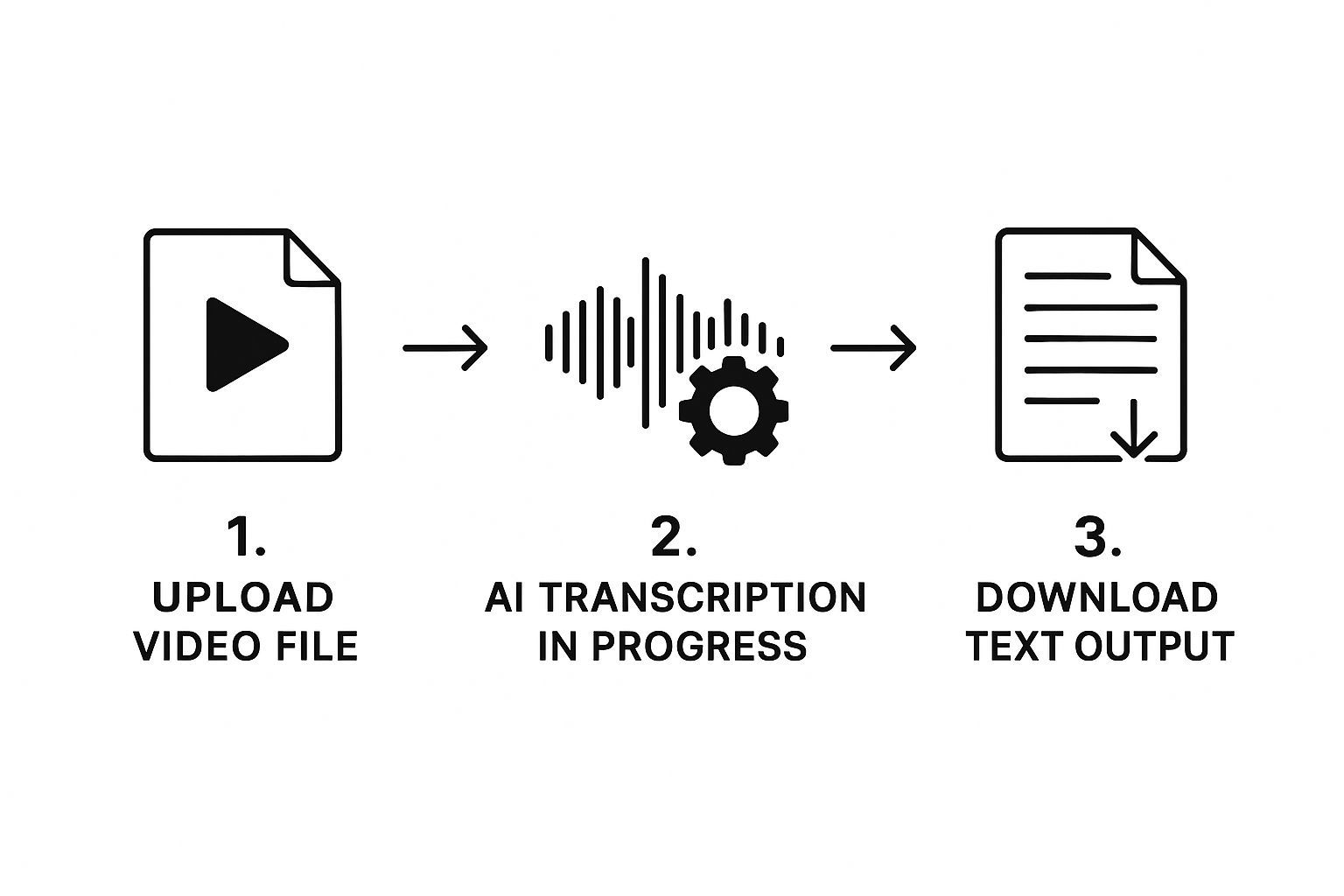
É realmente projetado para ser rápido: faça o upload da sua mídia, deixe a IA fazer o trabalho dela e, em seguida, baixe seu texto limpo.
Editando e Refinando Sua Transcrição
O coração do processo de edição é a reprodução sincronizada. Conforme seu vídeo é reproduzido, o texto correspondente é destacado em tempo real. Esse pequeno recurso economiza muito tempo, permitindo que você faça correções rápidas e precisas sem ter que ficar voltando e avançando na linha do tempo.
Por exemplo, digamos que a IA ouviu mal um termo técnico como "B2B SaaS" e escreveu "beat to be SAS". Você clica nessa palavra, digita a correção e o vídeo pausa automaticamente enquanto você se atualiza. É um fluxo contínuo que faz a edição parecer intuitiva, em vez de uma tarefa árdua.
Outra ferramenta muito útil é o gerenciamento de falantes. A IA geralmente começa rotulando os falantes com tags genéricas como "Falante 1" e "Falante 2". Com apenas uma edição, você pode renomear esses rótulos em todo o documento.
⚡ Recursos Avançados Que Economizam Seu Tempo

Detecção de falantes
Identifique automaticamente diferentes falantes nas suas gravações e rotule-os com seus nomes.

Ferramentas de edição
Edite transcrições com ferramentas poderosas incluindo buscar e substituir, atribuição de falantes, formatos de texto rico e destaque.
Resumos e Chatbot
Gere resumos e outros insights da sua transcrição, prompts personalizados reutilizáveis e chatbot para o seu conteúdo.
Minha Dica Pessoal: Antes de começar a corrigir palavras individuais, faça uma passagem rápida apenas para atribuir os nomes corretos dos locutores. É um pequeno passo que adiciona muito contexto e torna todo o resto da edição muito mais fácil de seguir, especialmente para entrevistas ou reuniões de equipe.
Finalmente, acertar os carimbos de data/hora é o que leva sua transcrição de boa para ótima, especialmente se você planeja criar legendas. Você pode simplesmente clicar e arrastar os carimbos de data/hora para alinhá-los com o momento exato em que alguém começa a falar. Esse nível de controle é o que garante um resultado profissional. A demanda por essas ferramentas está explodindo; de fato, o mercado de IA de Texto para Vídeo deve atingir US$ 1,18 bilhão até 2029. Você pode ler a pesquisa completa sobre o mercado de IA de texto para vídeo se estiver curioso.
Dicas Profissionais para uma Transcrição Polida
Uma transcrição gerada por IA economiza um tempo incrível, mas raramente é o produto final. Pense nisso como um primeiro rascunho sólido. Alguns ajustes manuais são o que separa um arquivo de texto bruto e robótico de um documento polido e profissional.
Mesmo a melhor IA pode tropeçar em nuances, então sua revisão final é onde a mágica acontece. Áudio complicado com falantes sobrepostos ou jargões específicos da indústria quase sempre precisa de um toque humano para ficar perfeito. Esta é a sua chance de adicionar essa camada final de clareza e precisão.
Limpando Áudio Complicado
Uma das dores de cabeça mais comuns é o crosstalk — quando várias pessoas falam ao mesmo tempo. A IA faz o seu melhor, mas pode mesclar as palavras delas ou atribuir uma fala à pessoa errada. Seu trabalho é ouvir atentamente e desvendar a conversa, garantindo que a contribuição de cada locutor seja cristalina.
Outra área que muitas vezes precisa de um rápido ajuste é a terminologia única. Se o seu vídeo discute tópicos de nicho — digamos, "quantitative easing" em finanças ou "photogrammetry" em modelagem 3D — a IA pode ouvi-los incorretamente. Uma correção simples garante que sua transcrição seja perfeitamente precisa para um público especializado.
Uma ótima transcrição não é apenas sobre o que foi dito; é sobre apresentá-lo de uma forma limpa, legível e fácil de entender. Sua edição final torna isso possível.
Se você estiver curioso sobre o que acontece nos bastidores, nosso post sobre entendendo a precisão do speech-to-text oferece um mergulho mais profundo nos fatores em jogo.
Comparação de Serviços de Transcrição Gratuitos vs. Pagos
Embora uma ferramenta gratuita como o Transcript.LOL seja poderosa para a maioria das necessidades do dia a dia, às vezes um projeto exige um nível de serviço mais alto. Aqui está um resumo rápido para ajudá-lo a decidir o que é certo para você.
| Recurso | Ferramentas Gratuitas (ex: Transcript.LOL) | Serviços Pagos |
|---|---|---|
| Precisão | Alta (85-95%), ótima para áudio claro | Muito alta (99%+), muitas vezes com revisão humana para áudio complexo ou de baixa qualidade |
| Tempo de Resposta | Quase instantâneo, em minutos | Pode levar horas ou dias, especialmente para transcrições verificadas por humanos |
| Custo | Gratuito ou de custo muito baixo | Preço por minuto ou por hora, pode se tornar caro para grandes volumes |
| Áudio Especializado | Pode ter dificuldades com sotaques pesados ou jargões | Frequentemente inclui especialistas para conteúdo jurídico, médico ou técnico |
| Identificação do Locutor | Rotulagem automática do locutor | Pode oferecer identificação de locutor mais precisa e verificada por humanos |
Para a maioria dos usuários — criadores de conteúdo, estudantes e profissionais que transcrevem reuniões — uma ferramenta gratuita oferece um excelente equilíbrio entre velocidade, precisão e custo. No entanto, se você está lidando com uma deposição legal ou uma entrevista de pesquisa crítica com áudio ruim, investir em um serviço pago com garantia de precisão de 99% pode valer a pena.
Formatação Inteligente para Legibilidade
Ninguém quer ler um bloco gigante de texto. O primeiro passo para criar um documento amigável é quebrar parágrafos longos e densos e usar a formatação para guiar o olhar do leitor.
Mudanças simples podem fazer uma grande diferença:
- Adicionar Títulos: Use H3s ou apenas linhas em negrito para sinalizar uma mudança de tópico.
- Usar Marcadores: Destaque os principais resultados ou itens de ação para que sejam fáceis de escanear.
- Enfatizar Citações: Destaque declarações impactantes ou insights chave de seus locutores.
Esses ajustes simples podem transformar esse texto bruto em um conteúdo estruturado e digerível que está pronto para ser compartilhado, reutilizado ou arquivado.
Você fez o trabalho árduo de polir sua transcrição. Agora é hora de colocá-la em uso.
Exportar seu texto é onde a mágica realmente acontece. Este é o momento em que seu arquivo de vídeo se transforma oficialmente em um ativo flexível que você pode usar para praticamente qualquer coisa. Mas o formato que você escolher faz toda a diferença.
É como escolher a ferramenta certa para um trabalho — você não usaria um martelo para girar um parafuso. Escolher o formato de exportação correto determina o quão facilmente você pode fatiar, cortar e reutilizar seu texto.
Escolhendo o Formato de Exportação Correto
O melhor formato realmente depende do que você planeja fazer a seguir. Aqui está um resumo rápido das opções mais comuns e minha opinião sobre quando usá-las.
- Texto Simples (.txt): Este é o seu cavalo de batalha. Um arquivo .txt simples lhe dá flexibilidade máxima para colar em um post de blog, redigir conteúdo para mídias sociais ou até mesmo alimentá-lo em outra ferramenta de IA para criar um resumo.
- Texto Rico (.docx): Pegue este formato quando precisar manter as coisas com aparência oficial. É perfeito para atas de reunião, arquivos de entrevista ou qualquer documento formal onde a apresentação e a formatação importam.
- Legenda SubRip (.srt): Este é o padrão da indústria para legendas de vídeo, ponto final. Um arquivo .srt empacota seu texto com carimbos de data/hora precisos, para que você possa carregá-lo diretamente em plataformas como YouTube ou Vimeo para adicionar legendas perfeitas.
Para qualquer pessoa que cria conteúdo, o arquivo .srt é um divisor de águas. Legendas precisas podem aumentar seriamente o tempo de exibição e abrir seus vídeos para um público muito mais amplo — incluindo todos que assistem com o som desligado.
Se você lida muito com conteúdo do YouTube, pode querer conferir nosso guia específico sobre como baixar uma transcrição de vídeo do YouTube para dicas mais detalhadas.
O impulso por mais conteúdo acessível é um grande motivo pelo qual a transcrição está em ascensão. O Mercado de Transcrição de Videoconferência sozinho foi avaliado em cerca de US$ 0,806 bilhão em 2024, o que mostra o quão massiva é a demanda. Você pode se aprofundar em mais insights sobre o mercado de transcrição de vídeo se estiver curioso.
Algumas Perguntas Comuns
Se você está apenas começando com ferramentas gratuitas de vídeo para texto, é totalmente normal ter algumas perguntas. Vamos percorrer algumas das mais comuns que ouço para que você possa começar com confiança.
Quão Precisas São Essas Ferramentas Gratuitas de IA, Realmente?
É a primeira coisa que todo mundo quer saber, e a resposta é: surpreendentemente precisas. Para um vídeo com áudio limpo, ferramentas modernas de transcrição de IA podem facilmente atingir 85-95% de precisão. Isso é mais do que suficiente para um ponto de partida sólido.
Cuidado com a Qualidade do Áudio
Ruído de fundo, falantes sobrepostos ou jargões específicos podem diminuir a precisão. Sempre tente gravar em um ambiente silencioso e use fontes de áudio claras para obter os melhores resultados.
Claro, coisas como sotaques carregados, pessoas falando umas sobre as outras ou jargões super técnicos podem confundir um pouco a IA. A melhor maneira de pensar nisso é que a IA faz o trabalho pesado, fornecendo um primeiro rascunho de alta qualidade que só precisa de um polimento rápido de sua parte.
Uma boa ferramenta gratuita cuidará de cerca de 90% do trabalho para você. Seu trabalho é apenas vir e cuidar desses últimos 10% de revisão para deixá-lo perfeito.
Qual é a Pegadinha? Existem Limites de Tamanho de Arquivo ou Duração?
A maioria dos serviços gratuitos tem algumas salvaguardas, mas geralmente são bem generosas para tarefas do dia a dia. Você normalmente verá limites como:
- Tamanho do Arquivo: Um limite em torno de 200-500 MB por vídeo é comum.
- Duração do Vídeo: Planos gratuitos geralmente acomodam vídeos de até 30-60 minutos de duração.
- Uploads Diários: Algumas plataformas podem limitar quantos arquivos você pode processar em uma janela de 24 horas.
Para transcrever coisas como entrevistas com clientes, reuniões de equipe ou um vídeo do YouTube para uma postagem de blog, esses limites são quase sempre mais do que suficientes.
Meus Dados São Mantidos em Privacidade e Segurança?
Este é um ponto importante, e com razão. Plataformas respeitáveis priorizam absolutamente a privacidade dos dados. Um serviço como o Transcript.LOL, por exemplo, tem uma política muito clara: seus arquivos carregados e as transcrições que eles geram nunca são usados para treinar seus modelos de IA.
Isso é crucial. Significa que seu conteúdo permanece seu e é processado apenas para criar sua transcrição. É sempre inteligente dar uma olhada na política de privacidade de uma ferramenta antes de carregar qualquer coisa sensível, mas serviços confiáveis tornam a proteção de seus dados uma prioridade máxima.
Pronto para transformar seus vídeos em texto que você realmente pode usar?
Atualização de Tendências de Mercado
A demanda por ferramentas de transcrição está disparando. Com o mercado de IA de texto para vídeo projetado para atingir mais de US$ 1 bilhão até 2029, os primeiros a adotar ferramentas de transcrição inteligentes estão ganhando uma séria vantagem competitiva.
Experimente o Transcript.LOL e veja como é fácil obter transcrições precisas e editáveis em minutos. https://transcript.lol