
Download YouTube Video Transcription The Easy Way
Learn how to download YouTube video transcription with native tools and advanced AI. Our guide makes it simple to get accurate text from any video.
Kate, Praveen
February 14, 2024
When you need to download a YouTube video transcription, you’ve got two main routes. The quick-and-dirty method is using YouTube’s built-in ‘Show transcript’ feature for a simple copy-paste job. For more horsepower—think accuracy and export options like .txt or .srt files—a dedicated AI-powered tool is the way to go.
While YouTube's native option is free and always there, I’ve found that third-party tools give you much cleaner formatting and save a ton of time.
Why Downloading Transcripts Is A Content Game Changer
 Before we get into the nuts and bolts, let’s talk about why this is such a big deal. A video transcript isn't just a block of text; it's the key to unlocking the hidden value in your video content. It turns spoken words into a powerhouse asset, yet so many creators and marketers completely sleep on it.
This becomes even more critical when you consider the sheer scale of content out there. With over 500 hours of video uploaded to YouTube every single minute, just getting noticed is tough. A transcript helps make your information accessible and discoverable in that ocean of content. If you want to dive deeper, you can find out more about the explosive growth of YouTube video content and what it means for creators.
Unlocking New Content Opportunities
I like to think of a transcript as the starting block for a content multiplication strategy. It instantly turns one video into a dozen other potential content pieces, saving you from hours of tedious manual work. This is where the magic really happens for busy creators and marketing teams.
Here are a few real-world examples I see all the time:
- Creating Blog Posts: That 20-minute video you poured your heart into can become a detailed, SEO-friendly blog post. Just polish up the text, add some headings, and you've got a brand-new asset ready to pull in search traffic.
- Mining for Social Media Gold: A marketer can quickly scan a competitor's webinar transcript to pull out killer quotes and stats. Those snippets are perfect for creating sharp, shareable graphics for Instagram, LinkedIn, or X.
- Boosting Research Efficiency: A student can download transcripts from several lectures for a research paper. Instead of scrubbing through hours of video, they can just use
Ctrl+Fto find specific terms and quotes in seconds.
By treating a transcript as a foundational document rather than an afterthought, you shift from being just a video creator to a multi-format content strategist.
Learning to download a YouTube transcription isn't just a technical trick. It's a strategic move. It makes your content more accessible, supercharges your SEO by letting search engines actually read your video’s content, and radically simplifies your repurposing workflow. It's all about working smarter, not harder.
Using YouTube's Built-In Transcription Feature
Before you jump to a third-party tool, it's worth knowing that YouTube has its own way to pull a transcript. It’s actually hiding in plain sight, just a few clicks away from the video player, and a lot of people miss it. This is the quickest, totally free way to download a YouTube video transcription without ever leaving the site.
First, pull up the video you need a transcript for. Look right below the video player in the description box and click the ...more button to expand all the text. From there, just scroll down a bit, and you should see a button that says Show transcript.
Clicking that opens up a new panel right next to the video, laying out the entire text with timestamps included. It's surprisingly simple.
Finding and Copying the Transcript
This is what you're looking for—the “Show transcript” button tucked away in the description.
Once you click it, the full transcript pops up. For a content creator or researcher, this is a fantastic starting point.
You'll probably notice the text is synced perfectly with the video, so you can click any line and jump right to that point. But what if you just want the clean text? Easy. Click the three little dots at the top of the transcript panel and hit Toggle timestamps. This strips out all the time markers, leaving you with just the dialogue. Now you can just highlight, copy, and paste it wherever you need.
But here’s the reality check: this built-in tool has some serious limitations.
- No Direct Download: You’re stuck with copy-pasting. There's no "export" or "download" button.
- Formatting Mess: When you paste the text, it often comes with strange line breaks and spacing that you’ll have to fix by hand.
- Hit-or-Miss Accuracy: The quality of YouTube’s auto-generated captions can be pretty shaky, especially if the audio isn't crystal clear or there are multiple people talking.
While it’s fine for a quick and dirty job, YouTube's native transcript feature just doesn't have the polish for professional work. It's a basic, no-frills option at best.
For any serious project where accuracy matters—like creating perfect subtitles or repurposing video content—you'll end up saving a ton of time and frustration with a more powerful tool. You can learn more about how to use transcripts for podcasts on YouTube and see exactly why a dedicated solution is a game-changer.
Upgrading to AI-Powered Transcription Tools
Let's be honest: YouTube's built-in transcript tool is handy in a pinch, but it's far from perfect. When you need something truly reliable and accurate, you'll quickly hit its limits. This is exactly where dedicated AI transcription tools come in. They completely change the game.
Instead of fighting with copy-pasting and manually fixing endless blocks of text, these tools offer a brilliantly simple workflow. You just drop in a YouTube link, and in a few seconds, you get a clean, polished transcript. It’s that easy.
I remember trying to transcribe a panel discussion using YouTube's native tool. It was a nightmare. All the speakers were lumped together into a single, confusing chunk of text. A good AI tool, on the other hand, can identify different speakers, add proper punctuation, and structure the text in a way that actually makes sense. It saves an incredible amount of editing time.
This is what that streamlined process looks like in practice.
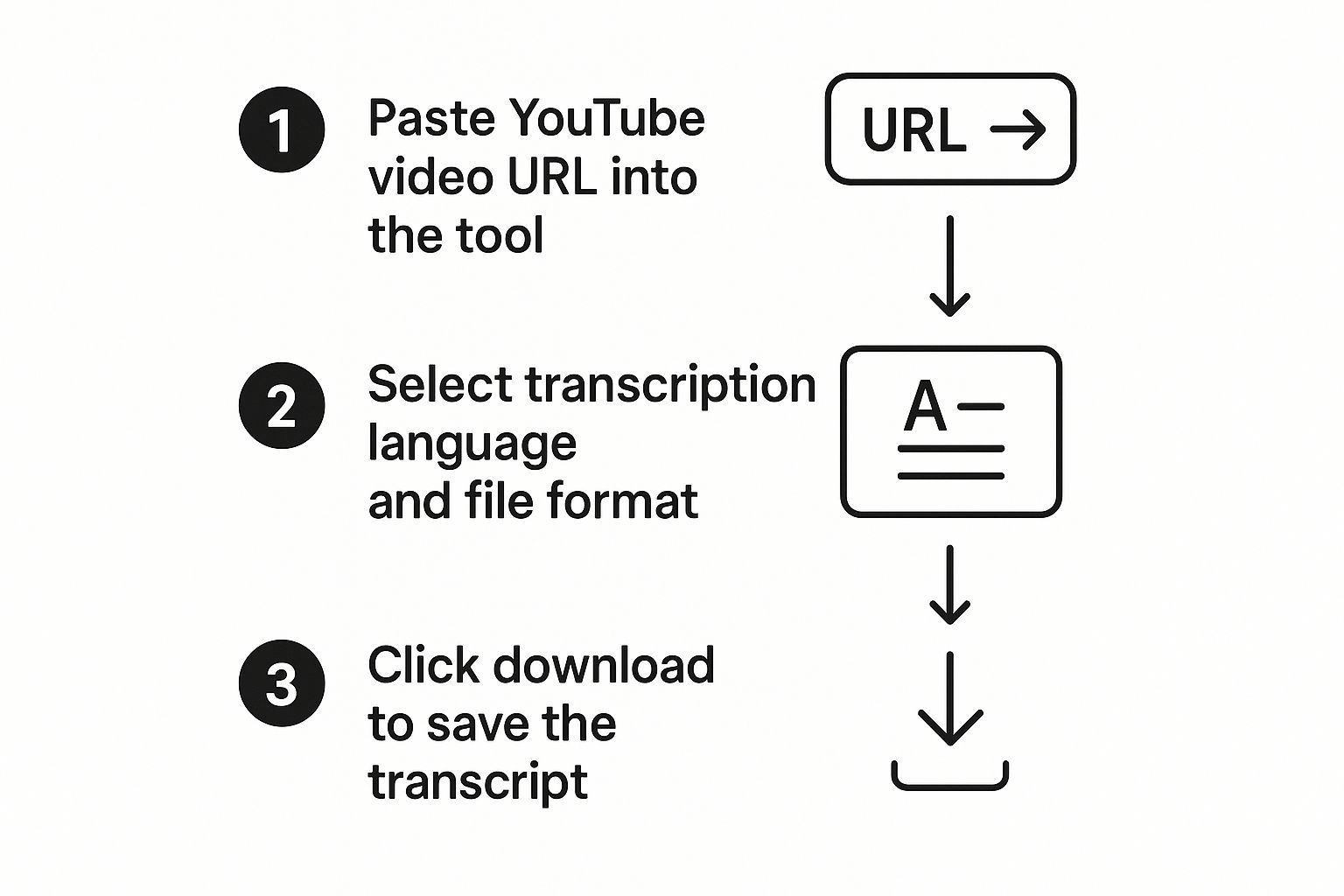
It boils the entire task down to its core: URL in, perfectly formatted transcript out. No fuss.
The Big Advantages of Using an AI Tool
The most obvious benefit is the massive leap in quality. Modern AI tools can hit 99% accuracy, which is a world away from the mistake-riddled text you often get from auto-generated captions. This level of precision is no accident; it’s the result of some seriously impressive tech.
But it's not just about getting the words right. The practical perks are what really make a difference in your day-to-day work:
- Smart Formatting: AI automatically adds punctuation, creates new paragraphs, and even labels who's speaking. The transcript is readable right out of the gate.
- Flexible Export Options: You’re not stuck with a single block of text. You can download the transcript as a .txt, .srt (for subtitles), or .docx file, ready for whatever you need it for.
- Massive Time Savings: The entire process takes just a few moments. It's a tiny fraction of the time you’d spend manually cleaning up YouTube's raw output.
YouTube Native Transcript vs AI Transcription Tool
To see the difference clearly, here’s a quick side-by-side comparison. It really highlights why making the switch to a dedicated tool is often a no-brainer for anyone who regularly works with video content.
| Feature | YouTube Native Transcript | AI Transcription Tool |
|---|---|---|
| Accuracy | Varies widely, often contains errors and no punctuation | Typically 99% accuracy with full punctuation |
| Speaker ID | No, all speakers are merged into one block | Yes, automatically detects and labels different speakers |
| Formatting | Minimal, requires significant manual cleanup | Clean, structured formatting with paragraphs and titles |
| Export Options | Copy and paste only | Multiple formats (.txt, .srt, .docx) |
| Workflow | Multi-step, manual process (find, show, copy, clean) | Simple URL paste, download in seconds |
| Time Investment | High, requires lots of post-processing and editing | Low, minimal to no editing required |
As you can see, while YouTube provides a basic function, AI tools deliver a professional-grade product designed for efficiency.
This shift toward smarter tools is happening everywhere. Gaining a better understanding the broader impact of AI in marketing can help put this into context. Using an AI tool to grab a transcript is a small but powerful example of how you can reclaim hours of your time—time you can spend on the creative work that actually matters.
Putting Your Downloaded Transcript to Work
So you've got the YouTube transcript downloaded. Now what? The real magic isn't just having the text; it's about turning that raw material into a goldmine of new content.
Think of the transcript as your starting block, not the finish line.
Got an hour-long interview? Pull out the best questions and answers for a punchy Q&A blog post. A product review video? The transcript gives you a ready-made list of features and benefits for your e-commerce site. It’s all about squeezing every last drop of value out of the content you already made.
Multiply Your Content Output
The whole point here is content multiplication. You take one video and spin it out into a dozen different pieces for different platforms and audiences. For any creator or marketer juggling a million tasks, this is a game-changer.
Here are a few ways to put this into action right away:
- Social Media Gold: Skim the transcript for those perfect, bite-sized quotes. Drop them onto a graphic for Instagram, X, or LinkedIn. Instant engagement.
- Newsletter Fodder: Grab the main takeaways from the video and use them to build out your next newsletter. Your subscribers get a quick, valuable summary without having to watch the whole thing.
- SEO Powerhouse: With a bit of editing and structure, that transcript becomes a full-blown, SEO-friendly article. This is how you get Google to notice your video's content and start sending you organic traffic. We’ve seen tons of great examples of effective content creation with transcription.
Your transcript is a content blueprint. It lays out every idea, story, and data point, making it incredibly easy to spot new angles and opportunities.
Fueling AI and Accessibility
This isn't just about manual repurposing, either. A clean transcript is the perfect fuel for AI writing assistants. Feed it to an AI to whip up a quick summary, brainstorm related topic ideas, or even draft social media updates in various tones.
Downloading transcripts is also a core part of many smart content repurposing strategies, letting you get way more mileage out of every video.
And it's not just about more content—it's about better content. Building trust on YouTube is everything. When you consider that 68% of users trust content from regular people on the platform, adding accessibility features like transcripts makes a real difference in keeping them around.
Solving Common Transcription Problems
Even the smoothest workflow for downloading a YouTube transcript can hit a wall.Let's be real, even the most straightforward workflow can hit a snag. The most common one I see is the dreaded "transcript not available" message.
Nine times out of ten, this happens for a simple reason: the creator either turned off auto-captions or never bothered to upload their own caption file. If that's the case, you're unfortunately stuck—there's no magic button to force YouTube to show something the creator has hidden.
Another classic headache is just plain messy formatting. You follow all the steps, copy the text from YouTube, and when you paste it... it’s a jumbled mess of weird line breaks and wonky spacing.
Cleaning Up Your Transcript
Here's a quick and dirty trick for fixing that formatting mess: paste the text into a plain text editor first. Think Notepad on Windows or TextEdit on a Mac. This little detour strips out all the invisible formatting code, giving you clean, unadulterated text to work with.
Now, if you're dealing with inaccurate auto-generated captions, a bit of manual editing is pretty much unavoidable.
My go-to method is to play the video at 1.5x speed while I read through the transcript. It’s fast enough to spot the obvious errors without getting bogged down in every single "um" and "ah." Just focus on fixing the big mistakes that change the meaning.
It's also worth remembering that some third-party tools can get around disabled transcripts entirely by processing the video's audio directly. This is a huge leg up when YouTube’s own tools just won’t cut it. If you find yourself needing more powerful options, exploring different approaches to seamless video transcription can be a massive time-saver.
Frequently Asked Questions
Even with a clear process, a few common questions always seem to surface when people start pulling transcripts from YouTube videos. Let's tackle them head-on so you can move forward without any lingering doubts.
One of the first things people ask is about the legal side of things. Is it actually okay to download a transcript from a video you didn't create?
For personal use, like research or private study, you're generally in the clear under fair use. Where you can run into trouble is republishing that text verbatim as your own work. That’s a fast track to copyright issues. A good rule of thumb: if you quote it, always credit the original creator.
Then there’s the language barrier.
Can I Get a Transcript in a Different Language?
Yes, you can. YouTube has a built-in auto-translate feature, but let’s be honest, the quality can be a real hit-or-miss.
For something you can actually rely on, a dedicated AI tool is the way to go. Most modern transcription services can produce highly accurate translations in dozens of languages, giving you a clean, readable transcript with just a couple of clicks.
Finally, what’s the big deal with timestamps?
Timestamps are your navigation system. They're the bridge connecting a specific line of text to the exact moment it was spoken in the video. This is an absolute game-changer for researchers who need to cite sources or video editors trying to hunt down a specific clip.
Got more questions? We’ve probably answered them over on the full Transcript.LOL FAQ page.
Ready to transform your video content into text with 99% accuracy? Try Transcript.LOL and get your first transcript in seconds. https://transcript.lol