
Convert MP3 to Text From Start to Finish
Discover how to convert MP3 to text with this actionable guide. Learn to prepare your audio, use AI tools, and edit transcripts for professional results.
Kate, Praveen
June 4, 2025
If you're making audio content, you’re sitting on a goldmine. The problem? It's all locked up. Every podcast episode, interview, and meeting is full of valuable information that's hard to find, share, or use again because it’s stuck in an audio file.
Converting your MP3s to text unlocks all that value. It turns spoken words into versatile, searchable assets you can use in countless new ways.
Features That Instantly Unlock MP3 Content
IA de última geração
Alimentado pelo Whisper da OpenAI para precisão líder na indústria. Suporte para vocabulários personalizados, arquivos de até 10 horas e resultados ultra rápidos.

Importar de múltiplas fontes
Importe arquivos de áudio e vídeo de várias fontes, incluindo upload direto, Google Drive, Dropbox, URLs, Zoom e mais.

Detecção de falantes
Identifique automaticamente diferentes falantes nas suas gravações e rotule-os com seus nomes.
Por Que Você Precisa Converter MP3 para Texto
Isso não é apenas sobre ter uma cópia escrita. É sobre tirar o máximo proveito do seu trabalho original com o mínimo de esforço extra.
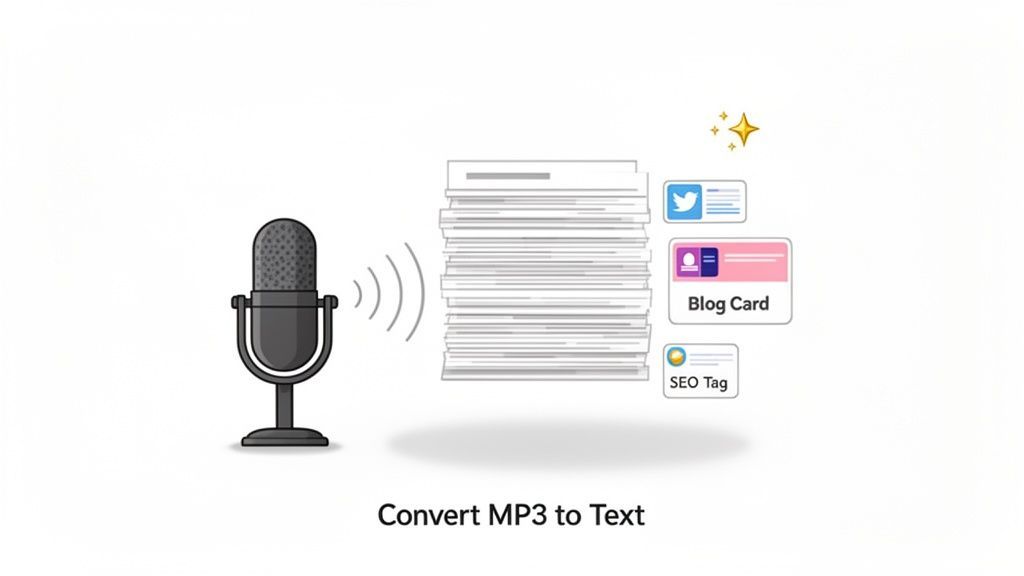
Desbloqueando Oportunidades de Reutilização de Conteúdo
Uma das maiores vantagens de converter MP3s para texto é a multiplicação de conteúdo. Um único podcast de uma hora pode ser transformado em muito material novo.
Imagine transformar uma conversa em tudo isso:
- Vários posts de blog que aprofundam os tópicos que você discutiu.
- Dezenas de trechos para redes sociais com citações impactantes e pontos-chave.
- Uma transcrição otimizada para SEO que ajuda o Google a encontrar e classificar seu conteúdo.
- Um boletim informativo por e-mail detalhado resumindo os melhores insights para seu público.
Você consegue alcançar mais pessoas em diferentes plataformas sem ter que apertar "gravar" novamente. É comum que criadores experientes reutilizem o conteúdo do seu podcast em dez ou mais peças separadas, estendendo dramaticamente seu alcance.
Why Text Transcripts Multiply Content Value?
Text-based content is easier to search, edit, repurpose, and distribute across platforms. A single transcript can power blogs, newsletters, SEO pages, and social media—maximizing reach with minimal effort.
Se quiser mais ideias, confira nosso artigo detalhado em https://transcript.lol/blog/content-repurposing-strategies.
Melhorando a Acessibilidade e a Colaboração
Além do marketing, as transcrições abrem seu conteúdo para um público muito mais amplo. Pense em pessoas com deficiência auditiva ou aquelas que simplesmente preferem ler. Também ajuda falantes não nativos que podem acompanhar o texto para captar melhor cada palavra.
Para equipes, é um enorme aumento de produtividade. Chega de percorrer uma longa gravação de reunião para encontrar aquela decisão específica. Basta pesquisar o texto.
Essa eficiência é o motivo pelo qual o mercado para essas ferramentas está explodindo. O mercado global de API de fala para texto — o motor por trás de serviços como o nosso — está projetado para atingir US$ 5,4 bilhões até 2026, um salto enorme em relação aos US$ 2,2 bilhões em 2021.
Aqui está uma rápida visão de como diferentes profissionais estão se beneficiando.
Principais Benefícios da Conversão de MP3 para Texto em Diversas Profissões
Esta tabela detalha as vantagens tangíveis para várias funções.
| Profissão | Benefício Principal | Aplicação de Exemplo |
|---|---|---|
| Podcaster/Criador de Conteúdo | Multiplicação de Conteúdo | Transformar uma entrevista de 1 hora em 5 posts de blog, 10 clipes de mídia social e uma transcrição completa otimizada para SEO. |
| Jornalista | Precisão e Velocidade | Gerar rapidamente uma transcrição literal de uma entrevista para extrair citações precisas para um artigo. |
| Pesquisador Acadêmico | Análise de Dados | Transcrever entrevistas qualitativas ou grupos focais para codificar e analisar facilmente temas no texto. |
| Gerente de Marketing | Insights do Cliente | Converter entrevistas com clientes e gravações de webinars em texto para identificar pontos problemáticos e mensagens de marketing. |
| Estudante | Estudo e Revisão | Gravar aulas e convertê-las em anotações pesquisáveis para revisar facilmente conceitos-chave antes de um exame. |
Como você pode ver, as aplicações são amplas e o valor é claro.
Who Benefits Most From MP3 to Text Conversion
🎙 Content Creators
Turn podcasts and interviews into blogs, captions, newsletters, and social snippets without re-recording.
🧑💼 Business Teams
Convert meeting recordings into searchable documentation, summaries, and action items.
🎓 Students & Educators
Transform lectures into readable study notes, revision material, and learning resources.
📰 Researchers & Journalists
Quickly extract quotes, insights, and themes from interviews and qualitative research.
If you're not converting your audio, you're leaving huge efficiency gains and creative opportunities on the table. Turning audio into actionable text is a cornerstone of modern content strategy.
Preparing Your Audio for Flawless Transcription
The quality of your final transcript is decided long before you ever click “upload.” It's a simple truth, but one that gets overlooked all the time.
Think of it this way: just like a chef needs fresh ingredients for a great meal, an AI transcription tool needs clean audio to work its magic. Spending just a few extra minutes on audio prep can be the difference between a near-perfect transcript and one that needs a ton of corrections.
It all boils down to one principle: the easier you make it for the AI to "hear" the words, the more precise the outcome will be when you convert mp3 to text.
Minimize Background Noise
Background noise is the number one enemy of accurate transcription.
Poor Audio Can Hurt Transcription Accuracy
Low-quality audio leads to misheard words, missing context, and increased editing time. Clean recordings dramatically improve transcription accuracy and reduce post-processing effort.
Uma IA não consegue distinguir facilmente a voz de um locutor de um ar condicionado a zumbir, de um cão a ladrar ou do trânsito lá fora.
Gravar num ambiente silencioso e controlado é a melhor coisa que pode fazer.
- Escolha o seu local com sabedoria. Uma sala pequena com mobiliário macio — carpetes, cortinas, sofás — é perfeita. Estes materiais absorvem o som e reduzem o eco. Evite salas grandes e vazias com superfícies duras e refletoras.
- Elimine as distrações. Isto significa desligar ventoinhas, ar condicionado e quaisquer notificações no seu telemóvel ou computador.
- Use um microfone decente. Não precisa de um equipamento de estúdio profissional. Mesmo um microfone de lapela barato preso à sua camisa produzirá resultados muito melhores do que o microfone incorporado do seu portátil. Ele capta a sua voz diretamente e isola-a do som ambiente da sala.
Se já gravou algo com ruído de fundo inevitável, vale a pena explorar estratégias para remover ruído de fundo do áudio antes de fazer o upload. Esse passo extra pode fazer uma enorme diferença.
Foco na Clareza do Locutor
A forma como as pessoas falam afeta diretamente a qualidade da transcrição. Não precisa de falar como um robô, mas uma dicção clara ajuda muito.
O maior desafio para qualquer IA é quando as pessoas falam umas sobre as outras. Embora as ferramentas modernas sejam muito boas a detetar diferentes locutores, a fala sobreposta é uma receita para texto confuso. Uma pausa breve e natural entre os locutores dá ao algoritmo um ponto de separação limpo.
Ponto chave: O seu objetivo é criar um ficheiro de áudio onde cada palavra seja distinta e desobstruída. Quanto menos adivinhações a IA tiver de fazer, menos correções terá de fazer.
Falar a um ritmo moderado e consistente também ajuda a IA a processar a linguagem de forma mais eficaz. Se procura mais orientação sobre os fundamentos, pode aprender mais sobre como transcrever áudio com algumas melhores práticas simples.
Finalmente, vamos falar sobre formatos de ficheiro. Embora o MP3 seja super conveniente, a qualidade importa. Um ficheiro com uma taxa de bits mais alta (como 320 kbps) contém muito mais dados de áudio do que um altamente comprimido (128 kbps). Mais dados significam quase sempre uma transcrição mais precisa. Se tiver a opção, escolha sempre a configuração de maior qualidade que o seu dispositivo de gravação oferece. É um pequeno detalhe técnico que compensa bastante.
Certo, depois de ter polido o seu ficheiro de áudio, está pronto para a verdadeira magia. Mergulhar numa ferramenta de transcrição de IA pode parecer um pouco técnico, mas plataformas modernas como o Transcript.LOL são construídas para serem incrivelmente fáceis de usar. Todo o processo é concebido para velocidade e simplicidade.
Primeiro, precisa de colocar o seu ficheiro MP3 no sistema. Esqueça os uploads FTP complicados ou restrições de ficheiros estranhas. A maioria das ferramentas modernas oferece algumas formas flexíveis de importar o seu áudio, para que possa escolher o que se adapta ao seu fluxo de trabalho.
- Upload Direto: Este é o que provavelmente usará mais. Basta arrastar o seu ficheiro MP3 do seu computador e soltá-lo diretamente na janela do navegador. Simples assim.
- Integração na Nuvem: Se trabalha com uma equipa ou armazena ficheiros grandes online, isto é uma salvação. Pode ligar a sua conta Google Drive ou Dropbox e importar ficheiros diretamente sem ter de os descarregar primeiro.
- Importação por URL: Tem um episódio de podcast ou uma palestra universitária hospedada online? Basta pegar no link direto, colá-lo e a ferramenta irá buscar o áudio para si. Não é necessário download.
Este fluxo de trabalho simples — gravar, limpar e fazer upload — é a base para obter uma transcrição de alta qualidade sempre.
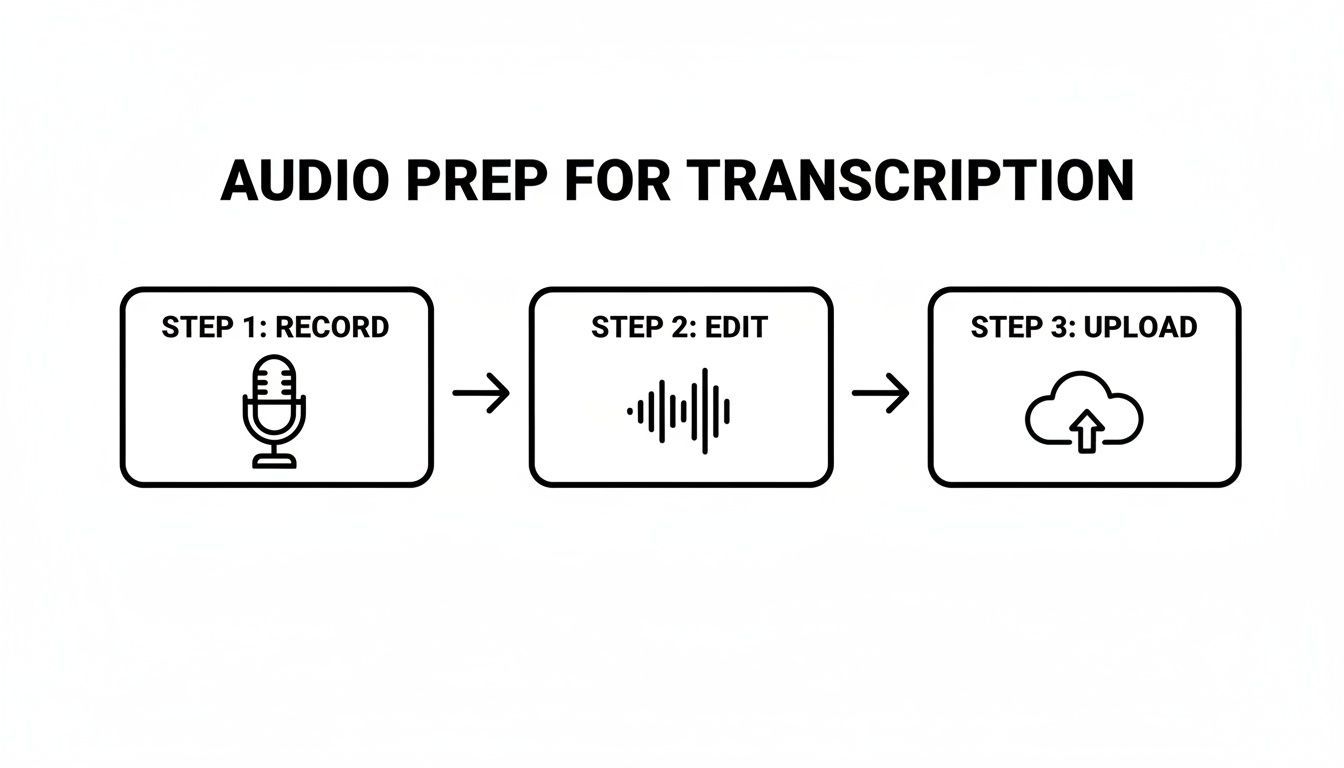
Ajustar as suas Configurações de Transcrição
Após o upload do seu MP3, verá algumas configurações importantes. As opções padrão são geralmente muito boas, mas passar um minuto aqui é o que transforma uma transcrição decente numa fantástica. Esta é a sua oportunidade de dar à IA algum contexto muito necessário, o que aumenta massivamente a precisão desde o início.
A sério, dedicar um momento para configurar estas opções irá poupar-lhe imenso tempo de edição mais tarde. O objetivo é que a IA fique o mais próxima possível da perfeição na primeira tentativa.
Dica Profissional: Mesmo que esteja com pressa, não salte a etapa de configuração. Apenas dizer à IA o idioma correto e ativar a deteção de locutor são duas das formas mais fáceis de melhorar drasticamente a transcrição bruta que recebe de volta.
Ajustes Finos para Precisão Pontual
Vamos analisar as configurações que realmente fazem a diferença.
Seleção de Idioma: Isto parece óbvio, mas é crucial. Se tiver locutores com sotaques diferentes — digamos, inglês britânico versus inglês americano — escolher o idioma principal correto ajuda a IA a usar os modelos fonéticos corretos. Muitas das melhores opções de software de transcrição de IA suportam dezenas de idiomas e dialetos específicos.
Deteção de Locutor (Diariazação): Para entrevistas, reuniões de equipa ou podcasts com várias pessoas, esta funcionalidade muda completamente o jogo. Em vez de uma parede de texto gigante e ilegível, a IA identifica automaticamente quem está a falar e rotula-os (por exemplo, "Locutor 1", "Locutor 2"). Isto torna a transcrição imediatamente escaneável e muito mais fácil de editar.
Vocabulário Personalizado: Esta é facilmente a funcionalidade mais poderosa para quem trabalha com conteúdo especializado. Se o seu áudio está cheio de jargão da indústria, nomes de produtos únicos, acrónimos ou nomes de empresas, pode adicioná-los a um dicionário personalizado. Por exemplo, se diz constantemente "QuantumLeap AI", adicioná-lo ao seu vocabulário garante que a ferramenta o transcreve perfeitamente todas as vezes, em vez de adivinhar "Quantum Leap A.I.". Essencialmente, está a treinar a IA na sua linguagem, o que pode levar a um enorme salto na precisão para tópicos de nicho.
Como Editar e Exportar a sua Transcrição como um Profissional
Uma transcrição gerada por IA é um ponto de partida fantástico, mas sejamos realistas — a magia acontece na edição. É aqui que polimos o texto, corrigimos quaisquer erros peculiares e o preparamos para o seu destino final, seja um post de blog, legendas de vídeo ou o seu arquivo de reuniões.
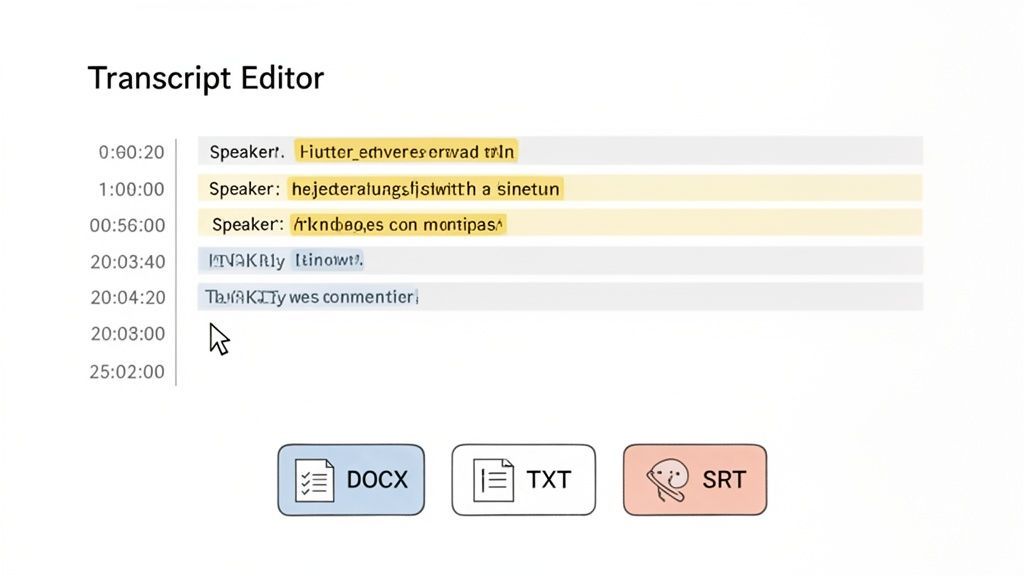
A maioria das ferramentas modernas, incluindo o Transcript.LOL, tem um editor interativo incorporado que sincroniza brilhantemente o seu texto com o áudio. Se clicar em qualquer palavra, ele reproduz instantaneamente essa parte exata do MP3. Torna a localização e correção de erros incrivelmente rápidas.
Features That Turn Transcripts Into Usable Assets

Ferramentas de edição
Edite transcrições com ferramentas poderosas incluindo buscar e substituir, atribuição de falantes, formatos de texto rico e destaque.

Exportar em múltiplos formatos
Exporte suas transcrições em múltiplos formatos incluindo TXT, DOCX, PDF, SRT e VTT com opções de formatação personalizáveis.
Resumos e Chatbot
Gere resumos e outros insights da sua transcrição, prompts personalizados reutilizáveis e chatbot para o seu conteúdo.
Refinando sua Transcrição para Clareza
Mesmo com 99% de precisão, você ainda vai querer dar uma passada rápida. A IA pode tropeçar em um nome único, se enrolar com jargões da indústria ou ouvir mal algo que foi murmurado. Esta é a sua chance de capturar essas pequenas imperfeições.
Este também é o momento perfeito para limpar os rótulos dos locutores. A IA provavelmente atribuirá tags genéricas como "Locutor 1" e "Locutor 2". Você pode facilmente renomeá-los para os nomes reais dos participantes, o que torna tudo muito mais fácil de ler.
Dica Profissional: Use os controles de velocidade de reprodução no editor. Ouvir de volta a 1,5x de velocidade é uma virada de jogo. Permite que você revise muito mais rápido, enquanto ainda capta facilmente quaisquer diferenças entre o áudio e o texto.
Ajustando Timestamps para Sincronização Perfeita
Uma das funcionalidades mais poderosas de um bom editor de transcrição é a capacidade de ajustar timestamps. Esses marcadores de tempo são absolutamente essenciais para criar legendas de vídeo precisas ou para identificar momentos específicos em uma gravação longa.
Se você notar que uma palavra ou frase está ligeiramente fora de sincronia, você pode simplesmente arrastar o timestamp para alinhá-lo perfeitamente com o áudio. Esse nível de controle é o que garante que suas legendas de vídeo finais sejam perfeitas em cada quadro.
Escolhendo o Formato de Exportação Correto
Assim que sua transcrição estiver polida e pronta, o último passo é exportá-la. O formato que você escolher realmente depende do que você planeja fazer com o texto. Esta é uma decisão crítica que impacta como você pode usar a saída após converter mp3 para texto.
Aqui estão os formatos mais comuns e para que eles são melhores:
- TXT (.txt): Este é apenas um arquivo de texto simples – sem formatação, sem frescuras. É perfeito quando você precisa apenas do texto bruto para copiar e colar em outro aplicativo ou para arquivamento simples.
- DOCX (.docx): Escolha este formato quando precisar de um documento pronto para Microsoft Word ou Google Docs. Ele mantém a formatação importante, como rótulos de locutores e parágrafos, tornando-o ideal para relatórios, artigos ou resumos de reuniões.
- SRT (.srt) & VTT (.vtt): Estes são arquivos de legenda especializados. Eles empacotam o texto com timestamps precisos de início e fim, projetados para serem carregados diretamente em plataformas como YouTube ou Vimeo para legendas ocultas. Se você quiser um mergulho profundo, nosso guia sobre como se tornar um criador de arquivos SRT tem o que você precisa.
A enorme demanda por conteúdo acessível é um grande impulsionador do mercado de fala para texto. De fato, apenas a América do Norte gerou US$ 1,3 bilhão em 2023, respondendo por mais de 37% da participação de mercado. Esse crescimento é impulsionado por todos, desde criadores de vídeo que usam exportações SRT/VTT até profissionais de direito que precisam de arquivos DOCX para registros oficiais, impulsionando o mercado global para um projetado US$ 8.569,4 milhões até 2030.
Usando Recursos de IA Além da Transcrição Básica
As ferramentas de hoje que convertem mp3 para texto são menos sobre transcrição e mais sobre se tornarem motores completos de criação de conteúdo. Obter um arquivo de texto simples é apenas o primeiro passo. A verdadeira mágica acontece quando você começa a usar os recursos avançados de IA que transformam essa parede de texto em um conjunto completo de ativos prontos para uso.
Transcription Tools Are Now Content Engines
Modern transcription platforms go far beyond text generation. They now power summaries, content creation, workflow automation, and team collaboration from a single audio file.
Imagine terminar uma entrevista de duas horas e, em vez de temer a transcrição, você recebe instantaneamente um resumo limpo e conciso com todos os pontos mais críticos. Isso não é mais ficção científica; é um recurso padrão em plataformas como Transcript.LOL. Essas ferramentas analisam toda a conversa e a reduzem a alguns parágrafos digeríveis, economizando horas de revisão tediosa.
Automatizando a Criação de Conteúdo e Fluxos de Trabalho
Além de resumos, esses recursos de IA agem como um assistente criativo. Você pode, por exemplo, gerar automaticamente uma lista de itens de ação de uma reunião de projeto, garantindo que nada importante seja esquecido. De repente, seu arquivo de áudio não é apenas um registro do que foi dito — é uma ferramenta proativa para sua equipe.
Pense nesses cenários do mundo real:
- Trechos para Mídias Sociais: Extraia as melhores citações ou grandes ideias de um podcast e deixe a IA redigir uma série de atualizações prontas para postar nas mídias sociais.
- Esboços de Posts de Blog: Gere um esboço completo e estruturado com base nos temas centrais discutidos em seu áudio, dando-lhe uma enorme vantagem em seu próximo artigo.
- Quizzes Educacionais: Para professores e treinadores, isso é um divisor de águas. Você pode transformar uma palestra de uma hora em um quiz de múltipla escolha em minutos, o que pode reduzir o tempo de preparação em até 75%.
É por isso que o mercado de reconhecimento de fala deve crescer a uma CAGR de 16,3% de 2023 a 2030 — os resultados são tangíveis. Os profissionais de marketing estão vendo aumentos de engajamento de cerca de 35% com vídeos legendados criados a partir de transcrições, enquanto os executivos recebem itens de ação instantâneos de suas reuniões. Você pode descobrir mais sobre o crescimento do reconhecimento de fala e como ele está abalando diferentes setores.
Integrando Transcrição em seu Ecossistema
O verdadeiro poder surge quando você conecta essas ferramentas aos outros aplicativos que usa todos os dias. Ao configurar integrações com plataformas como Zapier ou Slack, você pode criar fluxos de trabalho automatizados que rodam em segundo plano sem que você precise fazer nada.
Este é o salto de apenas transcrever arquivos para construir um pipeline de conteúdo inteligente e automatizado. Seu arquivo MP3 se torna o tiro de partida para uma série de ações produtivas.
Por exemplo, você poderia criar um fluxo de trabalho onde qualquer novo arquivo de áudio colocado em uma pasta específica do Dropbox é automaticamente enviado para o Transcript.LOL. Assim que a transcrição for concluída, o resumo gerado pela IA pode ser instantaneamente postado em um canal dedicado do Slack. Toda a sua equipe fica informada sem que ninguém precise levantar um dedo. Esse tipo de produtividade "hands-free" transforma uma tarefa manual repetitiva em um sistema automatizado e contínuo, maximizando verdadeiramente o valor que você obtém ao converter mp3 para texto.
Ainda tem dúvidas sobre MP3 para Texto?
Mesmo com uma ótima ferramenta, você certamente terá algumas perguntas sobre como converter mp3 para texto e obter os melhores resultados. Eu entendo. Vamos abordar algumas das coisas mais comuns que as pessoas perguntam, desde lidar com áudio confuso até garantir que seus arquivos privados permaneçam privados.
Que tipo de precisão posso esperar realisticamente?
Essa é a grande questão. Ferramentas modernas de transcrição de IA como Transcript.LOL podem atingir até 99% de precisão, mas isso é em condições perfeitas de laboratório. Pense em um podcast limpo, de um único locutor, gravado com um microfone de alta qualidade.
Para a gravação média — uma chamada Zoom, uma palestra, uma entrevista com um pouco de ruído de fundo — você ainda pode esperar com confiança uma precisão na casa dos 90 e poucos por cento.
Onde começa a falhar? Geralmente com coisas como:
- Sotaques fortes ou dialetos regionais nos quais a IA não foi extensivamente treinada.
- Interferência de fala, onde várias pessoas estão falando umas sobre as outras.
- Má qualidade de microfone, que introduz estática, eco ou um som distante e metálico.
A melhor maneira de pensar sobre isso é que a IA fornece um primeiro rascunho fantástico. Ela faz 95% do trabalho pesado. Alguns minutos de sua própria revisão sempre serão uma jogada inteligente para chegar a 100%.
Como lidar com áudio de baixa qualidade?
Ok, então o que acontece quando a gravação já foi feita e ela... não é ótima? Embora você não possa consertar magicamente uma gravação terrível, você não está sem sorte.
Se você tiver o conhecimento, executar o arquivo através de um software de edição de áudio primeiro para limpar o ruído de fundo pode fazer uma grande diferença.
Se essa não for uma opção, confie nos recursos dentro de sua ferramenta de transcrição. Por exemplo, configurar um vocabulário personalizado para ensinar à IA jargões específicos, nomes de empresas ou nomes de pessoas é uma ajuda enorme. Isso dá à IA pistas de contexto críticas, o que a ajuda a fazer melhores suposições, mesmo quando o áudio está turvo.
A lição mais importante é esta: mesmo áudio confuso pode produzir uma transcrição utilizável. Você pode gastar um pouco mais de tempo na edição, mas ainda assim economizará horas em comparação a digitar tudo à mão.
É seguro fazer upload de arquivos sensíveis ou confidenciais?
A segurança é uma preocupação totalmente válida, especialmente se você estiver transcrevendo reuniões de clientes, sessões de terapia ou entrevistas de pesquisa privadas. Plataformas respeitáveis levam isso muito a sério.
No Transcript.LOL, por exemplo, operamos com uma política de zero retenção para a maioria dos arquivos e uma política rigorosa de não treinamento. Essa é a nossa promessa a você. Isso significa que seu áudio é processado e imediatamente excluído. Seus dados nunca, jamais são usados para treinar nossos modelos de IA.
Ao pesquisar, sempre procure um serviço que seja cristalino sobre suas práticas de privacidade e segurança de dados. Seu conteúdo é só seu, e os melhores serviços fazem de sua missão mantê-lo assim.
Pronto para transformar seu áudio em texto preciso e acionável com uma ferramenta que prioriza sua privacidade? Experimente o Transcript.LOL e veja como pode ser fácil. Comece hoje mesmo em https://transcript.lol.