
How to Transcribe a Zoom Meeting Accurately
Learn how to transcribe a Zoom meeting with our guide. Discover expert tips and the best AI tools for fast, accurate, and actionable meeting transcripts.
Kate, Praveen
March 20, 2024
Let's be honest, in a world of back-to-back Zoom calls, trying to remember who said what and what was decided is a nightmare. This is where knowing how to transcribe a Zoom meeting becomes less of a "nice-to-have" and more of an essential skill. It’s about turning those fleeting conversations into a permanent, searchable record you can actually use.
This guide will walk you through the entire workflow, so you can create an actionable transcript from every single call.
Why Transcribing Zoom Meetings Is a Game Changer
Turning spoken words into text isn’t just for record-keeping. It's a strategic move to unlock all the valuable information trapped inside your video calls.
Think about it. When you create a searchable transcript, you’re giving your team the power to jump straight to key decisions, find exact quotes, and share critical insights without having to re-watch a whole hour-long recording. It’s a massive boost for both productivity and accessibility.
For teams spread across different time zones or for anyone who missed the live call, a transcript becomes the single source of truth. No details get lost, and everyone stays on the same page.
A Transcript = Productivity Boost
Teams with searchable transcripts save an average of 2–3 hours per week by skipping playback and jumping straight to key decisions.
Key Benefits of Transcription
- Improved Accessibility: Transcripts are a lifeline for team members with hearing impairments or for those who simply prefer to read instead of watch a video.
- Enhanced Searchability: Need to find a specific topic, action item, or data point? Just search for a keyword instead of aimlessly scrubbing through a video timeline.
- Better Content Repurposing: A single meeting transcript can be a goldmine. You can spin it into blog posts, social media updates, training guides, or internal wikis with minimal effort.
Smarter Transcription with Transcript.LOL
State-of-the-art AI
Powered by OpenAI's Whisper for industry-leading accuracy. Support for custom vocabularies, up to 10 hours long files, and ultra fast results.

Import from multiple sources
Import audio and video files from various sources including direct upload, Google Drive, Dropbox, URLs, Zoom, and more.

Export in multiple formats
Export your transcripts in multiple formats including TXT, DOCX, PDF, SRT, and VTT with customizable formatting options.
The demand for this is exploding. The market for AI meeting transcription tools is on track to hit $1.4 billion by 2026, which just shows how much teams are relying on virtual collaboration. You can dig into more stats on this trend over at Scribbl.co.
The real power of a transcript is turning a fleeting conversation into a permanent, searchable asset. It ensures that every idea shared has the potential for future impact, long after the call has ended.
And if you really want to level up, adding accurate timestamps makes your transcripts even more powerful. We've actually put together a detailed guide on the benefits of transcription with timecode that you might find useful.
Set Up Your Meeting for Flawless Audio Quality
The secret to a great transcript actually starts long before you ever hit "record."
Think of it this way: your transcription AI is only as good as the audio it's fed. Garbage in, garbage out. A clean, crisp audio file is the single biggest factor in getting a precise transcription back, saving you from hours of frustrating edits down the road.
First things first, let's talk about the recording environment. Encourage everyone on the call to find a quiet spot, away from the usual culprits—office chatter, street noise, or the family dog who decides it's time to say hello. Even those small, seemingly harmless sounds can trip up the AI and tank the quality of your transcript.

Optimize Your Audio Hardware and Settings
I can't stress this enough: a dedicated USB microphone or even a simple headset will always beat a laptop's built-in mic. Laptop mics are notorious for picking up every keyboard click and echo in the room, which turns your audio into a muddy mess.
Quick Audio Setup Tips
🎙 Use a USB Mic
Get crystal-clear sound and cut out background fuzz with a dedicated USB microphone. Even a budget option beats built-in laptop mics.
🔇 Record in a Quiet Space
Find a noise-free environment. Avoid chatter, street sounds, and echoes—these small distractions can ruin transcription accuracy.
🎚 Enable Zoom Audio Settings
Turn on “Original Sound” and “High Fidelity Mode” in Zoom to capture natural speech without over-processing.
👥 Record Separate Tracks
Enable Zoom’s “Record a separate audio file for each participant” option. This makes it far easier for AI to detect and label speakers.
Once you have your hardware sorted, it's time to dive into Zoom’s audio settings to really dial things in. Here are a couple of key options you'll want to enable:
- Original sound for musicians: This setting stops Zoom from being overly aggressive with its noise suppression, which can sometimes cut off the beginning or end of words. It's a must-have for clarity.
- High fidelity music mode: Turning this on boosts the audio quality, capturing a richer sound profile. This gives the transcription AI much more data to work with, leading to better results.
The gold standard for transcription accuracy is something called Word Error Rate (WER). A lower WER means a better transcript. Taking just a few minutes to get your audio right can dramatically improve this number.
Finally, here's the real game-changer: record separate audio tracks for each participant.
This option is available for both local and cloud recordings, and it creates an individual audio file for every single speaker. When an AI can process these separate tracks, it can distinguish between speakers with incredible accuracy. This one little tweak makes for a much cleaner, better-organized transcript. To learn more about this, check out our guide on what impacts speech-to-text accuracy.
Ultimately, high-quality audio is directly tied to transcription accuracy. Zoom's own transcription service, for example, has a Word Error Rate of just 7.40%. That's significantly better than competitors like Webex (10.16%) and Microsoft Teams (11.54%). You can see the full breakdown in the AI performance report on Zoom's website.
Generate Your Transcript in Minutes with AI
Alright, you've got your high-quality recording. Now for the fun part: letting AI do the heavy lifting. Gone are the days of manually typing out every word. Modern transcription tools have completely changed the game, turning what used to be hours of painstaking work into a task that’s done in just a few minutes.
Simply take your Zoom recording—either the video or just the audio file works—and upload it to a service like Transcript.LOL. With one click, the AI is off to the races. This is what that streamlined process looks like.
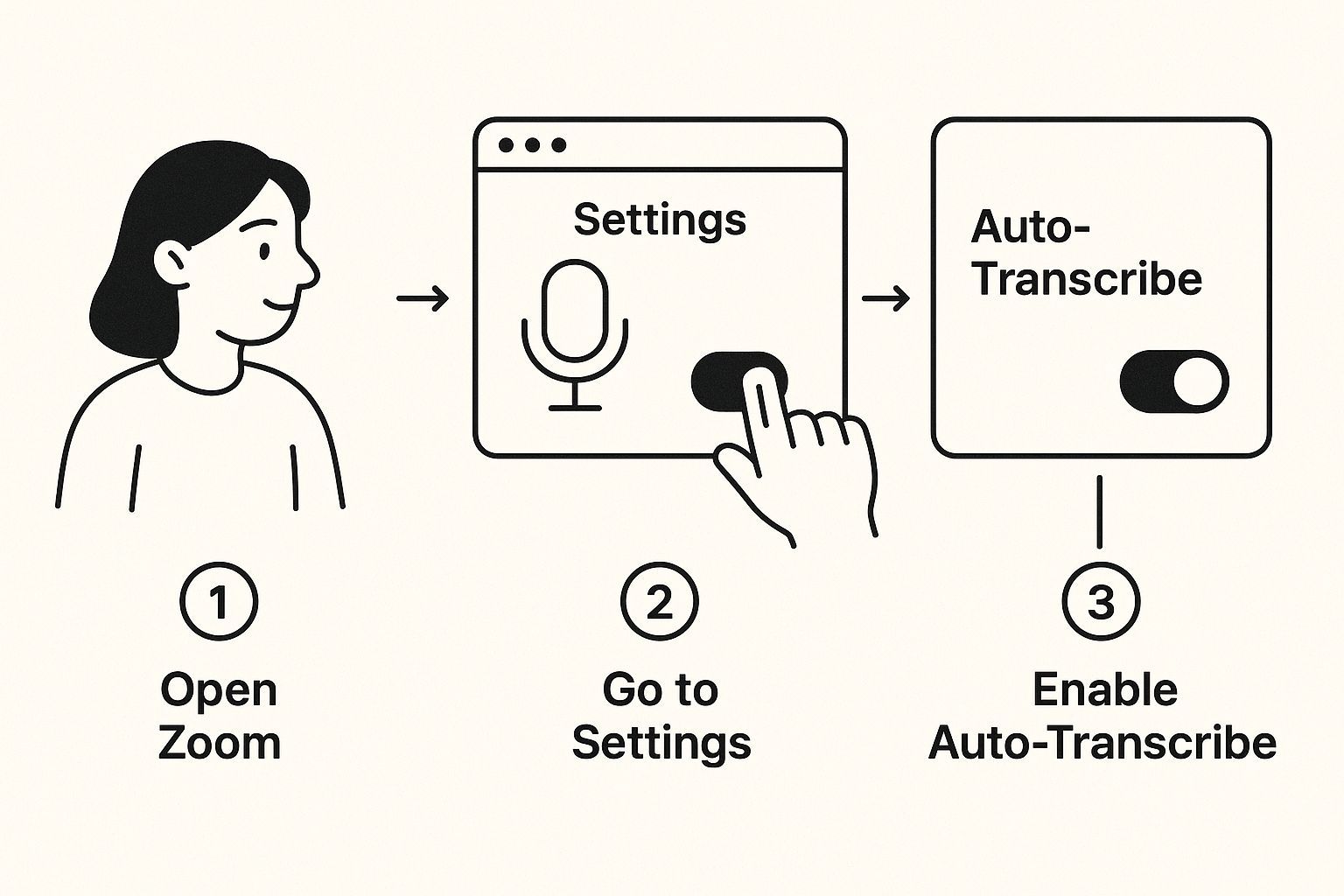
As you can see, the whole workflow is becoming much more integrated, allowing you to go straight from recording to a finished text document with minimal fuss.
Key Settings for an Accurate AI Transcript
Before you hit "transcribe," there are a couple of quick settings you’ll want to double-check. Getting these right from the start makes a huge difference in the accuracy of the final transcript and helps the AI do its best work.
- Specify the Meeting Language: Most tools are pretty good at auto-detecting the language, but I always recommend setting it manually. If you have speakers with different accents or who might sprinkle in non-English words, explicitly selecting the language (like English, Spanish, or German) prevents any confusion.
- Identify the Number of Speakers: This one is a biggie. Telling the AI how many people are in the conversation is crucial for correctly labeling who said what. It's the key to getting a readable transcript instead of a giant wall of text.
Advanced Features for Pro-Level Transcripts

Speaker detection
Automatically identify different speakers in your recordings and label them with their names.

Editing tools
Edit transcripts with powerful tools including find & replace, speaker assignment, rich text formats, and highlighting.
Summaries and Chatbot
Generate summaries & other insights from your transcript, reusable custom prompts and chatbot for your content.
Once you’ve locked in those details, the AI gets to work analyzing the audio, identifying the unique voice signatures of each person, and piecing it all together into a clean, time-stamped document. If you're looking for a service that really excels at this, Parakeet AI's transcription services offer some powerful features built specifically for meeting recordings.
The real magic happens when the AI can distinguish between multiple speakers. This is exactly why providing a clean recording is so impactful for the final result.
The speed of this process is honestly incredible. While Zoom's built-in transcription can sometimes take twice the length of the meeting to finish, a dedicated service will often have your full transcript ready in just a handful of minutes.
If you're curious about how different platforms stack up, we put together a comparison of the best meeting transcription software you can check out.
Refine Your Transcript for Professional Use
An AI-generated transcript gets you 90% of the way there, but that final 10% is where the magic happens. It’s the human touch that transforms a good draft into a polished, professional document ready for anything. The initial AI pass does the heavy lifting, but your final review is what guarantees accuracy, especially with tricky details.
Your first move should be a quick scan for the most common slip-ups. I always focus on two key areas first: speaker labels and proper nouns. AI can sometimes misattribute a sentence or get tripped up by unique names, company-specific acronyms, or niche jargon. For instance, the AI might hear "SaaS" but write "sass"—a tiny error that completely changes the meaning.
Streamline Your Editing Workflow
This is where a modern transcription platform really shines. Tools like Transcript.LOL include an interactive editor that syncs the text directly with the audio, which is a massive time-saver. If a sentence looks off, you just click on the word and instantly hear the original recording to check it.
It completely removes the guesswork from editing. Gone are the days of juggling a separate audio file and trying to match timestamps. Now you can make corrections in a fluid, intuitive way, directly in the transcript.
A clean, well-formatted transcript isn't just a record; it's a professional asset. Taking a few minutes to standardize punctuation and remove filler words like "um" or "uh" makes a huge difference in readability.
90% AI + 10% Human = 100% Accuracy
The fastest teams let AI handle the bulk of the work, then spend just minutes polishing speaker labels and formatting.
Once you’ve nailed down the accuracy, it's time to standardize the formatting. Make sure your punctuation and paragraph breaks are consistent to create a clean, easy-to-read document. This final polish is crucial if you plan on sharing the transcript with your team or using it as source material for other content.
For a deeper dive into creating truly actionable meeting records, check out our guide on taking minutes at meetings for more practical tips. This small bit of effort ensures your transcript isn't just accurate—it's genuinely useful.
Export and Share Your Final Transcript
Alright, you've polished your transcript and it looks great. Now it's time to put it to work. A perfect transcript is only useful if your team can actually get their hands on it, right where they need it.
The last step is simply choosing the best format and sharing it out.
Your export choice really boils down to one question: what's the end goal?
If you need to add closed captions to the video recording, you'll want an SRT or VTT file. These formats are specifically designed with timestamps to sync the text perfectly with your video, a huge win for accessibility. But if you just need meeting notes for a report or want to repurpose the content, a simple DOCX or TXT file will do the trick.
Seamlessly Integrate Transcripts into Your Workflow
Getting the transcript to your team should be frictionless. Instead of just shooting off an email with an attachment that gets lost, think about weaving it directly into your existing workflow.
I’ve seen teams have great success dropping transcripts into a dedicated Slack channel, attaching them to a task in Asana, or even embedding them on a Confluence page. That way, it becomes part of the project's permanent record.
The goal is to make your meeting's insights actionable for everyone, long after the call has ended. Making the transcript a living document within your existing workflow ensures it gets used, not forgotten.
This isn’t just a nice-to-have anymore; it's becoming a standard practice. The global transcription market is projected to skyrocket past $35 billion by 2032, and a huge part of that growth is driven by the adoption of AI in tools like Zoom.
Real-time transcription has made meetings more inclusive and efficient, creating instant records that are invaluable for teams spread across different time zones. You can dive deeper into the evolution of AI transcription tools on insight7.io. This trend really underlines how important it is to turn simple conversations into assets your whole team can use.
Choosing the Right Transcript Export Format
Picking the right file type can feel like a small detail, but it makes a big difference in how easily you can use the transcript later. Here’s a quick breakdown to help you decide.
| Format | Best For | Key Features |
|---|---|---|
| DOCX | Editing, sharing, and creating documents. | Fully editable, compatible with Microsoft Word & Google Docs. |
| TXT | Simple text, coding, or data analysis. | Universal compatibility, small file size, no formatting. |
| SRT | Adding closed captions to video platforms. | Includes sequential timestamps; widely supported. |
| VTT | Web-based video captions with styling options. | Supports text formatting (bold, italics) and more advanced cues. |
Ultimately, thinking ahead about how you'll use the transcript saves you from having to convert files later. For video, stick with SRT or VTT. For everything else, DOCX is usually your most flexible bet.
Common Questions About Transcribing Zoom Meetings
When you start turning your Zoom recordings into transcripts, a few questions are bound to pop up. It’s totally normal. Whether you're hitting a snag or just getting curious about what's possible, let's clear up some of the most common things people ask.
Quick Answers at a Glance
⚡ Transcript Speed
Just minutes with AI vs hours manually.
🌍 Languages
Beyond English—support for 30+ global languages.
🎧 Accuracy Fix
Use headsets + record separate tracks.
⏱ Live Transcription
Follow along in real-time.
How Long Will My Transcript Take?
This is probably the first question on everyone's mind. If you're using Zoom's native transcription, you might be waiting a while—sometimes up to twice the length of the meeting itself.
But if you use a dedicated AI service like Transcript.LOL, you can expect your full transcript back in just a few minutes. That speed makes a huge difference when you need to act on information quickly.
Does It Work for Other Languages?
Another big one, especially for global teams. Zoom’s built-in tool is pretty much English-only. Third-party platforms, however, are a different story. Many services can handle dozens of languages, from Spanish and French to German and beyond, which is a lifesaver for international meetings.
My Transcript Isn't Very Accurate. What Can I Do?
Struggling with a transcript full of errors? The problem almost always comes down to one thing: the quality of your audio. If your recordings are messy, your transcripts will be too.
To get a crystal-clear transcript, you need to nail the basics of your recording setup.
- Use a real microphone. Ask everyone to use a headset or a simple USB mic. Anything is better than the built-in laptop microphone.
- Find a quiet spot. Background noise—office chatter, sirens, or even just an echoey room—is the enemy of accurate transcription.
- Record separate audio tracks. This is a powerhouse feature in Zoom. It saves each person’s audio as a separate file, allowing the AI to process each speaker individually with much higher accuracy.
The old saying "garbage in, garbage out" is 100% true for transcription. The AI is smart, but it can't magically fix a muddled recording. A clean audio file is the single most important factor for getting an accurate transcript.
Can I Get a Transcript Live, During the Meeting?
Yep, absolutely. Both Zoom and other tools offer live transcription. This is a fantastic feature for accessibility, as it lets participants who are deaf or hard of hearing follow the conversation in real-time.
It's also great for anyone who might have missed what was said or wants to quickly review a point without derailing the conversation. It helps make the entire meeting more inclusive and focused for everyone involved.
Ready to turn your Zoom calls into accurate, searchable assets? Transcript.LOL uses powerful AI to generate precise transcripts in minutes, complete with speaker labels and multiple export options. Stop letting valuable insights disappear after the call ends. Try it for free today at https://transcript.lol and see how easy it is to get started.