
How to get transcript of youtube video: The Easy Way
Learn how to get transcript of youtube video using built-in tools, apps, and AI to boost SEO and repurpose content.
Kate, Praveen
March 12, 2025
Getting a transcript from a YouTube video is surprisingly easy. You can grab one using YouTube’s built-in "Show transcript" feature, download subtitle files with a third-party tool, or use an AI service for a much more accurate result. These methods turn spoken audio into searchable, editable text in just minutes.
Smart Features That Simplify YouTube Transcription
IA de última geração
Alimentado pelo Whisper da OpenAI para precisão líder na indústria. Suporte para vocabulários personalizados, arquivos de até 10 horas e resultados ultra rápidos.

Importar de múltiplas fontes
Importe arquivos de áudio e vídeo de várias fontes, incluindo upload direto, Google Drive, Dropbox, URLs, Zoom e mais.

Detecção de falantes
Identifique automaticamente diferentes falantes nas suas gravações e rotule-os com seus nomes.
Unlock Your Video's Hidden Potential with Transcripts
Before we get into the "how," let’s talk about the "why." A video transcript isn't just a wall of text; it's a powerful asset that can completely transform your content strategy.
Why Transcripts Matter More Than Ever?
Transcripts make video content searchable, accessible, and reusable. They help search engines understand spoken content and allow creators to repurpose videos into blogs, emails, and social posts effortlessly.
É a matéria-prima para inúmeras novas peças de conteúdo, fazendo com que seus vídeos existentes trabalhem muito mais para você.
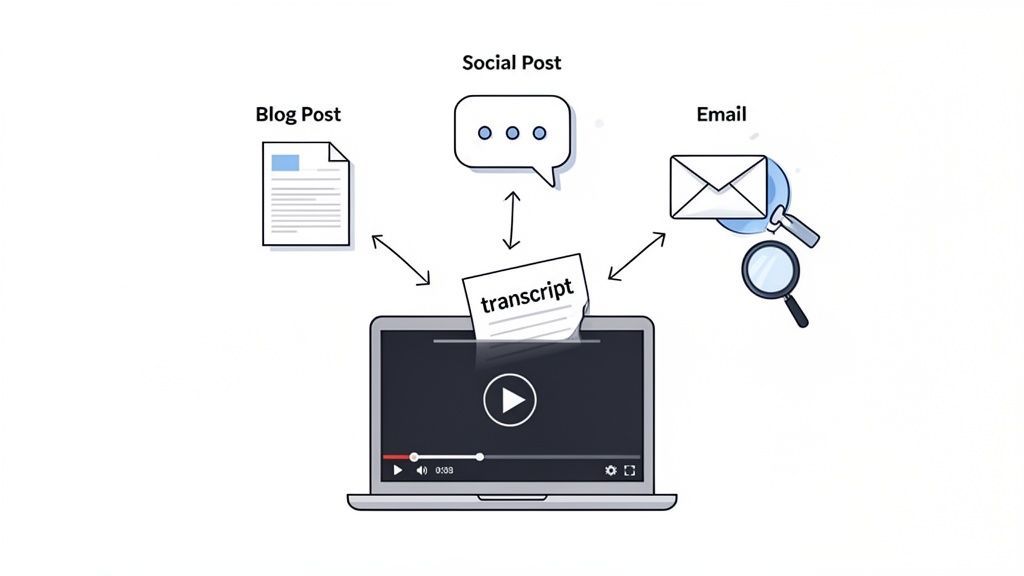
Esse processo desbloqueia alguns benefícios enormes que a maioria das pessoas ignora. Em primeiro lugar, as transcrições são uma mina de ouro de SEO. Os motores de busca não conseguem assistir seus vídeos, mas conseguem rastrear texto como ninguém. Transcrever seu vídeo torna cada palavra que você diz indexável, transformando seu diálogo em um tesouro de palavras-chave que podem impulsionar seu ranking. É também uma ótima maneira de melhorar o SEO do seu vídeo com legendas.
Além da visibilidade de busca, as transcrições são o multiplicador de conteúdo definitivo. Pense nisso: um único vídeo de 20 minutos pode ser transformado em vários ativos com muito pouco esforço.
- Posts de Blog: Sua transcrição é basicamente um rascunho para um artigo aprofundado.
- Conteúdo para Mídias Sociais: Extraia citações-chave, estatísticas poderosas ou dicas rápidas para posts no X, LinkedIn ou Instagram.
- Newsletters por E-mail: Resuma os principais aprendizados do vídeo e compartilhe-os com seus assinantes.
Essa abordagem economiza uma quantidade ridícula de tempo. Se você quiser se aprofundar, temos um guia completo sobre estratégias criativas de reutilização de conteúdo.
Uma transcrição não beneficia apenas você — ela melhora a experiência do espectador. Torna seu conteúdo mais acessível para pessoas surdas ou com deficiência auditiva e atende a espectadores que preferem ler ou precisam encontrar informações específicas rapidamente.
Com o consumo de vídeo em alta, tornar o conteúdo acessível não é mais um "agradável de ter". Em abril de 2023, um impressionante 91,8% de todos os usuários da internet assistem a vídeos online toda semana. Essa demanda, especialmente por conteúdo educacional acessível, torna ferramentas como transcrições essenciais.
Video Consumption Is Exploding
With video dominating online content, transcripts are becoming essential rather than optional. They support accessibility, SEO, and content reuse at a scale traditional formats can’t match.
Obtendo uma Transcrição Direto do YouTube
Acredite ou não, a maneira mais rápida de obter uma transcrição de um vídeo do YouTube geralmente está escondida à vista de todos. A maioria das pessoas nem sabe que está lá, mas o YouTube tem uma ferramenta integrada que permite obter o texto de um vídeo em segundos, totalmente grátis.
É a solução perfeita quando você precisa apenas de um rascunho rápido para suas anotações, quer encontrar uma citação específica ou apenas precisa folhear o conteúdo sem assistir ao vídeo inteiro.
Para encontrá-la, basta ir ao vídeo do YouTube que lhe interessa. Procure abaixo do player de vídeo, na caixa de descrição. Você verá um botão com três pontos (...) rotulado como "Mais". Clique nele e você encontrará uma opção para Mostrar transcrição.
Clicar nisso abre um novo painel, geralmente no lado direito do vídeo, com o texto completo e com marcação de tempo. A melhor parte? O texto rola e destaca automaticamente enquanto o vídeo é reproduzido, para que você possa acompanhar palavra por palavra.
Veja exatamente o que procurar em uma página típica de vídeo do YouTube. Como você pode ver, está escondido bem dentro da caixa de descrição depois de clicar em '...mais'.
Como Limpar e Copiar o Texto
Assim que o painel de transcrição estiver aberto, você terá uma opção útil para torná-lo mais útil. Na parte superior desse painel, clique nos três pontos verticais. Isso revelará uma opção para Alternar marcações de tempo.
Desativá-las remove todos os códigos de tempo (como 0:14, 0:17), deixando você com um bloco de texto limpo que é muito mais fácil de ler e colar em outro lugar.
A partir daí, é um simples trabalho de copiar e colar. Basta clicar e arrastar para destacar o texto, clicar com o botão direito do mouse e selecionar "Copiar". Agora você pode colá-lo diretamente no Google Docs, Microsoft Word ou qualquer aplicativo que esteja usando.
Este método é fantástico para velocidade, mas é uma abordagem básica. É gratuito e instantâneo, mas vem com algumas limitações sérias que você precisa saber antes de confiar nele para algo importante.
YouTube Transcripts Aren’t Fully Reliable
Auto-generated YouTube transcripts often lack punctuation, speaker labels, and accuracy—especially with accents, jargon, or overlapping speech. Relying on them for professional use can create errors and confusion.
O Contraponto: O Que Você Está Abrindo Mão
O maior problema aqui é a precisão. As legendas do YouTube são geradas automaticamente pela IA e estão longe de ser perfeitas. Elas realmente têm dificuldade com:
- Tópicos complexos ou jargões específicos da indústria.
- Várias pessoas falando ao mesmo tempo ou interrompendo umas às outras.
- Sotaques carregados ou simplesmente má qualidade de áudio.
- Pontuação, que geralmente é uma bagunça de vírgulas e pontos ausentes.
Além disso, a legenda não identifica quem está falando. Ela simplesmente agrupa todo o diálogo em um único bloco longo e contínuo. Isso torna um pesadelo acompanhar conversas em entrevistas, podcasts ou discussões em painel.
Resumindo: é ótimo para uma extração rápida, mas simplesmente não serve quando você precisa de uma legenda confiável e precisa.
Baixando Arquivos de Legenda para Uso Avançado
Copiar texto diretamente do YouTube serve para extrair uma citação rápida, mas quando você entra em trabalhos mais sérios, vai bater em uma parede rapidamente. Se você está criando legendas adequadas, sincronizando diálogos em softwares de edição de vídeo ou apenas precisa de um formato mais flexível, você vai querer um arquivo de legenda dedicado. É aí que entram formatos como SRT e VTT.
Estes não são seus arquivos de texto comuns. Eles são repletos de dados de carimbo de data/hora cruciais que dizem ao player de vídeo exatamente quando exibir cada linha de texto na tela. Isso é inegociável para criar legendas precisas ou inserir diálogos em uma linha do tempo no Adobe Premiere Pro ou DaVinci Resolve.
Escolhendo a Ferramenta Certa para o Trabalho
Então, como obtê-los? O YouTube não oferece um botão de download direto, então você terá que recorrer a uma ferramenta de terceiros. Felizmente, existem muitas ótimas opções por aí, desde simples conversores online até extensões de navegador úteis.
- Conversores Online: São sites onde você apenas cola um URL do YouTube. O site faz o trabalho e fornece um link para download da legenda, geralmente nos formatos SRT, VTT ou TXT simples.
- Extensões de Navegador: Esses pequenos add-ons colocam um botão de download diretamente na página do YouTube. Esta é minha opção pessoal favorita para eficiência — você pode baixar uma legenda com um clique sem sair do vídeo.
Este fluxograma oferece uma boa ideia de qual caminho seguir com base no que você está tentando realizar.
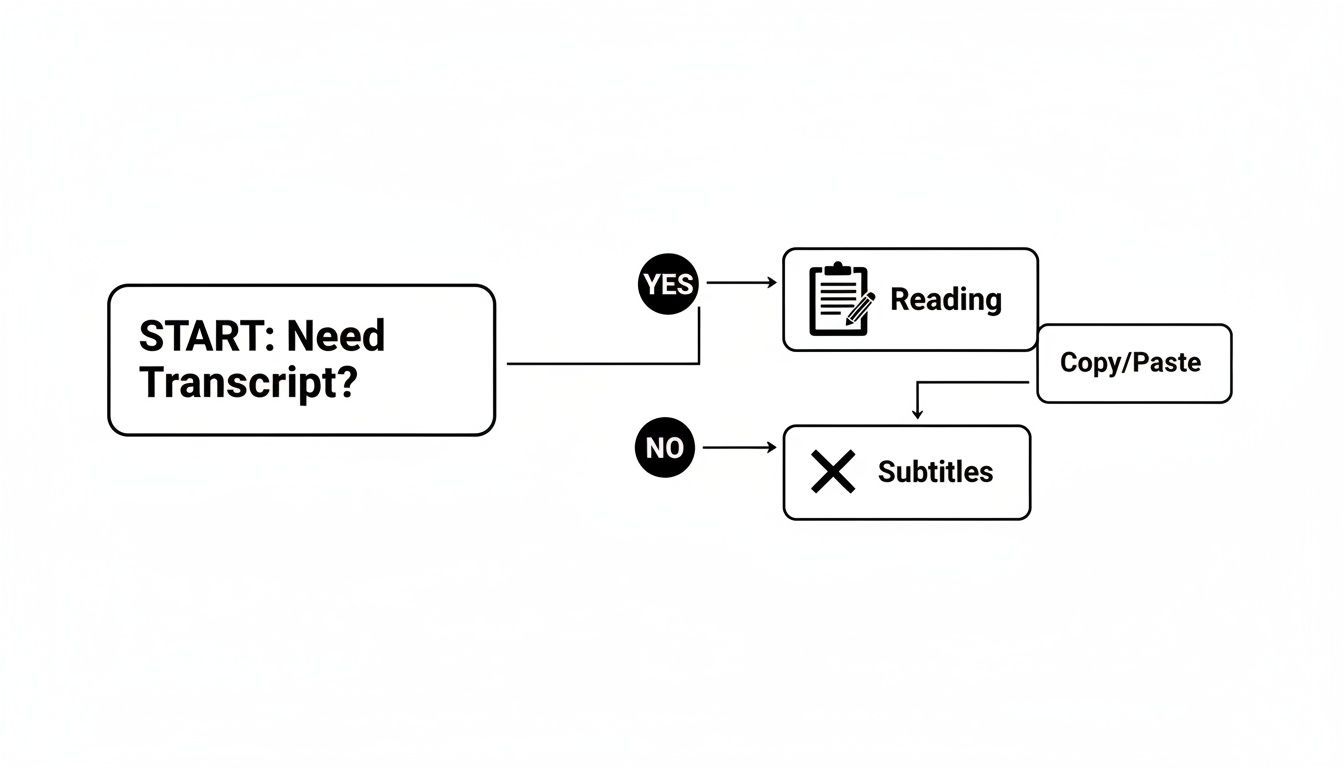
Em última análise, o que você planeja fazer com a legenda — seja para uma leitura rápida ou para um projeto de vídeo técnico — é o que dita a melhor ferramenta para o trabalho.
Comparando Métodos de Legenda do YouTube
Para ajudá-lo a decidir, aqui está um resumo rápido dos métodos comuns.
| Método | Melhor Para | Prós | Contras |
|---|---|---|---|
| Visualizador Nativo do YouTube | Ler ou copiar rapidamente pequenos trechos de texto. | Gratuito, integrado, sem ferramentas extras necessárias. | Sem carimbos de data/hora, formatação confusa, não é possível exportar um arquivo. |
| Conversores Online | Downloads únicos sem instalar software. | Suporta vários formatos (SRT, VTT, TXT). | Frequentemente têm anúncios, podem ter limites de tamanho/duração de arquivo. |
| Extensões de Navegador | Usuários frequentes que desejam um fluxo de trabalho contínuo. | Muito conveniente, integra-se diretamente ao YouTube. | Requer instalação, a qualidade varia entre as extensões. |
| Serviços de Transcrição de IA | Necessidades de alta precisão, rótulos de falante e exportações personalizadas. | Maior precisão, identifica falantes, recursos avançados. | Geralmente é um serviço pago, leve curva de aprendizado. |
Cada abordagem tem seu lugar. Conversores online são fantásticos se você precisa de uma legenda apenas ocasionalmente e não quer instalar nada. Mas se você está baixando legendas várias vezes ao dia, uma extensão de navegador é um divisor de águas. Ela simplesmente se integra ao seu fluxo de trabalho.
Por exemplo, um gerente de mídia social pode usar uma extensão para extrair rapidamente citações para clipes de vídeo. Um editor de vídeo profissional, por outro lado, pode usar uma ferramenta online dedicada que oferece opções de formato mais robustas para garantir a compatibilidade com sua suíte de edição. E se você está profundamente envolvido na criação de legendas, vale a pena entender como criar um arquivo SRT personalizado para obter controle total.
O objetivo real é encontrar um fluxo de trabalho que pareça rápido e sem atritos para você. Experimente algumas ferramentas online e uma ou duas extensões. Você rapidamente descobrirá qual delas atende às suas necessidades específicas e economiza mais tempo.
Quando as ferramentas integradas do YouTube simplesmente não servem, é hora de chamar os especialistas. Para profissionais, profissionais de marketing e pesquisadores, "bom o suficiente" muitas vezes significa tempo perdido e conteúdo impreciso. É exatamente aí que os serviços de transcrição baseados em IA se destacam, oferecendo um nível de precisão que muda completamente a forma como você trabalha com vídeo.
Ferramentas modernas de IA consistentemente superam as legendas automáticas do YouTube, atingindo frequentemente mais de 95% de precisão na primeira tentativa. Esses sistemas são treinados em enormes conjuntos de dados de áudio, portanto, não têm problemas para entender diferentes sotaques, jargões técnicos densos ou mesmo quando as pessoas falam umas sobre as outras — todos pontos fracos comuns para softwares básicos.
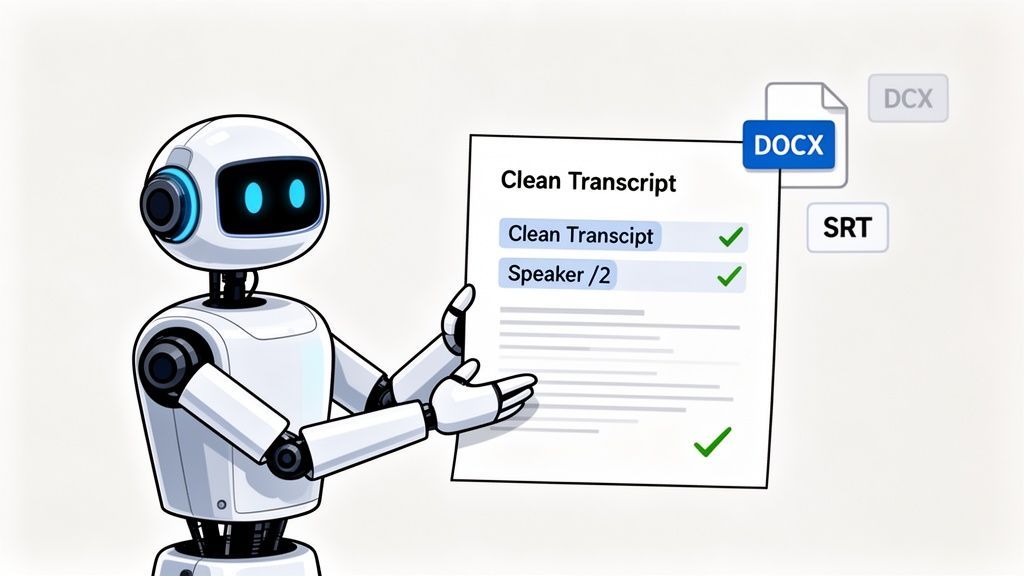
Todo o processo é projetado para ser ridiculamente simples: cole um link do YouTube e a IA faz todo o trabalho pesado. Você recebe uma legenda polida e altamente precisa em minutos, não em horas.
When Each YouTube Transcript Method Works Best
Built-In YouTube Transcript
Best for quick reading or finding a specific quote. Free and instant, but accuracy and formatting are limited.
Online Transcript Downloaders
Useful for occasional SRT or TXT downloads without installing software. Quality varies by tool.
Browser Extensions
Ideal for frequent users who want one-click transcript downloads directly from YouTube.
AI Transcription Services
Best choice for accuracy, speaker labels, exports, and professional content reuse at scale.
Uma Breve Visita Guiada com IA
Digamos que você seja um profissional de marketing de conteúdo e seu chefe acabou de pedir para transformar um webinar recente da empresa de uma hora em um post de blog detalhado. Tentar transcrevê-lo manualmente ou corrigir o texto confuso do YouTube consumiria toda a sua tarde.
Com um serviço como o Transcript.LOL, o fluxo de trabalho é totalmente diferente.
- Apenas cole o link. Copie o URL do YouTube e cole-o diretamente na plataforma. Sem downloads, sem conversão de arquivos, sem aborrecimentos.
- Deixe a IA trabalhar. O sistema entra em ação, processando o áudio. Em poucos minutos, você receberá uma notificação de que a transcrição completa está pronta.
- Revise e aprimore. O texto aparece em um editor interativo, já pontuado e dividido em parágrafos. O melhor de tudo é que ele identificou e rotulou automaticamente cada falante.
Essa última parte é uma enorme economia de tempo. Em vez de encarar uma parede massiva de texto, você verá "Falante 1", "Falante 2" e assim por diante, tornando incrivelmente fácil acompanhar a conversa.
A verdadeira vitória com a IA não é apenas a precisão; é sobre transformar uma tarefa tediosa em um ponto de partida criativo. A transcrição se torna o início do seu processo de conteúdo, não o fim de uma tarefa manual.
É Mais do que Apenas Texto
O verdadeiro poder dessas plataformas está no que acontece depois que você obtém a transcrição. Elas são repletas de recursos criados para profissionais.
Features That Turn Transcripts Into Finished Content

Ferramentas de edição
Edite transcrições com ferramentas poderosas incluindo buscar e substituir, atribuição de falantes, formatos de texto rico e destaque.

Exportar em múltiplos formatos
Exporte suas transcrições em múltiplos formatos incluindo TXT, DOCX, PDF, SRT e VTT com opções de formatação personalizáveis.
Resumos e Chatbot
Gere resumos e outros insights da sua transcrição, prompts personalizados reutilizáveis e chatbot para o seu conteúdo.
- Edição sem Esforço: Clique em qualquer palavra na transcrição e o áudio sincroniza instantaneamente com aquele momento exato. Fazer correções é rápido e muito simples.
- Múltiplos Formatos de Exportação: Precisa do texto para um post de blog? Baixe como DOCX. Precisa adicionar legendas de volta ao vídeo? Pegue o arquivo SRT. Precisa apenas de uma cópia simples? Exporte como TXT.
- Criação Instantânea de Conteúdo: Muitas ferramentas podem gerar resumos, extrair itens de ação chave ou até mesmo rascunhar posts de mídia social com base no que foi dito no vídeo.
Pense na imensa escala do YouTube — mais de 800 milhões de vídeos foram carregados até 2023. Uma transcrição de alta qualidade dá um enorme impulso de SEO ao seu conteúdo, ajudando você a se destacar em um espaço seriamente lotado. Para um mergulho mais profundo, o Descript tem ótimas informações sobre engajamento no YouTube.
Se você leva a sério a otimização do seu conteúdo de vídeo, uma ferramenta de IA especializada é uma escolha óbvia. Para ver como as melhores opções se comparam, confira nosso guia sobre o melhor software de transcrição de IA. É um pequeno investimento que se paga quase imediatamente em tempo economizado e novas possibilidades de conteúdo.
Automatizando Seu Fluxo de Trabalho de Transcrição
Transcrever vídeos manualmente, mesmo com a ajuda de IA, ainda adiciona uma etapa extra ao seu processo de conteúdo. Para criadores e empresas que produzem conteúdo em escala, cada clique e ação de copiar e colar realmente começa a somar. É aqui que você pode colocar seu processo de transcrição em piloto automático, criando um sistema que funciona para você em segundo plano.
Claro, um desenvolvedor poderia usar a API de Dados do YouTube para criar scripts personalizados que buscam detalhes de vídeo e acionam trabalhos de transcrição, mas essa abordagem não é prática para a maioria de nós. Uma solução muito mais acessível está ao seu alcance com plataformas de automação sem código como Zapier ou Make.
Essas ferramentas atuam como uma ponte entre seus aplicativos favoritos, permitindo que você crie fluxos de trabalho incrivelmente poderosos sem ter que escrever uma única linha de código.
Uma Receita Prática de Automação
Imagine um sistema onde uma nova transcrição de vídeo aparece magicamente em seu armazenamento em nuvem momentos após você carregá-la no YouTube, com zero esforço manual. Isso é totalmente possível e surpreendentemente fácil de configurar.
Aqui está um fluxo de trabalho popular que conecta YouTube, um serviço de transcrição de IA e o Google Drive:
- O Gatilho: Tudo começa com uma ação simples. Você pode configurar uma automação para monitorar uma playlist específica do YouTube. Quando um novo vídeo é adicionado a essa playlist, todo o fluxo de trabalho é iniciado automaticamente.
- A Ação: A ferramenta de automação (como o Zapier) então captura o URL do novo vídeo e o envia diretamente para o seu serviço de transcrição de IA, como o Transcript.LOL. Isso cria um novo trabalho de transcrição sem que você precise visitar o site.
- O Resultado: Assim que a transcrição for concluída, outra ação é acionada. O arquivo de texto finalizado é carregado automaticamente em uma pasta designada no seu Google Drive, Dropbox ou qualquer outro armazenamento em nuvem que você use.
Ao conectar esses serviços, você constrói uma máquina de conteúdo "hands-off". Seu único trabalho é carregar o vídeo; o sistema cuida do resto, da transcrição à organização do documento final para sua equipe.
Esse tipo de configuração é um exemplo perfeito de automação eficaz de processos de negócios. Se você está procurando mais maneiras de economizar tempo, temos um artigo explorando vários exemplos de automação de processos de negócios que você pode aplicar às suas próprias operações.
Por Que a Automação Muda o Jogo
Configurar esse tipo de fluxo de trabalho pode levar 15 minutos hoje, mas pode economizar horas todas as semanas. Não se trata apenas do ato de transcrever; trata-se de preparar sistematicamente seu conteúdo de vídeo para reutilização no momento em que ele vai ao ar.
Para uma perspectiva mais ampla sobre o uso da tecnologia para otimizar tarefas repetitivas, explore este guia prático de automação de treinamento corporativo. Este sistema garante que seu motor de conteúdo esteja sempre funcionando, transformando cada vídeo em um valioso ativo de texto pronto para posts de blog, mídias sociais e otimização de SEO.
Perguntas Comuns Sobre Transcrições do YouTube
Ao começar a extrair transcrições de vídeos do YouTube, você inevitavelmente se deparará com algumas perguntas comuns. É uma coisa obter o texto, mas usá-lo corretamente — legal e eficazmente — é outra história. Vamos abordar algumas das coisas sobre as quais as pessoas mais se perguntam.
É Legal Transcrever o Vídeo de Outra Pessoa?
Essa é uma grande questão, e a resposta curta é: depende inteiramente do que você planeja fazer com ela.
Se você está transcrevendo um vídeo para seu próprio uso pessoal — digamos, para estudo particular, pesquisa ou para fazer algumas anotações — você geralmente está livre sob o conceito de uso justo. Você não está distribuindo ou apresentando como seu próprio trabalho.
Mas no momento em que você quiser usar essa transcrição publicamente ou para fins comerciais, as regras mudam. Quer republicar o texto em seu blog? Usar trechos em uma campanha de marketing? Você absolutamente precisa obter permissão da pessoa que criou o vídeo. Se não o fizer, você está entrando em território de violação de direitos autorais.
Aqui está a regra mais simples para viver: sempre cite a fonte. E se seus planos forem além de anotações pessoais, entrar em contato com o criador para obter permissão não é apenas educado — é a única maneira de permanecer do lado certo da lei.
Como Posso Melhorar a Precisão da Transcrição?
Vamos ser realistas por um segundo: as transcrições geradas automaticamente pelo YouTube podem ser uma bagunça. Elas são boas para uma pesquisa rápida de palavras-chave, mas para algo mais sério, você precisará limpá-las.
De longe, a maneira mais eficaz de obter uma transcrição limpa é usar um serviço de transcrição de IA dedicado. Essas ferramentas são construídas para um único propósito e consistentemente entregam mais de 95% de precisão. Elas são treinadas em enormes conjuntos de dados, o que significa que podem lidar com diferentes sotaques, jargões técnicos e falantes sobrepostos muito melhor do que o recurso integrado do YouTube.
Ficando com a transcrição gratuita do YouTube? Sua única opção real é uma edição manual. É um processo direto, embora um pouco tedioso:
- Abra o vídeo em um lado da tela.
- Cole a transcrição em um editor de texto no outro lado.
- Ouça atentamente, corrigindo palavras mal ouvidas, consertando pontuação e adicionando quebras de parágrafo conforme avança.
Para criadores, a melhor dica é proativa: grave áudio claro e de alta qualidade desde o início. Uma gravação limpa é o fator mais importante para obter uma boa transcrição automática.
Posso Obter uma Transcrição em Outro Idioma?
Sim, e você tem algumas maneiras de fazer isso. Muitas plataformas modernas de transcrição de IA, como a nossa, oferecem transcrição e tradução. Você pode simplesmente inserir um URL do YouTube e dizer à ferramenta que precisa que a transcrição seja traduzida do inglês para o espanhol, por exemplo.
O YouTube também tem um recurso de tradução automática integrado em suas legendas, que você pode encontrar nas configurações do player de vídeo (o pequeno ícone de engrenagem). É um recurso útil para uma olhada rápida, mas cuidado: a qualidade das traduções automáticas do YouTube pode ser extremamente inconsistente. Para qualquer uso profissional ou voltado para o público, um serviço especializado lhe dará uma tradução muito mais precisa e com som natural.
Qual é a Diferença Entre Transcrições e Legendas?
As pessoas frequentemente usam "transcrição" e "legendas" de forma intercambiável, mas são duas coisas diferentes. A principal distinção se resume à marcação de tempo.
- Uma transcrição é apenas um bloco de texto simples contendo todas as palavras faladas. Pense nisso como o roteiro do vídeo. É perfeito para ler, pesquisar ou transformar em outro conteúdo, como um post de blog.
- Legendas, que vêm em formatos como SRT ou VTT, são diferentes. Cada linha de texto é sincronizada com um carimbo de data/hora específico no vídeo. Isso é o que permite que as palavras apareçam na tela no momento exato em que são faladas.
Basicamente, legendas são para acessibilidade na tela enquanto assiste ao vídeo. Transcrições são para leitura offline, análise e criação de conteúdo.
Pronto para pular a limpeza manual e obter transcrições perfeitas sempre? Transcript.LOL usa IA avançada para entregar transcrições altamente precisas e com rótulos de falante de qualquer vídeo do YouTube em minutos. Cole um link e deixe-nos cuidar do resto. Comece gratuitamente em Transcript.LOL.