
How to Download YouTube Video Transcripts A Complete Guide
Learn how to download YouTube video transcripts with our complete guide. We cover the built-in YouTube method and third-party tools for instant access.
Kate, Praveen
October 9, 2024
Conseguir uma transcrição do YouTube não é apenas pegar um arquivo de texto. É desbloquear um atalho massivo para reaproveitar conteúdo, tornar seus vídeos mais acessíveis e aprofundar o que está sendo dito. Você está essencialmente transformando conteúdo de vídeo passivo em um ativo flexível que você pode editar, compartilhar e construir.
Por que as Transcrições do YouTube São uma Mina de Ouro de Conteúdo
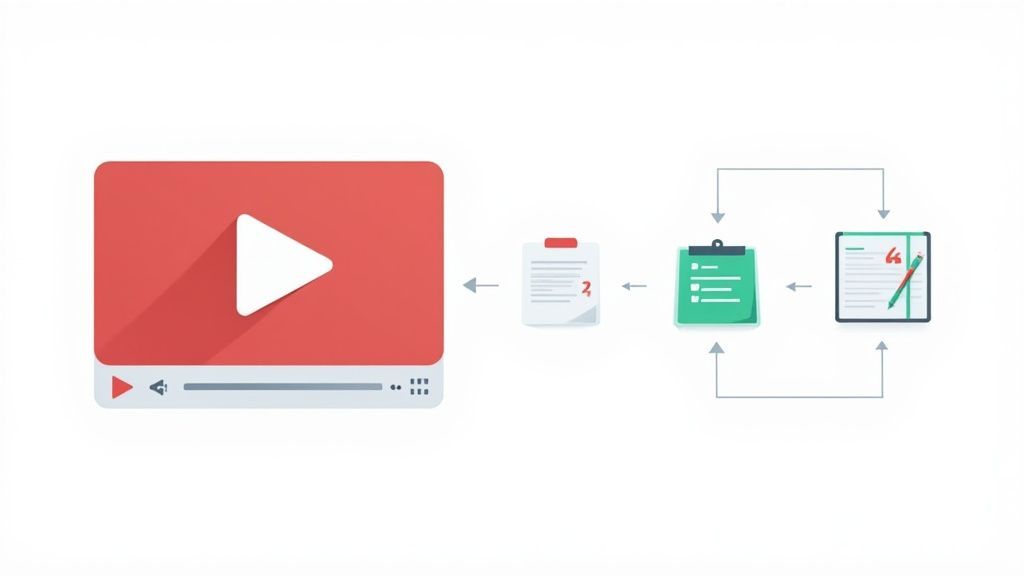
Antes de entrarmos no "como", vamos falar sobre o "porquê". Uma transcrição é a matéria-prima do seu vídeo — o roteiro — e você pode moldá-la em quase qualquer coisa. É o segredo para trabalhar de forma mais inteligente.
Para criadores, isso significa transformar um único vídeo em um conjunto completo de ativos. Aquele webinar detalhado que você hospedou? Ele pode se tornar a espinha dorsal de vários posts de blog, uma série de e-mails de newsletter ou uma dúzia de citações compartilháveis para mídias sociais. De repente, a vida e o alcance do seu trabalho original explodiram.
Desbloqueie o Reaproveitamento de Conteúdo e a Acessibilidade
Pense no tempo economizado. Chega de percorrer horas de filmagem para encontrar aquela citação perfeita. Basta pressionar CTRL+F e pesquisar o arquivo de texto. Essa velocidade é um divisor de águas, seja você um profissional de marketing, um pesquisador ou um estudante.
Além da pura eficiência, as transcrições são a base do conteúdo inclusivo. É com elas que você cria legendas ocultas e legendas, que são indispensáveis para espectadores que são surdos ou com deficiência auditiva. Elas também atendem ao enorme público que assiste a vídeos sem som, especialmente nas mídias sociais.
Why Accessibility Matters?
Transcripts are one of the simplest ways to improve video accessibility for all viewers. They support silent-viewing audiences, help non-native speakers, and improve comprehension. Adding transcripts ensures every viewer can engage with your content comfortably.
This isn't a niche feature anymore. By 2025, YouTube's own automatic speech recognition (ASR) is incredibly widespread. Industry estimates suggest that 70–80% of all public English-language videos on YouTube now have an auto-generated transcript available right on the platform.
A transcript isn't just an add-on; it's a strategic tool. It makes your video discoverable by search engines, accessible to a wider audience, and incredibly easy to repurpose. You’re maximizing the return on every single piece of content you create.
Features To Aspire
IA de última geração
Alimentado pelo Whisper da OpenAI para precisão líder na indústria. Suporte para vocabulários personalizados, arquivos de até 10 horas e resultados ultra rápidos.

Importar de múltiplas fontes
Importe arquivos de áudio e vídeo de várias fontes, incluindo upload direto, Google Drive, Dropbox, URLs, Zoom e mais.

Exportar em múltiplos formatos
Exporte suas transcrições em múltiplos formatos incluindo TXT, DOCX, PDF, SRT e VTT com opções de formatação personalizáveis.
Potencialize Sua Estratégia de Conteúdo e Promoção
O retorno se estende diretamente ao seu marketing. Uma transcrição completa está repleta das palavras-chave e frases exatas que seu público está procurando, o que pode dar um impulso sério de SEO ao seu vídeo tanto no YouTube quanto no Google.
Os usos práticos estão em toda parte.
| Tipo de Usuário | Objetivo Principal | Exemplo de Aplicação |
|---|---|---|
| Estudantes | Aprendizagem Eficiente | Criar notas de estudo detalhadas a partir de palestras sem pausas constantes. |
| Profissionais de Marketing | Obtenção de Material | Extrair depoimentos poderosos de clientes de avaliações em vídeo para campanhas. |
| Pesquisadores | Análise de Dados | Analisar a linguagem falada e o feedback qualitativo de entrevistas. |
As aplicações são infinitas. Ao transformar o áudio do seu vídeo em texto, você não está apenas criando um documento; você está abrindo maneiras totalmente novas de interagir com seu público e fazer seu conteúdo trabalhar mais para você.
Quando estiver pronto para ir além, você descobrirá que muitas estratégias de promoção do YouTube para ganhar mais fãs combinam perfeitamente com esses métodos baseados em transcrição. Para um olhar mais aprofundado sobre como transformar um vídeo em vários ativos, confira nosso guia sobre estratégias de reutilização de conteúdo.
Usando o Recurso de Transcrição Integrado do YouTube
Às vezes, a solução mais fácil está bem à vista. Este é definitivamente o caso quando você precisa obter uma transcrição de um vídeo do YouTube. A plataforma possui um recurso nativo e integrado que permite ver o texto completo da maioria dos vídeos sem usar nenhuma ferramenta externa. É o primeiro passo perfeito para uma maneira rápida e sem complicações de obter o conteúdo.
Este recurso é alimentado pela mesma IA que gera as legendas automáticas do YouTube. Com mais de 500 horas de vídeo enviadas a cada minuto, essa IA está trabalhando horas extras para transcrever uma quantidade massiva de conteúdo, especialmente para idiomas populares. Você pode aprender mais sobre como o YouTube gera transcrições instantaneamente no DumplingAI.
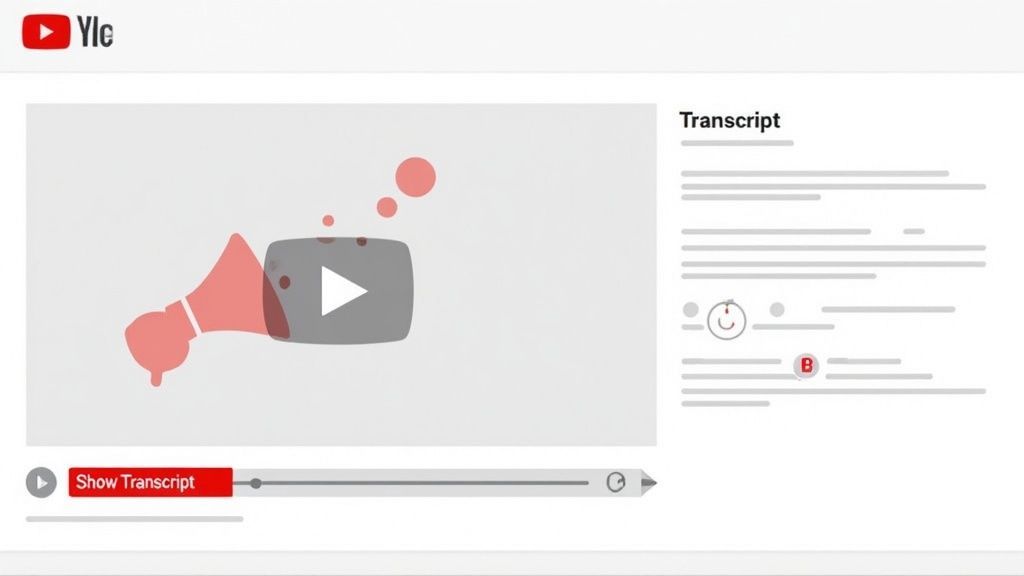
Encontrando e Usando o Visualizador de Transcrição
Chegar à transcrição é bem simples. Quando estiver em um desktop, basta ir ao vídeo que você deseja e procurar na caixa de descrição logo abaixo do player. Talvez você precise clicar em "...mais" para expandi-la completamente. Se uma transcrição estiver disponível, você verá um botão que diz "Mostrar transcrição."
Clicar nele abre um novo painel, geralmente no lado direito do vídeo, que exibe a transcrição inteira. O texto é dividido linha por linha e vem com carimbos de data/hora.
Dica Profissional: Por padrão, a transcrição inclui carimbos de data/hora. Você pode removê-los clicando nos três pontos verticais na parte superior do painel de transcrição e selecionando "Alternar carimbos de data/hora". Isso limpa o texto, tornando-o muito mais fácil de ler e copiar.
O visualizador também é interativo, o que é um toque interessante. Se você clicar em qualquer linha de texto na transcrição, o vídeo saltará diretamente para aquele momento. Isso é super útil para verificar uma citação específica ou assistir a uma seção novamente sem ter que percorrer a linha do tempo. Basicamente, transforma a transcrição em uma ferramenta de navegação.
Copiando e Colando o Texto
Uma vez que você tenha a transcrição aberta, levá-la para o seu computador é um assunto manual. O YouTube não oferece um botão direto de "download" aqui, então o bom e velho copiar e colar é o caminho a seguir.
Veja como eu geralmente faço:
- Selecione o Texto: Clique e arraste o cursor do início ao fim da transcrição para destacar tudo.
- Copie: Pressione Ctrl+C em uma máquina Windows ou Cmd+C se estiver em um Mac.
- Cole em Algum Lugar: Abra um editor de texto como o Bloco de Notas, Google Docs ou o que você preferir. Em seguida, basta colar o conteúdo usando Ctrl+V ou Cmd+V.
Este método é rápido e faz o trabalho. Apenas tenha em mente que as transcrições geradas automaticamente geralmente têm erros de ortografia, gramática ou rótulos de locutor. Você quase sempre precisará fazer uma revisão leve e limpeza para garantir que o texto esteja preciso e pronto para o que quer que você o esteja usando.
Quick Takeaways for Manual Transcript Copying
Fast Access
Copying directly from YouTube is immediate and requires no extra tools. Perfect for quick quotes or references.
Zero Setup
No signup, no installation, and no added steps. Just open the transcript panel and begin copying.
Full Control
Manual copying lets you handpick the exact segments you need without downloading full files.
Needs Cleanup
Auto-generated text isn’t perfect, so expect to spend time correcting spelling, punctuation, and formatting.
Baixando Transcrições Instantaneamente com Ferramentas de Terceiros
Embora a ferramenta integrada do YouTube seja útil para uma olhada rápida, ela atinge seus limites rapidamente. Quando você precisa baixar uma transcrição de vídeo do YouTube sem o incômodo de copiar e colar manualmente, ferramentas dedicadas de terceiros são a única opção. Esses serviços são criados com um único propósito: obter uma transcrição limpa e formatada de qualquer vídeo do YouTube em segundos.
O processo é refrescantemente simples. Em vez de clicar em menus e destacar paredes intermináveis de texto, você simplesmente cola um URL de vídeo em uma ferramenta, e ela cuida do resto. Essa abordagem é uma salvação para qualquer pessoa que trabalhe com transcrições regularmente e precise de um fluxo de trabalho eficiente e flexível.
Por que uma Ferramenta Dedicada é um Diferencial
A verdadeira mágica dessas ferramentas acontece depois que você cola o link. Elas não apenas exibem o texto; elas lhe dão controle total sobre ele. Você pode baixar instantaneamente a transcrição em vários formatos, o que economiza um tempo enorme em comparação com o método antigo.
Aqui estão os benefícios que você notará imediatamente:
- Múltiplos Formatos de Arquivo: Baixe instantaneamente arquivos como .txt para edição fácil, .srt para legendas, ou até mesmo .docx para uso direto em relatórios.
- Remoção Automática de Carimbos de Data/Hora: Obtenha um bloco de texto limpo pronto para análise ou criação de conteúdo sem ter que excluir manualmente cada carimbo de data/hora.
- Uma Melhor Experiência do Usuário: Todo o processo é reduzido a um ou dois cliques, eliminando as etapas manuais desajeitadas exigidas pelo recurso nativo do YouTube.
Essa eficiência é o motivo pelo qual a demanda por essas soluções disparou. De fato, ferramentas de terceiros e extensões de navegador que extraem transcrições viram um crescimento explosivo. Alguns serviços relatam mais de 1,7 milhão de usuários em todo o mundo que dependem deles para edição e análise diárias. Você pode descobrir mais insights sobre essa tendência no DumplingAI.
Industry Trends You Should Know
Transcript extraction tools are growing rapidly because creators now publish more long-form content than ever before. New AI advancements continue to improve accuracy and speed, making transcript tools essential for modern workflows.
How Transcript Downloaders Work
Most transcript downloaders, including our own Transcript.LOL, are built around a straightforward interface. You just provide the video link, and the tool does all the heavy lifting for you.
The screenshot above shows a typical interface where you can paste a YouTube URL to get started. This clean, single-input design removes all friction, getting you from video to text file in the shortest time possible.

Detecção de falantes
Identifique automaticamente diferentes falantes nas suas gravações e rotule-os com seus nomes.

Ferramentas de edição
Edite transcrições com ferramentas poderosas incluindo buscar e substituir, atribuição de falantes, formatos de texto rico e destaque.
Resumos e Chatbot
Gere resumos e outros insights da sua transcrição, prompts personalizados reutilizáveis e chatbot para o seu conteúdo.
Após fornecer o link, a ferramenta acessa os dados de transcrição disponíveis do vídeo e os formata perfeitamente. Isso significa que você obtém um documento limpo e utilizável todas as vezes, pronto para tarefas como:
- Criar legendas para seus próprios vídeos.
- Analisar diálogos de uma entrevista ou palestra.
- Reaproveitar conteúdo de vídeo em posts de blog ou atualizações de mídia social.
Ao usar uma ferramenta especializada, você não está apenas economizando tempo; você está adotando um fluxo de trabalho mais profissional. Ela garante que a transcrição que você obtém seja imediatamente útil, quer você esteja criando conteúdo acessível ou realizando análises de texto aprofundadas.
Este processo automatizado é muito mais confiável do que a cópia manual, que geralmente introduz erros de formatação e simplesmente não é escalável para uso frequente. Se você lida com conteúdo de vídeo com frequência, um downloader dedicado se torna uma parte indispensável do seu conjunto de ferramentas. Para os curiosos sobre a tecnologia por trás disso, explorar um conversor gratuito de fala para texto online pode oferecer um vislumbre de quão poderosos são esses sistemas.
Escolhendo o Método Certo para Suas Necessidades
Então, você deve se ater ao recurso integrado do YouTube ou usar uma ferramenta dedicada de terceiros? A resposta realmente se resume ao que você está tentando realizar. Tudo se resume à velocidade, conveniência e ao que você planeja fazer com a transcrição depois de tê-la.
Para uma tarefa rápida e única — como obter uma única citação de uma palestra ou verificar um termo específico — o visualizador nativo do YouTube é perfeitamente adequado. Ele está ali, é gratuito e você não precisa instalar nada. Mas no momento em que você se encontrar precisando de transcrições regularmente, suas falhas começam a aparecer. A rotina de copiar e colar manualmente se torna cansativa rapidamente, e você quase sempre terá que gastar tempo extra limpando problemas de formatação e removendo carimbos de data/hora.
Quando Escolher uma Ferramenta de Terceiros
Se baixar transcrições do YouTube é uma parte regular do seu fluxo de trabalho, uma ferramenta especializada não é apenas um "nice-to-have"; é uma necessidade. Pense nisso assim: você pode tecnicamente usar uma faca de manteiga como chave de fenda, mas é bagunçado e ineficiente. Uma ferramenta dedicada é projetada para o trabalho.
Para criadores de conteúdo, profissionais de marketing, pesquisadores ou qualquer pessoa que reaproveite conteúdo de vídeo, o aumento de eficiência é enorme.
Essas ferramentas são construídas para resolver exatamente os problemas que o visualizador nativo cria:
- Downloads com Um Clique: Esqueça de selecionar texto interminável. Basta colar um link e obter seu arquivo.
- Múltiplos Formatos de Arquivo: Baixe instantaneamente um arquivo .txt limpo para o seu post de blog ou um arquivo .srt para criar legendas.
- Formatação Limpa: A transcrição chega pronta para uso, livre de carimbos de data/hora e outras desordens.
Esta é a maneira mais direta de pensar sobre isso. Se você precisa de um arquivo, uma ferramenta é sua melhor aposta.
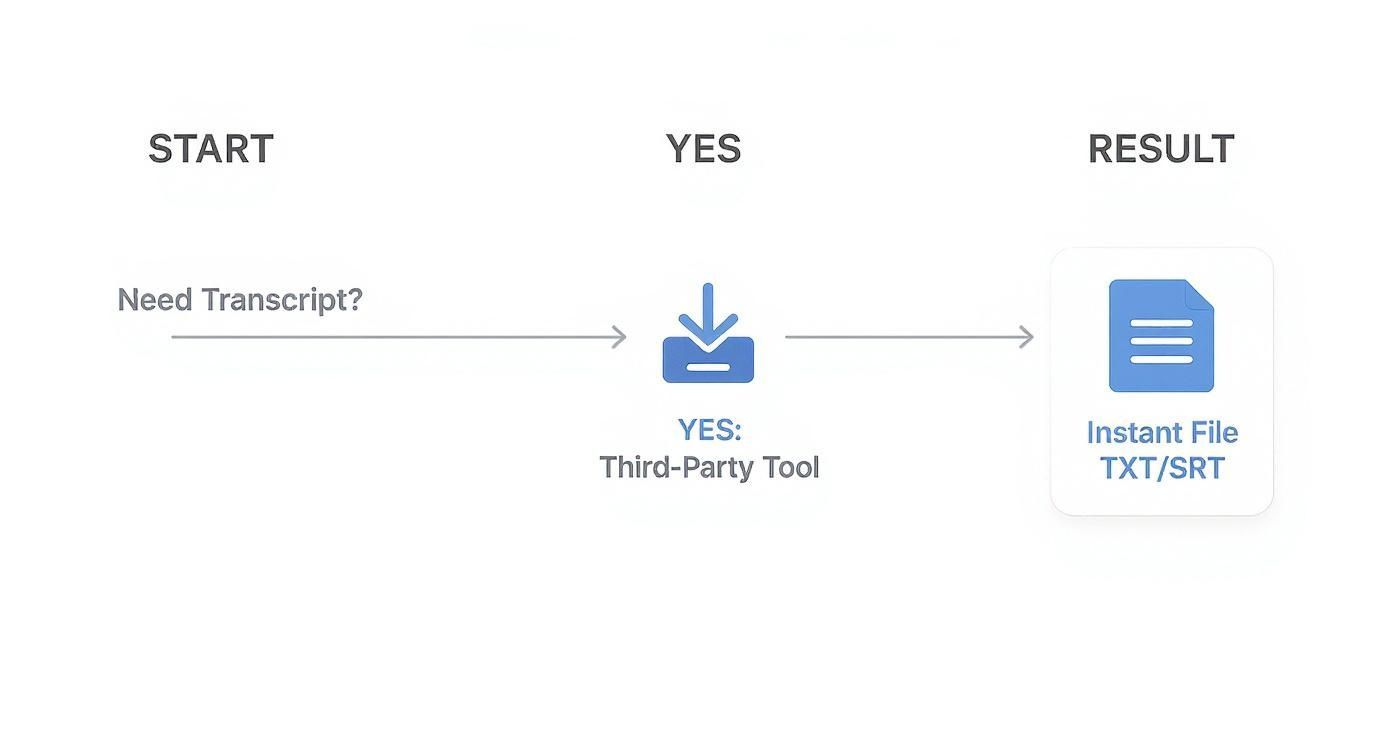
Como mostra o fluxograma, quando um arquivo para download é o objetivo final, uma ferramenta dedicada fornece um arquivo TXT ou SRT utilizável em uma única etapa.
Uma Comparação Lado a Lado
O volume de conteúdo transcrito no YouTube é impressionante. Em 2024, a plataforma relatou que mais de 20 bilhões de vídeos tinham legendas geradas automaticamente. Esse número continua crescendo, tornando as ferramentas de transcrição eficientes mais críticas do que nunca.
Para tornar a escolha ainda mais clara, vamos detalhar as diferenças lado a lado.
Comparação de Recursos: YouTube Nativo vs. Ferramentas de Terceiros
| Recurso | Transcrição Nativa do YouTube | Ferramenta de Terceiros (ex: Transcript.LOL) |
|---|---|---|
| Formato de Download | Nenhum (copiar/colar manual) | TXT, SRT e outros formatos |
| Carimbos de Data/Hora | Incluídos por padrão | Opcional (podem ser removidos) |
| Velocidade e Eficiência | Lento, requer limpeza manual | Instantâneo, download com um clique |
| Melhor Para | Obter rapidamente uma citação curta | Uso frequente, reaproveitamento de conteúdo |
| Acessibilidade | Integrado, sem necessidade de instalação | Requer acesso a um site/aplicativo separado |
| Qualidade da Saída | Texto bruto, requer reformatação | Arquivo de texto limpo e pronto para uso |
Esta tabela realmente destaca o principal trade-off: o YouTube oferece acesso básico, enquanto uma ferramenta dedicada fornece um produto acabado e utilizável.
A verdadeira diferença não é apenas sobre o download; é sobre o que você pode imediatamente fazer com a transcrição. Um arquivo de texto limpo de uma ferramenta está pronto para o seu fluxo de trabalho de conteúdo, enquanto uma cópia bruta do YouTube é um projeto que precisa ser corrigido primeiro.
Se você lida com transcrições mais de uma ou duas vezes por mês, uma ferramenta dedicada economizará muito tempo e frustração. A tecnologia por trás dessas plataformas é o que torna essa experiência perfeita possível. Para ver como funciona, você pode aprender mais em nosso artigo sobre software de transcrição com IA. Para quem leva a sério o aproveitamento de conteúdo de vídeo, a escolha é bastante clara.
Como Lidar com Problemas Comuns de Transcrição
Mesmo as melhores ferramentas podem encontrar um obstáculo. Ao tentar extrair uma transcrição de um vídeo do YouTube, você pode encontrar alguns obstáculos comuns. Mas não se preocupe. A maioria desses problemas tem soluções bastante diretas, para que você possa obter o texto de que precisa sem uma grande dor de cabeça.
O problema mais frequente é o misterioso caso do botão "Mostrar Transcrição" ausente. Se ele simplesmente não estiver lá, geralmente é por um de alguns motivos simples.
- Configurações do Criador: O criador do vídeo pode ter desativado manualmente a transcrição gerada automaticamente.
- Idade do Vídeo: Um vídeo novíssimo provavelmente ainda não terá uma transcrição. O sistema do YouTube precisa de um pouco de tempo para processar o áudio, o que às vezes pode levar algumas horas.
- Qualidade do Áudio: Se o vídeo tiver áudio de qualidade muito ruim, muito ruído de fundo ou sotaques pesados, o sistema pode não conseguir gerar uma transcrição decente.
Quando isso acontece com o recurso nativo do YouTube, uma ferramenta de terceiros como o Transcript.LOL às vezes ainda pode encontrar a transcrição, se uma existir. Se não puder, o vídeo simplesmente não é transcribível por meios automatizados.
When Transcription Might Fail
Poor audio quality, heavy background noise, or disabled captions can prevent transcripts from generating. In such cases, even advanced tools may not be able to retrieve any text, so manual transcription may be necessary.
Corrigindo Texto Incorreto
Outro desafio comum é lidar com os erros que se infiltram no texto gerado automaticamente. Isso acontece o tempo todo. Nomes são distorcidos, termos técnicos são misturados e a pontuação pode ser uma bagunça completa. Embora a tecnologia tenha avançado muito, ela definitivamente não é perfeita.
Corrigir esses erros é absolutamente essencial se você planeja usar a transcrição para qualquer finalidade profissional. A maneira mais fácil de fazer isso é colar o texto em um editor básico como o Google Docs ou o Bloco de Notas. Em seguida, basta reproduzir o vídeo e ler junto, fazendo as correções conforme avança. Essa revisão manual é crucial para a precisão.
Você não está apenas corrigindo erros de digitação; você está garantindo que a transcrição realmente reflita o que o locutor quis dizer. Esta etapa é o que transforma um rascunho bruto e confuso em um documento confiável que você pode usar para trabalho real.
Para uma abordagem mais estruturada na correção do seu texto, é útil entender os princípios básicos de edição. Reunimos alguns conselhos excelentes em nosso guia sobre os essenciais de revisão de texto em transcrição que podem tornar esse processo muito mais rápido e eficaz.
Gerenciando Diferentes Idiomas e Problemas de Ferramentas
E se o vídeo não estiver em inglês? O sistema do YouTube suporta muitos idiomas, mas não todos. Se uma transcrição estiver disponível, você geralmente pode selecionar diferentes idiomas diretamente na própria janela da transcrição. Ferramentas de terceiros geralmente puxam quaisquer opções de idioma que o YouTube disponibiliza.
Finalmente, se você estiver usando uma ferramenta de terceiros e ela falhar, tente o básico primeiro. Atualize a página, limpe o cache do seu navegador ou simplesmente tente o URL novamente. Às vezes, uma falha temporária de conexão é a verdadeira culpada.
Ao superar esses obstáculos comuns um por um, você pode superar praticamente qualquer obstáculo e obter a transcrição do vídeo do YouTube que você precisa.
Suas Principais Perguntas Sobre Transcrições do YouTube, Respondidas
Vamos encerrar com algumas respostas rápidas às perguntas que ouço com mais frequência. Se você tem uma ou duas preocupações pendentes sobre o download de transcrições, isso deve esclarecer as coisas.
É Legal Baixar uma Transcrição de um Vídeo do YouTube de Outra Pessoa?
Esta é uma grande questão, e é uma ótima pergunta a se fazer.
Para uso pessoal — como estudar, fazer anotações ou pesquisa privada — você geralmente está livre. Pense nisso como uso justo. Mas no momento em que você planeja republicar essa transcrição ou usá-la em um projeto comercial, você entra no território de direitos autorais.
A transcrição é uma cópia direta da obra criativa no vídeo. A abordagem melhor e mais segura é usá-la como base para algo novo. Por exemplo, você pode escrever um post de blog analisando os argumentos do vídeo ou criar um guia de estudo com base em seu conteúdo. Sempre que fizer isso, sempre dê o devido crédito com um link claro de volta ao criador original.
Como Posso Melhorar a Precisão de uma Transcrição Gerada Automaticamente do YouTube?
Vamos ser realistas: as legendas automáticas do YouTube são um ponto de partida fantástico, mas raramente são perfeitas. Você quase sempre encontrará palavras mal escritas, pontuação ausente ou frases confusas.
A correção é bastante simples. Abra o arquivo de texto baixado em qualquer editor e reproduza o vídeo junto com ele. Ao ouvir e ler ao mesmo tempo, você pode rapidamente identificar e corrigir erros, adicionar pontuação adequada e até mesmo rotular diferentes locutores.
Para qualquer projeto profissional, esta etapa de revisão manual é inegociável. É o toque final crucial que garante que a transcrição seja precisa, legível e reflita verdadeiramente o conteúdo falado.
É um pequeno investimento de tempo que traz enormes dividendos em qualidade, transformando um rascunho bruto gerado por máquina em um documento polido em que você pode realmente confiar.
Posso Obter uma Transcrição para um Vídeo do YouTube em Qualquer Idioma?
A resposta curta é: às vezes. Você pode obter uma transcrição se o criador a enviou ou se o sistema automático do YouTube gerou uma com sucesso. Isso funciona melhor para idiomas principais como inglês, espanhol e francês.
Mas você não encontrará uma transcrição para todos os vídeos. A disponibilidade pode ser um problema se:
- O vídeo estiver em um idioma menos comum.
- A qualidade do áudio for ruim, com muito ruído de fundo.
- O locutor tiver um sotaque forte que a IA tem dificuldade em entender.
Se você não vir a opção "Mostrar Transcrição" no YouTube, essa é a sua resposta — simplesmente não há uma disponível para esse vídeo. Como as ferramentas de terceiros puxam da mesma fonte, elas também não conseguirão gerar uma. Para ter a melhor chance de obter uma transcrição, atenha-se a vídeos com áudio claro em um idioma amplamente suportado.
Pronto para parar de copiar e colar e começar a baixar transcrições perfeitas com um clique? Transcript.LOL usa IA poderosa para fornecer texto limpo e preciso de qualquer vídeo do YouTube em segundos. Comece gratuitamente em transcript.lol.