
How to Convert MP3 Audio File to Text Accurately
Learn how to convert mp3 audio file to text with this expert guide. Get practical tips and proven workflows for fast, accurate audio transcription.
Kate, Praveen
May 21, 2025
If you have an MP3 file, you have a text document—you just need a way to unlock it. That's where AI-powered transcription services like Transcript.LOL come in. These tools take your audio and automatically turn the spoken words into an editable, searchable document in minutes. It's a massive time-saver compared to trying to type it all out by hand.
IA de última generación
Impulsado por Whisper de OpenAI para una precisión líder en la industria. Soporte para vocabularios personalizados, archivos de hasta 10 horas y resultados ultra rápidos.

Importar desde múltiples fuentes
Importa archivos de audio y video desde diversas fuentes, incluyendo carga directa, Google Drive, Dropbox, URLs, Zoom y más.

Exportar en múltiples formatos
Exporta tus transcripciones en múltiples formatos incluyendo TXT, DOCX, PDF, SRT y VTT con opciones de formato personalizables.
Why Converting MP3 to Text Is No Longer Optional
We live in a world overflowing with audio content. We have insightful podcasts, critical team meetings, detailed academic lectures, and those random creative voice notes you record on the go. But all the value in that audio is often locked away, trapped.
Trying to manually sift through hours of recordings is a huge bottleneck for anyone who needs to find and use that information quickly. Transforming those bulky MP3s into searchable text isn't a luxury anymore; it’s a competitive necessity.
Why MP3 Transcription Matters Now?
Audio content holds valuable insights, but it’s unusable until it becomes text. Transcription enables faster search, reuse, and collaboration. Without it, critical information stays buried inside recordings.
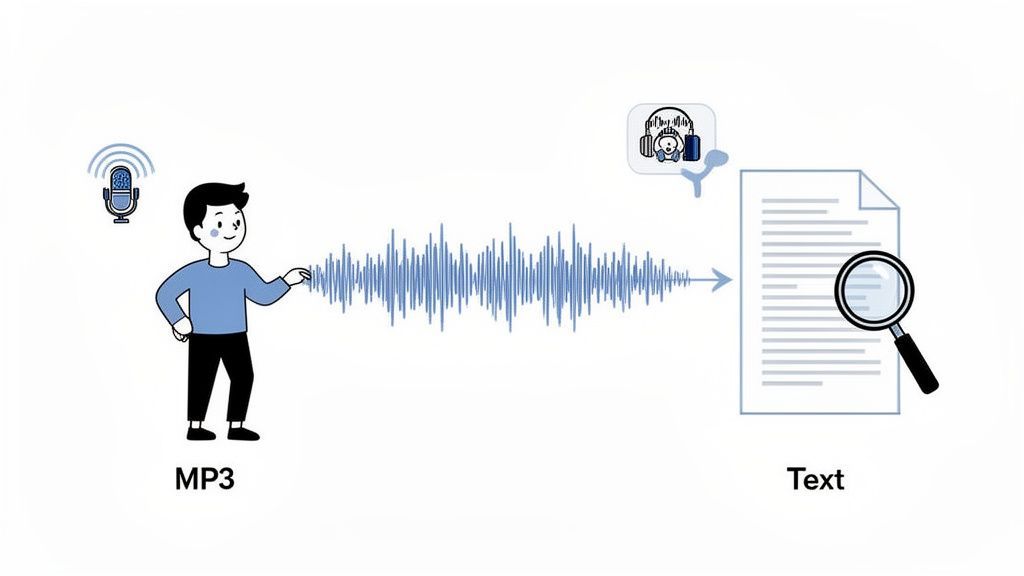
Unlocking the Value Trapped in Your Audio
Think about it: every MP3 file is packed with untapped data. For a content creator, that podcast episode transcript can become a blog post, a dozen social media snippets, and the backbone of an email newsletter. Suddenly, one piece of audio opens up brand new channels for SEO and audience engagement. We actually dive deep into these techniques in our guide on content repurposing strategies.
If you're a researcher or a student, having a text version of a lecture means you can search for keywords instantly. No more scrubbing through the timeline to find that one specific quote or data point.
What MP3-to-Text Unlocks?
Searchable Knowledge
Instantly search hours of audio for keywords, quotes, or ideas without re-listening.
Faster Content Creation
Turn podcasts and voice notes into blogs, emails, and social posts effortlessly.
Better Accessibility
Provide text access for hearing-impaired users and non-native listeners.
Reliable Records
Create permanent documentation for meetings, lectures, and research.
Para las empresas, transcribir reuniones crea un registro verificable de decisiones, elementos de acción y discusiones clave. Esto mejora enormemente la responsabilidad y garantiza que nada importante se pierda en la traducción.
La Creciente Demanda de Soluciones Automatizadas
Este cambio del trabajo manual está ocurriendo en todas partes, y las tendencias del mercado lo demuestran. El mercado global de API de voz a texto explotó hasta alcanzar una valoración de 5 mil millones de dólares en 2024, y se proyecta que supere los 21 mil millones de dólares para 2034.
Este ascenso meteórico no es aleatorio. Está impulsado por una necesidad clara y urgente de velocidad y precisión. La antigua forma de hacer las cosas —pausar, rebobinar y escribir todo— es simplemente demasiado lenta y propensa a errores para el flujo de trabajo moderno. Las herramientas de hoy ofrecen un camino mucho más inteligente hacia adelante, convirtiendo las ideas habladas en datos que realmente puedes usar.
Prepara tu Archivo MP3 para una Transcripción Impecable
Antes de siquiera tocar ese botón de carga, hablemos del factor más importante en la precisión de la transcripción: la calidad de tu archivo de audio. Es una verdad simple: una IA no puede transcribir con precisión lo que no puede escuchar claramente. Unos minutos de trabajo de preparación ahora pueden, honestamente, ahorrarte horas de dolorosa edición más tarde.
Poor Audio = Poor Transcripts
Background noise and uneven volume drastically reduce transcription accuracy. Skipping audio preparation leads to more manual corrections later. Clean input is essential for reliable results.
Piénsalo como preparar el escenario para una gran actuación. Lanzar audio de baja calidad a un servicio de transcripción, lleno de zumbidos de fondo o niveles de volumen muy diferentes, puede reducir la precisión entre un 15 y un 30 %. Si trabajas en un campo como el derecho o la academia, donde cada palabra cuenta, ese no es un riesgo que valga la pena correr.
Elimina el Ruido de Fondo Distractor
El culpable habitual de una transcripción terrible es el ruido de fondo. Ese zumbido bajo de un aire acondicionado, el rugido del tráfico lejano o incluso el eco en una habitación grande y vacía pueden desorientar por completo un algoritmo de transcripción. Hace que la IA malinterprete palabras o, peor aún, las omita por completo.
Afortunadamente, no necesitas un estudio profesional para solucionar esto. Software gratuito y sorprendentemente potente como Audacity es perfecto para el trabajo. Sus herramientas integradas de reducción de ruido te permiten aislar y eliminar esos sonidos no deseados, haciendo que las palabras habladas resalten con claridad.
Aquí tienes un vistazo a la interfaz de Audacity, donde encontrarás todas las herramientas que necesitas.
Este editor de código abierto te brinda control de nivel profesional para limpiar tu audio antes de convertir tu archivo MP3 a texto.
Estandariza tu Audio para Mayor Consistencia
¿Alguna vez has escuchado una grabación donde un hablante suena fuerte y el siguiente es solo un susurro tenue? Ese tipo de inconsistencia es una pesadilla para la IA, obligándola a reajustarse constantemente y a menudo provocando errores. La solución fácil aquí es normalizar tu audio.
La normalización lleva toda la pista a un nivel de volumen constante y uniforme. Asegura que cada hablante se escuche alto y claro, brindando a la IA una señal mucho más limpia con la que trabajar.
Consejo Profesional: Si estás trabajando con varios clips de audio para un proyecto, como grabaciones separadas de una entrevista, es una excelente idea combinarlos en un solo archivo primero. Nuestra guía sobre cómo fusionar archivos de audio te muestra exactamente cómo hacerlo.
Finalmente, una breve mención sobre la tasa de bits del archivo. Si bien una tasa de bits súper alta como 320 kbps suena genial, a menudo es excesiva para el habla. Una tasa de bits de 128 kbps suele ser más que suficiente para grabaciones de voz claras y te da un archivo más pequeño que se carga mucho más rápido.
Recuerda, una grabación limpia a una tasa de bits moderada siempre será mejor que una ruidosa a una tasa de bits alta. Un poco de preparación hace mucho.
Muy bien, vamos a entrar en los detalles de cómo convertir ese archivo MP3 en texto utilizable. Se trata menos de magia y más de un proceso claro y paso a paso. Usaremos Transcript.LOL para explicar cómo se hace, desde cómo subir tu archivo al sistema hasta ajustar la configuración para obtener la mejor transcripción posible.
Cómo Subir tu MP3 al Sistema
Primero lo primero, necesitas subir tu audio. Cómo lo hagas realmente depende de tu flujo de trabajo y de dónde residan tus archivos. Las herramientas modernas de transcripción entienden esto y ofrecen algunas formas diferentes de preparar tu audio para su procesamiento.
Aquí tienes un resumen rápido de los métodos más comunes y cuándo encuentro útil cada uno.
Métodos de Subida de MP3 y Mejores Casos de Uso
| Método de Subida | Mejor Para | Consejo Profesional |
|---|---|---|
| Directamente desde el Ordenador | Archivos que acabas de grabar o editar. Es el clásico método de arrastrar y soltar o seleccionar archivo: simple y rápido. | Mantén tus archivos en una carpeta organizada en tu escritorio para poder encontrarlos en segundos. No hay necesidad de buscar. |
| Enlace de Servicio en la Nube | Proyectos en equipo o cuando trabajas sobre la marcha. Enlazar a Google Drive o Dropbox te ahorra tener que descargar y volver a subir. | Asegúrate de que los permisos de uso compartido de tu archivo estén configurados correctamente. Un archivo "restringido" causará un error de carga. |
| Enlace Web Directo | Audio que ya está en línea, como un episodio de podcast, una conferencia de un sitio universitario o un clip de audio de un artículo de noticias. | Obtén el enlace directo al archivo MP3 en sí (a menudo termina en .mp3), no solo a la página web donde está incrustado. |
Esta flexibilidad es algo muy importante. Es una respuesta directa al enorme crecimiento de la demanda de este tipo de tecnología. Allá por 2019, el mercado global de API de voz a texto era de unos modestos 1.320 millones de dólares. Si avanzamos rápido, se espera que supere los 3.040 millones de dólares para 2027. Esa explosión fue impulsada por industrias como los medios de comunicación y la atención médica, que necesitaban configurar soluciones de voz a texto que se integraran perfectamente en su forma de trabajar.
Why MP3 Transcription Adoption Is Exploding?
Remote work, podcasts, and video content are driving massive demand. Businesses now expect instant, searchable access to spoken information. Manual transcription no longer scales.
Ajustando la Configuración Correcta para la Precisión
Una vez que tu archivo esté cargado, aquí es donde realmente puedes influir en la calidad de la transcripción final. Básicamente, le estás dando a la IA una pequeña sesión de entrenamiento antes de que se ponga a trabajar.
Tomarte un momento para preparar tu audio antes de subirlo puede marcar una gran diferencia. Piénsalo así: si entra basura, sale basura.
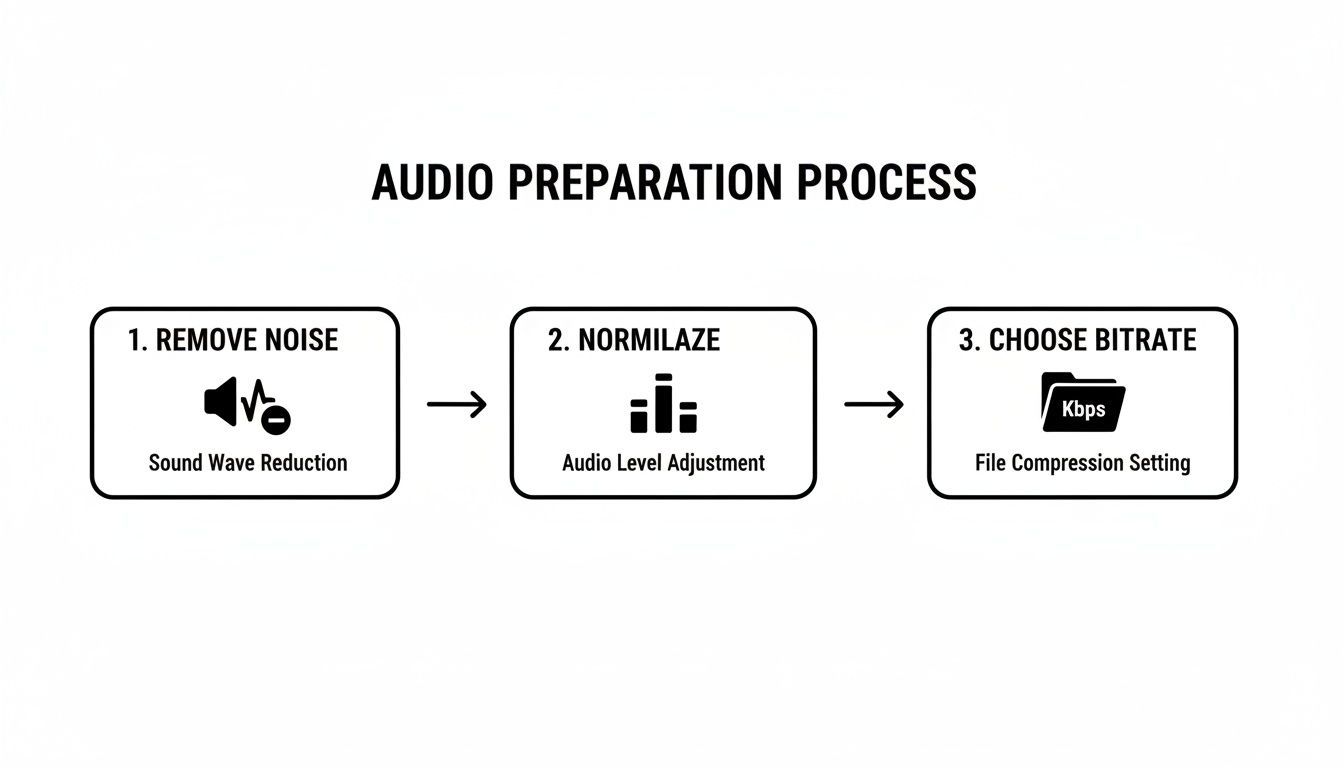
Como puedes ver, pasos sencillos como reducir el ruido de fondo o asegurarte de que el volumen sea consistente (normalización) le dan a la IA una señal mucho más limpia para trabajar.
Ahora, para la configuración dentro de la herramienta en sí. Aquí están los tres grandes:
-
Selección de Idioma: Esto suena básico, pero es fundamental. Si tu locutor tiene un acento británico distintivo, no elijas solo "Inglés", selecciona "Inglés (Reino Unido)". Esos pequeños matices regionales pueden confundir a la IA si no le das el contexto adecuado.
-
Detección de Locutor: Si hay más de una persona hablando, como en una entrevista, podcast o reunión, esto es absolutamente imprescindible. Etiqueta automáticamente quién está hablando (Locutor 1, Locutor 2, etc.), un proceso llamado diarización. Esto te ahorra un gran dolor de cabeza durante la fase de edición.
-
Vocabulario Personalizado: Esta es el arma secreta para cualquiera que trate con temas de nicho. Si tu audio está lleno de jerga de la industria, acrónimos de la empresa o nombres únicos, puedes proporcionárselos a la IA de antemano.
Piénsalo como darle a la IA una hoja de trucos. Al "enseñarle" estos términos específicos, evitas que adivine y los escriba mal. Para cualquier grabación técnica, médica o legal, esta característica es un cambio radical.
Dedicar un minuto a estas configuraciones vale la pena enormemente. Significa menos tiempo limpiando errores y más tiempo utilizando tu transcripción. Para una mirada más profunda a cómo diferentes plataformas manejan estas características, nuestra guía sobre el https://transcript.lol/blog/best-audio-to-text-converter es un excelente lugar para empezar.
Refina y Exporta tu Transcripción Perfecta
From Raw Transcript to Finished Asset
Review with Audio Sync
Click any word to hear the exact audio moment and correct mistakes instantly.
Improve Readability
Fix formatting, adjust timestamps, and clean up paragraph flow.
Assign Speaker Names
Replace generic labels with real names for professional clarity.
Export for Any Use
Choose formats suited for research, publishing, subtitles, or archiving.
Una transcripción sin procesar y generada por máquina es un excelente punto de partida, pero rara vez es el producto final. La verdadera magia ocurre cuando pulimos el texto y lo exportamos en un formato que realmente funcione para tu proyecto. Así es como conviertes una buena transcripción en un activo profesional y listo para usar.
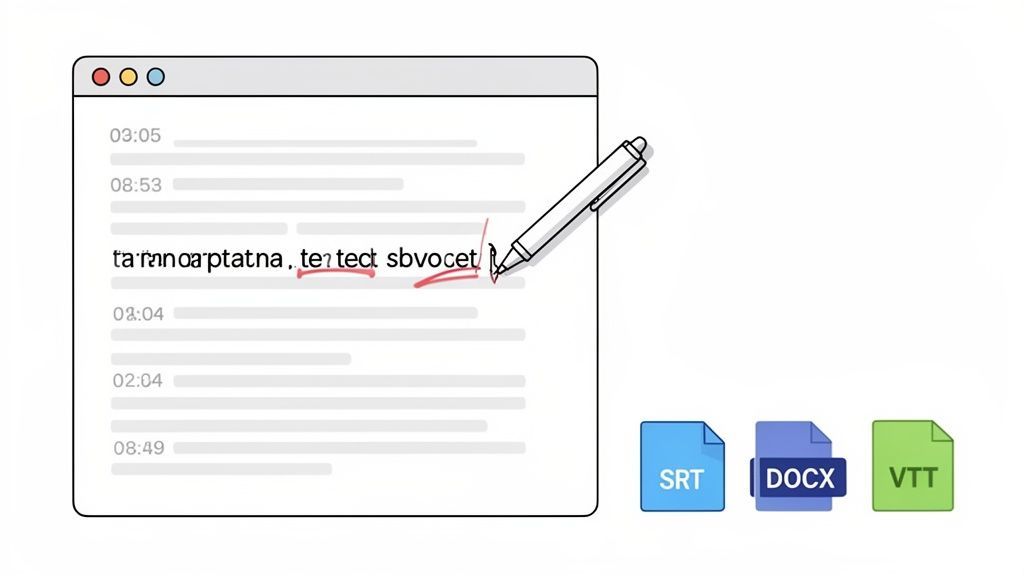
Incluso con la tecnología actual que alcanza tasas de precisión superiores al 95%, la IA aún puede escuchar mal una palabra o tropezar con un nombre complejo. Es por eso que plataformas como Transcript.LOL tienen un potente editor integrado que sincroniza tu texto directamente con el audio, haciendo que el proceso de limpieza sea increíblemente rápido.
Simplemente puedes hacer clic en cualquier palabra, escuchar ese momento exacto en el audio y hacer correcciones en ese mismo instante. Es un flujo de trabajo mucho más inteligente que intentar hacer malabares con un reproductor de audio separado y un documento de texto.
Pulir tu transcripción para mejorar la legibilidad
Una vez que hayas corregido los pequeños errores, es hora de refinar la transcripción para que sea más clara. Esto es más que una simple corrección ortográfica; se trata de hacer que el texto sea fácil de leer y comprender para un ser humano.
Una gran parte de esto es ajustar las marcas de tiempo. Puedes ajustar con precisión cuándo aparece cada bloque de texto, lo cual es crucial para que los subtítulos o las leyendas se sincronicen perfectamente. También es una buena idea fusionar o dividir párrafos para crear un mejor flujo, dividiendo un bloque de texto en algo escaneable.
Consejo profesional: No olvides revisar y corregir las etiquetas de los hablantes. La IA puede generar etiquetas genéricas como "Hablante 1", pero puedes editarlas rápidamente para que sean nombres reales. Es un pequeño detalle que añade una gran capa de profesionalismo a las entrevistas o notas de reuniones.
Esta etapa de refinamiento es lo que realmente separa un esfuerzo amateur de un producto final pulido cuando conviertes un archivo de audio mp3 a texto.
Elegir el formato de exportación adecuado para tus necesidades
El paso final es sacar tu transcripción perfeccionada del editor, y el formato que elijas es fundamental. No hay una solución única para todos; todo depende de lo que planees hacer con el texto a continuación.
Aquí tienes un resumen rápido de los escenarios comunes y los mejores formatos para elegir:
- Investigadores y estudiantes: DOCX es tu mejor amigo. Se integra directamente en Microsoft Word o Google Docs, lo que facilita la extracción de citas para una tesis, un trabajo de investigación o un informe.
- Podcasters y creadores de vídeo: El formato SRT (SubRip Text) es el estándar universal para subtítulos de vídeo. Es un archivo de texto simple y con código de tiempo que funciona a la perfección con YouTube, Vimeo y prácticamente todas las plataformas de redes sociales. Para entenderlo mejor, consulta nuestra guía sobre cómo usar un creador de archivos SRT.
- Desarrolladores web y editores de vídeo: Si necesitas más control sobre la apariencia de tus subtítulos, un archivo VTT (WebVTT) es la opción ideal. Ofrece opciones de estilo y posicionamiento más avanzadas que SRT, perfectas para reproductores web personalizados o software de edición avanzado.
- Uso general y archivo: A veces, todo lo que necesitas es un simple archivo TXT. Es ligero, universalmente compatible y perfecto para crear un archivo de audio buscable sin que ningún formato adicional interfiera.
Elegir el formato correcto desde el principio garantiza que el documento en el que tanto has trabajado esté inmediatamente listo para lo que tengas planeado.
Desbloquea funciones avanzadas de IA e integraciones
Una vez que domines los conceptos básicos de la transcripción, la verdadera magia comienza cuando vas más allá de la simple conversión de palabras. Las funciones avanzadas de IA pueden convertir tu transcripción estática en un centro de información dinámico, ahorrándote horas de trabajo manual y descubriendo información que definitivamente te habrías perdido.
Go Beyond Basic Transcription

Detección de hablantes
Identifica automáticamente diferentes hablantes en tus grabaciones y etiquétalos con sus nombres.

Herramientas de edición
Edita transcripciones con herramientas potentes como buscar y reemplazar, asignación de hablantes, formatos de texto enriquecido y resaltado.
Resúmenes y Chatbot
Genera resúmenes y otros análisis de tu transcripción, prompts personalizados reutilizables y chatbot para tu contenido.
Integraciones
Conecta con tus herramientas y plataformas favoritas para optimizar tu flujo de trabajo de transcripción.
Aquí es donde dejas de simplemente convertir un archivo MP3 en texto y empiezas a convertirlo en inteligencia procesable. Imagina esto: acabas de terminar una llamada de inicio de proyecto de dos horas. En lugar de tener que volver a escuchar para encontrar las decisiones clave, puedes obtener un resumen instantáneo impulsado por IA que identifica los puntos más importantes en segundos.
Ve más allá del texto sin procesar
Las herramientas modernas como Transcript.LOL están diseñadas para ser más que simples convertidores. Están diseñadas para comprender el significado detrás de las palabras, lo que abre posibilidades increíblemente poderosas.
- Genera resúmenes instantáneos: Puedes condensar grabaciones largas en resúmenes rápidos y con viñetas. Esto es un salvavidas total para revisar reuniones, conferencias o entrevistas de podcast extensas.
- Extrae elementos de acción: La IA puede detectar automáticamente tareas, decisiones y seguimientos mencionados en el audio. Incluso puede sugerir quién es responsable de cada uno.
- Crea mapas mentales: Esta es una forma fantástica de visualizar los conceptos centrales y sus relaciones a partir de tu transcripción, especialmente para sesiones de lluvia de ideas o para desglosar una discusión compleja.
Al utilizar estas funciones, pasas de un proceso reactivo (simplemente transcribir lo que se dijo) a uno proactivo (comprender lo que significa y qué hacer a continuación). Se trata de hacer que tu contenido de audio funcione para ti.
Este tipo de funcionalidad se está volviendo más crítica a medida que el contenido de audio y video sigue creciendo. Para 2026, se espera que la demanda de convertir archivos de audio MP3 a texto se dispare, y los podcasts de video ayudarán a impulsar los ingresos globales de publicidad de podcasts a 5 mil millones de dólares. Con más del 58.6% de los residentes de EE. UU. utilizando la búsqueda por voz, la necesidad de transcripciones precisas es masiva. Para los especialistas en marketing, esto se traduce en resultados reales, como un aumento del 35% en la participación al reutilizar audio para las redes sociales.
Automatiza tu flujo de trabajo de transcripción
La verdadera marca de un usuario avanzado es la automatización. Cuando conectas tu servicio de transcripción con otras herramientas que utilizas a diario, puedes construir un flujo de trabajo fluido y sin intervención manual. Aquí es donde las integraciones son indispensables.
Por ejemplo, podrías usar un servicio como Zapier para crear una "receta" de automatización. Podrías configurarlo para que cada vez que un nuevo archivo MP3 aterrice en una carpeta específica de Dropbox o Google Drive, se envíe automáticamente a Transcript.LOL para su transcripción. El archivo de texto final se puede guardar de nuevo en la nube o incluso notificar a tu equipo a través de Slack.
Para sacar el máximo provecho de tus transcripciones, vale la pena explorar varias integraciones que conectan tu flujo de trabajo de transcripción con otras plataformas. Esto transforma tu herramienta de transcripción de una utilidad independiente al motor central de tus sistemas de contenido y conocimiento, haciendo que cada palabra hablada sea más valiosa.
Preguntas comunes sobre la transcripción de MP3
Incluso con las mejores herramientas, siempre surgen algunas preguntas cuando empiezas a convertir audio MP3 en texto. He recopilado las más comunes que escuchamos, con respuestas directas para ayudarte a obtener una transcripción perfecta sin dolores de cabeza.
¿Qué tan precisa es la transcripción de IA para archivos MP3?
Honestamente, depende. Las herramientas modernas de IA como Transcript.LOL pueden alcanzar tasas de precisión superiores al 95%, pero eso es en condiciones ideales.
El número final es realmente un reflejo de la calidad de tu audio. Cosas como ruido de fondo intenso, acentos fuertes o personas que hablan al mismo tiempo definitivamente reducirán la puntuación. Para obtener los resultados más limpios, intenta siempre usar un micrófono decente en un espacio tranquilo.
Punto clave: Si estás transcribiendo algo con lenguaje especializado (piensa en deposiciones legales, notas médicas o podcasts de nicho industrial), la función de Vocabulario Personalizado cambia las reglas del juego. Enseñar a la IA nombres y jerga específicos de antemano puede aumentar enormemente tu precisión, acercándote mucho más a una transcripción perfecta al primer intento.
¿Puedo convertir un archivo MP3 con varios hablantes?
Absolutamente. Aquí es donde los servicios de transcripción de hoy en día realmente brillan. Busca una función llamada Detección de Hablante (a veces conocida como diarización). Cuando la activas, la IA escucha voces distintas y las etiqueta automáticamente a lo largo del texto (como 'Hablante 1', 'Hablante 2').
Es imprescindible para transcribir entrevistas, reuniones de equipo o mesas redondas. Una vez que la IA hace el trabajo pesado, puedes ir rápidamente y reemplazar las etiquetas genéricas con los nombres reales de los hablantes. Convierte una conversación desordenada en un documento pulido y fácil de leer.
¿Cuál es el mejor formato para exportar subtítulos de video?
Para subtítulos, casi siempre querrás usar SRT (SubRip Text) o VTT (WebVTT). Ambos son el estándar de la industria y funcionan perfectamente en plataformas como YouTube, Vimeo y prácticamente en cualquier sitio de redes sociales que puedas imaginar.
Aquí tienes un resumen rápido:
- SRT es el formato clásico, confiable y antiguo. Es simple, universalmente compatible y funciona en todas partes.
- VTT es la opción más moderna. Te ofrece controles adicionales para el estilo y la posición, lo cual es genial si quieres un mayor control creativo sobre cómo se ven tus subtítulos en pantalla.
Transcript.LOL exporta a ambos, por lo que puedes elegir el que mejor se adapte a tu proyecto o software de edición de video.
¿Es seguro subir archivos de audio confidenciales?
La seguridad debe ser tu máxima prioridad, especialmente con material sensible. Busca siempre un servicio con una política de privacidad clara y sólida. Por ejemplo, Transcript.LOL tiene una estricta política de "no entrenamiento", lo cual es un gran problema. Significa que tus datos nunca, jamás se utilizan para entrenar sus modelos de IA.
Tus archivos se procesan de forma segura y no se comparten con nadie. Antes de subir cualquier audio legal, médico o corporativo sensible, tómate un minuto para revisar los términos de privacidad del proveedor. Es un buen hábito asegurarse de que cumplen con tus estándares de seguridad.
Start Converting MP3 Files Today
Transcript.LOL helps you convert MP3 audio into accurate, editable text with speaker detection, summaries, and secure processing. Your files are never used for AI training.
Ready to turn your audio into accurate, actionable text? Give Transcript.LOL a try and see just how fast you can convert your MP3 files. 👉 You can get started for free.