
Una guía completa para transcribir notas de voz de Apple
Aprende a transcribir notas de voz de Apple con nuestra guía completa. Explora métodos nativos de iOS y herramientas avanzadas de IA para una conversión de texto rápida y precisa.
Praveen
August 6, 2025
Convertir tus Notas de Voz de Apple en texto no es solo un truco ingenioso, es la forma de desbloquear el valor real que contienen esos archivos de audio. De repente, esa entrevista, conferencia o ráfaga de inspiración aleatoria se vuelve buscable, editable y compartible.
Por qué tus notas de voz son más potentes como texto
Seamos sinceros, una nota de voz en bruto es un poco una caja negra. Contiene grandes ideas, pero acceder a ellas es un fastidio. No puedes encontrar un pensamiento específico sin retroceder y avanzar por el audio. Es torpe.
Pero en el momento en que conviertes ese audio en texto, todo cambia.
Funciones principales de transcripción
IA de última generación
Impulsado por Whisper de OpenAI para una precisión líder en la industria. Soporte para vocabularios personalizados, archivos de hasta 10 horas y resultados ultra rápidos.

Importar desde múltiples fuentes
Importa archivos de audio y video desde diversas fuentes, incluyendo carga directa, Google Drive, Dropbox, URLs, Zoom y más.

Detección de hablantes
Identifica automáticamente diferentes hablantes en tus grabaciones y etiquétalos con sus nombres.
Piensa en intentar encontrar una cita específica en la grabación de una entrevista de dos horas. Es una pesadilla de adivinar y volver a escuchar. Ahora, imagina esa misma entrevista como un documento de texto. Un rápido Cmd+F y habrás encontrado la frase exacta que necesitas en segundos. Esa es la primera y más obvia ventaja.
Es Más Que Una Función de Búsqueda
Los beneficios van mucho más allá de encontrar cosas más rápido. Transcribir tus notas de voz abre un montón de posibilidades para hacer cosas y crear contenido nuevo.
- Crea Más, Trabaja Menos: ¿Esa entrevista transcrita? Puede convertirse fácilmente en la base para una serie de publicaciones de blog, un montón de actualizaciones en redes sociales o incluso un estudio de caso detallado. Escribimos una guía completa sobre estrategias potentes de reutilización de contenido que te muestra cómo hacerlo.
- Haz Tu Contenido Accesible: Una transcripción de texto significa que las personas sordas o con problemas de audición pueden acceder a tu contenido, haciendo que tu trabajo sea instantáneamente más inclusivo.
- Colabora de Verdad: Enviar a un equipo un archivo de audio de una reunión es básicamente darles deberes. Un documento de texto es una historia diferente. Pueden escanearlo en busca de puntos de acción, extraer citas y ver quién es responsable de qué sin tener que escuchar toda la grabación.
Una nota de voz transcrita deja de ser una grabación estática y se convierte en un activo dinámico. Son datos que puedes analizar, contenido que puedes remezclar y conocimiento que puedes compartir fácilmente.
¿Por qué el texto supera al audio en productividad?
El texto hace que las ideas sean buscables, editables y reutilizables. A diferencia del audio, las transcripciones se pueden escanear al instante, citar con precisión y compartir entre equipos sin reproducir grabaciones. Este cambio reduce drásticamente el tiempo dedicado a revisar notas antiguas.
Esto no es solo una idea de nicho; es una tendencia masiva. El mercado global de tecnología de reconocimiento de voz alcanzó los 17 mil millones de dólares en 2023 y se proyecta que alcance la asombrosa cifra de 83 mil millones de dólares para 2032. Esta explosión de crecimiento demuestra cuánto todos se están moviendo hacia la conversión de palabras habladas en datos útiles.
Para ver cuán transformador puede ser esto en un flujo de trabajo diario, consulta este artículo sobre cómo la entrada de voz aumenta la productividad. Al tomarse unos momentos para transcribir sus Notas de Voz de Apple ahora, se está ahorrando horas de trabajo más adelante y convirtiendo pensamientos fugaces en activos sólidos y valiosos.
Sacar tus Notas de Voz del iPhone y prepararlas para la transcripción
Entonces, has grabado una gran nota de voz. ¿Y ahora qué? Antes de poder convertir ese audio en texto, debes sacarlo de la aplicación Notas de Voz de Apple y convertirlo en un archivo utilizable. Tus grabaciones están básicamente bloqueadas en tu dispositivo hasta que les digas a dónde ir.
Afortunadamente, Apple te ofrece algunas formas sencillas de liberar tu audio. Cada método se adapta a diferentes necesidades, ya sea que envíes un solo archivo o administres un lote completo de grabaciones. El objetivo es simple: mover el audio de tu iPhone o Mac a un lugar donde un servicio de transcripción pueda hacer su magia.
El método "Simplemente funciona": Sincronización con iCloud
Si estás completamente integrado en el ecosistema de Apple, este es, con diferencia, el enfoque más fácil y que requiere menos intervención. Simplemente habilita la sincronización de iCloud para Notas de Voz, y cualquier grabación que hagas en tu iPhone aparecerá automáticamente en la aplicación Notas de Voz en tu Mac o iPad. Es perfecto para personas que graban sobre la marcha y hacen su trabajo principal en una computadora.
Para configurarlo, ve a Configuración > [Tu Nombre] > iCloud. Toca Mostrar todo, busca Notas de Voz y activa el interruptor. Listo. Ahora, la entrevista que grabaste en tu teléfono te estará esperando en tu Mac, lista para ser arrastrada directamente a una herramienta de transcripción. Sin cables, sin transferencias manuales.
Para cosas rápidas y únicas: AirDrop y la Hoja para compartir
¿Necesitas enviar un solo archivo de tu iPhone a tu Mac ahora mismo? Nada supera la velocidad de AirDrop.
- Abre la aplicación Notas de Voz y toca la grabación que deseas exportar.
- Toca el icono de tres puntos (
...) y elige Compartir. - Selecciona AirDrop y toca tu Mac cuando aparezca.
El archivo aterriza instantáneamente en tu carpeta de Descargas, listo para el siguiente paso. Así de simple. La Hoja para compartir también te permite enviar el archivo a través de Mensajes o Correo, lo cual es útil para clips más cortos, pero ten en cuenta los límites de tamaño de los archivos adjuntos de correo electrónico.
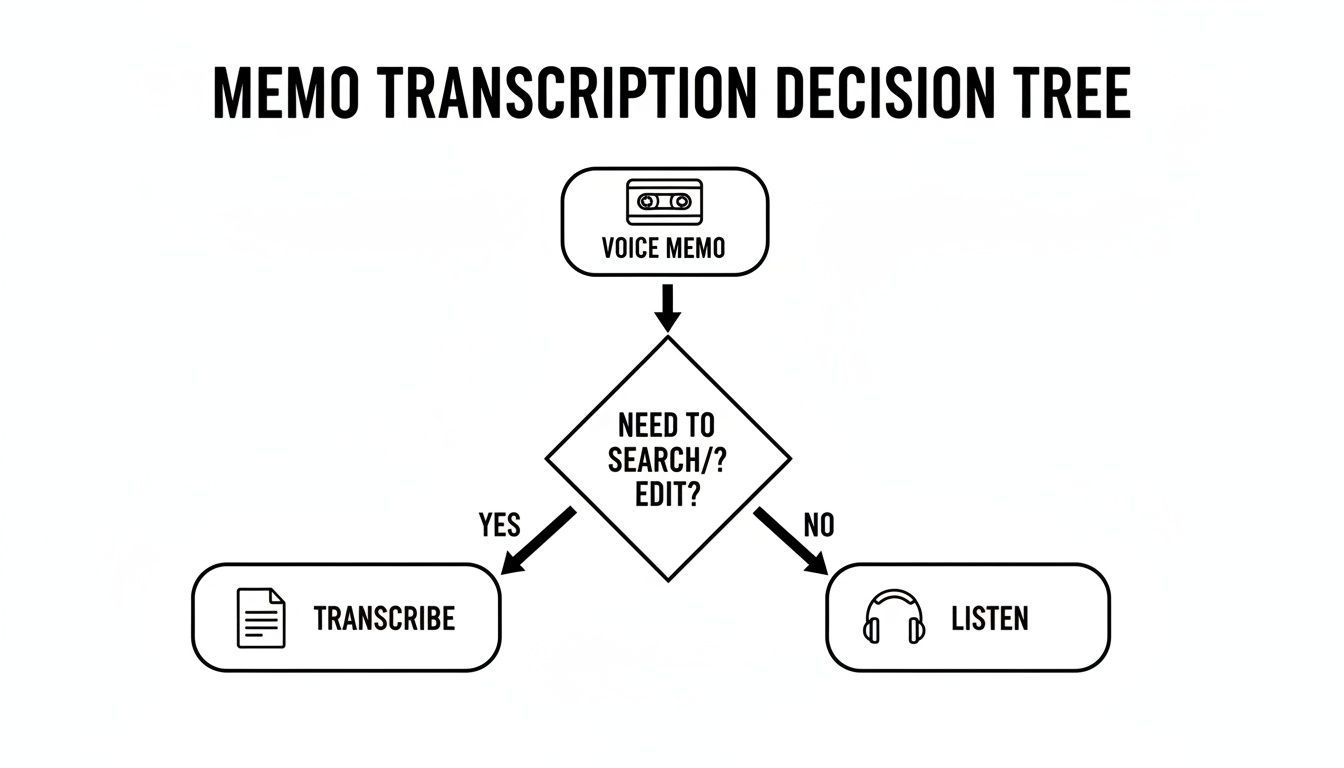
La conclusión clave aquí es bastante clara: la transcripción se vuelve innegociable en el momento en que necesitas buscar, editar o extraer citas de tu grabación.
Para los súper organizados: la aplicación Archivos
Cuando estás manejando múltiples grabaciones de un proyecto, enviarlas por correo electrónico una por una es una receta para la frustración. Un flujo de trabajo mucho más inteligente es guardarlas directamente en la aplicación Archivos, que actúa como un centro central para todos tus documentos.
Desde el mismo menú Compartir, simplemente toca "Guardar en Archivos". Esto cambia las reglas del juego porque puedes organizar varias notas en una carpeta de proyecto específica, ya sea en tu dispositivo o en un servicio en la nube que ya uses, como iCloud Drive, Google Drive o Dropbox.
Esto mantiene todo ordenado y limpio, especialmente si necesitas hacer un trabajo de preparación antes de transcribir. Por ejemplo, si tienes varios clips que forman parte de la misma entrevista, es posible que desees combinarlos primero. Para esas situaciones, nuestra guía sobre cómo fusionar archivos de audio te guiará.
Y si a menudo tratas con audio de otras aplicaciones de iPhone, saber cómo convertir notas de voz de iMessage a texto puede darte algunos consejos útiles que también se aplican aquí. Elegir el método de exportación correcto desde el principio hace que todo lo que sigue sea mucho más fluido.
Elegir tu mejor método de exportación de Notas de Voz
¿Aún no estás seguro de qué opción es la adecuada para ti? Esta rápida comparación debería ayudarte a decidir según tus necesidades específicas, desde archivos individuales hasta lotes grandes.
| Método de exportación | Mejor para | Velocidad | Límite de tamaño de archivo |
|---|---|---|---|
| Sincronización con iCloud | Acceso perfecto a múltiples dispositivos dentro del ecosistema de Apple. "Configúralo y olvídate". | Automático | Basado en tu almacenamiento de iCloud |
| AirDrop | Envío instantáneo de archivos individuales de un iPhone a una Mac cercana u otro dispositivo Apple. | Más rápido | Sin límite práctico |
| Compartir a Correo/Mensajes | Compartir rápidamente clips muy cortos (menos de unos minutos). | Rápido | Varía (a menudo ~25 MB para correo electrónico) |
| Guardar en Archivos | Organizar múltiples grabaciones o archivos grandes en carpetas (iCloud, Dropbox, etc.). | Moderado | Basado en el límite de almacenamiento en la nube |
En última instancia, AirDrop es el rey para archivos individuales, la Sincronización con iCloud es la mejor para usuarios avanzados de Apple, y Guardar en Archivos es la opción principal para cualquiera que valore la organización.
Usar herramientas nativas de Apple para transcripción básica
Antes de gastar un centavo o descargar otra aplicación, vale la pena echar un vistazo a la herramienta de transcripción gratuita que Apple integró en Notas de Voz. Para notas rápidas, recordatorios personales o para plasmar una idea simple en texto, esta función nativa puede ser sorprendentemente útil y es definitivamente la forma más rápida de empezar.
Esta herramienta integrada es una adición bastante reciente, que apareció por primera vez en los modelos de iPhone 12 y más nuevos. Es una forma súper conveniente de obtener una versión en texto de tu audio sin salir de la aplicación. Mejor aún, si tus notas se sincronizan a través de iCloud, la transcripción que creas en tu iPhone aparece automáticamente en tu Mac, lo que resulta en un flujo de trabajo bastante fluido.
Apple incluso incluyó soporte para varias variantes del inglés (estadounidense, británico, australiano y canadiense), lo cual es un buen detalle. Este tipo de integración es increíblemente práctica, especialmente si se considera que el 62% de los usuarios de iPhone informan usar funciones de voz mientras conducen. Puedes encontrar más información sobre cómo las personas usan las funciones de voz de Apple en apps.apple.com.
Cómo generar una transcripción en Notas de Voz
Obtener tu primera transcripción es simple, aunque la función está un poco oculta si no sabes dónde buscar.
Aquí tienes un resumen rápido:
- Abre Notas de Voz y toca la grabación que deseas transcribir.
- Una vez que veas los controles de reproducción, mira justo encima de la forma de onda.
- Verás un pequeño icono que parece una burbuja de diálogo con líneas. Tócalo.
Eso es todo. La aplicación procesará el audio y, en unos segundos, el texto aparecerá justo debajo de la forma de onda. Desde allí, puedes tocar el icono para compartir para copiar la transcripción completa o enviarla directamente a otra aplicación.
Conclusión importante: La transcripción nativa de Apple es mejor para audio de un solo hablante grabado en una habitación silenciosa. Te proporciona una transcripción "suficientemente buena" para notas personales, pero simplemente no está diseñada para necesidades profesionales.
Conociendo las limitaciones
Si bien la conveniencia es una gran ventaja, debes ser realista sobre lo que puede hacer la herramienta gratuita de Apple. La precisión es decente para un habla clara y sencilla, pero realmente comienza a tener problemas con el ruido de fondo, varios hablantes o cualquier tipo de jerga especializada.
Te encontrarás con dos limitaciones importantes casi de inmediato:
- Sin etiquetas de hablante: La transcripción sale como un gran bloque de texto. No puede distinguir entre hablantes, lo que la hace inviable para entrevistas, reuniones o cualquier tipo de discusión grupal.
- Sin edición en la aplicación: No puedes corregir errores tipográficos ni limpiar el texto directamente dentro de Notas de Voz. Para hacer correcciones, debes copiar todo y pegarlo en otra aplicación como Notas o Páginas.
Piénsalo como un buen punto de partida. Es una forma fantástica de capturar rápidamente una idea fugaz o obtener un borrador de tus pensamientos. Pero si necesitas precisión y un formato limpio, definitivamente necesitarás una solución más potente y dedicada.
Subir de nivel con IA para transcripciones impecables
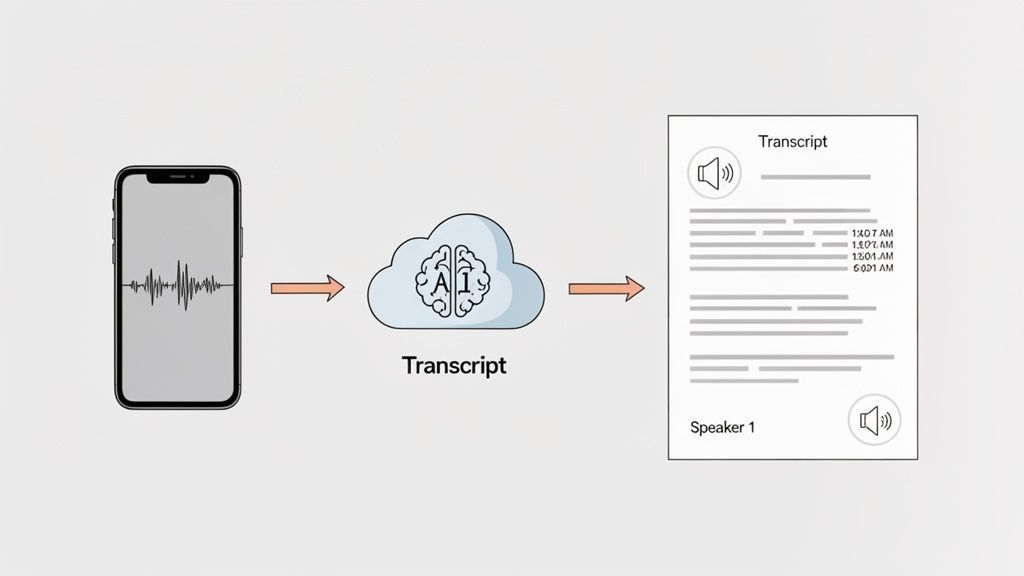
Si bien la herramienta integrada de Apple es un buen punto de partida para notas rápidas, pronto alcanzarás sus límites en cualquier proyecto serio. Para entrevistas, reuniones con clientes o cualquier audio con más de una persona hablando, necesitas algo que ofrezca precisión real. Aquí es donde entran los servicios dedicados de transcripción con IA, que convierten un simple archivo de texto en un documento que realmente puedes usar.
¿Quién se beneficia más de transcribir notas de voz?
Periodistas y podcasters
Las entrevistas grabadas en iPhones se convierten en transcripciones estructuradas para artículos, notas del programa y citas sin escribir manualmente.
Estudiantes e investigadores
Las conferencias y entrevistas se convierten en material de estudio buscable, lo que hace que la revisión y el análisis cualitativo sean mucho más eficientes.
Profesionales de negocios
Las grabaciones de reuniones se convierten en actas claras, elementos de acción y documentación que los equipos pueden revisar rápidamente.
Consultores y coaches
Las notas de las sesiones con clientes se capturan con precisión, lo que reduce el trabajo administrativo y preserva información importante.
Piensa en ello como la diferencia entre un bloc de notas básico y un procesador de textos completo. Claro, ambos pueden escribir palabras, pero uno te da el poder de formatear, estructurar y perfeccionar tu trabajo. Los servicios de IA están diseñados para comprender los pequeños detalles del habla humana que las herramientas básicas pasan por alto por completo, ahorrándote horas de dolorosas ediciones manuales.
El poder de la transcripción especializada con IA
Cuando decides transcribir notas de voz de Apple con una plataforma dedicada, obtienes mucho más que una simple conversión de voz a texto. Un servicio como Transcript.LOL toma tu archivo M4A exportado y lo ejecuta a través de sofisticados modelos de IA, como Whisper de OpenAI, para generar una transcripción que no solo es precisa, sino también inteligentemente organizada.
El proceso es increíblemente simple. Subes tu archivo de audio y, en pocos minutos, recibes una transcripción detallada y editable. Para cualquiera que tenga una fecha límite, ya sea un periodista que persigue una historia o un estudiante que termina una investigación, esa velocidad es un salvavidas. La diferencia de calidad es obvia desde el principio, especialmente con audio complicado.
Pero la verdadera magia reside en las funciones que las herramientas nativas simplemente no tienen. Estos son los detalles que convierten un bloque de texto en bruto en un documento pulido y profesional.
Funciones de productividad y rendimiento

Herramientas de edición
Edita transcripciones con herramientas potentes como buscar y reemplazar, asignación de hablantes, formatos de texto enriquecido y resaltado.

Exportar en múltiples formatos
Exporta tus transcripciones en múltiples formatos incluyendo TXT, DOCX, PDF, SRT y VTT con opciones de formato personalizables.
Resúmenes y Chatbot
Genera resúmenes y otros análisis de tu transcripción, prompts personalizados reutilizables y chatbot para tu contenido.
- Etiquetado Automático de Orador: La IA puede distinguir diferentes voces y etiquetarlas automáticamente (por ejemplo, "Orador 1", "Orador 2"). Esto cambia las reglas del juego para transcribir entrevistas, podcasts o actas de reuniones, facilitando el seguimiento de la conversación.
- Vocabulario Personalizado: ¿Tu grabación tiene mucha jerga de la industria, acrónimos de la empresa o nombres únicos? Puedes crear una lista de vocabulario personalizado para "enseñar" a la IA estos términos específicos, lo que aumenta enormemente la precisión para contenido especializado.
- Múltiples Formatos de Exportación: ¿Necesitas subtítulos para un video? Exporta un archivo SRT. ¿Quieres editar el texto para un informe? Obtén el DOCX. Un servicio sólido te ofrece opciones como TXT, DOCX, SRT y VTT, para que tu transcripción esté lista para lo que necesites.
Al utilizar un servicio especializado de IA, no solo obtienes una transcripción; obtienes un activo de datos estructurado. Es la diferencia entre un borrador y un producto terminado, entregado en una fracción del tiempo que llevaría hacerlo manualmente.
Un Ejemplo de Flujo de Trabajo en el Mundo Real
Digamos que acabas de terminar una entrevista de 45 minutos para tu podcast, grabada directamente en tu iPhone. Transcribirla a mano llevaría una eternidad, y la herramienta de Apple escupiría un texto confuso sin forma de saber quién dijo qué.
Con un servicio de IA, tu flujo de trabajo se ve así en su lugar:
- Exportar: Envía por AirDrop la nota de voz de tu iPhone directamente a tu Mac.
- Cargar: Arrastra y suelta el archivo de audio en la plataforma de transcripción.
- Transcribir: La IA se pone a trabajar, procesando el archivo en minutos mientras identifica a ambos oradores y genera marcas de tiempo.
- Refinar y Exportar: Puedes hacer una revisión rápida, renombrar "Orador 1" a "Jane Doe" y exportar el texto final como DOCX para las notas de tu programa y un archivo SRT para clips de video en redes sociales.
Todo este proceso puede llevar menos de diez minutos. El tiempo que recuperas y la calidad que ganas lo convierten en una herramienta esencial para cualquiera que necesite transcribir notas de voz de Apple regularmente para uso profesional.
Para una inmersión más profunda en lo que hay disponible, consulta esta guía sobre el mejor software de transcripción de IA disponible hoy en día. Es una inversión que se paga sola en pura productividad.
Consejos Avanzados para Perfeccionar tus Transcripciones
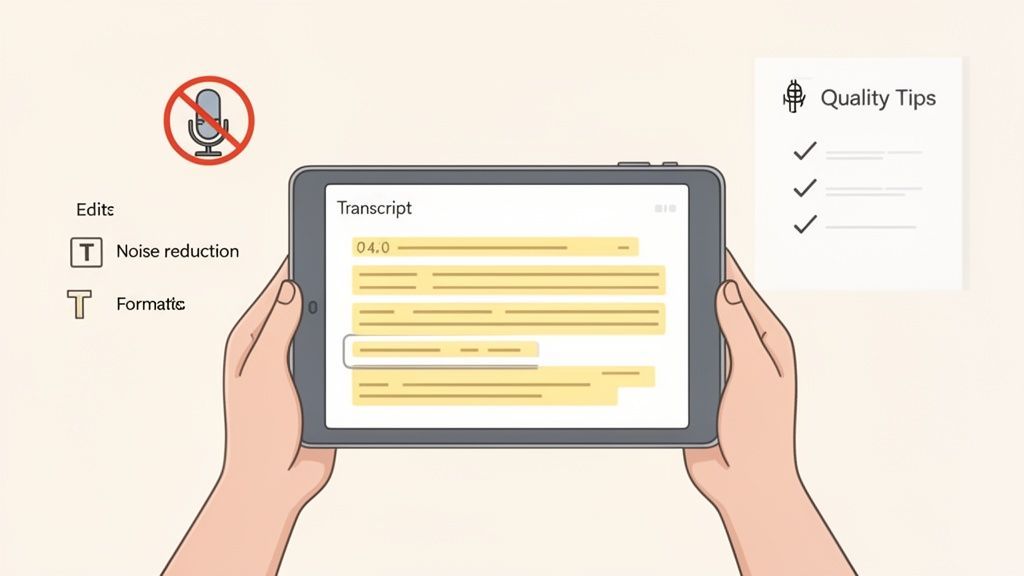
Obtener el primer borrador de un servicio de IA es un gran comienzo, pero el trabajo no está del todo hecho. Unos minutos adicionales de pulido pueden marcar la diferencia entre una transcripción decente y un documento impecable y profesional. El verdadero secreto de un producto final perfecto reside tanto en cómo grabas como en cómo refinas el texto después.
La calidad de tu transcripción está directamente ligada a la calidad de tu audio. Es el viejo principio de "basura entra, basura sale" en acción. Una grabación llena de ruido de fondo, solapamiento de voces o voces apagadas obliga a cualquier IA a adivinar, y adivinar conduce a errores. Honestamente, mejorar tu grabación es la forma más efectiva de obtener una mejor transcripción desde el principio.
Dominando tu Entrada de Audio
Antes de siquiera presionar grabar, piensa en estos ajustes simples pero potentes. Llevan solo unos segundos pero pueden reducir drásticamente tu tiempo de edición más tarde.
- Acércate al Micrófono: El micrófono de tu iPhone funciona mejor cuando está cerca de la fuente. Si te estás grabando a ti mismo, sostén el teléfono como si estuvieras hablando directamente en él. Para entrevistas, simplemente colócalo sobre una mesa entre tú y la otra persona.
- Busca un Espacio Tranquilo: Esto parece obvio, pero incluso el zumbido de fondo de bajo nivel de un aire acondicionado o el tráfico distante pueden afectar a una IA. Una habitación silenciosa es tu mejor aliada.
- Evita el Solapamiento de Voces: Cuando varias personas hablan, haz todo lo posible por no interrumpirse mutuamente. Las herramientas de transcripción de IA realmente luchan por separar voces superpuestas, lo que a menudo resulta en oraciones confusas o incompletas.
Recuerda, el objetivo es darle a la IA el audio más limpio posible para trabajar. Cada poco de claridad que proporcionas al principio te ahorra minutos de tediosa edición al final.
El Pulido Post-Transcripción
Una vez que la IA ha hecho su parte, es hora del toque humano. Aquí es donde limpias errores, agregas contexto y preparas el documento para su propósito final. Esta revisión final, o corrección, es absolutamente esencial para resultados profesionales.
La mejor manera de empezar es leyendo la transcripción mientras escuchas la reproducción del audio. Captarás inmediatamente palabras mal escuchadas o frases incómodas. Muchos servicios, incluido Transcript.LOL, tienen un editor interactivo que resalta las palabras a medida que se reproduce el audio, lo que hace que este proceso sea increíblemente eficiente.
Para una inmersión más profunda en este paso crucial, consulta nuestra guía sobre la importancia de la corrección en la transcripción para un flujo de trabajo más detallado.
Formateo para tu Objetivo Final
Finalmente, piensa en dónde terminará esta transcripción. El formato que necesitas para las notas de reuniones internas es completamente diferente al que usarías para subtítulos de video.
Así es como eliges el formato de exportación adecuado para tus necesidades:
- DOCX: Este es el formato ideal para informes, artículos o cualquier documento que planees seguir editando en Microsoft Word o Google Docs. Conserva el formato y es universalmente compatible.
- SRT / VTT: Estos son tus archivos de subtítulos. Si tu nota de voz es en realidad audio para un video, exportar en uno de estos formatos te proporciona subtítulos con marcas de tiempo listos para subir directamente a YouTube, Vimeo o redes sociales.
- TXT: Un archivo de texto plano simple es perfecto cuando solo necesitas el texto sin formato para pegarlo en otras aplicaciones o para fines de archivo donde el formato no importa.
Al combinar audio limpio con un proceso de edición reflexivo, puedes transcribir notas de voz de Apple de manera confiable en documentos pulidos y precisos cada vez.
Respondiendo a tus Preguntas Más Frecuentes sobre la Transcripción de Notas de Voz
Incluso con un plan sólido, es probable que tengas preguntas cuando comiences a convertir notas de voz en texto. Abordemos algunas de las más comunes que escucho; resolverlas te ahorrará muchos dolores de cabeza más adelante.
¿Es Buena la Transcripción Integrada de Apple?
Honestamente, para una nota rápida y personal para ti mismo, la herramienta integrada de Apple es sorprendentemente decente. Si estás en una habitación silenciosa y solo necesitas capturar una idea antes de que desaparezca, cumple su función sin que tengas que salir de la aplicación Notas de Voz.
Pero ahí es donde termina su utilidad. En el momento en que introduces ruido de fondo, múltiples oradores o cualquier tipo de jerga profesional, empieza a desmoronarse. Carece por completo de elementos esenciales como las etiquetas de orador, lo que hace que organizar una transcripción de entrevista o reunión sea una pesadilla. Para cualquier cosa seria, un servicio de IA dedicado es la única opción.
No todas las herramientas de transcripción protegen tus datos
Algunos servicios de transcripción reutilizan el audio cargado para entrenar sus modelos de IA. Siempre verifica que haya una política clara de no entrenamiento antes de cargar reuniones confidenciales, entrevistas o grabaciones personales.
¿Cuál es el mejor formato de audio para mis notas de voz?
La aplicación Notas de voz utiliza por defecto un formato comprimido (AAC), pero para obtener la mayor precisión posible, siempre debes cambiar a calidad "Sin pérdidas" si tu iPhone te lo ofrece. Puedes encontrar esta configuración en Ajustes > Notas de voz > Calidad de audio.
Cuando vayas a exportar, el archivo M4A estándar está perfectamente bien. Casi todos los servicios de transcripción, incluido el nuestro, lo manejan sin problemas. Aunque podrías convertirlo a WAV, suele ser un paso innecesario. Un M4A limpio y original proporciona todos los datos que una IA necesita para una transcripción excelente.
No puedo enfatizar esto lo suficiente: El factor más importante para una transcripción precisa es la calidad de tu audio original. Una grabación clara en una habitación silenciosa siempre superará a una ininteligible, sin importar la herramienta que estés utilizando.
¿Cómo puedo obtener transcripciones más precisas?
Más allá de activar esa configuración de "Sin pérdidas", la verdadera magia ocurre antes de que siquiera presiones grabar.
- Busca un lugar tranquilo. Esto es innegociable. El tráfico, los refrigeradores zumbando y las conversaciones cercanas son los enemigos del audio limpio.
- Acércate al micrófono. Ya sea tu iPhone o uno externo, la proximidad importa. Cuanto más cerca esté el hablante, más clara será su voz.
- Evita el solapamiento de voces. Si estás grabando una reunión o una entrevista, anima amablemente a las personas a hablar una a la vez. Las voces superpuestas son difíciles de desenredar para cualquier IA.
Y para aquellos que tratan con temas específicos, busquen un servicio que ofrezca un vocabulario personalizado. Poder "enseñar" a la IA nombres de productos específicos, acrónimos de empresas o jerga de la industria es un cambio absoluto para la precisión.
¿Puedo transcribir una nota de voz muy larga?
Sí, absolutamente. Mientras que la herramienta nativa de Apple podría tener problemas con un archivo largo, las plataformas dedicadas están diseñadas para esto. Un servicio como Transcript.LOL puede procesar fácilmente grabaciones de varias horas de duración sin despeinarse.
El cuello de botella más común no es el servicio de transcripción en sí, sino cómo sacar ese archivo masivo de tu teléfono. Para esas grabaciones maratonianas, tu mejor opción es usar la opción "Guardar en Archivos" y subirlo a un servicio en la nube como Google Drive o Dropbox primero. Desde allí, es muy fácil importarlo a tu herramienta de transcripción.
¿Listo para convertir tus notas de voz en texto preciso y perfectamente formateado? Con detección de hablantes, múltiples formatos de exportación e IA potente, Transcript.LOL lo hace sin esfuerzo. Empieza a transcribir gratis hoy mismo en https://transcript.lol.