
How to Create Subtitles for Videos A Practical Guide
Learn how to create subtitles for videos with our practical guide. Discover tools and techniques to boost accessibility, engagement, and reach for your content.
Kate, Praveen
December 20, 2023
Getting subtitles on your videos is surprisingly straightforward. You can use an AI tool like Transcript.LOL to generate a transcript automatically, give it a quick polish for accuracy, and export it as an SRT file. From there, you can upload it straight to YouTube or burn it directly into your video for social media.
Why Subtitles Are Essential for Modern Video Content
Before we jump into the "how-to," let's talk about the "why." Subtitles aren't just a nice-to-have feature anymore; they're a critical part of any serious video strategy. It's not just about accessibility—it's about how people discover, watch, and connect with your work.
Think about your own habits. When was the last time you were scrolling through your phone in a waiting room, on a bus, or late at night? You probably watched a dozen videos with the sound completely off. Without captions, the creator's message is lost, and you just keep scrolling. That's the reality for a huge chunk of your audience.
Boosting Viewer Engagement and Reach
The data doesn't lie—subtitles have a massive impact on key video metrics. They grab a viewer's attention instantly, providing context that makes them want to stick around.
In fact, some studies have shown that videos with subtitles can see up to a 40% increase in watch time. That extra retention is a huge signal to platform algorithms that your content is valuable, which helps push it out to a much wider audience.
The bottom line is simple: Subtitles transform a passive viewing experience into an active one. They improve comprehension, keep viewers focused, and ensure your message lands, whether the sound is on or off.
Captions also make your content more shareable and understandable on a global scale. They remove barriers for non-native English speakers and are absolutely crucial for viewers with hearing impairments. One survey found that 80% of these users said subtitles were essential for them to watch video content.
Let's look at how this breaks down across a few key metrics.
How Subtitles Impact Key Video Metrics
Here's a quick summary of the primary benefits you can expect from adding subtitles to your video content.
| Metric | Potential Improvement | Primary Benefit |
|---|---|---|
| Watch Time | Up to 40% increase | Higher retention signals content quality to algorithms, boosting reach. |
| Engagement | 80% more likely to be watched to completion | Captions hold attention, especially in sound-off environments. |
| Accessibility | Unlocks content for 500M+ deaf/HOH viewers | Makes your content inclusive and available to a much larger audience. |
| Reach | Can increase by 16% or more | Subtitles are indexed by search engines, making your video easier to find. |
As you can see, the small effort of adding subtitles pays off in big ways across the board.
Improving Your Video's SEO Performance
Beyond the immediate viewer experience, subtitles are an absolute goldmine for search engine optimization (SEO). Search engines can't "watch" your video to understand its content, but they can crawl every single word in your subtitle file.
By including a transcript, you're essentially handing Google and YouTube a detailed, keyword-rich document that explains exactly what your video is about. This means your content is far more likely to show up in search results for relevant phrases, driving a steady stream of organic traffic.
To really get the most out of your video's reach, you should also consider the best times to upload YouTube videos. Pairing great subtitles with smart timing gives your content the best possible chance to be discovered.
Picking the Right Way to Make Your Subtitles
So, you need subtitles. The first big decision you'll make is how you're going to create them. This choice pretty much defines your entire workflow, forcing you to juggle speed, accuracy, cost, and control.
Frankly, there’s no single "best" method. The right approach really depends on what you’re working on and the resources you have.
You could always go the old-school route and do it all by hand. That means typing out every single word and manually setting every timestamp. This gives you absolute control, which is great for artistic projects where every little nuance or inside joke needs to be perfect. But let's be real—for most of us, especially with longer videos, this is just not a practical use of time.
The Game Changer: AI-Powered Subtitles
The biggest shake-up in this space has been the arrival of AI-driven tools. Platforms like Transcript.LOL can listen to your video's audio and spit out a nearly finished subtitle file in a matter of minutes, not hours. They do all the heavy lifting—the initial transcription and timing—leaving you with a solid draft that’s often 85-95% accurate right out of the gate.
This visual breaks down the trade-offs you're looking at between different methods.
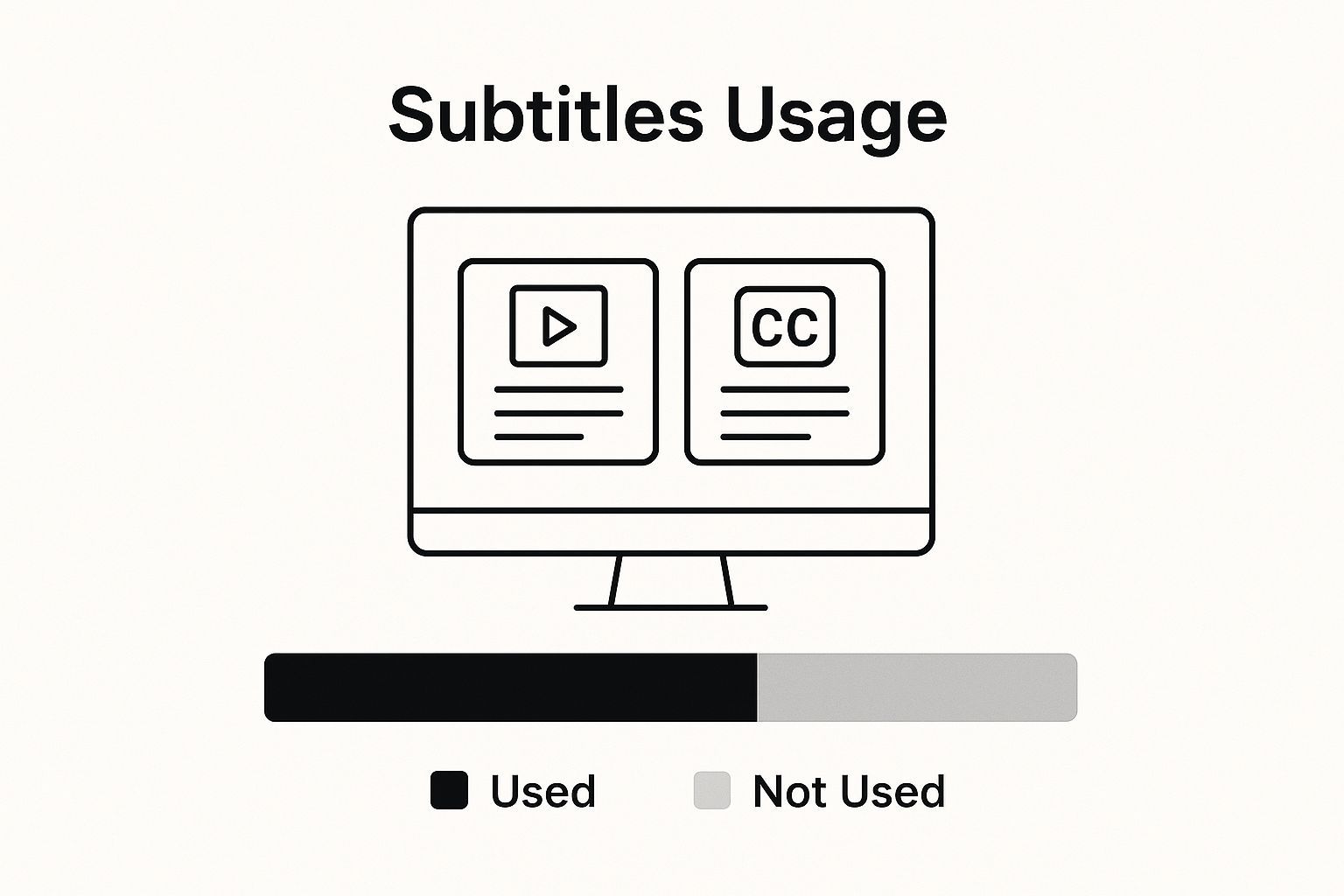
As you can see, AI tools hit a real sweet spot. You get incredible speed without the high costs of manual services. This is a big reason why the whole industry is blowing up.
The subtitle market was valued at USD 0.317 billion in 2024 and is expected to climb to USD 0.76 billion by 2033. This surge is all thanks to better AI and speech recognition tech making it way cheaper and faster to get accurate captions.
Manual vs. AI: A Head-to-Head Look
So, how do you decide? Let's get right to it and compare the core differences to help you figure out what's best for your next project.
To make it even clearer, here's a side-by-side comparison of your main options. It should help you see at a glance which method fits your project's needs.
Subtitle Creation Methods Compared
| Method | Best For | Average Cost | Speed |
|---|---|---|---|
| Manual | Short, creative projects needing absolute precision | $5 - $25 per minute | Very Slow (Hours/Days) |
| Outsourced | Businesses needing high volume & accuracy without in-house work | $1 - $5 per minute | Slow (24-48 hours) |
| AI-Driven (DIY) | Most creators, marketers, and general use cases | $0.10 - $0.50 per minute | Extremely Fast (Minutes) |
Ultimately, the choice comes down to your priorities. If you have the time and need perfection, manual work has its place. If you have a budget and want to offload the work completely, outsourcing works. But for most people, AI is the smart move.
For most creators, an AI-first workflow is the clear winner. The time you save allows you to produce more content and meet tight deadlines without sacrificing quality.
In my experience, the best strategy is often a hybrid one. Use an AI tool like Transcript.LOL to get that first draft done in a flash. Then, just spend a few minutes polishing the file to make sure it perfectly captures your video's tone and timing.
This approach gives you the best of both worlds: the raw speed of automation paired with the final touch of a human editor. By folding AI into your process, you can streamline your https://transcript.lol/usecases/content-creation-transcription and get professional results without the headache.
Here's a breakdown of the pros and cons:
-
Manual Transcription: Your go-to for short, artistic videos where every detail counts. You get total control, but it will eat up your time. Pro-tip: using some of the best dictation software for writers can help speed up the typing part, which is a big chunk of the battle.
-
AI-Powered Tools: The perfect fit for most content creators, marketers, and businesses. The speed is a lifesaver, and the accuracy is good enough that you just need to do a quick once-over. This method frees up countless hours so you can focus on what really matters—creating more great stuff.
Using AI Tools to Generate Your First Draft
Alright, let's get down to business. Tapping into an AI subtitle generator like Transcript.LOL can take a job that used to eat up an entire afternoon and turn it into a quick task you can finish in minutes. The whole process is refreshingly simple and cuts out almost all the grunt work of creating that initial draft.
The concept is easy: you give the AI your video, and it does the heavy lifting of transcribing and timing the dialogue. A massive first step, particularly for web content, is mastering the art of getting a transcript of a YouTube video with AI. This text is the bedrock of your subtitles, so starting with a clean, accurate source is non-negotiable.
Getting Your Video Ready for AI Transcription
Before you even think about uploading, a little bit of prep can make a world of difference in the accuracy of your AI-generated subtitles. I like to think of it as setting the AI up for a win.
The single biggest factor? Audio quality. AI is powerful, but it's not a miracle worker. If your audio is a mess of background noise, reverb, or people talking over each other, the transcription is going to reflect that.
Here are a few things I always do:
- Kill the background noise: If you can, run your audio through some cleanup software first. Getting rid of that air conditioner hum or the traffic outside makes a huge impact.
- Speak clearly: It sounds obvious, but mumbling or speed-talking is a recipe for errors. Clear, evenly-paced speech is what the AI is trained on.
- Separate your speakers: If you're recording an interview or a podcast, having each person on their own audio track is the gold standard for accuracy.
This prep might tack on an extra five minutes to your workflow, but trust me, it’ll save you way more time on the backend when you're editing.
Creating Your First Subtitle File
Once your video is polished and ready, it's time for the fun part. With a tool like Transcript.LOL, you just upload your file or, even easier, paste in a URL. The platform immediately starts analyzing the audio and converting it into time-stamped text.
You'll select the video's language, and the AI will spit out a complete subtitle file. This isn't just a wall of text—it's a perfectly structured SRT or VTT file with precise start and end times for every single line.
This automated first pass is the biggest time-saver you'll find. Instead of a blank page, you're starting with a draft that's already 90-95% accurate. Your job shifts from tedious transcription to simple polishing.
The AI even handles speaker identification, which is a lifesaver for interviews or panel discussions. It automatically tags who is speaking, a detail that’s a real pain to add by hand. This is a game-changer for anyone deep in their podcast and YouTube transcription workflow, making it effortless to follow a conversation.
And it’s fast. Seriously fast. A 10-minute video can have a complete subtitle file ready for review in under a minute. This kind of speed means you can build subtitling right into your production schedule without ever slowing down.
Editing and Polishing Your Subtitles for Accuracy
Let's be real: an AI draft is a phenomenal starting point. It gets you about 90% of the way there, saving you hours of tedious work. But that last 10%? That’s where the magic happens.
This is where your human touch turns a functional transcript into a polished, professional viewing experience. Editing isn’t just about fixing typos. It's about finessing the timing, boosting readability, and making sure the tone of the captions actually matches the video.
Think of the AI as a brilliant but very literal assistant. It will nail what was said, but it might stumble on the subtle nuances of speech, the correct spelling of a niche brand name, or the punctuation needed to convey excitement instead of a simple statement. Your job is to be the final editor, adding that layer of context and polish that automation just can't replicate yet.
This human review step is so vital that it's baked right into professional workflows. While AI solutions are projected to capture nearly 72% of the captioning market by 2035, the best approach is a hybrid one: AI does the heavy lifting, and humans provide that final, crucial quality check. You can see more insights on this market growth at researchnester.com.
Your Systematic Editing Checklist
To keep from getting lost in the details, it helps to have a system. I’ve found a two-pass approach works best. The first pass is for pure accuracy, and the second is all about timing and flow.
-
Pass 1: Textual Accuracy: Watch the video with your subtitle file open. Just read along and correct any misheard words, spelling goofs, or grammar mistakes. Keep an eye out for names, industry jargon, or unique terms that tend to trip up AI.
-
Pass 2: Timing and Readability: Now, watch it again. This time, ignore the words themselves and focus entirely on how the subtitles appear and disappear. Do they sync perfectly? Are they on screen long enough to be read comfortably? This is where you'll spend most of your fine-tuning time.
Fine-Tuning Timestamps for Perfect Sync
Nothing yanks a viewer out of the experience faster than bad timing. When a subtitle pops up too early or hangs around too long, it’s incredibly distracting.
Luckily, most subtitle editors, including the one built into Transcript.LOL, give you a visual timeline that makes this a breeze to fix. You can usually just drag the edges of a subtitle block to align it perfectly with the audio waveform in the video.
A good rule of thumb is to have the subtitle appear the instant someone starts talking and vanish the moment they finish.
Pro Tip: Don't be afraid to merge or split subtitle blocks. If someone says a long, complex sentence, it's often better to break it into two or three shorter, more digestible captions. It prevents the viewer from feeling overwhelmed.
Formatting for the Platform and Viewer
Finally, always think about where this video is going to live. Best practices for subtitles can vary wildly between platforms.
A YouTube video, for instance, can handle longer lines of text. But an Instagram Reel or TikTok needs much shorter, punchier text that won't cover up important visuals in that vertical format.
Here’s a quick guide to formatting for maximum readability:
- Break Long Lines: Try to stick to a maximum of two lines of text for any single subtitle.
- Mind the Safe Area: Keep your text centered and away from the absolute edges of the screen. This ensures nothing gets cut off on different phones, tablets, or TVs.
- Use Punctuation Wisely: Punctuation is your friend for pacing. An ellipsis (…) can signal a thoughtful pause, while an exclamation point (!) can add a burst of energy.
By taking a little extra time to polish your AI-generated draft, you guarantee your subtitles don't just relay information—they actually enhance the entire viewing experience. This final step in creating subtitles for your videos is what delivers a truly professional and accessible result.
Embedding Subtitles Into Your Video
Alright, you've done the hard work. Your subtitle file is generated, polished, and ready to go. So, what’s next? Getting those subtitles onto your actual video. This is the final leg of the race, and it's simpler than you might think.
You’re facing two main paths here: uploading a separate "sidecar" file (like your SRT) or permanently "burning" the subtitles right into the video. The best choice depends entirely on where your audience will be watching.
Sidecar Files vs. Burned-In Subtitles: What's the Difference?
Think of a sidecar file as an optional extra. When you upload to a platform like YouTube or Vimeo, you upload your video file and then your SRT file right alongside it. This gives your viewers total control—they can click the little "CC" button to turn captions on or off as they please. It’s the standard for platforms where user control is expected.
Burned-in subtitles (also called open captions or hardcoding) are the complete opposite. The text becomes a permanent, unremovable part of the video image itself. Viewers can't turn them off. This is the go-to method for social media feeds—think Instagram Reels, TikTok, and LinkedIn—where videos often autoplay on mute and you need to grab attention instantly.
The Bottom Line: Use sidecar files (SRT/VTT) for platforms where viewers expect control, like YouTube. Use burned-in subtitles for social media where you need to hook people in a sound-off world.
Most of the time, you'll probably end up using both methods for the same piece of content. For example, a full recording of a webinar might go on YouTube with a sidecar file. Then you'd pull short, punchy clips from it for social media, adding burned-in text to make them stand out. It’s all about meeting your audience where they are.
This strategy works especially well for longer content—our guide on webinar transcription and captions covers how you can repurpose this material effectively.
How to Add Sidecar Files to YouTube
Adding your SRT file to a YouTube video is a piece of cake. YouTube Studio has this process built right in.
Once your video is uploaded, just follow these steps:
- Head over to the Subtitles tab in YouTube Studio for that specific video.
- Click Add Language and choose the language for your captions.
- Look for the "Subtitles" column and click Add.
- Select Upload file, make sure "With timing" is selected, and then just upload your SRT or VTT file.
YouTube handles the rest. It’ll process the file and even let you make last-minute tweaks to the timing. After you hit save, viewers will see the classic "CC" icon on your video player.
How to Burn Subtitles Directly Into Your Video
When it's time to post on social media, you'll need to burn those subtitles in using video editing software. Most editors, from professional tools like Adobe Premiere Pro and Final Cut Pro to free apps like CapCut, can handle this.
The workflow is pretty much the same no matter what software you use. First, import your video footage, then import your SRT file. The editor will place the subtitles on your timeline, already synced up with the audio.
Now for the fun part. You can customize the look of your subtitles—change the font, adjust the size, pick a new color, or even add a background box to make the text more readable. Once you've styled them to fit your brand, you just export the video as a new file. The subtitles are now baked in, ready to stop the scroll on any social feed.
Common Questions About Creating Subtitles
Even with the best tools in your corner, a few questions are bound to pop up when you're getting the hang of creating subtitles. It's a process with a few moving parts, and hitting a small snag is totally normal. Let's walk through some of the most common hurdles so you can keep your workflow humming.
One of the first things that trips people up is file formats. You'll mostly run into two: SRT (SubRip Text) and VTT (WebVTT). For most videos, they're practically interchangeable, but VTT is a more modern format. It supports extras like text color and different fonts, which makes it a fantastic choice for web video players. SRT is the old reliable—simpler, but with broader compatibility, especially with older software.
What Is the Ideal Character Limit for Subtitles?
Readability is king. If your subtitle lines are too long, your audience won't be able to keep up before the next line appears, which defeats the whole purpose of adding them in the first place.
As a rule of thumb, stick to around 42 characters per line. And try to keep it to a maximum of two lines on screen at any given time. This gives the viewer enough context without overwhelming them or blocking important visuals in your video. The goal is to deliver information in easy-to-digest, bite-sized pieces.
A great subtitle line is short and punchy. It should complement the video, not compete with it for attention. The goal is a seamless experience where the viewer barely notices they're reading.
Can I Translate My Subtitles Into Other Languages?
Absolutely—and you definitely should! Translating your subtitles is one of the single most powerful ways to take your content global. Once you have a solid, accurate transcript in the original language, the world is your oyster.
Here’s a quick look at your options:
- AI Translation: Tools like Google Translate or DeepL are great for a fast, low-cost first pass. But you'll almost certainly need a native speaker to review it for cultural nuances and natural phrasing.
- Professional Services: For your most important content where accuracy is non-negotiable, hiring a human translator is the way to go. It's an investment, but the result is a polished, professional translation that truly connects.
After you have your translated files, you can upload them to platforms like YouTube, and viewers can simply pick their language from the "CC" menu. It’s a huge win for accessibility and reach.
If you want to get into the nitty-gritty of the technical side, a detailed FAQ page can be a lifesaver. You can find more information by exploring the common questions about transcription to really dial in your process.
Ready to create accurate, perfectly timed subtitles in minutes? Transcript.LOL uses advanced AI to turn your videos into professional SRT or VTT files, complete with speaker detection and an intuitive editor. Streamline your workflow and make your content accessible to everyone. Start for free at https://transcript.lol.