
Una guida completa alla trascrizione dei memo vocali Apple
Scopri come trascrivere i memo vocali Apple con la nostra guida completa. Esplora i metodi nativi di iOS e gli strumenti avanzati di intelligenza artificiale per una conversione testuale rapida e accurata.
Praveen
August 6, 2025
Trasformare i tuoi memo vocali Apple in testo non è solo un trucco intelligente, è il modo in cui sblocchi il vero valore racchiuso in quei file audio. Improvvisamente, quell'intervista, quella lezione o quella scarica di ispirazione casuale diventa ricercabile, modificabile e condivisibile.
Perché i tuoi memo vocali sono più potenti come testo
Siamo onesti, un memo vocale grezzo è un po' una scatola nera. Contiene grandi idee, ma accedervi è un problema. Non puoi semplicemente trovare un pensiero specifico senza scorrere avanti e indietro nell'audio. È macchinoso.
Ma nel momento in cui converti quell'audio in testo, tutto cambia.
Funzionalità di trascrizione principali
IA all'avanguardia
Alimentato da Whisper di OpenAI per una precisione leader nel settore. Supporto per vocabolari personalizzati, file fino a 10 ore e risultati ultra rapidi.

Importa da più fonti
Importa file audio e video da varie fonti tra cui caricamento diretto, Google Drive, Dropbox, URL, Zoom e altro.

Rilevamento dei parlanti
Identifica automaticamente diversi parlanti nelle tue registrazioni e etichettali con i loro nomi.
Pensate a cercare una singola citazione in una registrazione di intervista di due ore. È un incubo di tentativi e riascolti. Ora, immaginate la stessa intervista come un documento di testo. Un rapido Cmd+F e avrete trovato la frase esatta che vi serve in pochi secondi. Questa è la prima, più ovvia vittoria.
È Più di una Semplice Funzione di Ricerca
I vantaggi vanno ben oltre il semplice trovare le cose più velocemente. Trascrivere i vostri memo vocali apre una miriade di possibilità per portare a termine le cose e creare nuovi contenuti.
- Crea di Più, Lavora Meno: Quella singola intervista trascritta? Può facilmente diventare la spina dorsale per una serie di post sul blog, una serie di aggiornamenti sui social media, o persino uno studio di caso approfondito. Abbiamo scritto un'intera guida su strategie potenti di riutilizzo dei contenuti che ve lo dimostra.
- Rendi i Tuoi Contenuti Accessibili: Una trascrizione testuale significa che le persone sorde o con problemi di udito possono accedere ai tuoi contenuti, rendendo immediatamente il tuo lavoro più inclusivo.
- Collabora Effettivamente: Inviare a un team un file audio di una riunione è fondamentalmente dargli i compiti a casa. Un documento di testo è una storia diversa. Possono scansionarlo per individuare le azioni da intraprendere, estrarre citazioni e vedere chi è responsabile di cosa senza dover ascoltare l'intera registrazione.
Un memo vocale trascritto smette di essere una registrazione statica e diventa una risorsa dinamica. Sono dati che puoi analizzare, contenuti che puoi remixare e conoscenze che puoi facilmente condividere.
Perché il testo batte l'audio per la produttività?
Il testo rende le idee ricercabili, modificabili e riutilizzabili. A differenza dell'audio, le trascrizioni possono essere scansionate istantaneamente, citate accuratamente e condivise tra i team senza riprodurre le registrazioni. Questo cambiamento riduce drasticamente il tempo trascorso a rivisitare vecchi appunti.
Questa non è solo un'idea di nicchia; è una tendenza enorme. Il mercato globale della tecnologia di riconoscimento vocale ha raggiunto 17 miliardi di dollari nel 2023 e si prevede che raggiungerà la cifra sbalorditiva di 83 miliardi di dollari entro il 2032. Questa esplosione di crescita dimostra quanto tutti si stiano spostando verso la trasformazione delle parole pronunciate in dati utili.
Per vedere quanto possa essere trasformativo questo in un flusso di lavoro quotidiano, dai un'occhiata a questo articolo su come l'input vocale aumenta la produttività. Dedicando qualche minuto alla trascrizione dei tuoi Memo Vocali Apple ora, ti risparmierai ore di lavoro in futuro e trasformerai pensieri fugaci in risorse solide e preziose.
Far uscire i tuoi Memo Vocali dall'iPhone e prepararli per la trascrizione
Quindi, hai registrato un ottimo memo vocale. E adesso? Prima di poter trasformare quell'audio in testo, devi farlo uscire dall'app Memo Vocali di Apple e inserirlo in un file utilizzabile. Le tue registrazioni sono fondamentalmente bloccate sul tuo dispositivo finché non dici loro dove andare.
Fortunatamente, Apple ti offre alcuni modi semplici per liberare il tuo audio. Ogni metodo è adatto a esigenze diverse, sia che tu stia inviando un singolo file o gestendo un intero lotto di registrazioni. L'obiettivo è semplice: spostare l'audio dal tuo iPhone o Mac in un luogo dove un servizio di trascrizione possa fare la sua magia.
Il metodo "Funziona e basta": Sincronizzazione con iCloud
Se sei completamente immerso nell'ecosistema Apple, questo è di gran lunga l'approccio più semplice e automatico. Basta abilitare la sincronizzazione di iCloud per Memo Vocali e qualsiasi registrazione che fai sul tuo iPhone apparirà automaticamente nell'app Memo Vocali sul tuo Mac o iPad. È perfetto per le persone che registrano in movimento e svolgono il loro lavoro principale su un computer.
Per configurarlo, vai su Impostazioni > [Il tuo nome] > iCloud. Tocca Mostra tutto, trova Memo Vocali e attiva l'interruttore. Fatto. Ora, quell'intervista che hai registrato sul tuo telefono ti aspetterà sul tuo Mac, pronta per essere trascinata direttamente in uno strumento di trascrizione. Nessun cavo, nessun trasferimento manuale.
Per operazioni rapide e singole: AirDrop e il foglio di condivisione
Hai bisogno di inviare un singolo file dal tuo iPhone al tuo Mac in questo momento? Niente batte la velocità di AirDrop.
- Apri l'app Memo Vocali e tocca la registrazione che vuoi esportare.
- Tocca l'icona dei tre puntini (
...) e scegli Condividi. - Seleziona AirDrop e tocca il tuo Mac quando appare.
Il file atterra istantaneamente nella tua cartella Download, pronto per il passaggio successivo. Semplice così. Il foglio di condivisione ti consente anche di inviare il file tramite Messaggi o Mail, il che è utile per clip più brevi, ma tieni presente i limiti di dimensione degli allegati email.
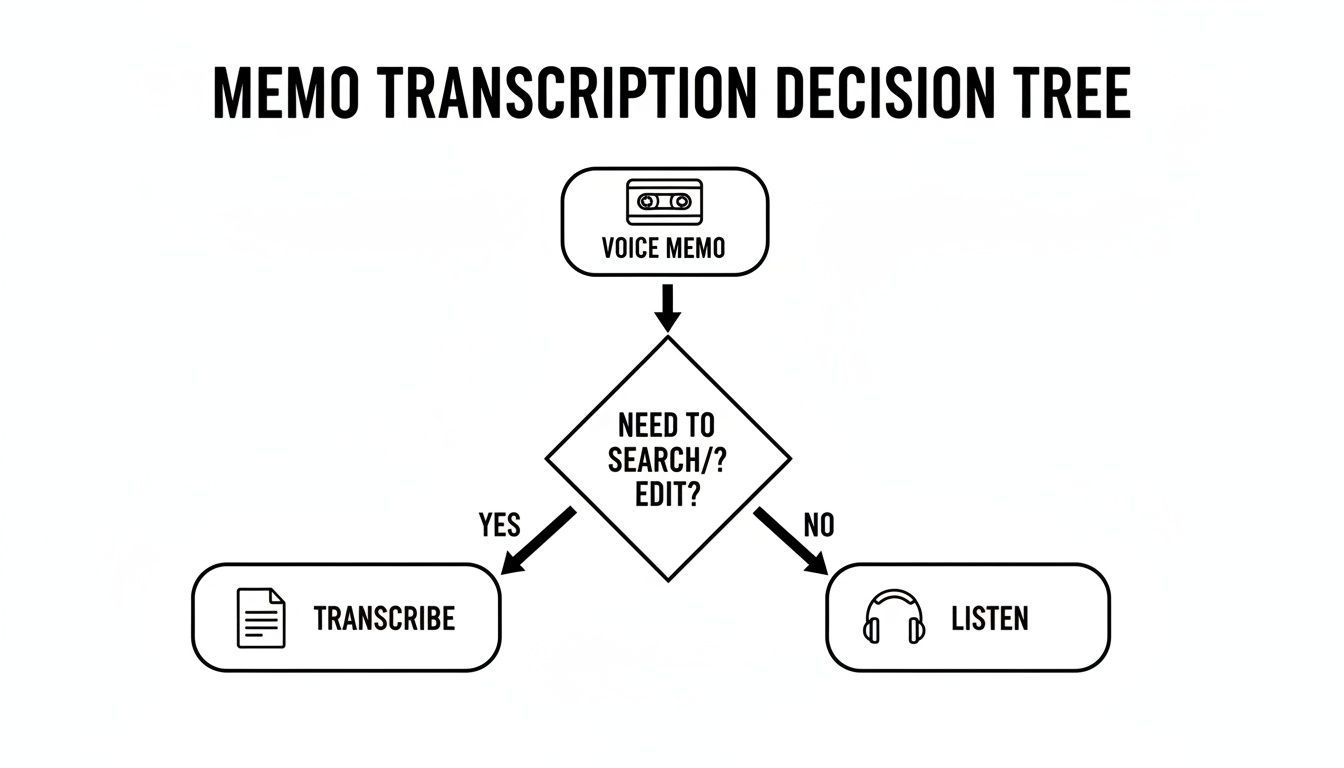
Il punto chiave qui è abbastanza chiaro: la trascrizione diventa non negoziabile nel momento in cui hai bisogno di cercare, modificare o estrarre citazioni dalla tua registrazione.
Per i super organizzati: l'app File
Quando stai gestendo più registrazioni di un progetto, inviarle via email una per una è una ricetta per la frustrazione. Un flusso di lavoro molto più intelligente è salvarle direttamente nell'app File, che funge da hub centrale per tutti i tuoi documenti.
Dallo stesso menu Condividi, tocca semplicemente "Salva su File". Questo cambia le regole del gioco perché puoi organizzare diversi memo in una cartella di progetto specifica, sia sul tuo dispositivo che in un servizio cloud che già utilizzi, come iCloud Drive, Google Drive o Dropbox.
Questo mantiene tutto ordinato e pulito, specialmente se devi fare un po' di lavoro preparatorio prima di trascrivere. Ad esempio, se hai più clip che fanno parte della stessa intervista, potresti volerle combinare prima. Per queste situazioni, la nostra guida su come unire file audio ti guida attraverso il processo.
E se spesso hai a che fare con audio da altre app per iPhone, sapere come convertire note vocali di iMessage in testo può darti alcuni suggerimenti utili che si applicano anche qui. Scegliere il metodo di esportazione corretto fin dall'inizio rende tutto ciò che segue molto più agevole.
Scegliere il tuo metodo di esportazione Memo Vocali migliore
Ancora non sei sicuro di quale opzione sia quella giusta per te? Questo rapido confronto dovrebbe aiutarti a decidere in base alle tue esigenze specifiche, da file singoli a grandi lotti.
| Metodo di esportazione | Ideale per | Velocità | Limite dimensione file |
|---|---|---|---|
| Sincronizzazione iCloud | Accesso senza interruzioni e multi-dispositivo all'interno dell'ecosistema Apple. "Imposta e dimentica". | Automatico | Basato sul tuo spazio di archiviazione iCloud |
| AirDrop | Invio istantaneo di file singoli da un iPhone a un Mac o altro dispositivo Apple nelle vicinanze. | Più veloce | Nessun limite pratico |
| Condividi via Mail/Messaggi | Condivisioni rapide di clip molto brevi (meno di qualche minuto). | Veloce | Varia (spesso ~25 MB per email) |
| Salva su File | Organizzazione di più registrazioni o file di grandi dimensioni in cartelle (iCloud, Dropbox, ecc.). | Moderato | Basato sul limite di archiviazione cloud |
In definitiva, AirDrop è il re per i file singoli, la sincronizzazione iCloud è la migliore per gli utenti avanzati Apple e Salva su File è la scelta ideale per chiunque dia valore all'organizzazione.
Utilizzo degli strumenti nativi Apple per la trascrizione di base
Prima di spendere un centesimo o scaricare un'altra app, vale la pena dare un'occhiata allo strumento di trascrizione gratuito che Apple ha integrato in Memo Vocali. Per appunti rapidi, promemoria personali o per mettere per iscritto un semplice pensiero, questa funzione nativa può essere sorprendentemente utile ed è sicuramente il modo più veloce per iniziare.
Questo strumento integrato è un'aggiunta abbastanza recente, apparsa per la prima volta sui modelli di iPhone 12 e successivi. È un modo super conveniente per ottenere una versione testuale del tuo audio senza mai lasciare l'app. Ancora meglio, se i tuoi memo vengono sincronizzati tramite iCloud, la trascrizione che crei sul tuo iPhone appare automaticamente sul tuo Mac, creando un flusso di lavoro piuttosto fluido.
Apple ha persino incluso il supporto per diverse varianti dell'inglese: americano, britannico, australiano e canadese, il che è un bel tocco. Questo tipo di integrazione è incredibilmente pratico, soprattutto considerando che il 62% degli utenti iPhone dichiara di utilizzare le funzioni vocali durante la guida. Puoi trovare maggiori informazioni su come le persone utilizzano le funzioni vocali di Apple su apps.apple.com.
Come generare una trascrizione in Memo Vocali
Ottenere la tua prima trascrizione è semplice, anche se la funzione è un po' nascosta se non sai dove guardare.
Ecco una rapida panoramica:
- Apri Memo Vocali e tocca la registrazione che vuoi trascrivere.
- Una volta visualizzati i controlli di riproduzione, guarda appena sopra la forma d'onda.
- Vedrai una piccola icona che assomiglia a una bolla di dialogo con delle linee. Toccala.
Questo è tutto. L'app elaborerà l'audio e in pochi secondi il testo apparirà proprio sotto la forma d'onda. Da lì, puoi toccare l'icona di condivisione per copiare la trascrizione completa o inviarla direttamente a un'altra app.
Punto chiave importante: La trascrizione nativa di Apple è ideale per audio con un singolo interlocutore registrato in una stanza silenziosa. Ti fornisce una trascrizione "abbastanza buona" per appunti personali, ma non è progettata per esigenze professionali.
Conoscere i limiti
Sebbene la comodità sia un enorme vantaggio, devi essere realistico riguardo a ciò che lo strumento gratuito di Apple può fare. L'accuratezza è discreta per un parlato chiaro e diretto, ma inizia davvero a faticare con rumori di fondo, più interlocutori o qualsiasi tipo di gergo specialistico.
Incontrerai quasi immediatamente due limitazioni principali:
- Nessuna etichetta per gli oratori: La trascrizione esce come un unico blocco di testo. Non può distinguere tra gli interlocutori, il che la rende inutilizzabile per interviste, riunioni o qualsiasi tipo di discussione di gruppo.
- Nessuna modifica in-app: Non puoi correggere errori di battitura o ripulire il testo direttamente all'interno di Memo Vocali. Per apportare correzioni, devi copiare tutto e incollarlo in un'altra app come Note o Pages.
Pensala come un solido punto di partenza. È un modo fantastico per catturare rapidamente un'idea fugace o ottenere una bozza dei tuoi pensieri. Ma se hai bisogno di precisione e formattazione pulita, avrai sicuramente bisogno di una soluzione più potente e dedicata.
Migliorare con l'IA per trascrizioni impeccabili
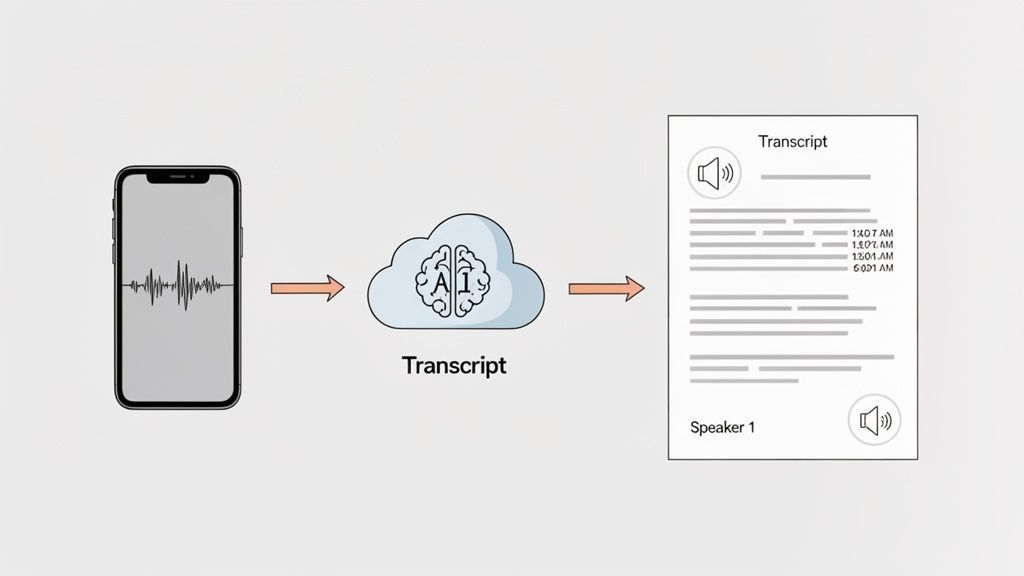
Mentre lo strumento integrato di Apple è un buon punto di partenza per appunti rapidi, raggiungerai presto i suoi limiti in qualsiasi progetto serio. Per interviste, riunioni con clienti o qualsiasi audio con più di una persona che parla, hai bisogno di qualcosa che offra una vera precisione. È qui che entrano in gioco i servizi di trascrizione AI dedicati, trasformando un semplice file di testo in un documento che puoi effettivamente utilizzare.
Chi trae maggior beneficio dalla trascrizione dei memo vocali?
Giornalisti e podcaster
Le interviste registrate su iPhone si trasformano in trascrizioni strutturate per articoli, note dello show e citazioni senza digitazione manuale.
Studenti e ricercatori
Le lezioni e le interviste diventano materiale di studio ricercabile, rendendo la revisione e l'analisi qualitativa molto più efficienti.
Professionisti aziendali
Le registrazioni delle riunioni si convertono in verbali chiari, elementi d'azione e documentazione che i team possono rivedere rapidamente.
Consulenti e coach
Gli appunti delle sessioni con i clienti vengono acquisiti accuratamente, riducendo il lavoro amministrativo e preservando importanti spunti di riflessione.
Pensate alla differenza tra un semplice blocco note e un elaboratore di testi completo. Certo, entrambi possono mettere per iscritto le parole, ma uno vi dà il potere di formattare, strutturare e perfezionare il vostro lavoro. I servizi di intelligenza artificiale sono progettati per comprendere i minimi dettagli del linguaggio umano che gli strumenti di base trascurano completamente, facendovi risparmiare ore di dolorose modifiche manuali.
La Potenza della Trascrizione Specializzata con IA
Quando decidete di trascrivere memo vocali Apple con una piattaforma dedicata, ottenete molto più di una semplice conversione da voce a testo. Un servizio come Transcript.LOL prende il vostro file M4A esportato e lo elabora attraverso sofisticati modelli di IA, come Whisper di OpenAI, per generare una trascrizione che non è solo accurata ma anche intelligentemente organizzata.
Il processo è incredibilmente semplice. Caricate il vostro file audio e, in pochi minuti, riceverete indietro una trascrizione dettagliata e modificabile. Per chiunque abbia una scadenza, che siate un giornalista che insegue una notizia o uno studente che sta concludendo una ricerca, quella velocità è una salvezza. La differenza di qualità è evidente fin da subito, soprattutto con audio difficili.
Ma la vera magia risiede nelle funzionalità che gli strumenti nativi semplicemente non hanno. Questi sono i dettagli che trasformano un blocco di testo grezzo in un documento curato e professionale.
Funzionalità di produttività e output

Strumenti di modifica
Modifica le trascrizioni con strumenti potenti tra cui trova e sostituisci, assegnazione dei parlanti, formati di testo arricchito ed evidenziazione.

Esporta in più formati
Esporta le tue trascrizioni in più formati tra cui TXT, DOCX, PDF, SRT e VTT con opzioni di formattazione personalizzabili.
Riassunti e Chatbot
Genera riassunti e altri approfondimenti dalla tua trascrizione, prompt personalizzati riutilizzabili e chatbot per i tuoi contenuti.
- Etichettatura Automatica degli Speaker: L'IA è in grado di distinguere voci diverse e di etichettarle automaticamente (ad esempio, "Speaker 1", "Speaker 2"). Questo è un vero punto di svolta per la trascrizione di interviste, podcast o verbali di riunioni, rendendo facile seguire la conversazione.
- Vocabolario Personalizzato: La tua registrazione contiene molti gerghi di settore, acronimi aziendali o nomi unici? Puoi creare un elenco di vocabolario personalizzato per "insegnare" all'IA questi termini specifici, il che aumenta notevolmente l'accuratezza per contenuti specializzati.
- Formati di Esportazione Multipli: Hai bisogno di sottotitoli per un video? Esporta un file SRT. Vuoi modificare il testo per un report? Scarica il DOCX. Un servizio solido ti offre opzioni come TXT, DOCX, SRT e VTT, in modo che la tua trascrizione sia pronta per qualsiasi esigenza.
Utilizzando un servizio IA specializzato, non ottieni solo una trascrizione; ottieni un asset di dati strutturato. È la differenza tra una bozza grezza e un prodotto finito, consegnato in una frazione del tempo che richiederebbe farlo manualmente.
Esempio di Flusso di Lavoro Reale
Supponiamo che tu abbia appena terminato un'intervista di 45 minuti per il tuo podcast, registrata direttamente sul tuo iPhone. Trascriverla a mano richiederebbe un'eternità e lo strumento di Apple produrrebbe un muro di testo confuso senza modo di distinguere chi ha detto cosa.
Con un servizio IA, il tuo flusso di lavoro è invece questo:
- Esporta: AirDrop il memo vocale dal tuo iPhone direttamente al tuo Mac.
- Carica: Trascina e rilascia il file audio sulla piattaforma di trascrizione.
- Trascrivi: L'IA si mette al lavoro, elaborando il file in pochi minuti, identificando entrambi gli speaker e generando timestamp.
- Rifinisci ed Esporta: Puoi fare una rapida revisione, rinominare "Speaker 1" in "Jane Doe" ed esportare il testo finale come DOCX per le note del tuo show e un file SRT per i clip video sui social media.
L'intero processo può richiedere meno di dieci minuti. Il tempo che recuperi e la qualità che ottieni lo rendono uno strumento essenziale per chiunque abbia bisogno di trascrivere regolarmente memo vocali Apple per uso professionale.
Per approfondire cosa c'è là fuori, consulta questa guida sui migliori software di trascrizione IA disponibili oggi. È un investimento che si ripaga da solo in pura produttività.
Suggerimenti Avanzati per Perfezionare le Tue Trascrizioni
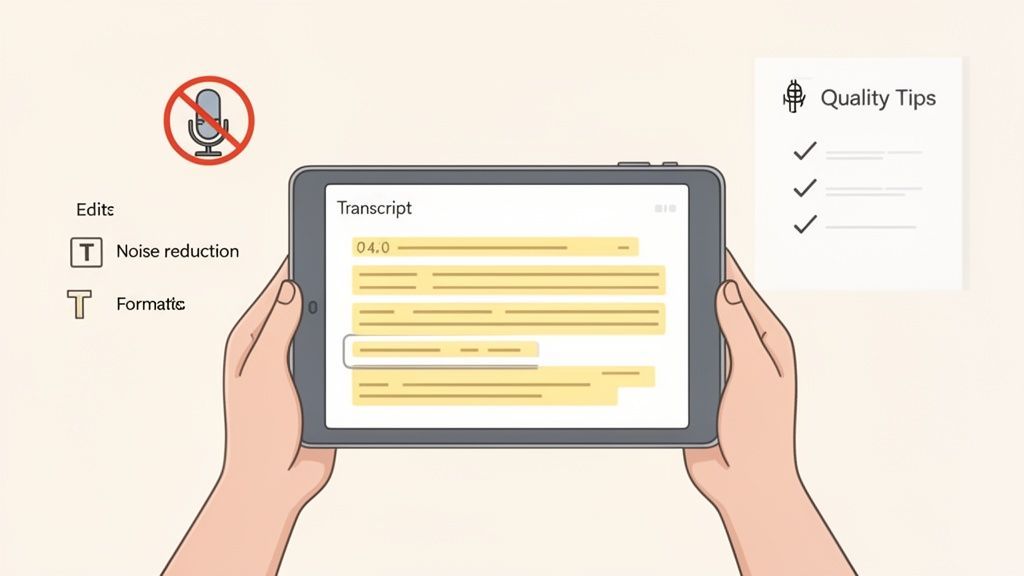
Ottenere la prima bozza da un servizio IA è un ottimo inizio, ma il lavoro non è ancora finito. Qualche minuto in più di rifinitura può fare la differenza tra una trascrizione decente e un documento impeccabile e professionale. Il vero segreto per un prodotto finale perfetto risiede sia in come registri sia in come rifinisci il testo in seguito.
La qualità della tua trascrizione è direttamente legata alla qualità del tuo audio. È il vecchio principio "garbage in, garbage out" al lavoro. Una registrazione piena di rumori di fondo, sovrapposizioni di voci o voci ovattate costringe qualsiasi IA a indovinare, e l'indovinare porta a errori. Onestamente, migliorare la tua registrazione è il modo più efficace per ottenere una trascrizione migliore fin dall'inizio.
Padroneggiare il Tuo Input Audio
Prima ancora di premere registra, pensa a queste semplici ma potenti modifiche. Richiedono solo pochi secondi ma possono ridurre drasticamente il tuo tempo di editing successivo.
- Avvicinati al Microfono: Il microfono del tuo iPhone funziona meglio quando è vicino alla sorgente. Se stai registrando te stesso, tieni il telefono come se stessi parlando al suo interno. Per le interviste, posizionalo semplicemente su un tavolo tra te e l'altra persona.
- Trova uno Spazio Silenzioso: Sembra ovvio, ma anche il ronzio di fondo di un condizionatore d'aria o il traffico lontano possono disturbare un'IA. Una stanza silenziosa è il tuo migliore amico.
- Evita le Sovrapposizioni di Voci: Quando più persone parlano, cerca di non interrompervi a vicenda. Gli strumenti di trascrizione IA faticano molto a separare le voci sovrapposte, il che spesso si traduce in frasi confuse o incomplete.
Ricorda, l'obiettivo è fornire all'IA l'audio più pulito possibile con cui lavorare. Ogni bit di chiarezza che fornisci all'inizio ti fa risparmiare minuti di editing noioso alla fine.
La Rifinitura Post-Trascrizione
Una volta che l'IA ha fatto la sua parte, è il momento del tocco umano. È qui che ripulisci gli errori, aggiungi contesto e prepari il documento per il suo scopo finale. Questa revisione finale, o correzione di bozze, è assolutamente essenziale per risultati professionali.
Il modo migliore per iniziare è leggere la trascrizione ascoltando la riproduzione audio. Individuerai immediatamente parole fraintese o frasi goffe. Molti servizi, tra cui Transcript.LOL, dispongono di un editor interattivo che evidenzia le parole mentre l'audio viene riprodotto, rendendo questo processo incredibilmente efficiente.
Per approfondire questo passaggio cruciale, consulta la nostra guida sull'importanza della correzione di bozze nella trascrizione per un flusso di lavoro più dettagliato.
Formattazione per il Tuo Obiettivo Finale
Infine, pensa a dove finirà questa trascrizione. Il formato di cui hai bisogno per le note di riunioni interne è completamente diverso da quello che useresti per i sottotitoli dei video.
Ecco come scegliere il formato di esportazione giusto per le tue esigenze:
- DOCX: Questo è il formato ideale per report, articoli o qualsiasi documento che intendi continuare a modificare in Microsoft Word o Google Docs. Preserva la formattazione ed è universalmente compatibile.
- SRT / VTT: Questi sono i tuoi file di sottotitoli. Se il tuo memo vocale è in realtà audio per un video, esportare in uno di questi formati ti fornisce sottotitoli con timestamp pronti per il caricamento diretto su YouTube, Vimeo o social media.
- TXT: Un file di testo semplice e puro è perfetto quando hai solo bisogno del testo grezzo da incollare in altre app o per scopi di archiviazione in cui la formattazione non è importante.
Combinando audio pulito con un processo di editing ponderato, puoi trascrivere in modo affidabile memo vocali Apple in documenti rifiniti e accurati ogni singola volta.
Rispondere alle Tue Domande Principali sulla Trascrizione di Memo Vocali
Anche con un piano solido, ti imbatterai inevitabilmente in domande quando inizi a trasformare memo vocali in testo. Affrontiamo alcune delle più comuni che sento: risolvere questi problemi ti farà risparmiare un sacco di grattacapi in seguito.
La Trascrizione Integrata di Apple è Buona?
Onestamente, per una nota rapida e personale a te stesso, lo strumento integrato di Apple è sorprendentemente decente. Se sei in una stanza silenziosa e hai solo bisogno di catturare un pensiero prima che svanisca, fa il suo lavoro senza che tu debba lasciare l'app Memo Vocali.
Ma è lì che finisce la sua utilità. Nel momento in cui introduci rumori di fondo, più speaker o qualsiasi tipo di gergo professionale, inizia a deteriorarsi. Manca completamente di elementi essenziali come le etichette degli speaker, il che rende un incubo l'organizzazione di una trascrizione di interviste o riunioni. Per qualsiasi cosa seria, un servizio IA dedicato è l'unica strada da percorrere.
Non tutti gli strumenti di trascrizione proteggono i tuoi dati
Alcuni servizi di trascrizione riutilizzano l'audio caricato per addestrare i loro modelli di intelligenza artificiale. Controlla sempre una chiara politica di non addestramento prima di caricare riunioni riservate, interviste o registrazioni personali.
Qual è il miglior formato audio per i miei memo vocali?
L'app Memo Vocali utilizza per impostazione predefinita un formato compresso (AAC), ma per la massima accuratezza possibile, dovresti sempre passare alla qualità "Lossless" se il tuo iPhone la offre. Puoi trovare questa impostazione in Impostazioni > Memo Vocali > Qualità Audio.
Quando esporti, il file M4A standard va benissimo. Praticamente ogni servizio di trascrizione, incluso il nostro, lo gestisce senza problemi. Anche se potresti convertirlo in WAV, di solito è un passaggio non necessario. Un M4A pulito e originale fornisce tutti i dati di cui un'IA ha bisogno per una trascrizione eccellente.
Non posso sottolinearlo abbastanza: il singolo fattore più importante per una trascrizione accurata è la qualità audio originale. Una registrazione chiara in una stanza silenziosa batterà sempre una confusa, indipendentemente dallo strumento che stai utilizzando.
Come posso ottenere trascrizioni più accurate?
Oltre ad attivare l'impostazione "Lossless", la vera magia avviene prima ancora di premere il tasto di registrazione.
- Trova un posto tranquillo. Questo è non negoziabile. Traffico, frigoriferi che ronzano e conversazioni vicine sono i nemici dell'audio pulito.
- Avvicinati al microfono. Che si tratti del tuo iPhone o di uno esterno, la vicinanza conta. Più l'oratore è vicino, più chiara sarà la sua voce.
- Interrompi il sovrapporsi delle voci. Se stai registrando una riunione o un'intervista, incoraggia gentilmente le persone a parlare una alla volta. Le voci sovrapposte sono difficili da districare per qualsiasi IA.
E per coloro che si occupano di argomenti di nicchia, cerca un servizio che offra un vocabolario personalizzato. La possibilità di "insegnare" all'IA nomi di prodotti specifici, acronimi aziendali o gergo del settore è un vero punto di svolta per l'accuratezza.
Posso trascrivere un memo vocale molto lungo?
Sì, assolutamente. Mentre lo strumento nativo di Apple potrebbe avere difficoltà con un file lungo, le piattaforme dedicate sono costruite per questo. Un servizio come Transcript.LOL può facilmente elaborare registrazioni di diverse ore senza sudare.
Il collo di bottiglia più comune non è il servizio di trascrizione stesso, ma piuttosto trasferire quel file enorme dal tuo telefono. Per quelle registrazioni maratona, la cosa migliore è utilizzare l'opzione "Salva su File" e caricarlo prima su un servizio cloud come Google Drive o Dropbox. Da lì, è un gioco da ragazzi caricarlo nel tuo strumento di trascrizione.
Pronto a trasformare i tuoi memo vocali in testo accurato e perfettamente formattato? Con il rilevamento degli altoparlanti, molteplici formati di esportazione e un'IA potente, Transcript.LOL lo rende senza sforzo. Inizia a trascrivere gratuitamente oggi stesso su https://transcript.lol.