
Zoom KI-Transkription: Einstellungen für genaue Transkripte optimieren
Erfahren Sie, wie die Zoom KI-Transkription die Genauigkeit verbessert, Transkripte verfeinert und Meetings mit einfachen, effektiven Einstellungen in umsetzbare Notizen verwandelt.
Praveen
February 4, 2026
Hatten Sie jemals das Gefühl, in Meeting-Aufzeichnungen zu ertrinken? Die Zoom KI-Transkription ist die Rettungsleine, die Sie brauchen. Sie verwandelt diese Videodateien in Text, den Sie tatsächlich durchsuchen, bearbeiten und verwenden können – alles mit Hilfe von künstlicher Intelligenz, die gesprochene Wörter automatisch in ein geschriebenes Skript umwandelt.
Es geht nicht nur darum, ein paar Minuten beim Notieren zu sparen. Es geht darum, Ihre Gespräche zu einer Quelle für neue Inhalte, klare Aktionspunkte und auffindbare Entscheidungen zu machen.
Warum genaue Zoom KI-Transkription wichtig ist
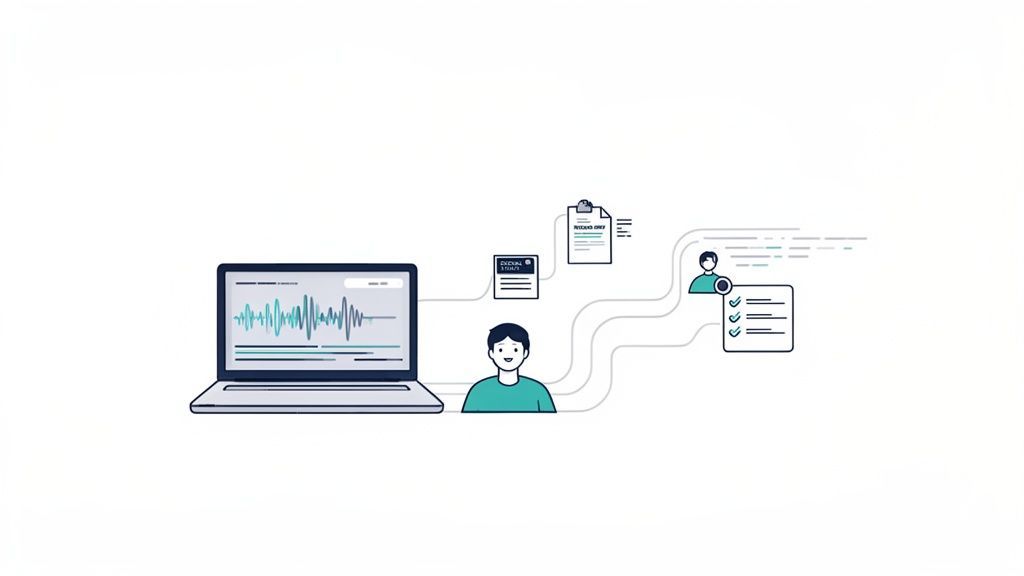
Seien wir ehrlich: Sich Notizen zu machen, während man versucht, aktiv an einem Anruf teilzunehmen, ist ein Spiel, das man verliert. Die wahre Magie eines Zoom KI-Transkriptions-Workflows besteht nicht nur darin, festzuhalten, was gesagt wurde, sondern diese Gespräche in wertvolle Assets zu verwandeln.
📘 Transkripte verwandeln Gespräche in greifbare Ergebnisse
Eine Aufnahme ist passiv, aber Text ist umsetzbar. Sobald Gespräche durchsuchbar, bearbeitbar und teilbar sind, hören Ihre Meetings auf, temporär zu sein, und werden zu wiederverwendbarem Wissen. Dort beginnt der eigentliche Produktivitätsschub.
Stellen Sie sich Folgendes vor: Sie beenden ein einstündiges Kundengespräch. Anstelle einer unordentlichen Notizseite haben Sie ein perfektes Transkript. Von dort aus können Sie sofort wichtige Zitate für ein Projektbriefing extrahieren oder jeden einzelnen besprochenen Aktionspunkt identifizieren. Oder vielleicht haben Sie gerade ein Webinar beendet. Mit einem genauen Transkript können Sie diese Aufnahme in ein Dutzend Social-Media-Clips, einen detaillierten Blogbeitrag und eine E-Mail-Sequenz für die Nachverfolgung in einem Bruchteil der Zeit zerlegen.
Damit all das funktioniert, muss die Transkription genau sein.
Von Rohaudio zu umsetzbaren Erkenntnissen
Es gibt einen Grund, warum dieser Markt boomt. Der Markt für KI-gestützte Meeting-Transkriptionen hat bereits einen Wert von 3,86 Milliarden US-Dollar und wird voraussichtlich bis 2034 auf 29,45 Milliarden US-Dollar ansteigen. Das ist eine beeindruckende jährliche Wachstumsrate von 25,62 %, angetrieben durch Tools, die leistungsstarke Workflows wie diese Wirklichkeit werden lassen.
Wenn Sie die soliden Aufnahmefunktionen von Zoom mit einem spezialisierten Tool wie Transcript.LOL kombinieren, sparen Sie nicht nur Zeit, sondern bauen ein System für Folgendes auf:
- Maximierung des Content-ROI: Holen Sie das Maximum aus Ihren aufgezeichneten Meetings heraus.
- Verbesserung der Rechenschaftspflicht: Erstellen Sie eine dauerhafte, durchsuchbare Aufzeichnung von Entscheidungen und Verpflichtungen.
- Verbesserung der Zugänglichkeit: Machen Sie Ihre Videoinhalte für alle mit Untertiteln und Transkripten zugänglich.
Das Ziel ist es, eine nahtlose Pipeline von der Konversation zum Asset zu schaffen. Ein genaues Transkript ist die Grundlage dieses gesamten Workflows und stellt sicher, dass die von Ihnen generierten Erkenntnisse zuverlässig und professionell sind.
Indem Sie mit einem qualitativ hochwertigen Transkript beginnen, reduzieren Sie den Bearbeitungsaufwand und stellen sicher, dass alles, was Sie produzieren, poliert und professionell ist. Wenn Sie von Anfang an die besten Ergebnisse erzielen möchten, lesen Sie unseren ausführlichen Artikel über die Verbesserung der Genauigkeit von Sprache-zu-Text.
⚡ Kernfunktionen der Transkription, die Stunden sparen
Modernste KI
Angetrieben von OpenAIs Whisper für branchenführende Genauigkeit. Unterstützung für benutzerdefinierte Vokabulare, bis zu 10 Stunden lange Dateien und ultraschnelle Ergebnisse.

Aus mehreren Quellen importieren
Importiere Audio- und Videodateien aus verschiedenen Quellen, einschließlich direktem Upload, Google Drive, Dropbox, URLs, Zoom und mehr.

In mehreren Formaten exportieren
Exportiere deine Transkripte in mehreren Formaten, einschließlich TXT, DOCX, PDF, SRT und VTT mit anpassbaren Formatierungsoptionen.
Zoom für makellose Transkription vorbereiten
Um eine qualitativ hochwertige Zoom KI-Transkription zu erzielen, müssen Sie die Grundlagen legen, bevor Sie überhaupt auf Aufnahme klicken. Es ist ein häufiger Fehler zu glauben, dass sich alle wichtigen Einstellungen in der Desktop-App befinden. In Wirklichkeit sind die kritischsten Einstellungen in Ihrem Zoom-Webportal versteckt.
Wenn Sie diese richtig einstellen, machen Sie den Unterschied zwischen einem sauberen, nutzbaren Dokument und einem durcheinandergeratenen Durcheinander, dessen Behebung Sie Stunden kosten wird.
Schlechte Einrichtung kostet später Stunden
Schlechter Ton oder falsche Zoom-Einstellungen können die Transkriptionsqualität ruinieren. Das Korrigieren von unordentlichem Text dauert länger als das Meeting selbst. Investieren Sie zwei Minuten Vorbereitung, um Stunden an Nacharbeit zu sparen.
Das Allerwichtigste, was Sie tun müssen, ist die Cloud-Aufnahme zu aktivieren. Im Gegensatz zu lokalen Aufnahmen, die direkt auf Ihrem Computer gespeichert werden, werden Cloud-Aufnahmen auf den Servern von Zoom verarbeitet. Dies ist der einzige Weg, um deren native Transkription zu generieren und, was noch wichtiger ist, anderen Tools den nahtlosen Zugriff auf die Aufnahme zu ermöglichen.
Optimieren Sie Ihre Cloud-Aufnahme für maximale Genauigkeit
Sobald Sie die Cloud-Aufnahme aktiviert haben, werden einige spezifische Kontrollkästchen Ihre Transkriptionsergebnisse dramatisch verbessern. Wenn Sie nur eine Sache tun, dann machen Sie diese: Aktivieren Sie das Kontrollkästchen "Separate Audiodatei für jeden Teilnehmer aufzeichnen".
Ich kann gar nicht genug betonen, wie revolutionär das ist.
Wenn ein KI-Modell eine einzige, gemischte Audiospur erhält, hat es wirklich Schwierigkeiten zu erkennen, wer spricht, besonders wenn sich Leute unterbrechen oder ähnliche Stimmen haben. Separate Audiospuren ermöglichen es einem Dienst wie Transcript.LOL, die Stimme jeder Person einzeln zu analysieren, was zu nahezu perfekten Sprecherkennzeichnungen führt.
Unten sehen Sie die Standard-Zoom-Meeting-Oberfläche. Die gesamte Zusammenarbeit und Konversation, die hier stattfindet, fließt in die Aufnahme ein, die Ihre KI letztendlich analysieren wird.
Hier geschieht die Magie, aber die Qualität des endgültigen Transkripts hängt vollständig von den zuvor gewählten Einstellungen ab.
Um dies ganz klar zu machen, finden Sie hier eine Kurzübersichtstabelle für die wesentlichen Einstellungen in Ihrem Zoom-Webportal. Betrachten Sie dies als Ihre Checkliste vor dem Flug für jedes wichtige Meeting.
Wesentliche Zoom-Einstellungen für optimale Transkription
| Einstellungsspeicherort (Zoom-Webportal) | Empfohlene Konfiguration | Grund für diese Einstellung |
|---|---|---|
| Kontoeinstellungen > Aufnahme > Cloud-Aufnahme | Aktiviert (eingeschaltet) | Dies ist die Grundlage. Es macht Ihre Aufnahme für die Nachbearbeitung und die Integration mit anderen Apps verfügbar. |
| Kontoeinstellungen > Aufnahme > Erweiterte Cloud-Aufnahmeeinstellungen > Separate Audiodatei für jeden Teilnehmer aufzeichnen | Aktiviert | Verbessert die Sprechererkennung und Genauigkeit drastisch, indem die Stimme jeder Person isoliert wird. Dies ist die wirkungsvollste Einstellung. |
| Kontoeinstellungen > Aufnahme > Erweiterte Cloud-Aufnahmeeinstellungen > Audiotranskript | Aktiviert | Dies weist Zoom an, nach dem Meeting automatisch eine eigene Transkriptionsdatei zu generieren, was eine nützliche Sicherung darstellt. |
| Kontoeinstellungen > Meeting > Im Meeting (Erweitert) > Automatisierte Untertitel | Aktiviert (eingeschaltet) | Obwohl nicht für das endgültige Transkript, bietet dies Echtzeit-Untertitel für die Barrierefreiheit während des Live-Meetings. |
Wenn Sie diese korrekt einrichten, stellen Sie sicher, dass Sie der KI das bestmögliche Ausgangsmaterial liefern – es ist, als würden Sie einem Koch die besten Zutaten geben.
Live-Untertitel vs. Transkripte nach dem Meeting
Es ist auch wichtig, den Unterschied zwischen den beiden Arten von Transkriptionen zu kennen, die Zoom anbietet.
Erstens gibt es die Live-Transkription (was Zoom jetzt als "automatisierte Untertitel" bezeichnet). Diese erscheinen in Echtzeit während des Meetings und sind für die sofortige Zugänglichkeit konzipiert, nicht für perfekte Genauigkeit.
Die zweite, und diejenige, die für unsere Aufzeichnungen wichtig ist, ist das Audio-Transkript nach dem Meeting. Dies ist eine Textdatei mit viel höherer Wiedergabetreue, die nach Ende des Meetings und vollständiger Verarbeitung der Cloud-Aufnahme generiert wird. Um dies zu erhalten, müssen Sie zu Ihren Aufnahmeeinstellungen navigieren und sicherstellen, dass "Audiotranskript" aktiviert ist.
Profi-Tipp: Aktivieren Sie immer, immer die Cloud-Aufnahme und die Option für das Audiotranskript bevor Ihre Meetings geplant sind. Sie können diese Einstellungen nicht rückwirkend auf ein bereits stattgefundenes Meeting anwenden.
Indem Sie ein paar Minuten Zeit für die Konfiguration dieser Einstellungen aufwenden, bereiten Sie Ihren gesamten Workflow auf Erfolg vor. Sie erhalten bessere Ergebnisse, sparen viel Bearbeitungszeit und machen Ihre Aufnahmen unendlich wertvoller. Um zu sehen, wie Sie diese perfekt aufgenommenen Meetings in umsetzbare Notizen umwandeln können, lesen Sie unseren Leitfaden zur Verwendung eines KI-Notiznehmers für Zoom.
Was großartige Meeting-Transkripte tatsächlich liefern?
Klarheit
Jede Diskussion wird genau so festgehalten, wie sie gesprochen wurde, sodass keine Verwirrung darüber besteht, was vereinbart wurde. Teams gehen mit einem gemeinsamen Verständnis statt mit Annahmen auseinander. Entscheidungen werden kristallklar.
Verantwortlichkeit
Aktionspunkte sind mit bestimmten Personen und Fristen verknüpft, sodass Aufgaben nicht vergessen werden. Jeder kennt seine Verantwortlichkeiten. Die Arbeit schreitet ohne ständige Erinnerungen voran.
Zeitersparnis
Kein erneutes Ansehen von Aufnahmen oder Durchsuchen von Notizen. Wichtige Informationen sind sofort durchsuchbar. Gesparte Minuten pro Tag summieren sich schnell zu Stunden pro Woche.
Durchsuchbares Wissen
Vergangene Meetings werden zu einer durchsuchbaren Datenbank. Sie können Entscheidungen, Namen oder Ideen in Sekundenschnelle finden. Ihre Geschichte wird zu einem Vermögenswert statt zu Unordnung.
So erhalten Sie Ihre Zoom-Transkripte
Sobald Ihr Meeting beendet ist und Zoom die Cloud-Aufnahme verarbeitet hat, ist es an der Zeit, diesen Ton in ein nützliches Dokument umzuwandeln. Sie haben hier zwei Hauptwege, je nachdem, ob Sie eine schnelle Übersicht oder ein poliertes, professionelles Transkript benötigen.
Ihr erster Anlaufpunkt ist fast immer das integrierte Transkript von Zoom. Um es zu finden, gehen Sie einfach zum Abschnitt Aufzeichnungen in Ihrem Zoom-Webportal. Klicken Sie auf das gewünschte Meeting, und Sie sehen eine Datei "Audio-Transkript" direkt neben Ihren Video- und Audiodateien.
Dieses native Transkript eignet sich perfekt für eine schnelle Überprüfung. Sie können es direkt in der Zoom-Oberfläche öffnen, einfache Bearbeitungen vornehmen, um einen falsch geschriebenen Namen oder Fachjargon zu korrigieren, und die von Zoom automatisch zugewiesenen Sprecherbezeichnungen sehen. Für viele interne Teamangelegenheiten ist dies oft ausreichend.
Verwendung des nativen Transkripts von Zoom
Der Vorgang könnte nicht einfacher sein. Wenn Sie auf die Aufnahme klicken, erscheint das Transkript direkt neben dem Videoplayer. Während das Video abgespielt wird, wird der entsprechende Text hervorgehoben, was es super einfach macht, mitzuhalten und offensichtliche Fehler zu erkennen.
Aber seien wir ehrlich: Für ernsthaftere Arbeiten wie die Erstellung von Marketinginhalten, die Generierung genauer Untertitel oder jede Art von detaillierter Analyse benötigen Sie mehr Power. Genau hier glänzen dedizierte Transkriptionsplattformen und bieten eine deutliche Verbesserung sowohl bei der Genauigkeit als auch beim Workflow.
Ein spezialisiertes Werkzeug ist mehr als nur Text auf einem Bildschirm; es verwandelt Ihr Gespräch in ein reichhaltiges, bearbeitbares Asset. Sie können es schneiden, zerlegen, analysieren und nach Belieben wiederverwenden.
Dieser einfache Ablauf zeigt, wie die richtige Einstellung von Anfang an alles nachgelagert zum Kinderspiel macht.
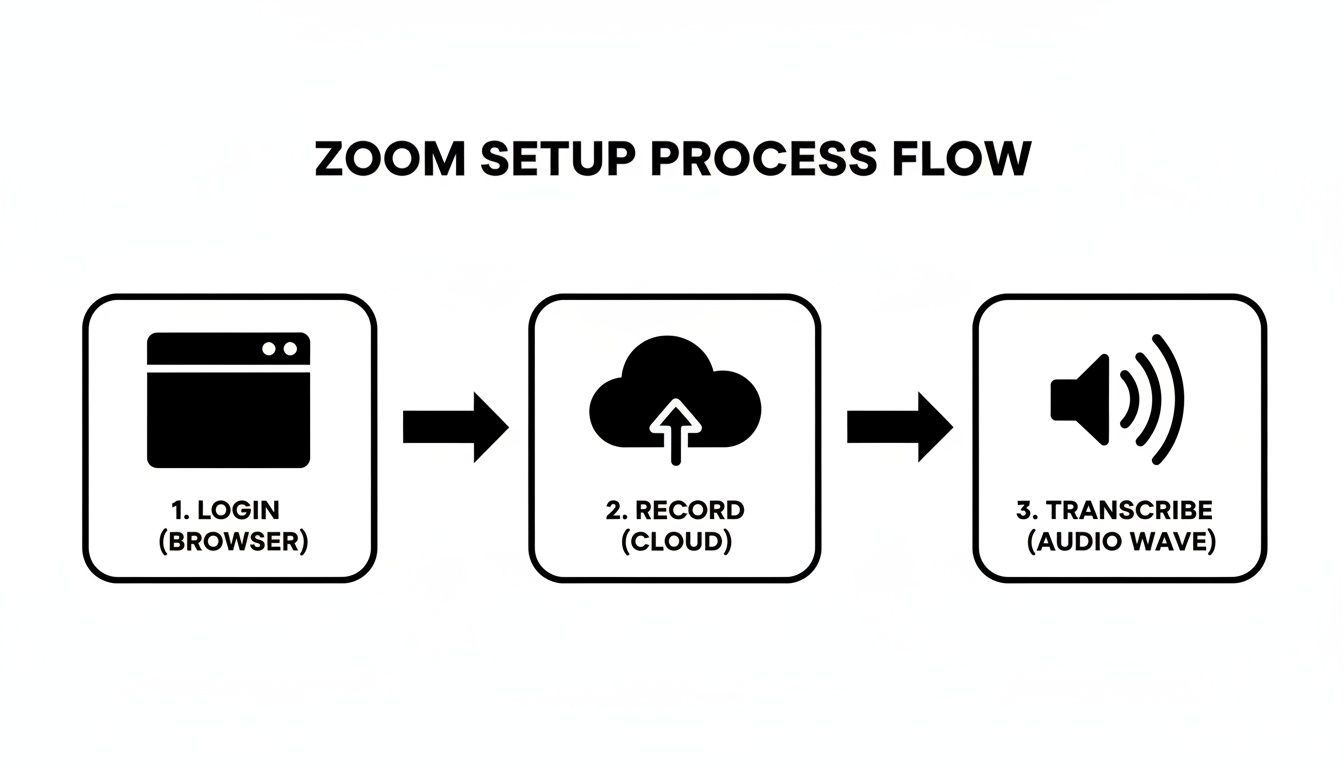
Alles beginnt mit dem Einloggen in Zoom und der Aktivierung der Cloud-Aufzeichnung – das ist die Grundlage für ein hochwertiges Transkript später.
Automatisieren Sie Ihren Workflow mit einer Integration
Der mit Abstand effizienteste Weg, dies zu handhaben, ist die direkte Verbindung Ihres Zoom-Kontos mit einem Dienst wie Transcript.LOL. Sobald Sie die Integration autorisiert haben, werden Ihre neuen Cloud-Aufzeichnungen automatisch abgerufen und transkribiert, ohne dass Sie etwas tun müssen. Es ist eine "Einrichten und Vergessen"-Konfiguration, die bedeutet, dass Ihre Transkripte normalerweise nur wenige Minuten nach Ende Ihres Meetings für Sie bereitstehen.
Stellen Sie sich vor, Sie haben gerade ein großes Kunden-Webinar beendet. Anstatt die Aufnahme manuell herunterzuladen und woanders hochzuladen, kümmert sich die Integration darum. Sie erhalten einfach eine Benachrichtigung, dass Ihr poliertes Transkript bereit ist.
Was ist mit älteren Aufnahmen oder Dateien, die nicht in der Cloud gespeichert wurden? Kein Problem. Sie können die MP4- oder M4A-Datei genauso einfach per Drag & Drop direkt in die Plattform ziehen. Diese Flexibilität ist entscheidend, insbesondere wenn Sie Aufnahmen von verschiedenen Personen oder Plattformen jonglieren.
Die Qualität, mit der Sie beginnen, macht einen riesigen Unterschied. Zooms eigener KI ist unglaublich gut geworden und hat in unabhängigen Tests kürzlich eine Genauigkeitsrate von 99,05 % für Kontext und Grammatik erreicht. Mit einer Fehlerrate von nur 7,40 % (Word Error Rate, WER) macht sie 27 % weniger Fehler als ein Konkurrent wie Webex. Sie können die vollständige Forschung zu diesen KI-Leistungsergebnissen lesen, um die Daten selbst zu sehen.
Diese hohe Basisgenauigkeit bedeutet, dass Sie von einem großartigen Ausgangspunkt aus starten, egal ob Sie beim nativen Transkript von Zoom bleiben oder diesen hochwertigen Ton in ein leistungsfähigeres Werkzeug einspeisen. Für einen tieferen Einblick lesen Sie unseren vollständigen Leitfaden zur Erstellung eines Zoom-Meeting-Transkripts.
Verfeinern Sie Ihr KI-Transkript für den professionellen Einsatz
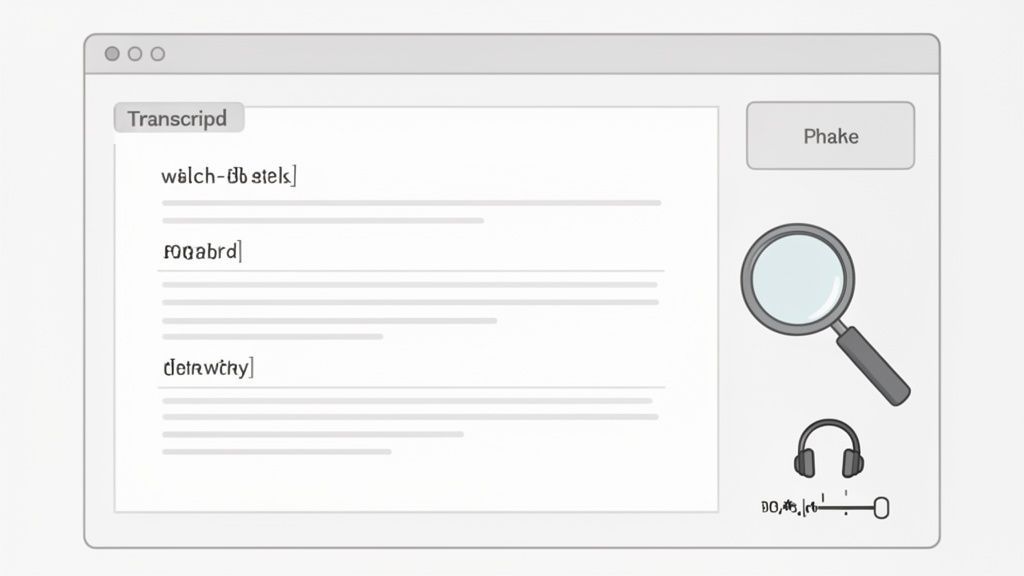
Ein automatisiertes Transkript ist ein fantastischer erster Schritt, aber es ist die menschliche Note, die aus einem Rohentwurf ein poliertes, professionelles Dokument macht. Betrachten Sie die rohe Zoom-KI-Transkription als Ihren ersten Schnitt; eine schnelle, fokussierte Überprüfung ist der Ort, an dem Sie den letzten Schliff hinzufügen, der sie wirklich nützlich macht.
Selbst die besten KI-Transkriptionen liegen unter idealen Bedingungen bei 90-95 % Genauigkeit. Ihre Aufgabe ist es, diese letzten 5-10 % zu schließen. Dort finden Sie oft die kritischsten Details – Namen, branchenspezifische Begriffe oder nuancierte Formulierungen, die ein Algorithmus möglicherweise übersieht.
Dabei geht es nicht darum, das gesamte Meeting neu zu tippen. Es geht um intelligentes, strategisches Bearbeiten, das Minuten statt Stunden dauert.
Beherrschen von Sprecherbezeichnungen und Fachjargon
Die Sprecheridentifizierung ist einer der ersten Bereiche, in denen Sie schnelle Erfolge erzielen können. Selbst mit separaten Audiospuren kann die KI manchmal verwirrt sein, insbesondere wenn Personen ähnliche Stimmen haben oder sich gegenseitig ins Wort fallen.
Ein guter Transkriptionseditor, wie der in Transcript.LOL integrierte, macht dies zum Kinderspiel. Sie können den Text durchsuchen und falsch zugewiesene Abschnitte mit wenigen Klicks neu zuweisen. Wenn die KI beispielsweise "Sarah" konsequent mit "Tara" verwechselt, können Sie dies einmal korrigieren und die Korrektur auf das gesamte Transkript anwenden.
Profi-Tipp: Gehen Sie über die Korrektur von Sprechernamen hinaus – machen Sie sie konsistent. Wenn Sie "Dr. Jane Smith", "Jane S." und "Jane" haben, vereinheitlichen Sie sie alle unter einer Bezeichnung. Dies schafft ein sauberes, durchsuchbares und professionelles Enddokument.
Der Aufbau eines benutzerdefinierten Vokabulars ist ein weiterer Game-Changer. Stellen Sie sich vor, Ihr Team erwähnt ständig "Projekt Chimera" oder ein Software-Tool namens "SynthoLeap". Eine KI wird diese eindeutigen Begriffe fast sicher verhunzen.
Indem Sie sie vor der Transkription zu einem benutzerdefinierten Wörterbuch hinzufügen, bringen Sie der KI bei, sie jedes Mal korrekt zu erkennen. Es ist eine kleine Vorabinvestition, die sich auszahlt, da Sie sich Dutzende von repetitiven manuellen Korrekturen ersparen.
Schnelle Korrekturen für häufige Fehler
Neben Namen und Fachjargon treten auch einige andere häufige Fehler auf. Das Erlernen einiger einfacher Bearbeitungstricks macht Ihren Überprüfungsprozess unglaublich schnell.
- Suchen und Ersetzen: Dies ist Ihr bester Freund für wiederkehrende Fehler. Wenn die KI immer wieder "Transcript LOL" anstelle von "Transcript.LOL" schreibt, bereinigt ein schneller Suchen-und-Ersetzen-Befehl das gesamte Dokument in Sekundenschnelle.
- Wiedergabegeschwindigkeitsregelung: Wenn ein Satz einfach keinen Sinn ergibt, raten Sie nicht. Die meisten professionellen Editoren ermöglichen es Ihnen, auf ein Wort zu klicken, um das entsprechende Audio zu hören. Das Verlangsamen der Wiedergabe auf 0,75x kann Ihnen helfen, gemurmelte Wörter oder schnelles Durcheinander mit perfekter Klarheit zu entschlüsseln.
- Zeitstempel-Anpassungen: Das Timing ist alles, wenn Sie SRT- oder VTT-Dateien für Untertitel erstellen. Ein guter Editor ermöglicht es Ihnen, die Start- und Endzeiten eines Textblocks einfach per Drag & Drop zu verschieben, um sicherzustellen, dass sie perfekt mit dem Geschehen auf dem Bildschirm synchronisiert sind.
Diese kleinen, taktischen Bearbeitungen sind es, die Ihr Transkript von einem rohen Daten-Dump zu einer zuverlässigen Wahrheitsquelle aufwerten. Indem Sie sich auf diese Schlüsselbereiche konzentrieren, stellen Sie sicher, dass das Endergebnis nicht nur genau, sondern wirklich professionell und für Ihre Bedürfnisse bereit ist.
Transkripte in wertvolle Content-Assets verwandeln
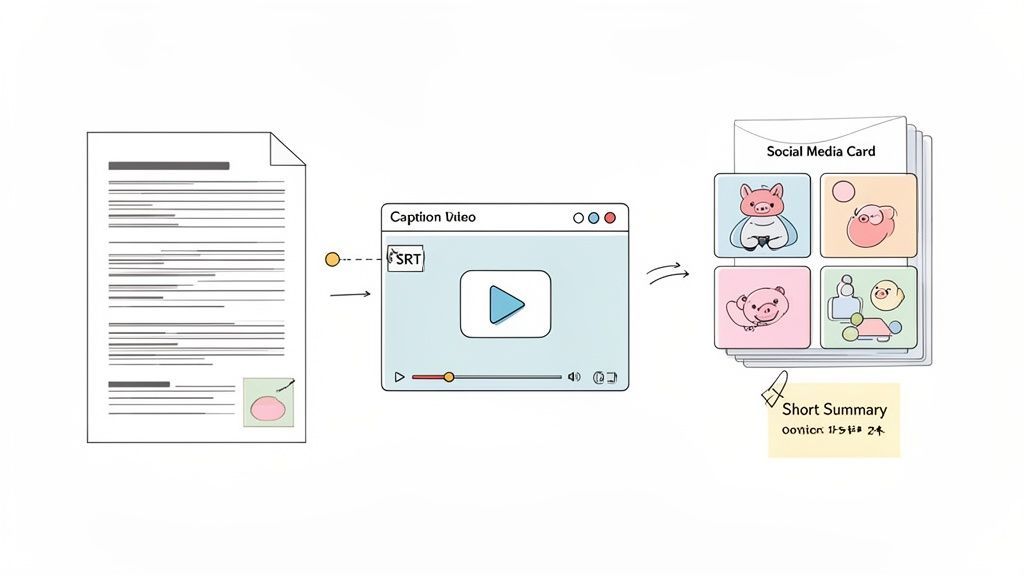
Ein poliertes Transkript ist nicht die Ziellinie – es ist der Startblock. Die wahre Magie einer genauen Zoom-KI-Transkription liegt in ihrer Fähigkeit, zu einer Content-Engine zu werden, mit der Sie den Wert eines einzigen Gesprächs immer wieder vervielfachen können.
Entwickelt für Zusammenarbeit und Nachverfolgung

Sprechererkennung
Identifiziere automatisch verschiedene Sprecher in deinen Aufnahmen und beschrifte sie mit ihren Namen.

Bearbeitungswerkzeuge
Bearbeite Transkripte mit leistungsstarken Werkzeugen wie Suchen und Ersetzen, Sprecherzuordnung, Rich-Text-Formate und Hervorhebungen.
Zusammenfassungen und Chatbot
Erstelle Zusammenfassungen und andere Erkenntnisse aus deinem Transkript, wiederverwendbare benutzerdefinierte Prompts und Chatbot für deine Inhalte.
Denken Sie größer als nur an Meeting-Notizen. Dieses einstündige Kundeninterview, das Sie gerade aufgenommen haben? Es birgt das Rohmaterial für eine überzeugende Fallstudie, eine ganze Reihe aufschlussreicher Social-Media-Posts und einige Killer-Zitate für Ihr nächstes Verkaufsdeck. Plötzlich wird jedes Gespräch, das Sie aufzeichnen, zu einer Goldgrube.
Dieser Denkansatz ist alles. Hören Sie auf, Transkription als lästige Pflicht zu betrachten, und beginnen Sie, sie als den ersten, wichtigsten Schritt in Ihrem Content-Workflow zu sehen.
KI-Meeting-Assistenten werden zum Standard
Teams erwarten jetzt automatische Transkripte und Zusammenfassungen nach jedem Anruf. Allein die manuelle Notizenaufnahme kann mit der heutigen Geschwindigkeit nicht mithalten. Intelligente Dokumentation wird schnell zur Standardarbeitsweise.
Erstellung von barrierefreien Videoinhalten
Einer der unmittelbarsten Vorteile eines Transkripts ist die Erstellung von Video-Untertitelungen. Barrierefreiheit ist kein "Nice-to-have" mehr, und Untertitelungen eröffnen Ihre Inhalte für ein viel breiteres Publikum. Dazu gehören Menschen, die gehörlos oder schwerhörig sind, sowie die große Anzahl von Zuschauern, die Videos ohne Ton ansehen.
Mit einem perfekten Transkript in der Hand ist der Export einer zeitgestempelten Untertitelungsdatei ein Kinderspiel. Die meisten professionellen Tools ermöglichen den Export in Standardformaten wie SRT oder VTT.
- SRT (SubRip Text): Dies ist das gängigste Format. Es ist perfekt für Plattformen wie YouTube, LinkedIn und Vimeo.
- VTT (WebVTT): Ein moderneres Format, das zusätzliche Styling- und Positionierungsoptionen bietet und oft für benutzerdefinierte Web-Videoplayer verwendet wird.
Nach einem Webinar können Sie beispielsweise das Transkript als SRT-Datei exportieren und direkt auf YouTube hochladen. Die Plattform synchronisiert den Text automatisch mit dem Video, sodass es sofort professioneller und zugänglicher aussieht.
Von Dialogen zu umsetzbaren Zusammenfassungen
Mal ehrlich – in Meetings werden Entscheidungen getroffen und Aufgaben zugewiesen. Aber seitenweise Dialoge nach den wichtigsten Erkenntnissen zu durchforsten, ist mühsam. Hier kommen KI-gestützte Zusammenfassungen ins Spiel, die lange Gespräche in kurze, umsetzbare Briefings verwandeln.
Eine gute KI-Zusammenfassung reduziert nicht nur die Wortanzahl. Sie extrahiert intelligent die Hauptthemen, Entscheidungen und spezifischen Aktionspunkte, die Personen zugewiesen wurden. Es geht darum, das Signal im Rauschen zu finden.
Stellen Sie sich ein Kickoff-Meeting für ein Projekt vor. Die KI kann eine Zusammenfassung mit einem Abschnitt "Nächste Schritte" generieren, in dem Aufgaben und deren Verantwortliche klar aufgeführt sind. Sie können dies direkt in Ihr Projektmanagement-Tool wie Asana oder Trello kopieren, um sicherzustellen, dass nichts übersehen wird. Das spart enorm viel Zeit; eine Studie ergab, dass Agenten, die KI-Zusammenfassungen nutzten, ihre Nachbereitungszeit nach Anrufen um 35 % reduzierten.
Gespräche in Marketing-Assets umwandeln
Okay, hier explodiert der ROI wirklich. Gehen wir ein reales Marketingszenario durch. Ihr Team hat gerade ein 60-minütiges Interview mit einem sehr zufriedenen Kunden abgeschlossen.
- Transkript erstellen: Zuerst einmal – erstellen Sie ein hochpräzises Transkript aus dieser Zoom-Aufnahme.
- Schlüsselzitate extrahieren: Durchsuchen Sie den Text nach aussagekräftigen Testimonials und prägnanten Zitaten. Diese sind Gold wert für Ihre Website, Vertriebspräsentationen und Social-Media-Grafiken.
- Eine Fallstudie entwerfen: Nutzen Sie die detaillierte Geschichte aus dem Transkript, um eine überzeugende Fallstudie zu erstellen, die die Herausforderungen des Kunden und Ihre Lösungen darstellt.
- Inhalte für soziale Medien erstellen: Extrahieren Sie interessante Statistiken, überraschende Erkenntnisse oder kurze, prägnante Geschichten, um Inhalte für eine ganze Woche auf LinkedIn oder X (ehemals Twitter) zu erstellen.
Sobald Ihr Zoom-Transkript bereit ist, kann die Verwendung eines KI-Content-Generators für soziale Medien diesen gesamten Prozess auf Hochtouren bringen. Sie können Rohdialoge in ansprechende Social-Media-Posts, Blog-Snippets oder E-Mail-Inhalte verwandeln – und das in einem Bruchteil der Zeit. Indem Sie dieses einzelne Gespräch wiederverwenden, haben Sie mit kaum zusätzlichem Aufwand eine Menge Marketingmaterial erstellt.
Umgang mit Datenschutz und Behebung häufiger Fehler
Ein großartiges Transkript aus Ihren Zoom-Anrufen zu erhalten, ist nicht nur eine Frage der KI – es geht auch darum, Ihre Daten verantwortungsvoll zu behandeln und zu wissen, was zu tun ist, wenn die Dinge schiefgehen. Besonders wenn Sie sensible Besprechungen transkribieren, können Sie es sich nicht leisten, die Datensicherheit zu vernachlässigen.
Das Erste, was ich immer überprüfe, ist die Richtlinie eines Dienstes zur Verwendung von Kundendaten zum Trainieren seiner KI-Modelle. Sie sollten nur Plattformen mit einer strengen Null-Aufbewahrungs- oder No-Training-Richtlinie verwenden. Das ist nicht verhandelbar. Es garantiert, dass Ihre vertraulichen Kundengespräche oder internen Strategiebesprechungen keine KI eines Drittanbieters speisen und Ihr geistiges Eigentum sicher bleibt.
Es ist einfach eine gute Praxis zu wissen, wie Ihre Daten behandelt werden. Ich empfehle immer, sich ein paar Minuten Zeit zu nehmen, um die Datenschutzrichtlinie eines Dienstes zu lesen, bevor Sie etwas hochladen. Das gibt Ihnen Sicherheit und stellt sicher, dass Sie konform bleiben.
Fehlerbehebung bei häufigen Transkriptionsproblemen
Selbst mit der perfekten Einrichtung werden Sie irgendwann auf ein technisches Problem stoßen. Die gute Nachricht? Die meisten Transkriptionsprobleme beginnen mit der Aufnahmequalität oder einer einfachen Zoom-Einstellung und sind fast immer behebbar.
Hier sind einige der häufigsten Probleme, die ich sehe, und wie man sie löst:
- Der Text ist einfach falsch. Wenn Ihr Transkript von Fehlern durchsetzt ist, ist schlechte Audioqualität der übliche Verdächtige. Hintergrundgeräusche, ein schwaches Laptop-Mikrofon oder sich überlappende Sprecher bringen jede KI durcheinander. Bitten Sie nächstes Mal jeden, ein Headset zu benutzen und sich in einen ruhigen Raum zu begeben. Das macht einen großen Unterschied.
- Die Sprecherbeschriftungen sind durcheinander. Haben Sie schon einmal ein Transkript gesehen, bei dem ein Zitat der falschen Person zugeordnet wurde? Das passiert fast immer, wenn Zoom alle in eine einzige Audiospur aufnimmt. Um dies dauerhaft zu beheben, aktivieren Sie die Zoom-Einstellung "Separate Audiodatei für jeden Teilnehmer aufzeichnen". Dies gibt der KI klare, eindeutige Stimmabdrücke, mit denen sie arbeiten kann, was die Zuordnung von Gesagtem dramatisch verbessert.
- Meine Aufnahme lässt sich nicht importieren oder synchronisieren. Manchmal schlägt die Verbindung zwischen Zoom und einem Tool wie Transcript.LOL fehl, eine neue Aufnahme zu erfassen. Es könnte sich um einen vorübergehenden API-Fehler oder eine abgelaufene Autorisierung handeln. Die einfachste Lösung ist, die Verbindung einfach neu zu authentifizieren. Wenn das nicht funktioniert, laden Sie die M4A-Audiodatei manuell aus Ihren Zoom-Cloud-Aufzeichnungen herunter und laden Sie sie direkt hoch.
Ein wenig proaktiver Aufwand zahlt sich aus. Die Überprüfung einer Datenrichtlinie dauert zwei Minuten, und die Anpassung Ihrer Zoom-Einstellungen ist eine einmalige Aufgabe, die Ihnen auf lange Sicht unzählige Kopfschmerzen ersparen wird.
Denken Sie schließlich immer daran, dass die Aufnahmegesetze überall unterschiedlich sind. Stellen Sie sicher, dass Sie alle darüber informieren, dass das Meeting aufgezeichnet und transkribiert wird. Für eine eingehende Beschäftigung mit der rechtlichen Seite der Dinge können Sie mehr über die Rechtmäßigkeit der Aufnahme von Gesprächen ohne Zustimmung erfahren, um sicherzustellen, dass Sie immer auf der richtigen Seite des Gesetzes sind.
Fragen? Wir haben Antworten
Hier sind einige häufig gestellte Fragen, die wir zum Erhalten von Transkripten von Zoom erhalten.
Wie gut ist Zooms eigene KI-Transkription wirklich?
Ehrlich gesagt, für grundlegende Dinge ist sie ziemlich gut. Die native Transkription von Zoom erreicht oft eine Genauigkeit von 90 %, wenn die Audiobedingungen perfekt sind. Aber mal ehrlich – wie oft ist das der Fall?
Sobald Sie starken Hintergrundlärm, Sprecher mit starken Akzenten oder spezialisierten Fachjargon einführen, wird die Genauigkeit drastisch abnehmen. Für jedes Meeting, bei dem die Details entscheidend sind, erhalten Sie mit einem dedizierten Dienst ein saubereres und zuverlässigeres Transkript.
Ich habe vergessen, in der Cloud aufzuzeichnen. Kann ich trotzdem ein Transkript erhalten?
Das ist ein klassischer "Ups"-Moment, den wir alle schon hatten. Leider funktioniert die integrierte Transkription von Zoom nach dem Meeting nur, wenn Sie die Cloud-Aufzeichnung auswählen.
Wenn Sie das Meeting lokal auf Ihrem Computer aufgezeichnet haben, ist nicht alles verloren. Sie müssen diese MP3- oder MP4-Datei einfach manuell in ein Transkriptionstool wie Transcript.LOL hochladen, um sie transkribieren zu lassen.
Welches Format ist am besten für Video-Untertitelungen geeignet?
Gute Frage. Wenn es um Video-Untertitelungen geht, möchten Sie ein Format, das Zeitstempel enthält, um die Wörter perfekt mit dem Audio zu synchronisieren.
Ihre beiden besten Optionen sind SRT (SubRip Text) oder VTT (WebVTT). Bleiben Sie bei einem dieser Formate, und Ihre Untertitelungen funktionieren auf fast jeder Videoplattform, die Sie sich vorstellen können, von YouTube bis Vimeo, einwandfrei.
Bereit, Ihre Gespräche in Assets zu verwandeln? Erhalten Sie schnelle, private und hochpräzise Transkripte aus all Ihren Meetings. Probieren Sie Transcript.LOL noch heute aus. Erfahren Sie mehr unter https://transcript.lol.