
MP4 zu Text-Transkription: Ein Leitfaden für Ersteller zu leistungsstarken C...
Verwandeln Sie Ihr Video mit unserem Leitfaden zur MP4-zu-Text-Transkription. Lernen Sie praktische Workflows, Tools und Tipps zur Wiederverwendung Ihrer Inhalte für maximale Reichweite.
Kate, Praveen
April 23, 2025
Die Umwandlung einer MP4-Datei in Text ist nicht nur eine technische Aufgabe – sie ist der Schlüssel, um den wahren Wert Ihrer Videoinhalte freizusetzen. Sie macht jedes gesprochene Wort durchsuchbar, zugänglich und bereit, in Dutzende neuer Assets wie Blogbeiträge und Social-Media-Updates umgewandelt zu werden, alles aus einer einzigen Aufnahme.
Warum die Transkription von MP4 zu Text ein Content-Game-Changer ist
Für moderne Content-Ersteller, Podcaster und Vermarkter ist die Umwandlung von Videos in Text eine grundlegende Strategie, nicht nur eine Möglichkeit, Aufzeichnungen zu führen. Es ist das Geheimnis, um Ihre Inhalte härter für Sie arbeiten zu lassen. Denken Sie darüber nach: Jedes Wort, das Sie in einem Video sprechen, wird sofort von Google durchsuchbar, was Ihrem SEO einen enormen Schub gibt.
Was die MP4-Transkription für Ihre Inhalte freischaltet
Suchsichtbarkeit
Jedes gesprochene Wort wird indexierbar und hilft Suchmaschinen, Ihre Inhalte effektiver zu verstehen und zu ranken.
Content-Wiederverwendung
Verwandeln Sie ein einzelnes Video in Blogs, Newsletter, Untertitel und Social-Media-Posts, ohne erneut aufnehmen zu müssen.
Zugänglichkeit & Reichweite
Transkripte machen Ihre Inhalte für Leser, Nicht-Muttersprachler und Menschen mit besonderen Bedürfnissen nutzbar.
Zeit- & Kostenersparnis
Automatisierte Transkription eliminiert stundenlange manuelle Arbeit und teures Outsourcing.
Stellen Sie sich die schiere Effizienz vor, ein Webinar zu nehmen und daraus zehn Blogbeiträge, genügend Social-Media-Schnipsel für einen Monat und eine ganze E-Mail-Newsletter-Serie zu machen – und das alles, ohne auch nur eine einzige zusätzliche Minute filmen zu müssen.
Dieser Workflow eliminiert die größten Kopfschmerzen der manuellen Transkription vollständig. Wir alle kennen das: Es ist mühsam langsam, überraschend teuer und die Genauigkeit kann mal gut, mal schlecht sein. Ein Tool wie Transcript.LOL lässt den gesamten Prozess fast wie Magie wirken.
Hier ist ein kurzer Überblick, wie Ihr Content-Ökosystem explodieren kann, nur indem Sie mit einem einfachen MP4-zu-Text-Workflow beginnen.
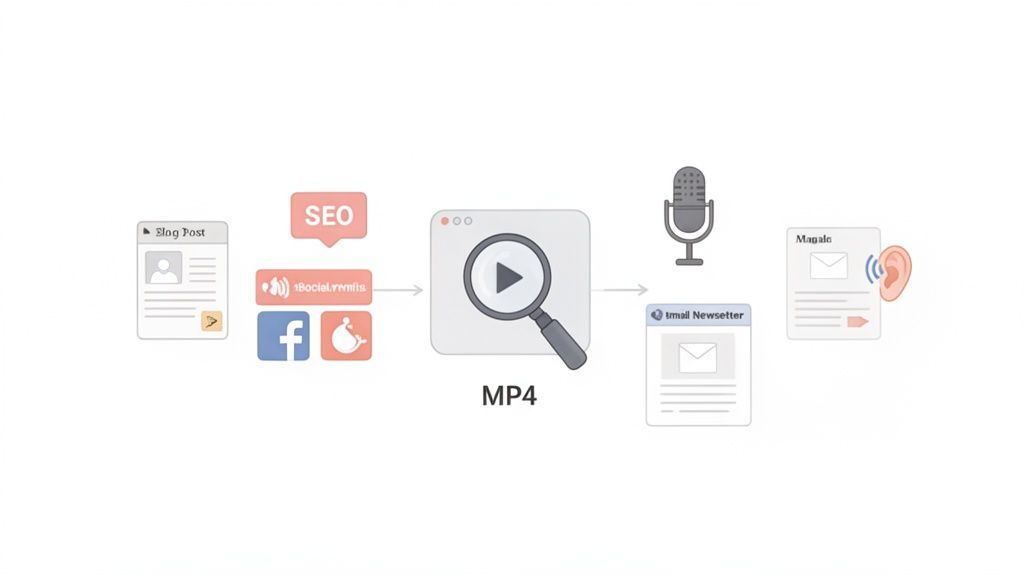
Wie Sie sehen können, wird eine einzelne Videodatei zum Ausgangspunkt für eine Multi-Channel-Content-Maschine, die alle von einem genauen Transkript angetrieben wird.
Erweitern Sie Ihre Reichweite und Zugänglichkeit
Ein Texttranskript macht Ihre Inhalte sofort einem viel größeren Publikum zugänglich. Dazu gehören Menschen mit Hörbehinderungen oder auch nur diejenigen, die es vorziehen, zu lesen, anstatt ein Video anzusehen. Hier geht es nicht nur darum, ein Häkchen bei Inklusivität zu setzen; es schafft echte Goodwill und erfüllt moderne Zugänglichkeitsstandards.
Warum Text immer noch besser ist als reines Video?
Textinhalte sind schneller zu konsumieren, einfacher zu durchsuchen und über verschiedene Plattformen hinweg einfacher wiederzuverwenden. Ein Transkript stellt sicher, dass Ihre Botschaft nicht verschwindet, sobald das Video endet.
Darüber hinaus hilft eine Transkription Nicht-Muttersprachlern, Ihrer Botschaft zu folgen, und stellt sicher, dass Ihre Ideen bei einem globalen Publikum klar ankommen. Es ist ein kleiner Schritt, der einen großen Unterschied in der Benutzererfahrung macht.
Wichtigste Erkenntnis: Transkription ist nicht nur für SEO. Es geht darum, eine inklusivere und benutzerfreundlichere Erfahrung zu schaffen, die die unterschiedlichen Bedürfnisse Ihres Publikums berücksichtigt.
Die Möglichkeit, Ihre MP4-Dateien zu transkribieren, eröffnet eine ganze Welt von Strategien zur Wiederverwendung von Inhalten und ermöglicht es Ihnen, den maximalen Wert aus Ihrer ursprünglichen Arbeit zu ziehen. Und die Nachfrage danach boomt. Der US-amerikanische Transkriptionsmarkt erreichte 2024 30,42 Milliarden US-Dollar, angetrieben durch die Explosion von Videoinhalten. Da jede Minute über 500 Stunden Video hochgeladen werden, sind automatisierte Tools kein Luxus mehr – sie sind unerlässlich, um Schritt zu halten.
Bereiten Sie Ihr MP4 für eine makellose Transkription vor
Bevor Sie überhaupt daran denken, diese MP4-Datei hochzuladen, können einige Minuten Vorbereitung Ihnen eine Menge Bearbeitungsaufwand ersparen. Es ist eine einfache Wahrheit: Die Qualität Ihres Quell-Audios ist der wichtigste Faktor für ein sauberes und genaues Transkript.
Stellen Sie es sich so vor: Wenn Sie kaum verstehen können, was jemand sagt, wie können Sie erwarten, dass eine KI das besser kann? Selbst die besten Transkriptionswerkzeuge der Welt benötigen klare Audiosignale, um ihre Magie zu entfalten. Sie brauchen kein professionelles Studio, aber ein wenig Aufwand zahlt sich sehr aus.
Optimieren Sie Ihre Audioqualität
Das Ziel ist einfach: Eliminieren Sie Hintergrundgeräusche und stellen Sie sicher, dass jeder Sprecher laut und deutlich zu hören ist. Dieses tiefe Brummen der Klimaanlage, das leise Geräusch des Verkehrs draußen oder sogar nur ein lauter Raum können die KI aus dem Tritt bringen und Fehler verursachen.
- Machen Sie den Raum leise: Bevor Sie mit der Aufnahme beginnen, machen Sie einen schnellen Soundcheck. Schalten Sie Ventilatoren, Klimaanlagen und alles andere aus, was ein ständiges Brummen erzeugt. Ein ruhiger Raum ist Ihr bester Freund.
- Besorgen Sie sich ein besseres Mikrofon: Das eingebaute Mikrofon Ihres Laptops ist im Notfall in Ordnung, aber es ist dafür bekannt, jedes Echo und jedes Hintergrundrascheln aufzunehmen. Ein einfaches externes USB-Mikrofon wird einen enormen Unterschied in der Sprachverständlichkeit machen.
- Sprechen Sie laut und deutlich: Stellen Sie sicher, dass jeder direkt in das Mikrofon spricht, mit einer gleichmäßigen Lautstärke. Wenn Menschen übereinander reden, ist das eine der größten Herausforderungen für jede Transkriptions-KI.
Schlechte Transkripte
Selbst die beste KI hat Schwierigkeiten mit verrauschten Aufnahmen. Klare Audioqualität reduziert Fehler und Bearbeitungszeit drastisch.
Die Tonqualität direkt an der Quelle ist das Geheimnis für nahezu perfekte Transkriptionsergebnisse. Eine saubere MP4-Datei hilft KI-Tools wie Transcript.LOL, das Versprechen einer schnellen und genauen Textkonvertierung einzulösen.
Fazit? Besserer Ton bedeutet jedes Mal bessere Ergebnisse. Sie können in unserem detaillierten Leitfaden tiefer in die Faktoren eintauchen, die die Genauigkeit von Sprache-zu-Text beeinflussen, aber alles beginnt damit, der KI eine saubere Datei zur Verfügung zu stellen. Wenn Sie diese einfachen Schritte befolgen, erhalten Sie ein poliertes Transkript, das nur minimale Nachbearbeitung erfordert.
Okay, lassen wir die Theorie hinter uns und legen wir los. Hier sehen Sie, wie unglaublich einfach es ist, eine MP4-zu-Text-Transkription mit einem Tool zu erhalten, das tatsächlich für moderne Arbeitsabläufe entwickelt wurde. Vergessen Sie verwirrende Menüs oder eine steile Lernkurve; wir werden Ihre Videodatei in nur wenigen Klicks in ein poliertes, einsatzbereites Transkript verwandeln.
Zuerst müssen Sie Ihre MP4-Datei in das System hochladen. Transcript.LOL bietet Ihnen hier eine Menge Flexibilität. Sie können direkt von Ihrem Computer hochladen, Dateien von Google Drive oder Dropbox abrufen oder einfach einen Link von einer Plattform wie YouTube einfügen. Kein Herunterladen und erneutes Hochladen mehr – das spart wirklich Zeit und Bandbreite.
Kernfunktionen, die die MP4-Transkription mühelos machen
Modernste KI
Angetrieben von OpenAIs Whisper für branchenführende Genauigkeit. Unterstützung für benutzerdefinierte Vokabulare, bis zu 10 Stunden lange Dateien und ultraschnelle Ergebnisse.

Aus mehreren Quellen importieren
Importiere Audio- und Videodateien aus verschiedenen Quellen, einschließlich direktem Upload, Google Drive, Dropbox, URLs, Zoom und mehr.

In mehreren Formaten exportieren
Exportiere deine Transkripte in mehreren Formaten, einschließlich TXT, DOCX, PDF, SRT und VTT mit anpassbaren Formatierungsoptionen.
Bevor Sie jedoch hochladen, zahlt sich ein wenig Vorbereitung aus, um von Anfang an eine saubere Transkription zu gewährleisten.
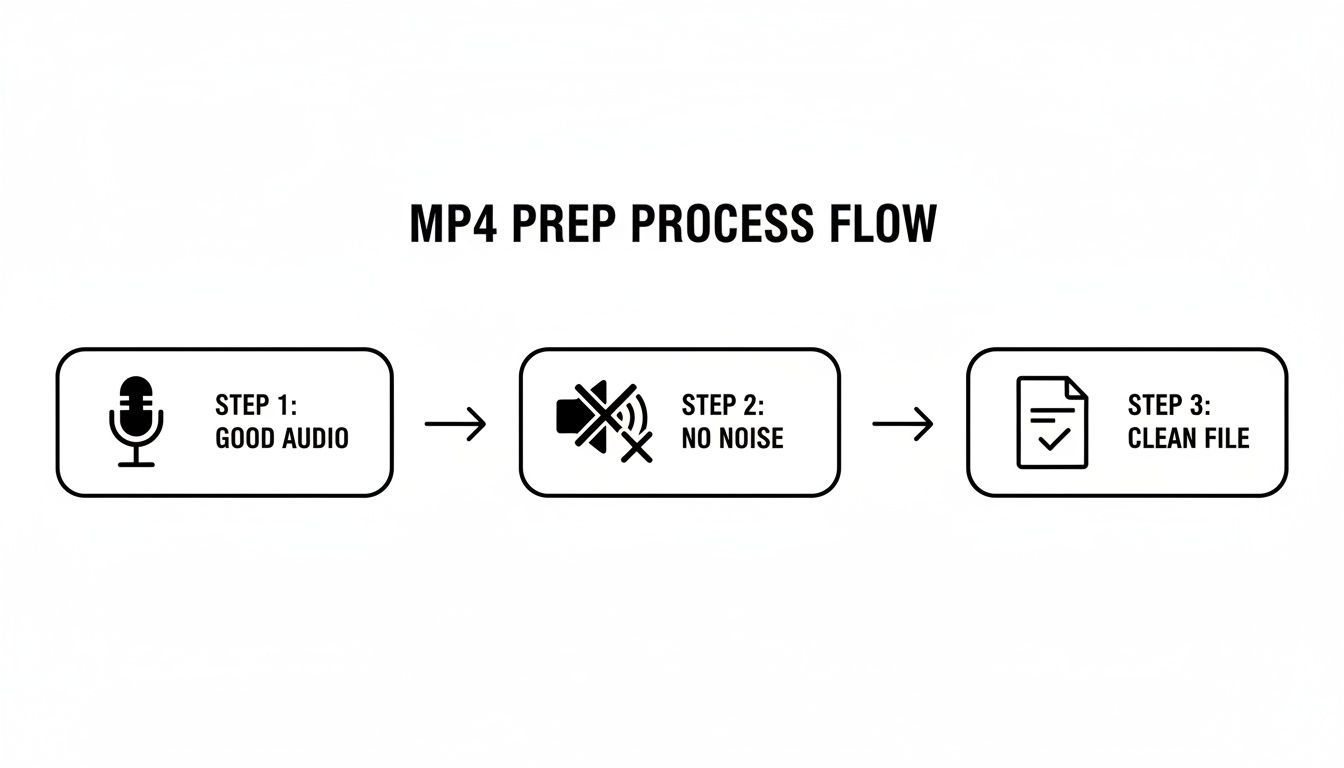
Ernsthaft, die Konzentration auf gute Audioqualität, minimale Hintergrundgeräusche und eine saubere Datei ist das Geheimnis einer makellosen Transkription. Müll rein, Müll raus, wie man so schön sagt.
Beginn und Verfeinerung Ihrer Transkription
Sobald Ihre Datei ausgewählt ist, ist der nächste Schritt genauso schnell. Sie wählen die im Video gesprochene Sprache aus und aktivieren, wenn mehrere Personen sprechen, die Sprechererkennung. Diese Funktion ist ein Lebensretter für Interviews, Podcasts oder Besprechungsaufzeichnungen, da sie den Dialog jeder Person automatisch trennt und kennzeichnet.
Mit diesen Einstellungen macht sich die KI an die Arbeit. Sie werden wahrscheinlich überrascht sein, wie schnell das geht – ein einstündiges Video wird oft in nur wenigen Minuten transkribiert. Diese Geschwindigkeit ist ein wichtiger Grund, warum KI-Transkription die Art und Weise, wie wir arbeiten, verändert. Der globale Markt für KI-Transkriptionen, der 2024 auf 4,5 Milliarden US-Dollar geschätzt wird, wird bis 2034 voraussichtlich 19,2 Milliarden US-Dollar erreichen, angetrieben durch unseren Bedarf an sofortigen, durchsuchbaren Aufzeichnungen. Für Unternehmensteams reduzieren Tools wie Transcript.LOL den Zeitaufwand für Besprechungsnachverfolgungen um bis zu 50 %.
Nachdem die KI ihren ersten Durchgang abgeschlossen hat, landen Sie direkt im interaktiven Editor.
Profi-Tipp: Der interaktive Editor ist, wo die Magie geschieht, und er ist auf Geschwindigkeit ausgelegt. Klicken Sie einfach auf ein beliebiges Wort in der Transkription, und es wird sofort die Audioaufnahme von dieser genauen Stelle abgespielt. So können Sie die Genauigkeit überprüfen und Korrekturen im Handumdrehen vornehmen, ohne die Seite verlassen zu müssen.
Bearbeiten und Finalisieren Ihres Textes
Der Editor lässt die Bereinigung Ihrer Transkription weniger wie Arbeit anfühlen. Wenn die KI einen Nischenbegriff oder einen Namen verpatzt hat, tippen Sie einfach über den Fehler. Bei Dateien mit mehreren Sprechern sehen Sie generische Bezeichnungen wie "Sprecher 1" und "Sprecher 2". Klicken Sie einfach auf eine Bezeichnung, geben Sie den korrekten Namen ein, und die Änderung wird überall im Dokument übernommen.
Dies ist der letzte Schliff, der aus einer rohen KI-Ausgabe ein professionelles Asset macht, das Sie tatsächlich teilen können. Der gesamte Prozess ist visuell und interaktiv, was ihn ehrlich gesagt eher wie eine kreative Aufgabe als eine lästige Pflicht erscheinen lässt. Für eine tiefere Einsicht in den gesamten Prozess lesen Sie unseren Leitfaden, wie Sie ein Video in Text transkribieren, für ein paar zusätzliche Tipps.
Entsperren Sie Ihre Inhalte mit erweiterten Funktionen und Exportoptionen
Eine genaue Transkription zu erhalten, ist nur der Anfang. Die wahre Magie geschieht, wenn Sie diesen Text als Sprungbrett für Ihre gesamte Content-Strategie nutzen. Eine einfache MP4-zu-Text-Transkription kann schnell zum Zentrum für die Erstellung einer Fülle neuer Assets werden, alles aus einer einzigen Datei.
Funktionen, die Transkripte in Content-Assets verwandeln

Sprechererkennung
Identifiziere automatisch verschiedene Sprecher in deinen Aufnahmen und beschrifte sie mit ihren Namen.

Bearbeitungswerkzeuge
Bearbeite Transkripte mit leistungsstarken Werkzeugen wie Suchen und Ersetzen, Sprecherzuordnung, Rich-Text-Formate und Hervorhebungen.
Zusammenfassungen und Chatbot
Erstelle Zusammenfassungen und andere Erkenntnisse aus deinem Transkript, wiederverwendbare benutzerdefinierte Prompts und Chatbot für deine Inhalte.
Denken Sie darüber nach: Sie beenden ein Kundengespräch und haben sofort eine Liste von Aktionspunkten und wichtigsten Erkenntnissen. Oder Sie beenden einen einstündigen Podcast und haben innerhalb weniger Minuten eine saubere Zusammenfassung für Ihre Show-Notizen, ein Dutzend Social-Media-Schnipsel und sogar ein Quiz, um Ihr Publikum zu fesseln. Hier hört die Transkription auf, eine einfache Aufzeichnungsaufgabe zu sein, und verwandelt sich in eine leistungsstarke Content-Erstellungsmaschine.
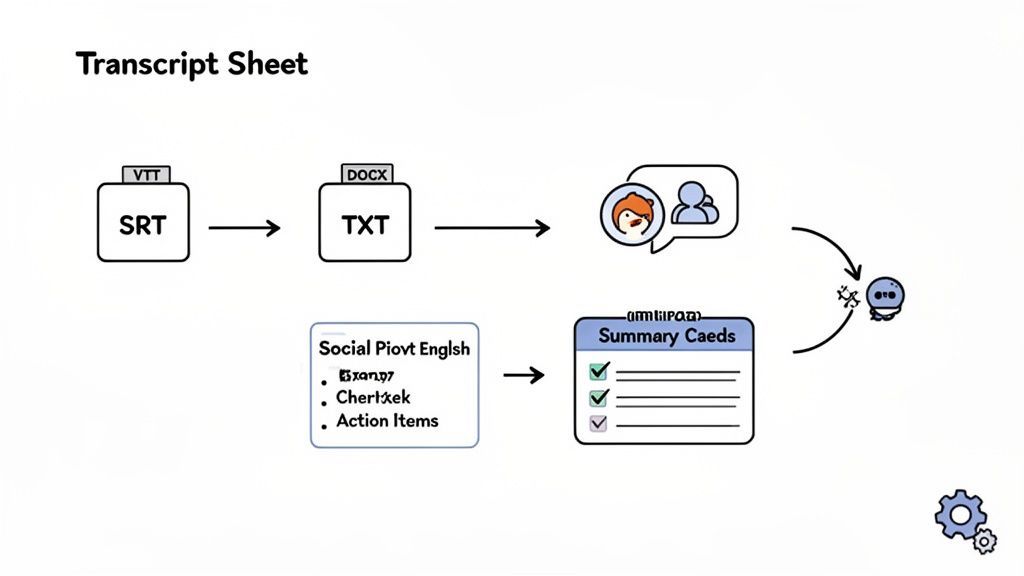
Wählen Sie das perfekte Exportformat
Sobald Ihr Transkript fertig ist, hängt die Art und Weise, wie Sie es exportieren, vollständig davon ab, was Sie als Nächstes tun möchten. Die Wahl des richtigen Formats von Anfang an spart viel Zeit und stellt sicher, dass Ihre Inhalte perfekt für ihr endgültiges Ziel vorbereitet sind.
- TXT: Dies ist Ihre unkomplizierte, universelle Option. Perfekt, wenn Sie nur den reinen Text benötigen, um ihn in eine E-Mail, ein Dokument oder ein CMS zu kopieren und einzufügen, ohne sich um seltsame Formatierungen kümmern zu müssen.
- DOCX: Wenn Sie etwas Ausgefeilteres benötigen, ist DOCX die richtige Wahl. Es ist ideal für formelle Berichte, Artikel oder jedes Dokument, in das Sie Notizen einfügen, mit anderen zusammenarbeiten und bestimmte Formatierungen beibehalten müssen.
- SRT/VTT: Dies sind die Goldstandards für Video-Untertitel und -Bildunterschriften. Sie enthalten die entscheidenden Zeitstempel, die den Text mit Ihrem Video synchronisieren, was für die Barrierefreiheit und die Steigerung des Engagements auf Plattformen wie YouTube unerlässlich ist.
Sobald Ihr MP4 transkribiert ist, können Sie ganz einfach Video-Untertitel herunterladen, um sie auf verschiedenen Plattformen zu verwenden und die Barrierefreiheit zu verbessern. Zu lernen, wie man eine SRT-Datei aus Ihrem Transkript erstellt, ist eine entscheidende Fähigkeit für jeden Videoersteller.
Wählen Sie das richtige Exportformat für Ihre Bedürfnisse
Immer noch nicht sicher, welchen Dateityp Sie wählen sollen? Diese kleine Anleitung erklärt es Ihnen, basierend darauf, was Sie erreichen möchten.
| Format | Am besten geeignet für | Häufiger Anwendungsfall |
|---|---|---|
| TXT | Reiner Text, einfaches Kopieren und Einfügen, keine Formatierung | Entwerfen von E-Mails, Erstellen einfacher Blogbeiträge |
| DOCX | Formatierte Dokumente, Teamkollaboration | Schreiben von Artikeln, Besprechungsberichten, E-Books |
| SRT | Video-Untertitel mit präziser Zeitsteuerung | Hinzufügen von Untertiteln zu YouTube- oder Vimeo-Videos |
| VTT | Erweiterte Web-Video-Untertitel | Hinzufügen von Untertiteln mit Styling zu Webplayern |
Betrachten Sie diese Formate als verschiedene Werkzeuge für verschiedene Aufgaben. Das richtige Werkzeug erleichtert den gesamten Content-Erstellungsprozess.
Dieser strategische Ansatz zur Wiederverwendung von Inhalten zahlt sich enorm aus. Websites, die MP4-Transkripte hinzufügen, haben ihre Suchrankings um bis zu 12 Positionen verbessert, was zu einer erheblichen Menge an neuem Traffic führt. Ich habe Podcaster und Vermarkter erlebt, die 20-40%ige Steigerungen des organischen Traffics berichten, nur indem sie ihre Videos in teilbare Blogbeiträge verwandelt haben. Es ist ein Workflow, der wirklich Ergebnisse liefert.
Profi-Tipps für einen intelligenteren Transkriptions-Workflow
Um das Beste aus Ihrer MP4-zu-Text-Transkription herauszuholen, geht es nicht darum, härter zu arbeiten, sondern darum, ein paar clevere Gewohnheiten zu entwickeln, die Ihnen auf lange Sicht enorm viel Zeit sparen. Es ist der Unterschied zwischen einem Gelegenheitsnutzer und einem Power-User.
Die mit Abstand effektivste Strategie, die ich gefunden habe, ist der Aufbau eines benutzerdefinierten Vokabulars. Wenn Sie regelmäßig Inhalte mit spezifischen Markennamen, Fachjargon oder denselben Gastrednern transkribieren, erhöht das Hinzufügen dieser Begriffe zu einer benutzerdefinierten Liste Ihre Genauigkeit auf nahezu perfekte Werte. Diese eine Anpassung kann Ihre Bearbeitungszeit drastisch reduzieren.
Organisieren Sie sich, finden Sie alles schneller
Organisation ist ein weiterer enormer Zeitsparer. Wenn Sie als Creator mehrere Projekte jonglieren – sagen wir, eine Podcast-Serie neben der Kundenarbeit –, sind Ordner ein Muss. Sie halten Ihren Arbeitsbereich sauber und verhindern, dass Sie Zeit mit der Suche nach der richtigen Datei verschwenden.
Und wo wir gerade vom Finden von Dingen sprechen: Unterschätzen Sie nicht die globale Suchfunktion. Stellen Sie sich vor, Sie müssten ein bestimmtes Zitat finden, von dem Sie wissen, dass Sie es vor Monaten gesagt haben. Anstatt stundenlang Videos durchzusehen, können Sie in jedem Transkript Ihres Kontos suchen und es in Sekundenschnelle finden.
Das sind keine komplizierten Funktionen. Es sind einfache, praktische Gewohnheiten, die Ihren Workflow professionalisieren. Die konsequente Nutzung von Ordnern, benutzerdefinierten Vokabularen und der Suche gibt Ihnen Ihre wertvollste Ressource zurück: Zeit.
Natürlich ist selbst bei einem großartigen Workflow eine abschließende Überprüfung für ein ausgefeiltes Transkript unerlässlich. Für eine eingehende Betrachtung der letzten Korrekturen lesen Sie unseren Leitfaden zu den besten Praktiken für die Korrekturlesung bei der Transkription.
Selbst bei einem so unkomplizierten Tool wie Transcript.LOL tauchen immer wieder ein paar Fragen auf, wenn es darum geht, MP4-Dateien in Text umzuwandeln. Lassen Sie uns einige der häufigsten Fragen durchgehen, die wir von Creatorn hören.
Wie genau ist das Ding wirklich?
Das ist die große Frage, und die Antwort ist ehrlich gesagt ziemlich gut. Eine moderne KI wie unsere erreicht bei MP4s mit klarem Audio durchweg über 95% Genauigkeit.
Der wichtigste Faktor ist immer die Audioqualität. Wenn Sie minimale Hintergrundgeräusche haben und die Leute sich nicht gegenseitig ins Wort fallen, erhalten Sie ein fantastisches Ergebnis. Für tiefgehende Videos mit viel Nischenjargon ist die Verwendung einer benutzerdefinierten Vokabularfunktion die Geheimwaffe. Sie bringen der KI im Grunde Ihre spezifischen Begriffe bei, und die Genauigkeit wird noch besser.
Was ist mit der Transkription eines Videos mit mehreren Sprechern?
Kein Problem. Dies wird durch eine Funktion namens Sprechererkennung (oder Diarisierung, wenn Sie den technischen Begriff verwenden möchten) gehandhabt. Die KI erkennt automatisch, wann eine neue Person zu sprechen beginnt, und weist ihr ein Label wie 'Sprecher 1' oder 'Sprecher 2' zu.
Von dort aus gehen Sie einfach in den Editor und tauschen diese generischen Labels gegen die tatsächlichen Namen der Sprecher aus. Das dauert ein paar Sekunden und liefert Ihnen ein perfekt organisiertes Skript für Interviews, Podiumsdiskussionen oder Teammeetings.
Was ist das beste Format für Video-Untertitel?
Wenn Ihr Ziel darin besteht, Ihrem Video Untertitel hinzuzufügen, sollten Sie Ihr Transkript als SRT (.srt) oder VTT (.vtt) Datei exportieren. Beide Formate enthalten die entscheidenden Zeitstempel, die den Text perfekt mit Ihrem Video synchronisieren.
- SRT: Das ist der alte Zuverlässige. Es ist das am weitesten verbreitete Format und die sicherste Wahl für Plattformen wie YouTube und LinkedIn.
- VTT: Ein moderneres Format, das Ihnen zusätzliche Styling-Optionen bietet. Es ist eine gute Wahl für webbasierte Videoplayer.
Wie lange dauert die Transkription einer MP4-Datei?
Sie werden überrascht sein, wie schnell das geht. Während die genaue Geschwindigkeit von Ihrer Dateigröße abhängt, wird ein einstündiges MP4-Video oft in nur wenigen Minuten transkribiert. Diese schnelle Bearbeitungszeit bedeutet, dass Sie vom Aufnehmen zum Bearbeiten und Wiederverwenden Ihrer Inhalte gelangen können, ohne lange, frustrierende Wartezeiten.
Sind Sie bereit zu sehen, wie schnell und genau Ihre nächste Transkription sein kann? Erhalten Sie Ihre erste Transkription kostenlos mit Transcript.LOL und beginnen Sie noch heute, das volle Potenzial Ihrer Videoinhalte zu erschließen. Hier starten.