
How to Translate Video to English Subtitles
Learn how to translate video to English subtitles with this guide. We cover AI tools, pro editing tips, and file formats to help you reach a global audience.
Kate, Praveen
February 17, 2026
Think of adding English subtitles as just an accessibility tweak? Think again. It’s one of the simplest yet most powerful growth strategies you can implement. When you translate video to English subtitles, you’re not just ticking a box—you’re unlocking new audiences, firing up your video’s SEO, and getting people to actually watch your content. It turns a local video into a global asset.
Why English Subtitles Are Your Secret Weapon for Growth
Your video content is like a locked treasure chest. Without English subtitles, only people who speak the original language can open it. Adding them is like handing out a universal key, making your content instantly available to billions more people worldwide.
Why Subtitles Multiply Reach Instantly?
Without subtitles, only one language group can understand your video. Adding English turns every upload into global content. The same video suddenly becomes searchable, shareable, and accessible worldwide.
Let’s be real, English is still the lingua franca of business, tech, and the internet. A podcaster in Spain can suddenly hook listeners in the United States. A marketer in Japan can launch a campaign that clicks with customers in the UK. This isn’t just about getting more views; it's about reaching the right people in lucrative markets.
Give Your Video SEO a Serious Boost
Search engines like Google and YouTube can't "watch" your video, but they are incredibly good at reading text. When you upload an SRT or VTT subtitle file, you’re basically feeding them a word-for-word transcript.
Suddenly, all your spoken words become indexable data. Every single keyword, phrase, and idea you discussed turns into a magnet for search algorithms, helping your video show up for a much wider range of searches. That simple text file transforms your video from a black box into a discoverable, SEO-friendly resource.
Features That Make Subtitle Creation Effortless
State-of-the-art AI
Powered by OpenAI's Whisper for industry-leading accuracy. Support for custom vocabularies, up to 10 hours long files, and ultra fast results.

Import from multiple sources
Import audio and video files from various sources including direct upload, Google Drive, Dropbox, URLs, Zoom, and more.

Export in multiple formats
Export your transcripts in multiple formats including TXT, DOCX, PDF, SRT, and VTT with customizable formatting options.
It's not just about getting found; it's about keeping viewers hooked. Research shows that 91% of videos with captions are watched all the way through, compared to just 66% for those without. That massive jump in watch time signals to platforms like YouTube that your content is valuable, pushing it even higher in the rankings.
Make Your Content More Engaging and Accessible
The wins don't stop at search rankings. A huge number of people watch videos with the sound off—think public transport, quiet offices, or late-night scrolling. Subtitles let them tune in without ever touching the volume. For non-native English speakers, they’re a game-changer, reinforcing what they hear with written text and making complex topics easier to follow.
And of course, it’s a fundamental part of accessibility. You’re opening your content up to the 430 million people worldwide with disabling hearing loss. By creating a complete experience for everyone, you build a more inclusive community and a more loyal audience. You can see how different industries are already putting this into practice by exploring various use cases for automated transcription and translation tools.
Ultimately, when you choose to translate your video to English subtitles, you’re doing far more than adding text to a screen. You’re deploying a smart growth strategy that delivers real, measurable results in audience reach, discoverability, and viewer loyalty.
Preparing Your Video for Accurate AI Translation
The secret to a flawless AI translation isn't just about the software—it’s about the quality of your source file. Before you even think about uploading, you need to set your video up for success.
Think of it like this: you wouldn't expect a chef to create a gourmet meal with bad ingredients. The same logic applies when you want to translate video to English subtitles. The cleaner your input, the better your output. This prep work is arguably the most important step, and spending a few extra minutes here can save you hours of painful editing later.
What Great Subtitles Actually Unlock?
Global Reach
English subtitles remove language barriers instantly. Your content becomes understandable across countries and cultures. One video can serve a worldwide audience.
Stronger Retention
Viewers follow along even with the sound off. They miss fewer details and stay engaged longer. Higher watch time improves platform rankings naturally.
Better Accessibility
Captions support deaf and hard-of-hearing viewers. Non-native speakers also benefit from reading along. Inclusivity builds a loyal and diverse community.
Repurposing Power
Transcripts become blogs, posts, quotes, and newsletters. You create multiple assets from a single recording. Content production becomes faster and easier.
Prioritize Crystal-Clear Audio
Audio quality is the single most critical element for any transcription engine. An AI can’t translate what it can't accurately hear. Background noise—a humming air conditioner, street traffic, or even an echoey room—muddies the waters and leads to a mess of transcription errors.
Here are a few practical ways to ensure your audio is top-notch:
- Use a Decent Microphone: Your laptop's built-in mic is convenient but notorious for capturing every bit of ambient sound. A dedicated external microphone, even an affordable USB one, makes a world of difference by isolating the speaker's voice.
- Choose a Quiet Recording Space: Find a small, carpeted room with soft furnishings to absorb sound. Steer clear of large, empty spaces with hard surfaces that create nasty echoes.
- Minimize Interruptions: Make sure there are no overlapping conversations or sudden noises. If multiple people are speaking, encourage them to talk one at a time with slight pauses in between.
A clean audio track is the foundation of accurate subtitles. Even the most advanced AI struggles with muffled voices or competing sounds. Investing a little effort in your recording setup pays massive dividends in translation quality.
A simple audio cleanup can also do wonders. You can learn more about the different tools that help prepare your media for a smoother workflow. Even basic software can often reduce background hum or hiss with a single click.
Speaker Clarity and Pacing Matter
Beyond the technical quality of the audio, how people speak is just as important. AI transcription models are trained on massive datasets of human speech, but they really shine when the speech patterns are clear and consistent.
Encourage speakers to enunciate their words and maintain a steady, natural pace. Speaking too quickly or mumbling is a surefire way to get the AI to miss words or misinterpret phrases, leaving you with confusing subtitles. A quick reminder before you hit record can dramatically improve the final result.
Choose the Right Video Format and Settings
While audio is king, your video file itself needs to be in a format that translation platforms can easily handle. Overly compressed or obscure file types can cause upload failures or processing errors, stopping you in your tracks.
For a smooth process with tools like Transcript.LOL, stick to these guidelines:
- File Format: MP4 is the universal standard for a reason. It offers a great balance of quality and file size and works almost everywhere. Other common formats like MOV or WMV are usually fine, too.
- Resolution: You don't need a massive 4K file just for transcription. A standard resolution of 1080p (1920x1080) is more than enough and gives you a smaller file that uploads much faster.
- Audio Codec: For the audio track, AAC (Advanced Audio Coding) is a reliable choice that’s widely supported and provides excellent quality without bloating your file size.
By optimizing your audio, ensuring speakers are clear, and using a standard video format, you’re giving the AI the best possible source material. This proactive approach is the difference between a rough draft that needs heavy editing and a near-perfect translation that just needs a quick polish.
Using AI to Translate Your Video in Minutes
This is where the magic happens. Once your video file is prepped and ready, you can let an AI platform translate your video to English subtitles in a tiny fraction of the time it would take to do it manually. Forget about juggling complex software or navigating technical roadblocks—modern tools have made this incredibly fast and straightforward.
The whole idea is simple: you give the AI your video, and it does all the heavy lifting. It transcribes the original audio and then translates it into English. This single step completely replaces the old, clunky workflow of hiring a transcriber, waiting days for the text, and then finding someone else to translate it.
Getting Your Video Into the System
First things first, you need to upload your video. A flexible platform like Transcript.LOL is built to grab your content from pretty much anywhere you keep it. You aren't stuck with just one method.
- Direct Upload: The classic option. Just drag and drop your MP4 file right from your computer.
- Cloud Storage: Got your video saved in Google Drive or Dropbox? You can link your account and pull the file in without downloading it first.
- URL Link: This one’s a game-changer for content creators. Paste a public link from YouTube or Vimeo, and the tool fetches the video for you.
This flexibility means you can get started in seconds, whether you have a freshly edited file, a Zoom call saved to the cloud, or a video that’s already live on YouTube.
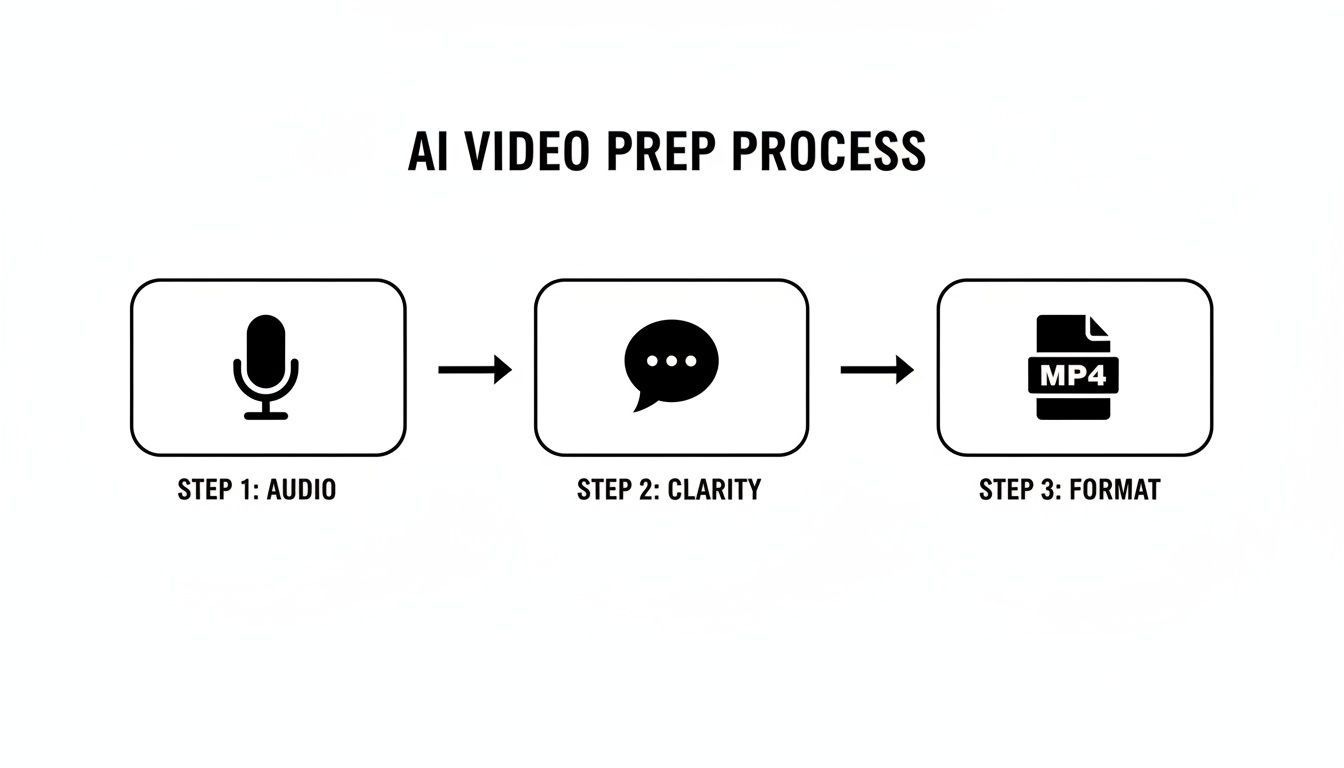
As the diagram shows, a great result starts with good inputs: clean audio, clear speakers, and the right file format. That's what sets the AI up for success.
Kicking Off the AI Translation
With your video uploaded, it's time to tell the AI what you need. This is usually just a quick two-step process that takes a few clicks.
First, you’ll specify the original language spoken in the video. While advanced models can often detect the language automatically, confirming it yourself is the best way to guarantee accuracy right from the start.
Next, you just pick your goal: Translate to English. That’s it. This single command tells the system to run both the transcription and translation in one seamless job. As soon as you hit "go," the AI gets to work.
Your Dual-Language Transcript Arrives in Minutes
In just a few minutes, you’ll get a notification that your draft is ready. What you receive isn't just a boring block of text. It's a complete, interactive document with the original transcript and the English translation displayed side-by-side, perfectly time-stamped.
This dual-language view makes it super easy to check the translation against the original dialogue, ensuring nothing gets lost in translation.
What you get back is a solid first draft that's often 95% of the way there. The AI has already taken care of:
- Transcription: Turning all the spoken words into text.
- Timestamping: Aligning every word or phrase to its exact moment in the video.
- Translation: Converting that text into accurate English.
- Speaker Labeling: Automatically identifying who is speaking.
This automated draft saves a massive amount of time. Instead of starting from scratch, you begin with a nearly finished subtitle file that just needs a quick human polish. The technical work is done, freeing you up to focus on nuance. The same core idea of instant language conversion powers tools like an auto translate device, which are breaking down communication barriers everywhere.
Workflow Features for Faster Editing & Insights

Speaker detection
Automatically identify different speakers in your recordings and label them with their names.

Editing tools
Edit transcripts with powerful tools including find & replace, speaker assignment, rich text formats, and highlighting.
Summaries and Chatbot
Generate summaries & other insights from your transcript, reusable custom prompts and chatbot for your content.
If you want to dig deeper into all the features and technical specs, you can always check out the official docs at https://transcript.lol/docs. By making the technology this accessible, these tools empower anyone to produce high-quality English subtitles and unlock a global audience with just a few clicks.
How to Refine and Perfect Your English Subtitles
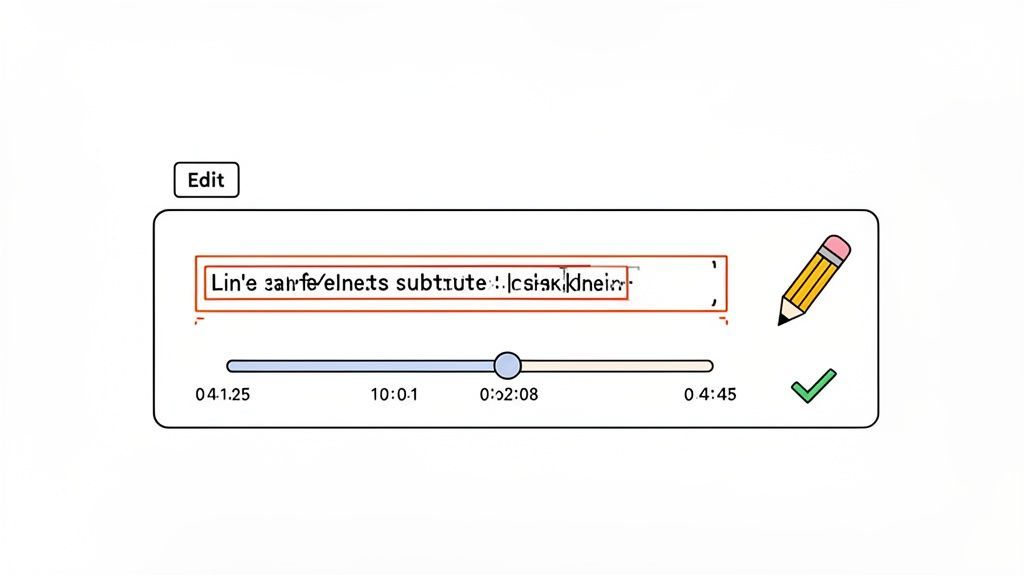
AI gives you an incredible head start, but that final human touch is what elevates good subtitles into truly great ones. The initial AI pass gets you about 95% of the way there, handling the grunt work of transcription and translation. This next stage is all about the polish—the crucial review that adds nuance and a professional feel.
Never Skip the Final Review
Even the most advanced AI tools can occasionally miss names, slang, tone, or subtle context. While the errors may seem small, they can impact professionalism and reduce audience trust. Taking a few extra minutes for a manual review helps refine wording, correct minor inaccuracies, and ensure your subtitles sound natural, clear, and contextually accurate. A quick human polish makes the final result more reliable and professional.
This is where you’ll use an interactive subtitle editor, like the one built into Transcript.LOL, to smooth out any rough edges. The goal isn’t to redo the AI’s work but to refine it, making sure the subtitles enhance the video instead of distracting from it.
Fine-Tuning the Text for Clarity and Context
First things first, you need to read through the translated text. Even the most powerful AI can sometimes miss the subtle quirks of human speech. Look for grammatical errors, awkward phrasing, or punctuation mistakes that might have slipped through.
The machine translation market is exploding, expanding from USD 1.88 billion in 2023 to USD 2.34 billion in 2024. This highlights just how much demand there is for services that translate video to English subtitles. While accuracy often exceeds 95% for major languages with clear audio, a human review is what closes that final gap. You can catch idiomatic expressions or cultural references the AI might not get. For a deeper dive, check out these insights on the rise of hybrid human-AI translation models.
As you edit, focus on these areas:
- Grammar and Punctuation: Correct any typos, misplaced commas, or funky sentence structures.
- Idioms and Slang: Make sure colloquial phrases are translated for meaning, not just word-for-word. An AI might translate a phrase like "it's raining cats and dogs" into something that makes zero sense in English.
- Speaker Labels: If the AI has mislabeled who's speaking in an interview, you can quickly reassign the text to the correct person.
A common mistake I see is leaving long, complex sentences untouched. Good subtitles are easy to read at a glance. Break up lengthy sentences into two or three shorter, more digestible lines that appear one after another.
This simple change makes a huge difference in readability, especially for viewers who are quickly scanning the text while trying to watch the action on screen.
Mastering Subtitle Timing and Synchronization
Perfectly synced subtitles are invisible; badly synced ones are infuriating. When text appears too early or hangs around too long, it completely breaks the viewer's immersion. Nailing the timestamps is one of the most important parts of this process.
Most interactive editors give you a visual timeline of the audio waveform right under the video. You can just drag the edges of each subtitle block to tweak its start and end times with pinpoint precision.
Here’s a real-world example: Imagine a speaker pauses for dramatic effect. The AI might lump their pre- and post-pause sentences into a single subtitle block. A good human editor would split this into two separate subtitles, timing the second one to appear after the pause. This preserves the speaker's intended pacing and impact.
Your goal is to make the subtitles feel like a natural part of the video, appearing and disappearing in perfect rhythm with the dialogue.
The Subtitle Polishing Checklist
Once the text is accurate and the timing is locked in, the final step is to apply some best practices for readability. This quick checklist will help you turn a good subtitle file into a great one.
| Check Area | What to Look For | Why It Matters |
|---|---|---|
| Line Breaks | Are any single lines of text excessively long? | Long lines force the eye to travel, which is tiring. Aim for under 42 characters per line. |
| Subtitle Duration | Do subtitles appear for at least 1 second and no more than 7 seconds? | Text that flashes too quickly is unreadable. Text that stays too long becomes a distraction. |
| Speaker Identification | In interviews or multi-speaker videos, is it clear who is talking? | Use labels like "Interviewer:" or the person's name to avoid confusion. |
| Sound Cues | Are non-speech sounds like [Laughter] or [Applause] noted? | This is crucial for accessibility, providing context for viewers who can't hear the audio. |
By meticulously running through these checks, you elevate that AI-generated draft into a professional-grade subtitle file. This final human touch ensures your effort to translate video to English subtitles results in a high-quality experience that feels seamless, accurate, and accessible to everyone.
Exporting and Using Your Subtitle Files
Alright, you've done the hard part—your subtitles are polished, perfectly timed, and ready to go. Now it’s time to get them out into the world. After all that refining, exporting is the final, crucial step that makes your video accessible to a much wider audience.
Thankfully, modern tools like Transcript.LOL make this part a breeze, letting you download the most common subtitle formats with a single click. The two big players you'll run into are SRT and VTT. Knowing the difference between them will help you pick the right one for the job.
Choosing Between SRT and VTT Files
Think of SRT (.srt) as the universal soldier of subtitles. It’s a super simple text file that contains just three things: a number for each line, the start and end timestamps, and the subtitle text itself. Its simplicity is its greatest strength, ensuring it works with just about every video player and platform you can imagine.
VTT (.vtt), on the other hand, is the modern successor. It does everything SRT can do but adds extra features like support for bolding, italics, and even styling text with different colors and positions. Platforms like YouTube and Vimeo love VTT because it allows for a richer, more polished look.
So, which one should you choose?
- Go with SRT for maximum compatibility. If you’re pushing your video out to tons of different places or dealing with older software, SRT is your safest bet. It just works.
- Use VTT for modern web platforms. Uploading to YouTube, Vimeo, or embedding video on your own website? VTT gives you far more creative control over how your subtitles look.
The good news is you don't really have to sweat the decision. Transcript.LOL lets you download both, so you’ll always have the right file on hand for any scenario.
Applying Subtitles to Your Video Platform
Once you have your file, adding it to your video is usually pretty simple. On a platform like YouTube, for instance, you just head over to YouTube Studio, find your video, click into the "Subtitles" section, and upload your SRT or VTT file. The platform handles all the syncing automatically.
This is the best way to do it. Using a separate subtitle file means viewers can turn them on or off, you can add multiple languages, and search engines can actually read the text—giving your video a nice little SEO boost.
Getting this final step right is more important than ever. The market for multimedia localization is exploding, growing at a 12.79% CAGR. Properly subtitled videos can boost viewer retention by 30% on social media and even lift e-commerce conversions by 25%. You can dig into more stats about the booming translation services market here.
When to Burn In Your Subtitles
Sometimes, you need to "burn in" (or hardcode) your subtitles, making them a permanent part of the video itself. This is a must for platforms that don’t support separate subtitle files, like Instagram (for feed videos and Reels) or TikTok.
The downside is that viewers can't turn them off, and the text isn't searchable. But for social media, where tons of people watch with the sound off, hardcoded subtitles make sure your message always gets across. Most video editors let you do this by simply importing your SRT file and rendering it directly onto the video.
Mastering both methods ensures your effort to translate video to English subtitles really pays off, helping you connect with the biggest possible audience, no matter where they're watching.
Common Questions About Video Translation
Even with powerful AI tools in your corner, a few questions always pop up. Diving into video translation for the first time often brings up queries about accuracy, file formats, and best practices. Getting those sorted out will help you nail the final steps with confidence.
Think of this part as your quick-reference guide. We’ll tackle the most common uncertainties head-on, so you can spend less time guessing and more time connecting with your new global audience.
How Accurate Is AI Video Translation to English?
Modern AI translation has gotten scarily good. It often hits 95-99% accuracy for common language pairs like Spanish to English, especially when you start with clean, high-quality audio. Tools like Transcript.LOL use advanced models like OpenAI's Whisper, which are trained specifically for this kind of high-stakes performance.
But let's be real—AI isn't perfect. Accuracy can dip if your video has a lot of background noise, people talking over each other, or thick regional dialects. This is exactly why a final human review is so important.
The AI does the heavy lifting, saving you about 90% of the grunt work. Your job is to come in for that final 10% polish. You'll catch the nuanced errors, idiomatic phrases, or culturally specific terms that a machine might just miss. A quick proofread turns a great translation into a perfect one.
What Is the Difference Between SRT and VTT Subtitle Files?
SRT (SubRip Text) is the old reliable, the most universal and widely supported subtitle format out there. It’s a simple text file with just the essentials: sequential numbers, start and end timestamps, and the subtitle text itself. It’s a safe, dependable choice that works almost everywhere.
VTT (WebVTT) is the modern evolution of SRT. It does everything SRT can do but adds more advanced styling features, such as:
- Text Formatting: You can add bold and italic text right in the file.
- Positioning: You can control where the subtitles appear on the screen.
- Color: Change the color of your subtitle text for emphasis or branding.
YouTube, Vimeo, and most modern HTML5 video players prefer VTT because of these richer capabilities. But for maximum compatibility, especially with older software, SRT is a solid fallback. Most tools, including Transcript.LOL, let you export in both formats, so you have options.
Can I Translate a Video Directly from a YouTube Link?
Yes, absolutely. Many modern AI services, including Transcript.LOL, are built for this exact workflow. The old-school method of downloading a video just to re-upload it is a thing of the past. Now, you can just paste the public URL from YouTube, Vimeo, or another host.
The platform grabs the video directly from the source, generating the transcript and translation for you. This saves a massive amount of time and bandwidth, making the whole process to translate video to English subtitles incredibly efficient. You can find more details about workflows and other common questions in our complete FAQ section.
Is It Better to Hardcode Subtitles or Use a Separate File?
This really depends on where you're posting the video. Using a separate file (like an SRT or VTT) is almost always the better method, for a few key reasons:
- Accessibility and User Choice: Viewers can turn subtitles on or off. It gives them control.
- SEO Benefits: The text inside the file is indexable by search engines, helping your video get discovered.
- Flexibility: You can easily offer multiple language options for the same video without creating different video files.
This is the standard approach for platforms like YouTube and Vimeo.
Hardcoding, or "burning in," subtitles makes them a permanent part of the video image. This is a must for social media platforms that don't support separate subtitle files, like Instagram (for in-feed videos) or TikTok. The main drawback is that viewers can't turn them off, and the text isn't searchable.
The rule of thumb is simple: use separate files whenever you can, and only hardcode when the platform forces your hand.
Ready to unlock your global audience? With Transcript.LOL, you can translate your video to English subtitles in minutes, not days. Get started today and see how easy it is to make your content accessible to the world. Start your free trial at Transcript.LOL.