
How to Transcribe Zoom Meetings Accurately
Learn how to transcribe Zoom meetings with this practical guide. Discover tips for clear audio, AI tools, and editing to get accurate transcripts every time.
Praveen
March 13, 2024
Getting a transcript from your Zoom meeting is surprisingly simple. You just record your call to the cloud, run the audio through an AI tool like Transcript.LOL, and then give the text a quick once-over for accuracy. In just a few minutes, you can turn an hour-long conversation into a document you can actually search and share.
Why Bother With Accurate Zoom Transcripts?
Before we get into the "how-to," let’s talk about the "Why?" - A clean, searchable transcript is so much more than a simple record of a meeting. It’s a productivity tool that transforms long-winded calls into actionable intelligence.
💡Think about it: A project manager can instantly find every action item from a one-hour call without having to rewatch a single second. A sales team can analyze a client's exact pain points, word-for-word. A researcher can pull key quotes for a study without scrubbing through audio. These are real-world examples of how transcripts save hours and boost accountability.
Unlocking Team Efficiency and Accessibility
The perks go beyond just saving time. Good transcripts make your meetings more accessible for anyone who couldn't make it or for team members with hearing impairments. And for professionals in fields where legal matters are a concern, accurate records are often a critical part of electronic discovery services, as recorded conversations can easily become evidence.
This need for efficiency isn't just a hunch; it's a massive market trend. As remote work continues to expand, the demand for AI meeting transcription tools is booming. The market for these tools is on track to hit $1.4 billion by 2026, with an annual growth rate of about 25%. You can read more about this growth over at Superagi.com.
A high-quality transcript serves as a single source of truth for your entire team. It cuts through ambiguity, clarifies decisions, and makes sure everyone is on the same page about action items and deadlines long after the call has ended.
Ultimately, mastering this process helps you build a reliable, searchable knowledge base from your everyday conversations. But the quality of that knowledge base depends entirely on how precise the transcription is. To get a better sense of what to look for, check out our guide on what determines speech-to-text accuracy and why it’s so critical for your workflow. Getting this right from the start is what makes your transcripts genuinely useful assets.
A great transcript doesn't just happen at the end of a meeting—it starts with getting your settings right from the beginning. To capture clean audio that's perfect for transcription, you'll need to tweak a few things in your Zoom account.
The most important setting? Cloud recording. This is non-negotiable. While saving a recording to your computer (a local recording) might seem easier, it often leads to lower-quality audio and headaches when it's time to upload and process the file. Cloud recording, on the other hand, is the secret sauce. It can capture separate audio tracks for each speaker, which is a massive win for accurately identifying who said what.
Why free transcription tools matter?
State-of-the-art AI
Powered by OpenAI's Whisper for industry-leading accuracy. Support for custom vocabularies, up to 10 hours long files, and ultra fast results.

Editing tools
Edit transcripts with powerful tools including find & replace, speaker assignment, rich text formats, and highlighting.
Summaries and Chatbot
Generate summaries & other insights from your transcript, reusable custom prompts and chatbot for your content.
Getting Cloud Recording and Transcripts Enabled
First things first, log into your Zoom account on the web and head over to your Settings. In the navigation panel, click on the Recording tab.
Your main goal here is to make sure Cloud recording is toggled on. This one simple switch gives you the power to save your meetings directly to Zoom's servers, setting you up for a much smoother workflow later.
While you're there, you'll probably spot an option for "Audio transcript." This is Zoom’s own transcription feature. Here’s a quick look at where you'll typically find these options in their plans.
As you can see, cloud recording is a feature of their paid plans, which is pretty much a requirement if you're serious about getting high-quality transcripts.
It's worth noting that while Zoom's built-in transcript is handy in a pinch, it has some real limitations. It only works for English and can be slow to process—sometimes taking twice as long as the meeting itself. For faster, more accurate results across multiple languages, a dedicated service is the way to go. If you want to dive deeper into the best practices, check out this guide to record a video call flawlessly.
Pro Tip: Enabling cloud recording is a game-changer for your workflow. Instead of wrestling with massive video files, you can just use the recording link to get your transcript. Our guide on https://transcript.lol/help/importing-from-zoom shows you just how simple it is to pull your recordings directly into Transcript.LOL.
Capturing High-Quality Audio in Your Meetings
The accuracy of any transcript hinges entirely on the quality of the audio you feed it. As the old saying goes: garbage in, garbage out. To get a clean, reliable transcript from your Zoom calls, you first need to capture crystal-clear audio.

This doesn’t mean you need to invest in expensive studio equipment. In my experience, simple habits make a world of difference. For instance, just switching from your laptop's built-in mic to a basic external USB microphone can dramatically cut down on echo and background noise.
Simple Steps for Better Audio
Good meeting etiquette is just as important as the hardware you use. Before you hit record, it's a great practice to ask all participants to mute themselves when they aren't speaking. This single action is a lifesaver, preventing overlapping conversations and distracting ambient sounds from muddying the recording.
Where you host your call matters, too. Try to find a quiet space. A small room with soft furnishings like carpets or curtains is ideal because it helps absorb sound and minimize echo. These small adjustments are the foundation for a transcript you can actually trust.
The Golden Rules of Meeting Audio:
- Use an external microphone whenever possible.
- Ask everyone to mute when not speaking.
- Choose a quiet, echo-free environment.
- Always use cloud recording, not local.
Speaking of recording, always choose cloud recording over a local one. This is a big one. Cloud recording can capture separate audio tracks for each participant, which is a massive advantage for any transcription service trying to distinguish between different speakers.
While these practices are universal, it's worth noting that Zoom's own transcription is pretty competitive. A 2024 industry report found Zoom's word error rate (WER) was only 7.40%, beating out both Webex (10.16%) and Microsoft Teams (11.54%). You can dig into the full AI performance report on Zoom.com for more details.
But even the best AI stumbles on poor audio, which is why nailing these preparation steps is so essential.
Using Transcript.LOL for Instant Transcripts
Once your Zoom cloud recording is ready, turning it into a precise, usable transcript is where the magic really happens. With Transcript.LOL, this process is ridiculously fast, transforming your raw recording into an organized, searchable document in just a few minutes.
First things first, you need the recording link from your Zoom account. Just head over to the "Recordings" section and find the meeting you want to transcribe. Instead of downloading a massive video file, all you have to do is copy the shareable link. That's the key to a super-fast workflow.

Import from multiple sources
Import audio and video files from various sources including direct upload, Google Drive, Dropbox, URLs, Zoom, and more.

Speaker detection
Automatically identify different speakers in your recordings and label them with their names.

Export in multiple formats
Export your transcripts in multiple formats including TXT, DOCX, PDF, SRT, and VTT with customizable formatting options.
From Link to Live Transcript
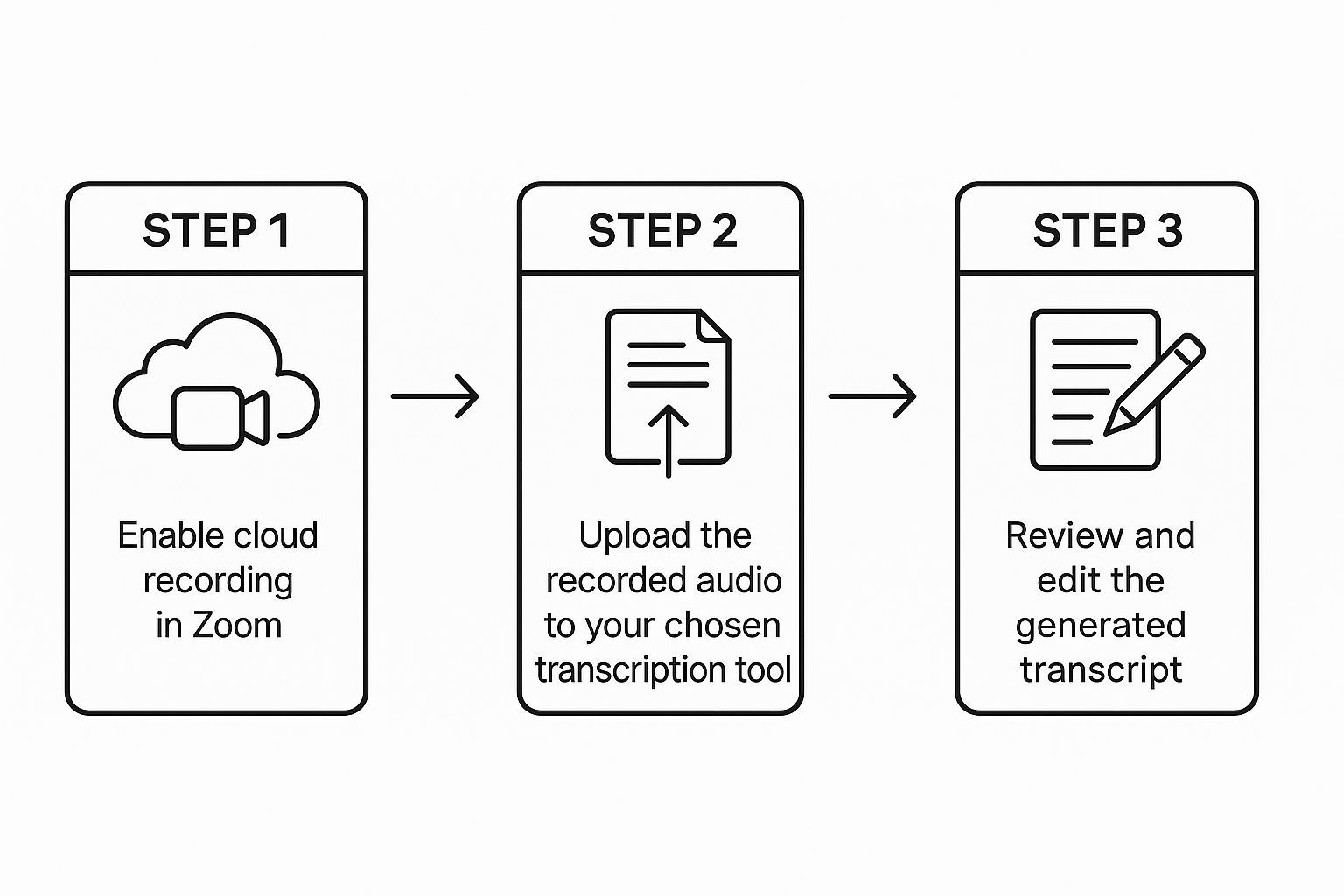
The whole process is designed to be dead simple. You record, you get a link, and you get a transcript.
When you land on the Transcript.LOL site, you'll see a clean, simple interface ready for your link. Just paste it right into the field.
From there, the tool handles everything. It pulls the audio directly from Zoom's cloud and kicks off the transcription process almost instantly. The tech behind this is pretty sophisticated, using AI similar to what you might find in other high-stakes industries, like automated contact center quality monitoring powered by LLMs, where getting things right quickly is non-negotiable.
You don't need to be a tech wizard to transcribe your meetings. Modern tools are built for one thing: simplicity. Paste a link, and in minutes you have a full transcript with speaker labels and timestamps.
What really makes a dedicated tool like this shine are the features that go beyond just getting the words down. Transcript.LOL gives you a truly interactive document.
- Accurate Speaker Identification: The AI is smart enough to figure out who is talking and automatically labels their dialogue, so the conversation is easy to follow.
- Clickable Timestamps: Every single word is synced to the audio. If you read a sentence that seems a bit off, just click it to jump straight to that moment in the recording and hear it for yourself.
- Multiple Export Options: You’re not locked into one format. Download your transcript as a plain .txt file, a formatted document, or even an .srt file if you need to add captions to your video.
These features make the transcript a genuinely useful asset, not just a wall of text. If you’re trying to figure out how this could fit into your workflow, check out these common use cases for online meeting transcription to see how others are saving time.
Polishing and Sharing Your Final Transcript
An AI transcript gets you about 95% of the way there, but that last little bit of human review is what makes it perfect. Think of it as the final polish.
This step is absolutely critical when you need to transcribe Zoom meetings for professional use, turning that raw text into a trustworthy asset for your team.

The good news is, this final check doesn't have to eat up your afternoon. You just need to focus your attention on the tricky details that automated tools often miss.
Your Quick Proofreading Checklist
Before you hit "send," a quick once-over can make all the difference. This isn't about rewriting the whole thing; it's just adding a human touch to the AI's solid foundation.
- Correct Proper Nouns: AI can get a little creative with names. Double-check the spelling of people, companies, and any specific project names mentioned.
- Verify Industry Jargon: Scan for technical terms or acronyms specific to your field. A quick fix here ensures the transcript makes sense to everyone, not just the people who were in the meeting.
- Confirm Speaker Labels: While AI is surprisingly good at figuring out who's talking, it can sometimes get confused, especially if people talk over each other. Just make sure the right words are coming from the right mouths.
AI has massively improved how we create and use meeting records, which is a huge boost for productivity and teamwork. According to research from Insight7, companies using these tools are seeing greater agility in their strategic planning. You can dig into their findings on how AI is changing meeting analysis right here.
Once you're happy with it, sharing is simple. You can copy and paste the text straight into a Google Doc, a Confluence page, or your project management tool like Asana.
For a deeper dive into the whole process, from audio file to finished text, check out our guide on how to transcribe audio to text for free.
Common Questions Answered
Even with the process dialed in, you probably have a few questions floating around. Let's tackle some of the most common ones we hear about transcribing Zoom meetings.
1. How Long Does Transcription Take?
This is a big one, and the answer really depends on the tool you're using.
If you stick with Zoom's native transcription, be prepared to wait. It often takes twice the duration of the meeting to process the transcript. That means a one-hour call could leave you waiting two hours for the text.
But dedicated services like Transcript.LOL are built for speed. Your full transcript is typically ready in just a few minutes, not hours. You can get straight to work on pulling out insights without the long delay.
2. Do I Have to Record the Whole Meeting?
Yep, a recording is non-negotiable. The AI needs the full audio data to work its magic and generate an accurate transcript.
For the best results, always enable cloud recording right when the meeting starts. This guarantees the entire conversation gets captured, leaving no gaps for the transcription engine to guess at.
A classic mistake is hitting record after the initial intros and small talk. You'll end up missing the crucial context from the start of the conversation. Get in the habit of starting the recording before the official agenda kicks off.
3. Can I Transcribe Meetings in Other Languages?
This is a major differentiator between the built-in tools and specialized platforms. Zoom's own audio transcription currently only supports English, which can be a real roadblock for global teams.
On the other hand, a service like Transcript.LOL supports dozens of languages. This flexibility is a huge reason why teams that work with international clients or colleagues almost always choose a dedicated transcription tool. Always double-check language support if your meetings aren't just in English.
Ready to turn your Zoom calls into searchable, actionable assets? With Transcript.LOL, you can get fast, accurate, and secure transcripts in minutes. Stop rewatching meetings and start unlocking the insights hidden in your conversations. Get your first transcript today!