
Convert Audio to Text Free with These Simple Methods
Learn how to convert audio to text free using the best tools and workflows. Get clear, actionable tips for fast and accurate transcription on any device.
Kate
February 12, 2025
Yes, you can absolutely convert audio to text for free, and the tools available today are genuinely impressive. Whether you use a browser-based service or a dedicated app, AI-driven transcription has moved far beyond simple dictation. We're talking surprisingly high accuracy for everything from messy meeting notes to polished podcast interviews, and it’s completely changing how we work with audio.
Why AI Makes Free Transcription So Powerful
Modernste KI
Angetrieben von OpenAIs Whisper für branchenführende Genauigkeit. Unterstützung für benutzerdefinierte Vokabulare, bis zu 10 Stunden lange Dateien und ultraschnelle Ergebnisse.

Sprechererkennung
Identifiziere automatisch verschiedene Sprecher in deinen Aufnahmen und beschrifte sie mit ihren Namen.
Zusammenfassungen und Chatbot
Erstelle Zusammenfassungen und andere Erkenntnisse aus deinem Transkript, wiederverwendbare benutzerdefinierte Prompts und Chatbot für deine Inhalte.
Why Free Transcription Tools Are a Game Changer
Let's be honest—manual transcription is a soul-crushing time sink. Anyone who's spent hours pausing, rewinding, and typing knows the pain. For years, this was the reality for students, journalists, and creators. But that’s all changed. Accessible AI has made high-quality, free transcription a reality for everyone, not just big companies with deep pockets.
This isn't the clunky, inaccurate software of the past. Modern tools can distinguish between different speakers, add precise timestamps, and even handle a variety of accents with impressive skill.
AI Handles Accents Better Than Ever
Older transcription tools struggled with diverse speech patterns, but modern AI models have been trained on global datasets. This means clearer recognition, better context matching, and far fewer misheard words — even with strong accents.
The Real-World Impact
The availability of these tools has completely transformed everyday workflows. Think about it:
- Students can record an entire lecture and get a searchable text document to study from almost instantly. No more frantic note-taking.
- Podcasters and YouTubers can generate transcripts to boost their SEO and make their content accessible to a wider audience. We have a whole guide on transcription for content creation that dives into this.
- Researchers can process hours of interview audio in minutes, letting them jump straight to analysis instead of getting bogged down in typing.
Where Free Transcription Tools Make the Biggest Impact
Faster Research Workflows
Get instant transcripts for interviews, experiments, and field conversations. Saves hours otherwise spent on manual typing.
Smarter Content Creation
Creators use transcripts to repurpose videos and podcasts into blogs, captions, and scripts effortlessly.
Better Accessibility
Providing transcripts helps make content accessible to wider audiences, including those with hearing impairments.
Easier Collaboration
Shared transcripts reduce miscommunication and keep teams on the same page without long replay sessions.
Diese Entwicklung treibt ein enormes Wachstum an. Der globale Markt für KI-Transkriptionen wurde im Jahr 2024 auf massive 4,5 Milliarden US-Dollar geschätzt und wird voraussichtlich bis 2034 19,2 Milliarden US-Dollar erreichen, hauptsächlich weil diese leistungsstarken Dienste jetzt kostenlos und zugänglich sind.
Die größte Veränderung ist nicht nur die Technologie – es ist die Denkweise. Wir betrachten Transkriptionen nicht mehr als eine teure, zeitaufwändige Hürde. Sie sind jetzt ein integrierter, sofortiger Bestandteil der Erstellung von Inhalten oder der Informationsbeschaffung und erschließen Werte aus Audio, die früher gefangen blieben.
Wenn Sie neugierig sind, was unter der Haube vor sich geht, erhalten Sie hier einen großartigen Überblick über die zugrunde liegende KI-Transkriptionstechnologie, die all dies ermöglicht.
Um Ihnen bei der Entscheidung zu helfen, welcher Weg der richtige ist, zerlegt dieses Flussdiagramm die Optionen basierend darauf, ob Geschwindigkeit oder Datenschutz Ihr Hauptanliegen sind.
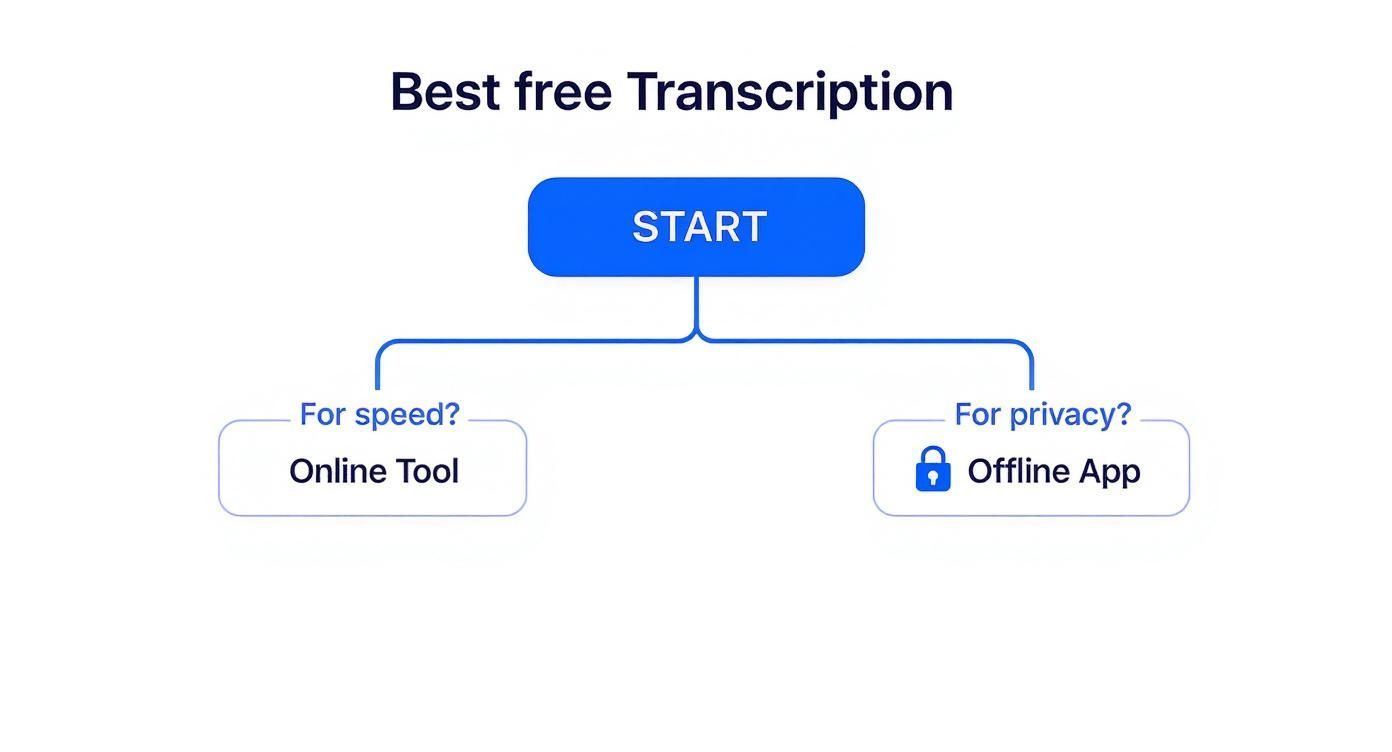
Die Quintessenz ist einfach: Für die meisten schnellen, nicht sensiblen Aufgaben sind Online-Tools die beste Wahl. Wenn Sie mit privaten oder vertraulichen Audioaufnahmen arbeiten, ist eine Offline-App der richtige Weg.
Kostenlose Transkriptionsmethoden im Überblick
Die Navigation durch die Optionen kann schwierig sein. Hier ist eine Tabelle zur schnellen Referenz, die Ihnen hilft, das beste Tool für Ihre Aufgabe auszuwählen.
| Methode | Am besten geeignet für | Hauptvorteil |
|---|---|---|
| Online-Tools | Schnelle einmalige Aufgaben und kollaborative Projekte | Geschwindigkeit und Komfort; keine Installation erforderlich |
| Desktop-Anwendungen | Sensible oder vertrauliche Audioaufnahmen | Verbesserter Datenschutz und Offline-Funktionalität |
| Mobile Apps | Aufnahmen unterwegs und Live-Diktat | Portabilität und sofortige Transkription gesprochener Wörter |
| Integrierte Betriebssystem-Tools | Einfaches Diktieren in Dokumente oder E-Mails | Nahtlose Integration in Ihren bestehenden Workflow |
Dies sollte Ihnen einen soliden Ausgangspunkt für die Suche nach der perfekten kostenlosen Lösung bieten, ohne Dutzende von Optionen durchsuchen zu müssen.
Online-Tools für sofortige Transkriptionen verwenden
Wenn Sie schnell eine Transkription benötigen und keine Software installieren möchten, sind browserbasierte Tools die beste Wahl. Sie sind der schnellste und einfachste Weg, Audio kostenlos in Text umzuwandeln. Sie öffnen einfach eine Website, laden Ihre Datei hoch und erhalten eine Transkription zurück, oft innerhalb von Minuten.
Stellen Sie sich vor: Sie haben gerade ein 20-minütiges Discovery-Gespräch mit einem neuen Kunden beendet, das als MP3 gespeichert wurde. Anstatt eine Stunde zu blockieren, um alles abzutippen, können Sie diese Datei in einen Online-Konverter ziehen und ein vollständiges, durchsuchbares Textdokument erhalten, bevor Sie Ihren Kaffee beendet haben.
Es ist kein Wunder, dass diese Dienste explosionsartig an Popularität gewonnen haben. Der globale Markt für Sprach-zu-Text-Technologie wird bis 2025 10 Milliarden US-Dollar erreichen und bis 2033 mit einer beeindruckenden jährlichen Wachstumsrate von 20 % wachsen. Dies ist nicht mehr nur ein Nischenwerkzeug; es wird unerlässlich. Sie können mehr über das Wachstum von Sprach-zu-Text-Plattformen erfahren und sehen, wie groß dieser Trend ist.
Was Sie von kostenlosen Online-Konvertern erwarten können
Die meisten kostenlosen Tools funktionieren nach einem recht einfachen Modell. Sie finden eine übersichtliche Benutzeroberfläche, auf der Sie Ihre Datei hochladen können. Viele laufen jetzt auf leistungsstarker KI wie Whispers von OpenAI, die die Transkriptionsgenauigkeit dramatisch verbessert hat, selbst bei unterschiedlichen Akzenten oder etwas Hintergrundgeräuschen.
Wenn also ein Podcaster ein neues Interview hochlädt, kann er in der Regel direkt einige nützliche Funktionen erwarten:
- Automatische Sprecherkennzeichnung: Die KI ist intelligent genug, um verschiedene Stimmen zu erkennen und zu kennzeichnen (z. B. "Sprecher 1", "Sprecher 2"), was bei Interviews und Besprechungen eine enorme Zeitersparnis bedeutet.
- Zeitstempel: Transkriptionen enthalten oft Zeitstempel, mit denen Sie auf einen Satz klicken und direkt zu diesem Zeitpunkt in der ursprünglichen Audioaufnahme springen können.
- Mehrere Exportformate: Sobald die Transkription abgeschlossen ist, können Sie sie in der Regel als TXT-, DOCX- oder sogar SRT-Datei herunterladen, wenn Sie Untertitel für ein Video benötigen.
Hier sehen Sie die Art von einfacher Benutzeroberfläche, die Sie zur Verwaltung Ihrer Transkriptionen verwenden könnten.
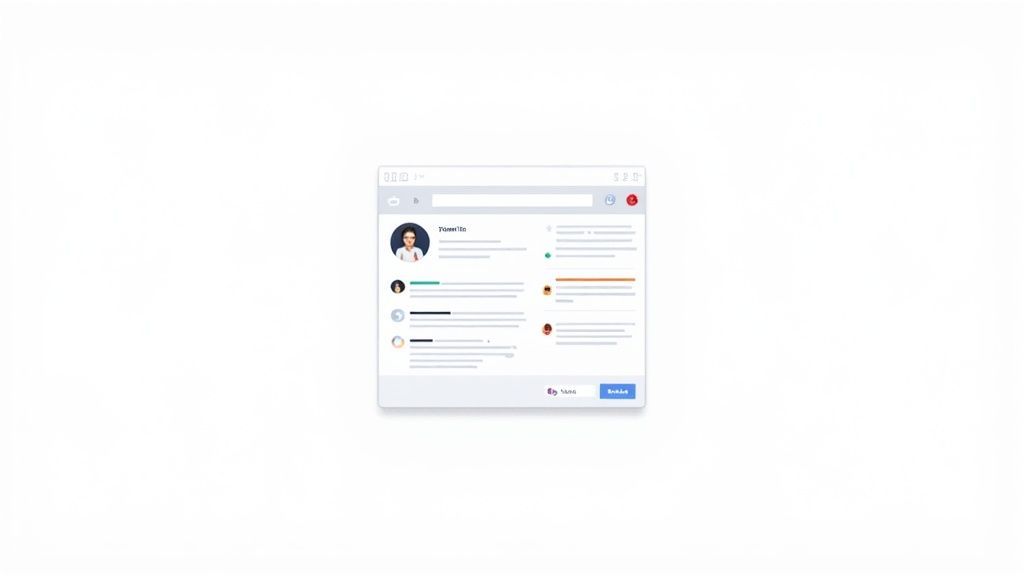
Diese Art von übersichtlichem Layout erleichtert die Organisation aller Ihrer Projekte an einem Ort.
Es ist jedoch wichtig zu bedenken, dass "kostenlos" in der Regel mit einigen Einschränkungen verbunden ist. Diese kostenlosen Tarife sind darauf ausgelegt, Ihnen einen großartigen Eindruck vom Service zu vermitteln, in der Hoffnung, dass Sie aufrüsten, wenn Sie mehr Leistung benötigen.
Wichtige Erkenntnis: Kostenlose Online-Tools sind perfekt für Geschwindigkeit und Komfort und bieten leistungsstarke Funktionen für alltägliche Aufgaben. Beachten Sie einfach die üblichen Einschränkungen bei Dateigröße und Transkriptionszeit.
Umgang mit gängigen Einschränkungen kostenloser Tarife
Bevor Sie auf "Hochladen" klicken, ist es immer eine gute Idee, das Kleingedruckte zu lesen. Kostenlose Pläne sind oft großzügig, haben aber fast immer Grenzen. Wenn Sie diese Grenzen im Voraus kennen, können Sie viel Frustration vermeiden.
Hier sind die häufigsten Einschränkungen, auf die Sie stoßen werden:
- Minutenlimits: Die meisten Dienste begrenzen die Gesamtmenge an Audio, die Sie pro Monat verarbeiten können, normalerweise zwischen 30 und 120 Minuten.
- Dateigrößenbeschränkungen: Sie werden wahrscheinlich eine Obergrenze für die Größe Ihrer Audiodatei sehen – etwas wie 25 MB oder 100 MB ist ziemlich Standard.
- Funktionseinschränkungen: Erweiterte Funktionen, wie z. B. die Erstellung eines benutzerdefinierten Wörterbuchs, das der KI hilft, bestimmte Namen oder Branchenjargon zu erkennen, sind fast immer zahlenden Kunden vorbehalten.
Für einen tieferen Einblick in das, was es gibt, lesen Sie unseren Leitfaden zur Suche nach dem besten kostenlosen Online-Sprach-zu-Text-Konverter. Er hilft Ihnen, die verschiedenen Plattformen zu vergleichen und eine zu finden, deren kostenloser Plan Ihren Bedürfnissen perfekt entspricht.
Transkription offline mit Apps verarbeiten
Während Online-Tools unglaubliche Geschwindigkeit bieten, sind sie nicht immer die richtige Wahl. Wenn Datenschutz oberste Priorität hat oder Sie ohne eine stabile Internetverbindung arbeiten, sind Offline-Anwendungen die richtige Wahl. Dieser Ansatz gibt Ihnen die vollständige Kontrolle und stellt sicher, dass Ihre sensiblen Audioaufnahmen niemals die Cloud berühren.
Denken Sie an einen Journalisten, der in einer abgelegenen Gegend ein vertrauliches Interview transkribiert. Oder einen Therapeuten, der private Sitzungsaufzeichnungen einfach nicht auf einen Server eines Drittanbieters hochladen kann. In diesen Szenarien ist die Sicherheit eines Offline-Tools nicht nur ein nettes Extra, sondern eine Notwendigkeit. Ihre Dateien werden direkt auf Ihrem eigenen Rechner verarbeitet, was Ihnen absolute Sicherheit gibt.
Diese Methode bietet eine hervorragende Möglichkeit, Audio kostenlos in Text umzuwandeln, ohne die Nutzungsbeschränkungen, die bei Online-Diensten oft zu finden sind.

Aus mehreren Quellen importieren
Importiere Audio- und Videodateien aus verschiedenen Quellen, einschließlich direktem Upload, Google Drive, Dropbox, URLs, Zoom und mehr.

Bearbeitungswerkzeuge
Bearbeite Transkripte mit leistungsstarken Werkzeugen wie Suchen und Ersetzen, Sprecherzuordnung, Rich-Text-Formate und Hervorhebungen.

In mehreren Formaten exportieren
Exportiere deine Transkripte in mehreren Formaten, einschließlich TXT, DOCX, PDF, SRT und VTT mit anpassbaren Formatierungsoptionen.
Integrationen
Verbinde dich mit deinen bevorzugten Tools und Plattformen, um deinen Transkriptions-Workflow zu optimieren.
Leistung für Ihren Desktop mit Open-Source-Tools
Für diejenigen, die bereit sind, etwas anfängliche Einrichtung vorzunehmen, bietet Open-Source-Software unübertroffene Leistung und Flexibilität. Tools, die auf Modellen wie OpenAI's Whisper basieren, können direkt auf Ihrem Rechner installiert werden und bieten Ihnen unbegrenzte, private Transkriptionsmöglichkeiten. Die anfängliche Einrichtung mag etwas länger dauern als das einfache Klicken auf "Hochladen" auf einer Website, aber der Gewinn ist enorm.
Es ist keine Überraschung, dass Open-Source-Engines zu einem festen Bestandteil in Forschung und Wissenschaft geworden sind. Modelle wie Whisper, die Echtzeit-Transkriptionen in über 58 Sprachen beherrschen, ermöglichen es Benutzern, riesige Mengen an Audio zu verarbeiten, ohne Kosten zu verursachen oder Daten zu kompromittieren.
Nach der Installation erhalten Sie:
- Vollständige Privatsphäre: Ihr Audio wird lokal verarbeitet und verlässt niemals Ihr Gerät.
- Keine Nutzungslimits: Transkribieren Sie so viel Audio, wie Sie möchten, so lange Sie möchten.
- Offline-Zugriff: Arbeiten Sie von überall, mit oder ohne Internetverbindung.
Der eigentliche Vorteil von Offline-Apps ist die Datenhoheit. Sie besitzen den gesamten Prozess von Anfang bis Ende, was für sensible Audioaufnahmen aus den Bereichen Recht, Medizin oder Forschung nicht verhandelbar ist.
Transkription unterwegs mit mobilen Apps
Vergessen Sie nicht, dass Ihr Smartphone auch ein leistungsstarkes Offline-Transkriptionsgerät ist. Viele Handys verfügen über integrierte Funktionen, die gesprochene Wörter in Text umwandeln können, ohne jemals eine Verbindung zum Internet herstellen zu müssen. Diese sind perfekt, um unterwegs schnelle Gedanken, Besprechungsnotizen oder Sprachnotizen festzuhalten.
Zum Beispiel bieten Androids Live Transcribe und die nativen Sprachnotiz-Apps auf iOS sofortige Transkriptionen auf dem Gerät. Diese Tools sind auf Komfort ausgelegt und überraschend genau für klare Audioaufnahmen mit einer einzelnen Sprecherstimme. Wenn Sie eine schnelle Aufnahme in Text umwandeln müssen, erklärt unser Leitfaden, wie Sie eine Sprachnotiz auf Ihrem iPhone transkribieren, den gesamten Prozess.
Der Hauptkompromiss bei Offline-Methoden? Die anfängliche Einrichtung für Desktop-Apps kann etwas aufwendig sein, und mobile Tools können Schwierigkeiten mit komplexem Audio haben, das mehrere Sprecher oder Hintergrundgeräusche beinhaltet. Dennoch sind die Vorteile für jeden, der Sicherheit und unbegrenzte Nutzung priorisiert, unbestreitbar.
Mein bevorzugter Workflow mit Google Docs und Otter
Nachdem ich jahrelang praktisch jedes kostenlose Tool ausprobiert habe, um Audio kostenlos in Text umzuwandeln, bin ich zu einem robusten Zwei-Teile-System gelangt, das die Arbeit erledigt, ohne einen Cent zu kosten. Dies ist mein persönlicher, praxiserprobter Workflow, der Google Docs für Live-Audio und Otter.ai für aufgenommene Dateien verwendet. Es ist ein vollständiger, wiederholbarer Prozess, der einfach funktioniert.
https://www.youtube.com/embed/IBrxP7OH_Ao
Ich nutze dies ständig, um Live-Teammeetings, Webinare oder sogar Universitätsvorlesungen in sauberen, nutzbaren Text umzuwandeln. Indem Sie die Stärken jeder Plattform nutzen, erhalten Sie einen hochwertigen ersten Entwurf, der in wenigen Minuten für eine schnelle Überarbeitung bereit ist.
Erfassung von Live-Audio mit der Google Docs-Spracheingabe
Die erste Hälfte meines Setups befasst sich mit der Echtzeit-Transkription, und ehrlich gesagt ist das integrierte Spracheingabe-Tool in Google Docs erstaunlich gut. Es ist mein bevorzugtes Werkzeug, wenn ich eine sofortige, laufende Transkription benötige, während ein Gespräch stattfindet. Zum Beispiel habe ich während eines Kundengesprächs einfach ein Dokument daneben geöffnet, das alles live aufzeichnet.
Um saubere Ergebnisse zu erzielen, ist ein wenig Vorbereitung sehr hilfreich:
- Besorgen Sie sich ein ordentliches Mikrofon. Das integrierte Mikrofon Ihres Laptops ist im Notfall in Ordnung, aber selbst ein günstiges externes USB-Mikrofon wird einen großen Unterschied bei der Genauigkeit machen. Klareres Audio bedeutet eine bessere Transkription.
- Leiten Sie den Audioausgang Ihres Computers richtig. Sie müssen sicherstellen, dass Google Docs den Ton von Ihren Lautsprechern "hören" kann, nicht nur Ihre eigene Stimme. Auf einem Mac ist ein kostenloses Tool wie BlackHole perfekt dafür. Unter Windows können Sie normalerweise Ihre "Stereo Mix"-Einstellungen anpassen.
- Schalten Sie die Hintergrundgeräusche aus. Suchen Sie einen ruhigen Raum. Je weniger Lärm die KI verarbeiten muss, desto sauberer wird Ihre Transkription sein. So einfach ist das.
Diese Methode liefert sofort eine rohe Textdatei. Nein, sie wird nicht perfekt sein – Sie erhalten keine Sprecheretiketten oder etwas Besonderes –, aber es ist eine unglaublich schnelle Möglichkeit, den Kerninhalt festzuhalten.
Polieren von aufgezeichneten Dateien mit Otter
Für vorab aufgezeichnetes Audio – wie ein gespeichertes Podcast-Interview oder eine Zoom-Aufnahme – wechsle ich zu Otter.ai. Sein kostenloser Plan ist überraschend großzügig und mit intelligenten Funktionen ausgestattet, die den Bereinigungsprozess zum Kinderspiel machen. Otter glänzt dort, wo Google Docs Schwächen hat, insbesondere mit seiner intelligenten Analyse.
Ich lade eine MP3-Datei eines Teammeetings hoch, und innerhalb von Minuten liefert Otters KI eine Transkription mit einigen Killer-Funktionen:
- Automatische Sprecheretiketten: Es identifiziert und trennt tatsächlich verschiedene Stimmen und kennzeichnet sie als "Sprecher 1", "Sprecher 2" usw. Sie können dann eingreifen und echte Namen zuweisen.
- Zeitstempel: Jeder Textabschnitt ist mit einem Zeitstempel versehen. Wenn etwas nicht stimmt, können Sie einfach darauf klicken, um das Original-Audio zu hören und es selbst zu überprüfen.
- Schlüsselwortzusammenfassungen: Otter extrahiert automatisch die wichtigsten Schlüsselwörter und gibt Ihnen eine schnelle Übersicht über das Besprochene.
Dieser Dual-Tool-Ansatz ist meine Geheimwaffe. Google Docs liefert mir die sofortige Live-Erfassung, während Otter den entscheidenden Kontext hinzufügt – wie Sprechernamen und Zeitstempel –, der eine Textwand in ein strukturiertes, nützliches Dokument verwandelt.
Sobald Otter seine Arbeit getan hat, exportiere ich einfach den Text und füge ihn für die endgültige Überarbeitung wieder in ein Google Doc ein. Hier korrigiere ich Fachbegriffe, die die KI falsch interpretiert hat, bereinige die Interpunktion und formatiere alles so, dass es leicht lesbar ist.
Sobald Sie Ihren eigenen Transkriptionsprozess gemeistert haben, ist die Überlegung, wie er in Ihr größeres Content-System passt, der nächste logische Schritt. Für einen umfassenderen Ansatz zur Verwaltung Ihres Content-Erstellungs-Workflows ist dieser Leitfaden eine fantastische Ressource. Durch die Kombination dieser kostenlosen Tools erhalten Sie ein professionelles Ergebnis ohne den professionellen Preis.
A Smarter Workflow for Better Results
Using a combination of live transcription, AI post-processing, and quick manual cleanup gives you a polished transcript in a fraction of the time. This hybrid method is now the preferred workflow for creators, researchers, and professionals.
Praktische Wege zur Verbesserung der Transkriptionsgenauigkeit
Ein automatisches Transkript ist ein fantastischer Ausgangspunkt, aber seien wir ehrlich – es ist selten auf Anhieb perfekt. Das alte Sprichwort der Technik "Garbage in, garbage out" (Müll rein, Müll raus) könnte für die KI-Transkription nicht treffender sein. Wenn Sie der Maschine unsaubere Audiodaten zuführen, erhalten Sie ein unsauberes Transkript.
Die gute Nachricht? Sie können die endgültige Genauigkeit dramatisch verbessern, indem Sie Ihre Audioqualität verbessern, bevor Sie überhaupt mit der Konvertierung beginnen.
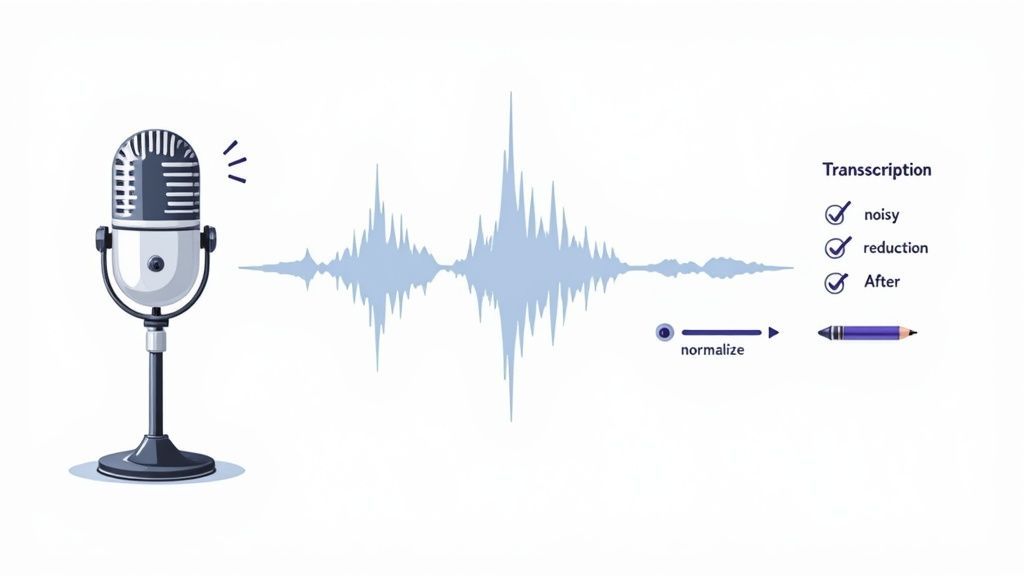
Ein paar kleine, gezielte Schritte verwandeln einen durcheinandergeratenen KI-Entwurf in ein poliertes, professionelles Dokument. Alles beginnt mit dem Klang selbst.
Vorverarbeitung Ihrer Audiodaten für Klarheit
Bevor Sie überhaupt daran denken, Ihre Datei hochzuladen, kann eine kleine Audiobereinigung Wunder wirken. Betrachten Sie es wie die Vorbereitung Ihrer Zutaten vor dem Kochen; es macht das Endergebnis einfach so viel besser. Sie können all dies mit einem kostenlosen, leistungsstarken Tool wie Audacity tun.
Hier sind ein paar schnelle Bearbeitungen, die ich immer vornehme:
- Rauschunterdrückung: Verwenden Sie den integrierten Effekt, um das hartnäckige Hintergrundrauschen von Klimaanlagen oder Computerlüftern herauszufiltern. Das ist ein echter Game-Changer.
- Normalisierung: Diese praktische Funktion bringt die gesamte Audiospur auf eine einheitliche Lautstärke. Sie müssen sich keine Sorgen mehr machen, dass die KI Sätze übersieht, weil jemand zu leise gesprochen hat.
- Stille kürzen: Lange, peinliche Pausen in Ihrer Aufnahme? Wenn Sie diese entfernen, wird die Datei etwas kleiner und kann sogar die Transkriptionszeit verkürzen.
Diese Schritte dauern nur wenige Minuten, können aber unzählige Fehler im weiteren Verlauf verhindern. Für eine tiefere Auseinandersetzung lesen Sie unseren Beitrag zur Verbesserung der Genauigkeit von Sprache-zu-Text.
Die größte Verbesserung, die Sie erzielen können, ist die Aufnahme mit einem ordentlichen Mikrofon. Das Mikrofon Ihres Telefons oder Laptops ist für schnelle Notizen in Ordnung, aber ein externes USB-Mikrofon ist eine lohnende Investition für alle, denen die Qualität wichtig ist. Es erfasst Ihre Stimme mit viel mehr Klarheit und deutlich weniger Umgebungsgeräuschen.
Meine Checkliste für die Bearbeitung nach der Transkription
Sobald die KI ihren Teil erledigt hat, ist es Zeit für den menschlichen Feinschliff. Ich vertraue niemals dem ersten Entwurf vollständig. Stattdessen gehe ich eine schnelle, aber effektive Bearbeitungscheckliste durch, um häufige Maschinenfehler zu erkennen und die Lesbarkeit zu verbessern.
Diese letzte Überprüfung ist das, was ein nur brauchbares Transkript von einem großartigen trennt. Mein Workflow umfasst immer diese wichtigen Aktionen:
- Eigennamen prüfen: Die KI stolpert fast immer über einzigartige Namen, firmenspezifisches Jargon oder Fachbegriffe. Ein schnelles Suchen und Ersetzen für wiederkehrende Fehler wirkt hier Wunder.
- Auf Homophone prüfen: Achten Sie auf Wörter, die gleich klingen, aber unterschiedliche Bedeutungen und Schreibweisen haben, wie "ihre", "ihr" und "sie" oder "zu", "auch" und "zwei".
- Für Lesbarkeit formatieren: Lassen Sie Ihren Leser nicht mit einer riesigen Textwand zurück. Teilen Sie lange Absätze auf. Fügen Sie Überschriften, Aufzählungspunkte und Fettdruck hinzu, um das Dokument übersichtlich und leicht verdaulich zu machen.
- Auf 1,5-facher Geschwindigkeit zurückhören: Mein Lieblingstrick. Spielen Sie die Originalaufnahme ab, während Sie das Transkript durchlesen. Die höhere Geschwindigkeit hilft Ihnen, offensichtliche Fehler zu erkennen, ohne die gesamte Aufnahme in Echtzeit anhören zu müssen.
Häufige Transkriptionsfehler und schnelle Korrekturen
Selbst mit der besten Vorbereitung können automatisierte Tools vorhersehbare Fehler machen. Das Erkennen dieser häufigen Fehler ist die halbe Miete. Hier ist eine schnelle Fehlerbehebungsanleitung, die Ihnen hilft, Ihr Transkript effizient zu bereinigen.
| Fehlertyp | Beispiel | Schnelle Korrekturmethode |
|---|---|---|
| Homophone | "Ihre gehen zu dem Laden." | Suchen Sie nach gängigen Homophonen (zu/auch, sein/ist, ihr/ihre) und korrigieren Sie sie basierend auf dem Kontext. |
| Falsch geschriebene Namen | "Praveen" wird zu " प्रवीण " oder "Parvin" | Verwenden Sie "Suchen und Ersetzen" (Strg/Cmd + H), um alle Vorkommen eines falsch geschriebenen Namens auf einmal zu korrigieren. |
| Falsche Satzzeichen | "Wann bist du hierher gekommen. Ich habe dich nicht gesehen." | Lesen Sie Sätze laut vor, um den Fluss zu überprüfen. Fügen Sie Kommas, Punkte und Fragezeichen hinzu oder entfernen Sie sie nach Bedarf. |
| Fachjargon | "API" wird zu "A Pea Eye" | Erstellen Sie ein persönliches Glossar branchenspezifischer Begriffe und verwenden Sie "Suchen und Ersetzen", um die Konsistenz zu gewährleisten. |
| Satzverschmelzungen | Ein langer, ununterbrochener Textblock. | Teilen Sie lange Absätze auf. Achten Sie auf natürliche Pausen in der Audioaufnahme, die oft gute Stellen für einen Punkt sind. |
Ein paar Minuten für diese Überprüfungen stellen sicher, dass Ihr endgültiges Dokument genau, professionell und für jedermann leicht lesbar ist. Es ist eine kleine Zeitinvestition, die sich in der Qualität auszahlt.
Häufige Fragen zu kostenlosen Transkriptionen
Wenn Sie zum ersten Mal nach einer Möglichkeit suchen, Audio kostenlos in Text umzuwandeln, werden Sie unweigerlich Fragen haben. Die Welt der kostenlosen Tools ist groß, und das Aufdecken der wahren Geschichte über Datenschutz, Genauigkeit und all die versteckten Einschränkungen ist entscheidend für die Auswahl des richtigen Tools.
Lassen Sie uns den Lärm durchdringen und die häufigsten Bedenken direkt angehen. Dies sind die klaren Antworten, die Sie benötigen, um mit Zuversicht mit der Transkription zu beginnen.
Sind kostenlose Audio-zu-Text-Konverter sicher für vertrauliche Dateien?
Das ist ein wichtiger Punkt, und die ehrliche Antwort lautet: Es kommt darauf an.
Online-Konverter, bei denen Sie Ihre Datei auf ihren Server hochladen müssen, können ein echtes Risiko für sensible Inhalte sein. Sie vertrauen ihnen Ihre Daten an, daher müssen Sie die Datenschutzerklärung lesen, um zu sehen, wie sie damit umgehen.
Für alles wirklich Vertrauliche – juristische Aussagen, Therapiesitzungen mit Klienten, private Geschäftstreffen – ist eine Offline-Desktop-App die beste Wahl.
Da die Transkription direkt auf Ihrem Computer stattfindet, verlassen Ihre Dateien niemals Ihr Gerät.
Important Reminder About Privacy
If your audio contains confidential names, medical details, or sensitive internal discussions, avoid uploading to online servers. Offline tools offer complete control and ensure no data is stored or analyzed externally.
Das ist der einzige Weg, um absolute Privatsphäre zu garantieren.
Was sind die typischen Grenzen von kostenlosen Diensten?
"Kostenlos" bedeutet fast nie "unbegrenzt". Die meisten kostenlosen Dienste haben Einschränkungen, die Sie zu einem kostenpflichtigen Plan bewegen sollen. Wenn Sie wissen, was Sie erwartet, vermeiden Sie es, mitten im Projekt an eine Wand zu stoßen.
Achten Sie auf diese üblichen Einschränkungen:
- Monatliche Minutenbegrenzungen: Die meisten Plattformen geben Ihnen eine bestimmte Menge an Audio, die Sie jeden Monat verarbeiten können, normalerweise irgendwo zwischen 30 und 60 Minuten.
- Dateigrößenbeschränkungen: Sie werden wahrscheinlich auf eine maximale Dateigröße für jeden Upload stoßen, was bei längeren Aufnahmen wie Vorlesungen oder Webinaren lästig sein kann.
- Begrenzte erweiterte Funktionen: Dinge wie das Erstellen eines benutzerdefinierten Vokabulars für Fachjargon oder die perfekte Sprecheridentifizierung sind fast immer den kostenpflichtigen Tarifen vorbehalten.
Wie genau sind kostenlose Tools im Vergleich zu kostenpflichtigen?
Die Genauigkeitslücke zwischen kostenlosen und kostenpflichtigen Tools ist kleiner, als Sie vielleicht denken.
Viele kostenlose Dienste, insbesondere solche, die auf leistungsstarker KI wie Whisper basieren, können bei klarem Audio eine Genauigkeit von über 95 % erreichen. Das ist mehr als gut genug für die meisten alltäglichen Aufgaben wie das Transkribieren von Besprechungen, Interviews oder Sprachnotizen.
Der eigentliche Unterschied zeigt sich bei unsauberen Audios – Dateien mit viel Hintergrundgeräuschen, überlappenden Sprechern oder Sprechern mit starkem Akzent. Kostenpflichtige Dienste bieten oft eine menschliche Überprüfung an, um die letzten Prozente an Genauigkeit zu erzielen, etwas, das Sie bei einem kostenlosen Tool nicht finden werden.
Und ja, Sie können absolut auch Audio transkribieren, das nicht auf Englisch ist. Die meisten modernen Tools verarbeiten Dutzende von Sprachen, ohne ins Schwitzen zu geraten. Überprüfen Sie einfach die Liste der unterstützten Sprachen des Tools, bevor Sie beginnen.
Bereit, ein Tool auszuprobieren, das die richtige Balance findet? Transcript.LOL bietet einen leistungsstarken kostenlosen Plan, der sich perfekt für den Einstieg eignet. Überzeugen Sie sich selbst, wie einfach es ist, Ihr Audio in Text umzuwandeln. Besuchen Sie uns unter https://transcript.lol, um mehr zu erfahren.