
How to Transcribe Voice Memo on iPhone: Easy Step-by-Step...
Learn how to transcribe voice memo on iPhone with our simple guide. Discover native tools and expert tips to convert voice memos to text effortlessly.
Praveen
February 21, 2024
Turning your iPhone voice memo into text is pretty straightforward. You've got a few options: use the native transcription feature built into the Voice Memos app, dictate the playback into your Notes app, or go for a specialized third-party service if you need top-notch accuracy. Each route offers a different mix of convenience, precision, and extra features.
Why Transcribing Voice Memos Is a Game Changer
Ever record a brilliant idea or a critical meeting, only to face the soul-crushing task of scrubbing through the audio later to find that one key moment? This is exactly where transcription changes the game. When you convert that spoken audio into searchable, editable text, you unlock a whole new level of productivity.
Suddenly, you can find a specific quote from an hour-long interview in seconds. Or turn your lecture notes into a ready-made study guide without typing a single word. The ability of converting voice notes to text is a massive win for staying organized. For students, journalists, and professionals juggling a million things, it’s not just a nice little trick—it’s a serious time-saver.
Unlocking Your Recorded Content
Transcription makes all that recorded content organized and, more importantly, accessible. Instead of a mysterious audio file you have to listen to all over again, you get a document you can scan, search, and share in an instant.
It’s perfect for situations like:
- Meetings and Interviews: Pull out key decisions, action items, and quotes without a headache.
- Academic Lectures: Create comprehensive notes you can actually use for studying.
- Creative Brainstorming: Capture those fleeting ideas and give them some structure for later.
The recent leaps in AI and machine learning have completely revolutionized transcription quality. Today’s AI models deliver near-human accuracy, often hitting over 95% in good conditions, and they turn audio into text almost instantly. This huge step forward makes transcription a practical tool for any iPhone user.
By converting audio to text, you create a permanent, searchable record of your thoughts and conversations. It’s a simple step that ensures no valuable insight is ever lost in an unplayed recording again.
Ultimately, knowing how to transcribe a voice memo on an iPhone isn't just a party trick; it's an essential productivity skill. Our guide on using voice memo dictation shows just how powerful this can be for your day-to-day workflow.
Using Apple’s Built-In Transcription Feature
Believe it or not, your iPhone probably already has a solid transcription tool hiding in plain sight. It’s built right into the Voice Memos app, making it a super convenient way to turn your audio notes into text without having to download a thing.
This feature really came into its own with iOS 18. Now, when you open a recording, you can simply tap a button and watch a transcript generate right there on your screen. It’s perfect for getting a quick, on-the-fly text version of your thoughts or reminders. For a deeper dive into these changes, check out the details on recent iPhone transcription updates.
Where to Find the Transcript
So, where is this magical button?
Just open the Voice Memos app and tap on any recording in your list. You'll see the audio player, and on newer versions of iOS, there will be a transcription icon—it usually looks like a few lines of text. Give that a tap, and the generated text will pop up, perfectly synced with your audio.
As the memo plays, you’ll see the words get highlighted in real-time. This makes it incredibly easy to follow along and pinpoint the exact moment you’re looking for in the recording. It's a surprisingly smooth experience for a built-in tool.
Pro Tip: For the best results, use this feature in a quiet space. I’ve found that when I’m recording a quick thought in my office with the door closed, the accuracy is pretty impressive for a free, native tool.
But let’s be real, it has its limits. The built-in transcription isn't always up to the task, especially when things get complicated. It tends to struggle with:
- Loud Backgrounds: Trying to record in a bustling coffee shop or on a windy day? The transcript will likely be a mess.
- Multiple People: It can’t tell speakers apart, so conversations often get mashed into one confusing block of text.
- Thick Accents: While Apple's AI is always getting better, it can still have a hard time with strong or less common accents.
Bottom line? For your own clear, solo recordings, it’s a fantastic tool. But if you’re trying to transcribe a crucial interview with two speakers and a noisy air conditioner, you'll probably want to look for something more powerful.
Using Dedicated Apps for More Demanding Transcription
While the built-in iOS features are handy for a quick thought, you’ll quickly find their limits when you need something more robust. For anything that really matters—I'm talking academic research, podcast show notes, or important client meetings—a dedicated transcription app is the way to go.
These services are built from the ground up to handle the messy reality of audio. They’re much better at filtering out background noise, figuring out who’s talking, and making sense of different accents. This is how you get from a jumbled, rough draft to a clean, usable document. The best part? It's usually as simple as sharing your voice memo directly from your iPhone and letting the app do the heavy lifting.
Why a Dedicated App Is a Game Changer
When you transcribe a voice memo on your iPhone with a professional tool, you unlock a whole new level of functionality. The biggest win, by far, is accuracy. Some of the top services claim seriously impressive results, even when the audio isn't perfect. For example, some platforms can hit an accuracy rate of up to 98.86% and handle over 58 languages.
But it’s not just about getting the words right. These apps offer features that save a ton of time:
- Speaker Identification: The app can automatically detect and label different speakers. This is a lifesaver for interviews or team meetings. Our guide on https://transcript.lol/usecases/online-meeting-transcription shows just how essential this can be.
- Timestamps: Every word or paragraph is linked to the exact moment in the audio. No more scrubbing back and forth trying to find that one key quote.
- Flexible Export Options: Need a Word doc? A PDF? An SRT file for video subtitles? You’ve got it. This gives you the flexibility to use the transcript wherever you need it.
Think of a specialized transcription service as your expert assistant. It takes care of the tedious, time-consuming work with precision, so you can focus on the actual content instead of getting bogged down in corrections.
This level of detail is a must-have in many professional fields. For instance, high-accuracy voice to text solutions for the medical field are absolutely critical where every word counts. Whether you're a content creator, researcher, or business professional, a good transcription app turns a simple voice memo into a searchable, reliable, and incredibly valuable asset.
Comparing Your iPhone Transcription Options
Figuring out the best way to transcribe a voice memo on your iPhone really comes down to what you need that transcript for. You've got options ranging from free and fast to powerful and precise. Think of it like this: you wouldn't use a sledgehammer to hang a picture frame, and the same idea applies here.
For casual, personal notes where a few mistakes don't matter, Apple's built-in transcription is a great starting point. It’s right there on your phone, costs nothing, and is perfect for capturing a quick thought or reminder, especially if the audio is crystal clear. But, let's be honest, its accuracy can really take a nosedive with any background noise or more than one person talking.
On the flip side, a dedicated service like Transcript.LOL is built from the ground up for accuracy and handling complex audio. This is your go-to for the important stuff—interviews, client meetings, or class lectures where every single word counts. These tools deliver much higher accuracy, can often identify different speakers, and give you way more export options.
Making the Right Choice
To make the decision easier, just think about these key factors:
- Accuracy: For mission-critical recordings, a third-party app is the only way to go. For a quick, "good enough" summary of your own clear voice, the native iOS feature will probably do the trick.
- Cost: Apple’s tool is 100% free. Specialized apps usually have a subscription or a pay-per-minute model, which reflects their more advanced tech.
- Features: Need speaker labels, timestamps, or specific file formats like DOCX or SRT? You're going to need a dedicated app.
The best approach is always to match the tool to the job. Use the built-in feature for speed and convenience, but turn to a specialized service when accuracy and professional features are absolute must-haves.
To give you a clearer picture, here's a side-by-side comparison of what you can expect from each method.
Feature Comparison of iPhone Transcription Methods
| Feature | Native iOS Transcription | Siri/Dictation Method | Third-Party Apps |
|---|---|---|---|
| Best For | Quick personal notes, simple reminders | Hands-free dictation, short messages | Interviews, meetings, detailed content |
| Accuracy | Varies; best with clear, single-speaker audio | Good for short, clear phrases | High to professional-grade |
| Cost | Free | Free | Paid (subscription or pay-as-you-go) |
| Speaker ID | No | No | Often available |
| Timestamps | No | No | Yes, usually included |
| Editing | Limited, within the Notes or Voice Memos app | Real-time edits only | Full editing and formatting tools |
| Export Options | Basic text copy/paste | Basic text copy/paste | Multiple formats (DOCX, TXT, SRT, etc.) |
As you can see, the right tool really depends on the complexity and importance of your recording.
When you do run into transcription errors on your iPhone, the problem is often simpler than you think. This handy decision tree can help you troubleshoot the usual suspects.
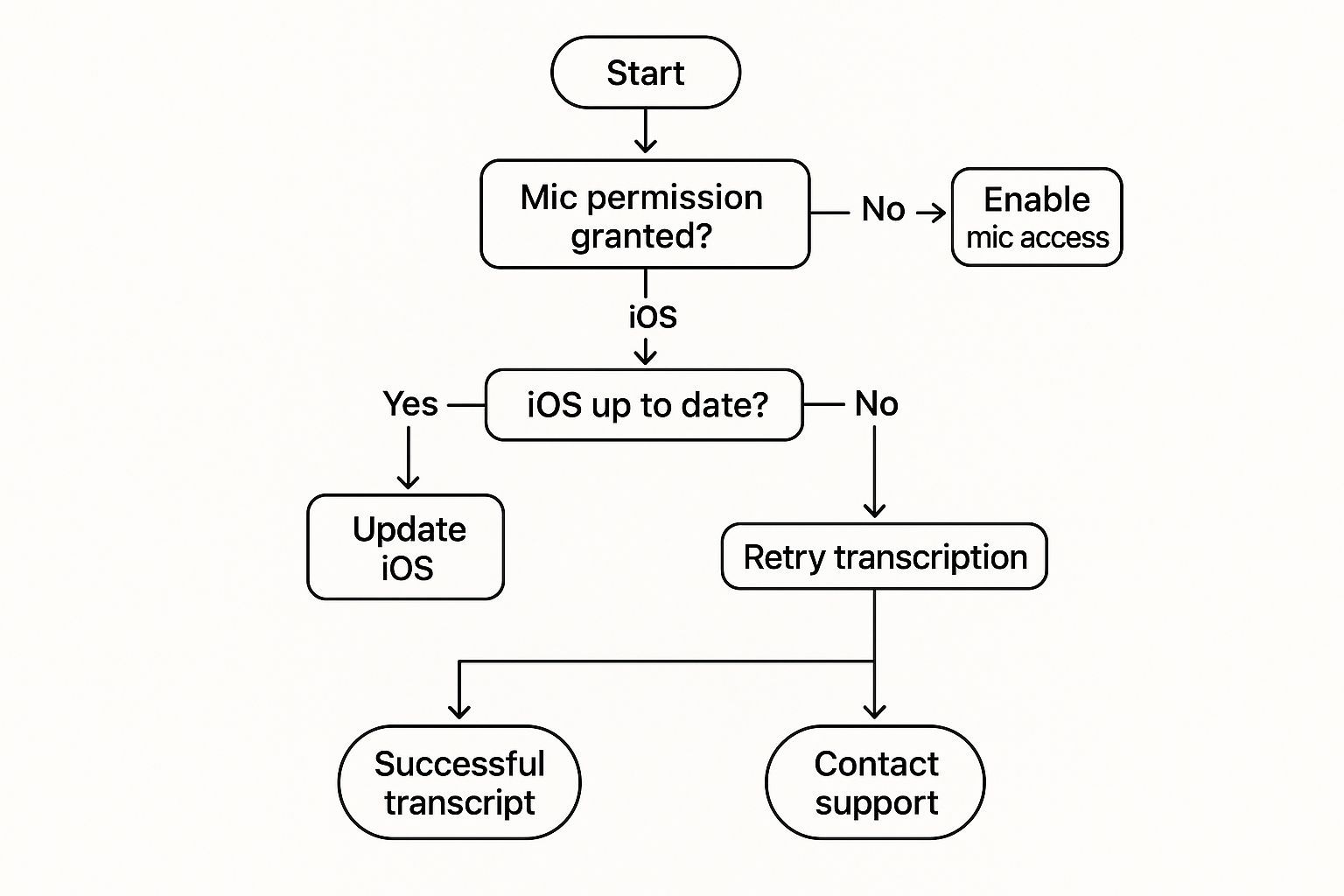
Most of the time, transcription glitches come down to simple permission settings or just needing to update your software—both of which are thankfully easy fixes.
Practical Tips for Flawless Transcriptions
The single biggest factor for an accurate transcript? The quality of your audio. It’s that simple.
No matter which transcription method you choose, starting with clean audio will save you a massive amount of editing time later. It's the classic "garbage in, garbage out" principle in action.
A few simple tweaks before you hit record can make a world of difference. Your iPhone's built-in microphone is surprisingly good, but it's not magic. It will pick up every cough, paper shuffle, and distant siren if you're not careful.
For the best results, try to find a quiet space with minimal echo. Think of a small room with carpets or curtains—anything to dampen reverb and make your voice the star of the show.
Optimize Your Recording Environment
Positioning your iPhone correctly is another easy win. Don't hold it right up to your mouth, as this can cause "plosives"—those harsh popping sounds from letters like 'P' and 'B'. I've found a good rule of thumb is to keep it about six to eight inches away and slightly off to the side.
Here are a few more pro-tips I always follow for crystal-clear audio:
- Speak Clearly and Pace Yourself: Just talk at a natural, consistent speed. When you rush or mumble, you're forcing the AI to guess, and that’s where errors creep in.
- Manage Multiple Speakers: If you're recording a conversation, make it a rule for each person to speak one at a time. Overlapping voices are the number one cause of jumbled, unusable transcripts.
- Minimize Distractions: Turn off notifications. Put your phone on Do Not Disturb. Every little ping and buzz can interrupt the audio and show up in your final text.
Even with the best preparation, background noise can sneak in. For mission-critical recordings, learning how to remove background noise before transcribing is a game-changer for professional-level accuracy.
Adopting these small habits will dramatically improve the output from any transcription tool. For more advice on handling tricky audio situations, we've covered a ton of scenarios in our transcription FAQs.
Frequently Asked Questions About Transcription
Even with the best tools at your fingertips, you probably still have a few questions about transcribing voice memos on your iPhone. Let's tackle some of the most common ones I hear so you can get started without a hitch.
Is My Data Safe With Third-Party Apps?
This is a big one, and for good reason. When you're transcribing sensitive meetings or personal thoughts, you need to know your data is private.
Reputable services like Transcript.LOL are built on a foundation of security. We have strict policies in place and never use your data to train our AI models. Your conversations stay yours, period. Always make it a habit to glance over any app's privacy policy before you upload audio—it’s worth the peace of mind.
What About Different Accents or Languages?
Another common question is how well these tools handle real-world speech. Apple's built-in feature is getting better, but it definitely performs best with standard American English.
This is where dedicated services really shine. They're designed from the ground up to understand a huge range of global accents and dialects. Plus, they often support dozens of languages, giving you accurate results no matter who is speaking.
How Do I Handle Long Recordings or Multiple Speakers?
So, what happens when you need to transcribe that 90-minute lecture or a rambling team meeting with five different people chiming in?
This is often where built-in tools start to buckle. They can time out or get sluggish with really long files. Professional platforms, on the other hand, are built to handle recordings that are several hours long without breaking a sweat.
The real magic isn't just turning audio into words; it's about structuring the conversation. A professional service can automatically detect and label each speaker, transforming a messy wall of text into a clean, easy-to-read script.
This is a game-changer for students who need to convert hours of classroom audio into organized study notes. Our guide on lecture transcription for students dives deeper into how this one feature can make a huge difference in your academic life.
At the end of the day, the right tool depends on what you're transcribing. For a quick personal note, the built-in options are fine. But for anything more complex, a specialized service will give you a far more accurate and useful transcript.
Ready for flawless, private, and fast transcriptions? Transcript.LOL converts your iPhone voice memos into accurate, editable text in seconds. Get started for free today.