
La tua guida a una trascrizione perfetta delle riunioni Zoom
Scopri come ottenere, modificare e utilizzare una trascrizione di una riunione Zoom. La nostra guida copre la configurazione automatica, l'editing per l'accuratezza e le opzioni di esportazione avanzate.
Kate
October 16, 2024
Siamo onesti, gli appunti delle riunioni sono un disastro. Qualcuno viene incaricato di prenderli, si distrae e decisioni chiave o elementi d'azione si perdono nel caos. Una trascrizione di una riunione Zoom, d'altra parte, è l'arma segreta del tuo team. Trasforma le parole pronunciate in un registro ricercabile, condivisibile e verificabile di ciò che è realmente accaduto.
Perché le trascrizioni Zoom sono un asset strategico

Una trascrizione è molto più di un semplice registro di una conversazione; è uno strumento per la chiarezza, la responsabilità e la vera collaborazione. Per i team remoti e ibridi, è un vero punto di svolta, assicurando che nessuno perda il contesto critico.
Pensa all'ultima volta che uno stakeholder chiave non ha potuto partecipare a una chiamata. Invece di ricevere un riassunto di seconda mano, puoi semplicemente consegnargli la trascrizione. Può recuperare completamente, a suo tempo. Questo testo grezzo diventa la base per molto altro: le interviste ai clienti possono essere rapidamente analizzate per ottenere feedback e i kick-off di progetto diventano briefing dettagliati a cui puoi sempre fare riferimento.
Funzionalità chiave che rendono potenti le trascrizioni Zoom
IA all'avanguardia
Alimentato da Whisper di OpenAI per una precisione leader nel settore. Supporto per vocabolari personalizzati, file fino a 10 ore e risultati ultra rapidi.

Importa da più fonti
Importa file audio e video da varie fonti tra cui caricamento diretto, Google Drive, Dropbox, URL, Zoom e altro.

Esporta in più formati
Esporta le tue trascrizioni in più formati tra cui TXT, DOCX, PDF, SRT e VTT con opzioni di formattazione personalizzabili.
Sbloccare Produttività e Accessibilità
Per la maggior parte dei team, i vantaggi si avvertono subito. Una trascrizione ricercabile significa che chiunque può trovare un'informazione specifica in pochi secondi, senza dover scorrere un video di un'ora. L'impatto è enorme:
- Onboarding: I nuovi assunti possono aggiornarsi rapidamente rivedendo le discussioni e le decisioni chiave del progetto.
- Accessibilità: È un enorme aiuto per chi non parla inglese come madrelingua o per i membri del team con problemi di udito, permettendo loro di seguire con totale sicurezza.
- Conformità: Per chiunque operi in un settore regolamentato, avere una registrazione testuale verificabile non è solo un vantaggio, ma è essenziale per la documentazione.
Una trascrizione di Zoom trasforma conversazioni fugaci in una libreria permanente e ricercabile. Questo semplice cambiamento consente ai team di lavorare in modo più efficiente, garantendo che le preziose intuizioni delle riunioni non vadano mai perse e possano essere accessibili da chiunque, in qualsiasi momento.
Sfruttare le Trascrizioni per Contenuti e Approfondimenti
Il vero valore strategico si manifesta quando ci si rende conto che una trascrizione può essere riutilizzata. Una singola riunione può diventare il materiale di origine per post di blog, aggiornamenti sui social media o documenti di formazione interna. Abbiamo scritto una guida sulle strategie di riutilizzo dei contenuti che approfondisce la trasformazione di una conversazione in più pezzi di contenuto.
È anche qui che l'IA sta cambiando le regole del gioco. Entro il 2025, l'analisi delle trascrizioni basata sull'IA diventerà un elemento indispensabile per estrarre informazioni utili dalle conversazioni. Riduce i tempi di analisi da giorni a minuti, aiutandoti a individuare temi e decisioni chiave con incredibile precisione.
Per un approfondimento, questa guida completa alla trascrizione delle riunioni Zoom è un'ottima risorsa per aumentare la produttività del tuo team.
Come Configurare Zoom per Trascrizioni Automatiche
Ottenere una trascrizione perfetta della riunione Zoom inizia ben prima che la riunione abbia inizio. Si tratta di attivare gli interruttori giusti nel tuo account Zoom in anticipo. Sebbene rovistare tra le impostazioni possa sembrare una seccatura, ti mostrerò esattamente dove andare nel portale web di Zoom in modo che tu possa impostarlo e dimenticartene.
La cosa fondamentale da capire è che il file di trascrizione scaricabile che desideri è direttamente collegato alla registrazione cloud. Sebbene le didascalie live siano fantastiche per l'accessibilità in tempo reale, non ti forniscono quel file di testo modificabile e condivisibile per i tuoi archivi. Per ottenere quella preziosa trascrizione, devi registrare la tua riunione sul cloud.
Navigare nelle Impostazioni di Registrazione
Prima di tutto, dovrai accedere al tuo account sul portale web di Zoom, non sull'app desktop. La tua capacità di modificare queste impostazioni dipende dalle tue autorizzazioni: potresti essere un amministratore dell'account che controlla le cose per tutta l'azienda, o semplicemente un utente che gestisce le proprie impostazioni.
Una volta effettuato l'accesso, ecco il percorso:
- Nel pannello di navigazione a sinistra, fai clic su Impostazioni.
- Successivamente, seleziona la scheda Registrazione in alto.
- Assicurati che l'interruttore Registrazione cloud sia attivato. Se questa opzione è disattivata, dovrai chiedere al tuo amministratore di account di abilitarla per te.
Questo è il tuo centro di comando per tutto ciò che riguarda le riunioni registrate, comprese le trascrizioni.
Abilitare la Funzione di Trascrizione Audio
Con la registrazione cloud attiva, puoi ora attivare la funzione specifica che genera la trascrizione. Scorri verso il basso nella stessa scheda "Registrazione" fino a trovare la sezione "Impostazioni avanzate di registrazione cloud". È qui che avviene la magia.
Stai cercando una casella di controllo fondamentale: Trascrizione audio. Vai avanti e seleziona questa casella. Questo dice a Zoom di creare un file di testo di tutto l'audio parlato dalle tue registrazioni cloud.
Questo screenshot ti mostra il punto esatto in cui troverai l'opzione "Trascrizione audio".
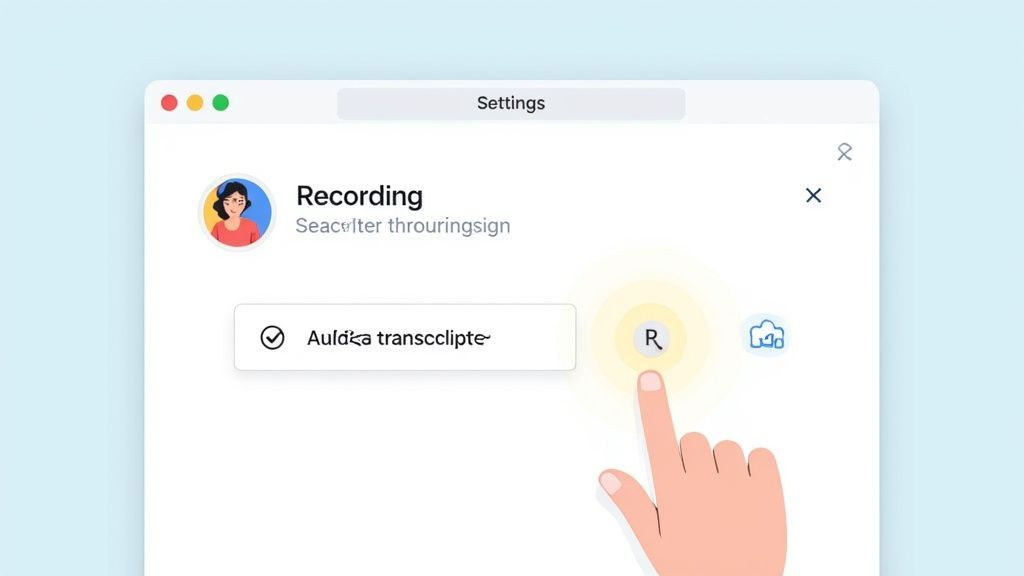
L'attivazione di questa opzione garantisce che ogni volta che registri una riunione sul cloud, il sistema di Zoom elaborerà automaticamente l'audio e produrrà un file di trascrizione separato.
Dopo aver selezionato la casella, non dimenticare di fare clic sul pulsante Salva. È un errore sorprendentemente comune: le persone attivano la funzione ma dimenticano di salvare, poi si chiedono perché le loro trascrizioni non compaiono. Questo singolo clic blocca la tua preferenza per tutte le registrazioni future.
Suggerimento Pro: Se sei un amministratore, puoi bloccare questa impostazione per tutti nel tuo account. È un ottimo modo per standardizzare il modo in cui la tua organizzazione documenta le riunioni, garantendo che ogni chiamata importante venga trascritta senza fare affidamento sui singoli utenti per impostarla autonomamente.
Configurando queste impostazioni ora, crei un flusso di lavoro fluido e automatizzato. D'ora in poi, ogni volta che premi "Registra sul cloud", puoi essere certo che una trascrizione dettagliata della riunione Zoom ti attenderà poco dopo la conclusione della riunione. Hai appena gettato le basi per un processo di trascrizione affidabile e senza sforzo.
Trovare e Scaricare il Tuo File di Trascrizione
Bene, la tua riunione è finita e il cloud di Zoom ha fatto la sua magia. Allora, dov'è la trascrizione?
Fortunatamente, Zoom non ti fa fare una caccia al tesoro digitale. Tutto ciò di cui hai bisogno è ben riposto nel portale web di Zoom; ricorda solo che non lo troverai nell'app desktop.
Inizia accedendo al tuo account Zoom online e dirigiti direttamente alla scheda Registrazioni a sinistra. Questa è la tua libreria personale per ogni riunione che hai registrato sul cloud, tutta organizzata per data.
Individuare la Riunione e la Trascrizione Corrette
Ora, scorri e trova la riunione specifica che stai cercando. Una volta fatto clic sull'argomento della riunione, arriverai a una pagina che illustra tutti i file associati a quella registrazione.
Vedrai diversi file qui: video, solo audio e quello che vogliamo: la Trascrizione audio. Zoom genera automaticamente questo come file .VTT (Video Text Tracks). È un formato standard per le didascalie, ma è anche il testo grezzo della tua intera conversazione.
Prima ancora di scaricarlo, puoi dargli una rapida occhiata direttamente nel tuo browser. Facendo clic sul file di trascrizione si apre un visualizzatore interattivo in cui il testo scorre in sincronia con la riproduzione del video. È un modo fantastico per verificare rapidamente di avere il file giusto.
Il visualizzatore nel browser è un vero risparmio di tempo. Puoi cercare parole chiave per saltare direttamente a un momento specifico senza scorrere l'intero video. Super utile.
Questa anteprima è anche dove vedrai i timestamp e le etichette di base degli altoparlanti (come "Altoparlante 1", "Altoparlante 2") che danno struttura alla conversazione.
Scaricare e Preparare il Tuo File
Quando sei pronto, fai semplicemente clic sul pulsante Scarica. Questo salva il file .VTT direttamente sul tuo computer. Non lasciare che l'estensione del file ti intimidisca; è solo un file di testo semplice che puoi aprire con qualsiasi editor di testo di base come Blocco note o TextEdit.
Con quel file scaricato, sei pronto per iniziare a perfezionarlo. Puoi ripulirlo per accuratezza o, ancora meglio, importarlo in uno strumento più potente per l'analisi e la formattazione. Ad esempio, servizi come il nostro possono prendere quel file grezzo e renderlo molto più utile.
Se vuoi vedere quanto è facile, consulta la nostra guida su come importare la tua trascrizione Zoom in Transcript.LOL. Il file .VTT è la chiave che sblocca tutti questi flussi di lavoro più intelligenti, permettendoti di modificare, etichettare correttamente gli altoparlanti ed esportare il documento finale in qualsiasi formato tu abbia bisogno.
Perfezionare la Tua Trascrizione per la Massima Accuratezza
Siamo onesti: la trascrizione automatica è un salvavita, ma anche la migliore IA non è perfetta. Il file di testo grezzo che scarichi da Zoom è una fantastica prima bozza, non il prodotto finito. Dedicare qualche minuto a perfezionare la tua trascrizione della riunione Zoom può trasformarla da una registrazione grezza in un documento professionale e affidabile che puoi condividere con sicurezza.
Il primo passaggio dell'IA fa tutto il lavoro pesante, ma la supervisione umana è ciò che coglie le sfumature che le macchine perdono. Il tuo primo passaggio di editing dovrebbe concentrarsi sugli errori più comuni che i sistemi automatizzati commettono.
Ciò significa correggere gergo settoriale male interpretato, correggere nomi di aziende scritti male e garantire che la punteggiatura rifletta effettivamente il flusso della conversazione. È incredibile come una singola virgola fuori posto possa cambiare l'intero significato di una frase.
Correggere le Etichette degli Altoparlanti e i Timestamp
Una delle prime cose che noterai probabilmente in una trascrizione grezza è l'identificazione dell'altoparlante. Zoom fa del suo meglio per distinguere le voci, ma spesso ricade su etichette generiche come "Altoparlante 1" e "Altoparlante 2". Aggiornare manualmente questi con i nomi effettivi dei partecipanti è un passaggio obbligatorio per chiarezza.
È abbastanza semplice nell'editor integrato di Zoom:
- Passa il mouse sopra il nome dell'altoparlante.
- Fai clic sulla piccola icona a forma di matita che appare.
- Digita il nome corretto e salva le modifiche.
La bellezza di questo è che la modifica si applica ovunque sia stata identificata la voce di quell'altoparlante, risparmiandoti un sacco di lavoro noioso. Questo semplice passaggio rende la trascrizione finale infinitamente più leggibile e utile.
Migliorare la Leggibilità e il Flusso
Oltre alle correzioni di base, l'obiettivo reale è migliorare l'esperienza di lettura complessiva. Ciò richiede un po' più di finezza, trasformando una registrazione letterale parola per parola in un testo pulito e coerente che è facile da seguire.
L'arte di modificare una trascrizione non consiste solo nel correggere ciò che è sbagliato; consiste nel rimuovere ciò che è superfluo. Una grande trascrizione privilegia la chiarezza rispetto a una registrazione fedele di ogni singolo suono.
Inizia eliminando le parole di riempimento: le infinite "ehm", "ah" e "sai" che punteggiano il discorso naturale ma ingombrano solo il testo scritto. Mi piace anche unire frasi brevi e spezzate in pensieri più completi per aiutare il documento a fluire meglio. Questo passaggio da solo può migliorare notevolmente l'aspetto professionale della tua trascrizione della riunione Zoom.
Anche con ottimi strumenti, l'accuratezza può variare. Comprendere i fattori che influenzano l'accuratezza del riconoscimento vocale ti aiuta ad anticipare e correggere rapidamente gli errori comuni. Il riconoscimento vocale automatico (ASR) di Zoom è un top performer, riportando costantemente bassi tassi di errore di parola in diversi scenari di riunione. Il loro sistema è particolarmente bravo a gestire conversazioni con più altoparlanti e linguaggio specializzato, il che ti offre un punto di partenza di alta qualità. Puoi saperne di più sui loro ultimi risultati sulla qualità dell'IA sul sito web di Zoom.
Flussi di Lavoro Avanzati e Opzioni di Esportazione
Una volta che hai ripulito la tua trascrizione della riunione Zoom, sei pronto per portarla oltre la semplice presa di appunti. Il testo grezzo è solo l'inizio; il suo vero potere viene sbloccato quando lo esporti in un formato progettato per il tuo obiettivo specifico, che si tratti di creare contenuti di marketing, costruire materiali di formazione o semplicemente mantenere registri formali.
Per la maggior parte delle attività quotidiane, una trascrizione AI standard è un ottimo punto di partenza. Ma che dire delle situazioni ad alto rischio, come una deposizione legale o un video che stai pubblicando a migliaia di persone? È allora che hai bisogno di un'accuratezza quasi perfetta.
È qui che brillano i servizi di terze parti. Puoi trovare alcune eccellenti opzioni nella nostra guida al miglior software di trascrizione delle riunioni, che spesso offrono revisioni professionali o un rilevamento degli altoparlanti più sofisticato. Per lavori davvero specializzati, strumenti dedicati di conversione video in script possono anche aiutare a trasformare le tue registrazioni grezze in script rifiniti e pronti all'uso.
Scegliere il Miglior Formato di Esportazione
Il formato di file che scegli ha un enorme impatto su ciò che puoi fare con la tua trascrizione in seguito. Pensala come scegliere lo strumento giusto per un lavoro: scegliere il formato giusto fin dall'inizio ti risparmia molti grattacapi. Non esiste un'opzione "migliore" unica, solo quella che si adatta alle tue esigenze immediate.
Ecco una rapida panoramica dei formati più comuni che incontrerai:
- .TXT (Testo Semplice): Questa è la tua opzione base, senza fronzoli. È perfetta quando hai solo bisogno del testo grezzo da copiare in un'e-mail, incollare in un documento o inserire in un altro strumento AI per un rapido riassunto.
- .DOCX (Documento Word): Quando hai bisogno di qualcosa di più formale, .DOCX è la strada da percorrere. È ideale per creare verbali di riunioni ufficiali, report o qualsiasi documento in cui potresti voler aggiungere il tuo marchio e collaborare con altri utilizzando il controllo delle modifiche.
- .SRT / .VTT (File di Sottotitoli): Questi sono assolutamente essenziali per i video. Contengono non solo il testo, ma anche i timestamp critici che sincronizzano le parole con la riproduzione del video. Se stai creando didascalie per i social media, video di formazione o webinar, questi sono i formati di cui hai bisogno.
La destinazione finale della tua trascrizione detta il suo formato. Pensa in anticipo a come utilizzerai il testo: come documento ricercabile, didascalie video o materiale di origine per un post di blog, ed esporta di conseguenza per risparmiare tempo e frustrazione.
Prima di proseguire, mettiamo queste informazioni in una comoda tabella per rendere la decisione ancora più facile.
Scegliere il Formato di Esportazione della Trascrizione Corretto
Un confronto tra i comuni formati di file di trascrizione e i loro casi d'uso primari per aiutarti a scegliere l'opzione migliore per le tue esigenze.
| Formato File | Ideale per | Caratteristiche Chiave |
|---|---|---|
| .TXT | Note rapide, dati per strumenti AI, condivisione di testo semplice | Compatibilità universale, dimensioni file ridotte, nessuna formattazione. |
| .DOCX | Report formali, verbali di riunioni, editing collaborativo | Formattazione testo ricco, controllo delle modifiche, facile da stampare/condividere. |
| .SRT / .VTT | Didascalie e sottotitoli video per qualsiasi piattaforma | Include timestamp, ampiamente supportato dai lettori video. |
Scegliere il formato giusto fin dall'inizio è un semplice passaggio che semplifica l'intero flusso di lavoro, garantendo che la tua trascrizione sia pronta per qualsiasi cosa tu abbia in programma.
Funzionalità avanzate per l'editing e il riutilizzo

Rilevamento dei parlanti
Identifica automaticamente diversi parlanti nelle tue registrazioni e etichettali con i loro nomi.

Strumenti di modifica
Modifica le trascrizioni con strumenti potenti tra cui trova e sostituisci, assegnazione dei parlanti, formati di testo arricchito ed evidenziazione.
Riassunti e Chatbot
Genera riassunti e altri approfondimenti dalla tua trascrizione, prompt personalizzati riutilizzabili e chatbot per i tuoi contenuti.
Visualizzare il tuo flusso di lavoro di editing
Una domanda comune che riceviamo è: "Quanto dovrei modificare la mia trascrizione AI?"
Migliori pratiche per l'editing della tua trascrizione
Rimuovi le parole riempitive
Pulisci "ehm", "uh" e le parole riempitive ripetute per migliorare il flusso e la leggibilità.
Correggi i nomi degli oratori
Sostituisci le etichette generiche come "Oratore 1" con nomi effettivi per chiarezza e contesto.
Correggi punteggiatura e grammatica
Una punteggiatura corretta garantisce che la tua trascrizione appaia come un documento curato e professionale.
Unisci frasi brevi
Combina il parlato frammentato in paragrafi completi e facili da leggere per una migliore comprensione.
La risposta dipende davvero da cosa lo stai usando. Questo semplice albero decisionale mostra un percorso tipico dall'output grezzo dell'IA a un documento finalizzato e rifinito.
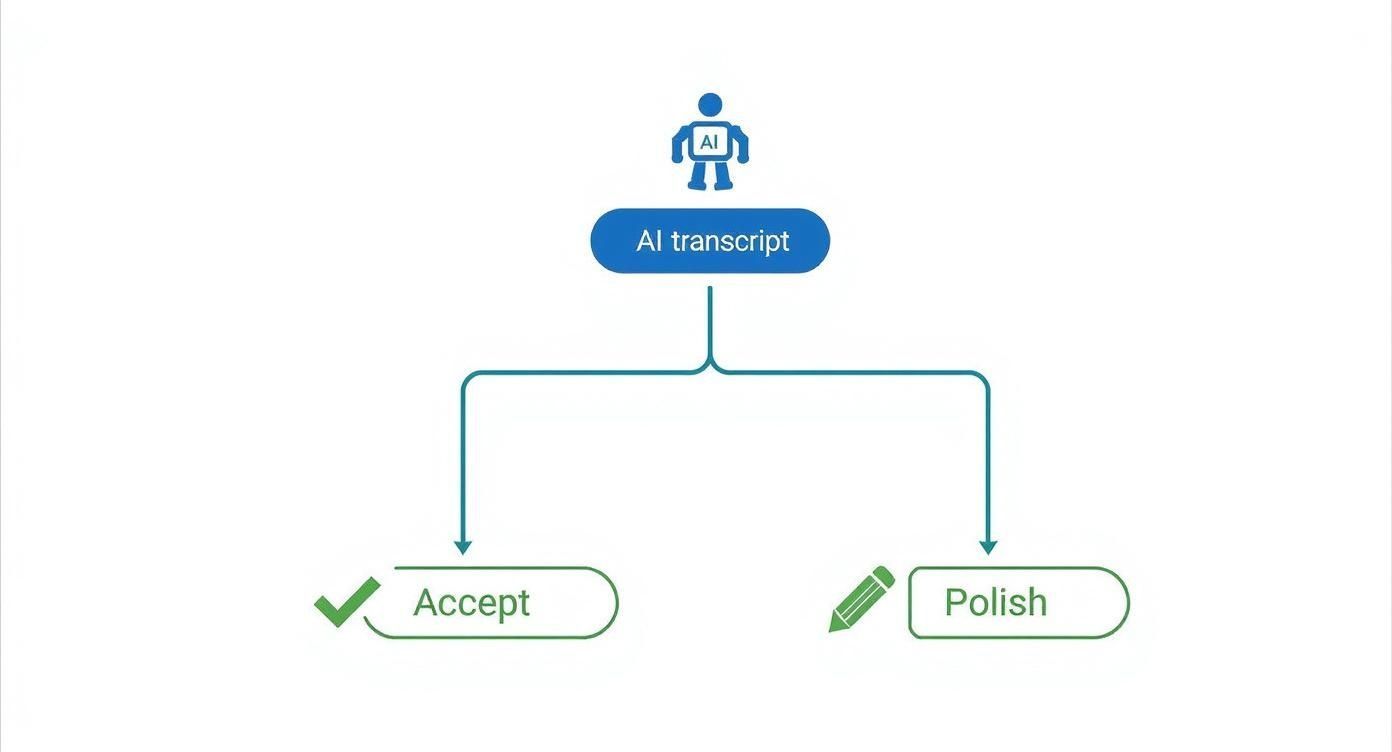
Come puoi vedere, la principale biforcazione sulla strada è decidere se la trascrizione iniziale è "abbastanza buona" per il tuo scopo o se necessita di un tocco umano per migliorare l'accuratezza e il flusso. L'utilizzo di una piattaforma come Transcript.LOL ti consente di apportare facilmente tali modifiche e quindi esportare il tuo lavoro in uno qualsiasi dei formati che abbiamo discusso, collegando il tuo intero processo in modo fluido.
Domande Comuni sulle Trascrizioni Zoom
Anche con un processo semplificato, sorgono sempre alcune domande quando si tratta di ottenere una trascrizione perfetta delle riunioni Zoom. Chiariremo alcuni dei blocchi comuni in modo che tu possa rendere il tuo flusso di lavoro di trascrizione il più agevole possibile.
Molte persone chiedono se è possibile ottenere una trascrizione senza registrare l'intera riunione. È un'ottima idea, ma la risposta è un deciso no.
Per ottenere quel file di testo scaricabile e modificabile (il file .VTT), devi assolutamente registrare la tua riunione nel cloud.
La registrazione cloud è obbligatoria per salvare le trascrizioni. Le didascalie live da sole non generano un file permanente.
Sebbene sia possibile attivare la Trascrizione in tempo reale per sottotitoli in tempo reale durante la chiamata, il che è fantastico per l'accessibilità, questa funzionalità non crea un file permanente da salvare in seguito. Per una trascrizione post-riunione, la registrazione cloud è l'unica opzione.
Quanto tempo ci vuole prima che la mia trascrizione sia pronta?
Un'altra domanda che sento continuamente riguarda i tempi di elaborazione. Hai appena terminato una riunione importante e sei pronto per metterti al lavoro sulla trascrizione: quanto tempo ci vorrà?
Una buona regola generale è aspettarsi che la trascrizione richieda circa il doppio della durata della riunione stessa. Una rapida riunione di 30 minuti potrebbe avere la sua trascrizione pronta in un'ora, mentre un approfondimento di due ore richiederà naturalmente un po' più di tempo. Non preoccuparti, Zoom ti invierà un'e-mail nel momento in cui la tua registrazione e la tua trascrizione saranno pronte.
Questo intervallo di tempo consente all'IA di Zoom di analizzare correttamente l'audio e produrre il testo più accurato possibile.
Differenze chiave tra trascrizioni live e audio
È facile confondere le due principali funzionalità di trascrizione offerte da Zoom, ma servono scopi completamente diversi. Capire bene questa distinzione è fondamentale per assicurarsi di ottenere ciò di cui si ha realmente bisogno.
Ecco la ripartizione:
- Trascrizione in tempo reale: Si tratta di sottotitoli sullo schermo in tempo reale durante una riunione live. Il suo compito principale è l'accessibilità, aiutando i partecipanti sordi o con problemi di udito, o chiunque si connetta da un luogo rumoroso.
- Trascrizione audio: Questo è il file di testo completo e scaricabile (.VTT) generato dopo la riunione dalla tua registrazione cloud. Questo file è il tuo record permanente, ricercabile e modificabile della conversazione.
Pensala in questo modo: la Trascrizione in tempo reale è un assistente temporaneo per l'evento live, mentre la Trascrizione audio è l'asset strategico duraturo che puoi utilizzare per appunti, creazione di contenuti e registri ufficiali.
La pura scala di Zoom dimostra quanto siano vitali queste funzionalità. La piattaforma continua a ospitare uno sbalorditivo numero di 300 milioni di utenti attivi giornalieri nelle riunioni a partire dal 2025, accumulando oltre 3,3 trilioni di minuti di riunione annuali. Questo volume massiccio rende chiaro perché una trascrizione di riunioni Zoom affidabile non sia più un "nice-to-have", ma una parte fondamentale del lavoro moderno. Puoi approfondire altre statistiche sugli utenti Zoom su Search Logistics.
Pronto a trasformare le tue trascrizioni Zoom grezze in documenti curati e attuabili in pochi secondi? Transcript.LOL utilizza un'IA avanzata per fornire trascrizioni altamente accurate e modificabili con etichette dei relatori, riepiloghi e opzioni di esportazione multiple. Smetti di perdere tempo con la pulizia manuale e inizia a sbloccare il pieno valore delle tue conversazioni oggi stesso.
Scegli un assistente intelligente per le trascrizioni AI
Scegli uno strumento basato su un'intelligenza artificiale intelligente, che ti fornisca trascrizioni pulite e modificabili con etichette degli oratori, riepiloghi e opzioni di esportazione flessibili.