
Cómo transcribir notas de voz en iPhone: fácil paso a paso...
Aprende a transcribir notas de voz en iPhone con nuestra guía sencilla. Descubre herramientas nativas y consejos de expertos para convertir notas de voz a texto sin esfuerzo.
Praveen
February 21, 2024
Convertir tus notas de voz de iPhone a texto es bastante sencillo. Tienes algunas opciones: usar la función de transcripción nativa integrada en la aplicación Notas de Voz, dictar la reproducción en tu aplicación Notas, o recurrir a un servicio especializado de terceros si necesitas una precisión de primer nivel. Cada ruta ofrece una mezcla diferente de conveniencia, precisión y funciones adicionales.
Por qué transcribir notas de voz cambia las reglas del juego
¿Alguna vez has grabado una idea brillante o una reunión importante, solo para enfrentarte a la desalentadora tarea de revisar el audio más tarde para encontrar ese momento clave? Aquí es exactamente donde la transcripción cambia las reglas del juego. Cuando conviertes ese audio hablado en texto buscable y editable, desbloqueas un nivel completamente nuevo de productividad.
De repente, puedes encontrar una cita específica de una entrevista de una hora en segundos. O convertir tus apuntes de clase en una guía de estudio lista para usar sin escribir una sola palabra. La capacidad de convertir notas de voz a texto es una gran victoria para mantenerse organizado. Para estudiantes, periodistas y profesionales que hacen malabares con un millón de cosas, no es solo un pequeño truco agradable, es un gran ahorro de tiempo.
Desbloqueando tu contenido grabado
La transcripción organiza todo ese contenido grabado y, lo que es más importante, lo hace accesible. En lugar de un archivo de audio misterioso que tienes que escuchar una y otra vez, obtienes un documento que puedes escanear, buscar y compartir al instante.
Es perfecto para situaciones como:
- Reuniones y Entrevistas: Extrae decisiones clave, elementos de acción y citas sin dolor de cabeza.
- Clases Académicas: Crea notas completas que realmente puedas usar para estudiar.
- Lluvia de Ideas Creativas: Captura esas ideas fugaces y dales algo de estructura para más tarde.
Los recientes avances en IA y aprendizaje automático han revolucionado por completo la calidad de la transcripción. Los modelos de IA actuales ofrecen una precisión casi humana, a menudo superando el 95% en buenas condiciones, y convierten audio a texto casi instantáneamente. Este gran paso adelante hace de la transcripción una herramienta práctica para cualquier usuario de iPhone.
Al convertir audio a texto, creas un registro permanente y buscable de tus pensamientos y conversaciones. Es un paso simple que asegura que ninguna idea valiosa se pierda nunca más en una grabación sin reproducir.
En última instancia, saber cómo transcribir una nota de voz en un iPhone no es solo un truco de fiesta; es una habilidad de productividad esencial. Nuestra guía sobre el uso de dictado de notas de voz muestra cuán poderoso puede ser esto para tu flujo de trabajo diario.
Usando la función de transcripción integrada de Apple
Lo creas o no, tu iPhone probablemente ya tiene una herramienta de transcripción sólida escondida a plena vista. Está integrada directamente en la aplicación Notas de Voz, lo que la convierte en una forma súper conveniente de convertir tus notas de audio en texto sin tener que descargar nada.
Esta función realmente cobró vida con iOS 18. Ahora, cuando abres una grabación, simplemente puedes tocar un botón y ver cómo se genera una transcripción allí mismo en tu pantalla. Es perfecto para obtener una versión de texto rápida y sobre la marcha de tus pensamientos o recordatorios. Para una inmersión más profunda en estos cambios, consulta los detalles sobre las recientes actualizaciones de transcripción de iPhone.
Dónde encontrar la transcripción
Entonces, ¿dónde está este botón mágico?
Simplemente abre la aplicación Notas de Voz y toca cualquier grabación en tu lista. Verás el reproductor de audio y, en las versiones más recientes de iOS, habrá un icono de transcripción, que generalmente parece unas pocas líneas de texto. Toca eso y aparecerá el texto generado, perfectamente sincronizado con tu audio.
A medida que la nota de voz se reproduce, verás que las palabras se resaltan en tiempo real. Esto hace que sea increíblemente fácil seguir y localizar el momento exacto que estás buscando en la grabación. Es una experiencia sorprendentemente fluida para una herramienta integrada.
Consejo Pro: Para obtener los mejores resultados, usa esta función en un espacio tranquilo. He descubierto que cuando grabo un pensamiento rápido en mi oficina con la puerta cerrada, la precisión es bastante impresionante para una herramienta nativa y gratuita.
Pero seamos realistas, tiene sus límites. La transcripción integrada no siempre está a la altura, especialmente cuando las cosas se complican. Tiende a tener problemas con:
- Fondos ruidosos: ¿Intentas grabar en una cafetería bulliciosa o en un día ventoso? La transcripción probablemente será un desastre.
- Múltiples personas: No puede distinguir a los hablantes, por lo que las conversaciones a menudo se mezclan en un bloque de texto confuso.
- Acentos marcados: Si bien la IA de Apple siempre está mejorando, aún puede tener dificultades con acentos fuertes o menos comunes.
¿En resumen? Para tus propias grabaciones claras y en solitario, es una herramienta fantástica. Pero si intentas transcribir una entrevista crucial con dos hablantes y un aire acondicionado ruidoso, probablemente querrás buscar algo más potente.
Usando aplicaciones dedicadas para transcripciones más exigentes
Si bien las funciones integradas de iOS son útiles para un pensamiento rápido, rápidamente encontrarás sus límites cuando necesites algo más robusto. Para cualquier cosa que realmente importe (hablo de investigación académica, notas de programas de podcasts o reuniones importantes con clientes), una aplicación de transcripción dedicada es el camino a seguir.
Estos servicios están diseñados desde cero para manejar la realidad desordenada del audio. Son mucho mejores para filtrar el ruido de fondo, averiguar quién está hablando y dar sentido a diferentes acentos. Así es como pasas de un borrador confuso y tosco a un documento limpio y utilizable. ¿La mejor parte? Por lo general, es tan simple como compartir tu nota de voz directamente desde tu iPhone y dejar que la aplicación haga el trabajo pesado.
Por qué una aplicación dedicada cambia las reglas del juego
Cuando transcribes una nota de voz en tu iPhone con una herramienta profesional, desbloqueas un nivel completamente nuevo de funcionalidad. La mayor ventaja, con diferencia, es la precisión. Algunos de los mejores servicios afirman resultados increíblemente impresionantes, incluso cuando el audio no es perfecto. Por ejemplo, algunas plataformas pueden alcanzar una tasa de precisión de hasta el 98.86% y manejar más de 58 idiomas.
Pero no se trata solo de obtener las palabras correctas. Estas aplicaciones ofrecen funciones que ahorran mucho tiempo:
- Identificación de hablantes: La aplicación puede detectar y etiquetar automáticamente a diferentes hablantes. Esto es un salvavidas para entrevistas o reuniones de equipo. Nuestra guía sobre https://transcript.lol/usecases/online-meeting-transcription muestra cuán esencial puede ser esto.
- Marcas de tiempo: Cada palabra o párrafo está vinculado al momento exacto del audio. No más desplazarse hacia adelante y hacia atrás tratando de encontrar esa cita clave.
- Opciones de exportación flexibles: ¿Necesitas un documento de Word? ¿Un PDF? ¿Un archivo SRT para subtítulos de video? Lo tienes. Esto te da la flexibilidad de usar la transcripción donde la necesites.
Piensa en un servicio de transcripción especializado como tu asistente experto. Se encarga del trabajo tedioso y que consume mucho tiempo con precisión, para que puedas concentrarte en el contenido real en lugar de atascarte en correcciones.
Este nivel de detalle es imprescindible en muchos campos profesionales. Por ejemplo, las soluciones de voz a texto de alta precisión para el campo médico son absolutamente críticas, donde cada palabra cuenta. Ya seas un creador de contenido, un investigador o un profesional de negocios, una buena aplicación de transcripción convierte una simple nota de voz en un activo buscable, confiable e increíblemente valioso.
Comparando tus opciones de transcripción de iPhone
Descubrir la mejor manera de transcribir una nota de voz en tu iPhone realmente se reduce a para qué necesitas esa transcripción. Tienes opciones que van desde gratuitas y rápidas hasta potentes y precisas. Piensa en ello de esta manera: no usarías un martillo para colgar un cuadro, y la misma idea se aplica aquí.
Para notas personales casuales donde unos pocos errores no importan, la transcripción integrada de Apple es un excelente punto de partida. Está justo ahí en tu teléfono, no cuesta nada y es perfecta para capturar un pensamiento o recordatorio rápido, especialmente si el audio es cristalino. Pero, seamos honestos, su precisión puede caer en picado con cualquier ruido de fondo o más de una persona hablando.
Por otro lado, un servicio dedicado como Transcript.LOL está diseñado desde cero para la precisión y para manejar audio complejo. Este es tu recurso para las cosas importantes: entrevistas, reuniones con clientes o conferencias donde cada palabra cuenta. Estas herramientas ofrecen una precisión mucho mayor, a menudo pueden identificar a diferentes hablantes y te brindan muchas más opciones de exportación.
Tomando la decisión correcta
Para facilitar la decisión, solo piensa en estos factores clave:
- Precisión: Para grabaciones de misión crítica, una aplicación de terceros es la única opción. Para un resumen rápido y "suficientemente bueno" de tu propia voz clara, la función nativa de iOS probablemente servirá.
- Costo: La herramienta de Apple es 100% gratuita. Las aplicaciones especializadas suelen tener un modelo de suscripción o de pago por minuto, lo que refleja su tecnología más avanzada.
- Funciones: ¿Necesitas etiquetas de hablante, marcas de tiempo o formatos de archivo específicos como DOCX o SRT? Necesitarás una aplicación dedicada.
El mejor enfoque es siempre adaptar la herramienta al trabajo. Usa la función integrada para velocidad y conveniencia, pero recurre a un servicio especializado cuando la precisión y las funciones profesionales sean imprescindibles.
Para darte una imagen más clara, aquí tienes una comparación lado a lado de lo que puedes esperar de cada método.
Comparación de funciones de los métodos de transcripción de iPhone
| Característica | Transcripción Nativa de iOS | Método Siri/Dictado | Aplicaciones de Terceros |
|---|---|---|---|
| Mejor para | Notas personales rápidas, recordatorios simples | Dictado manos libres, mensajes cortos | Entrevistas, reuniones, contenido detallado |
| Precisión | Varía; mejor con audio claro y de un solo hablante | Bueno para frases cortas y claras | Alta a nivel profesional |
| Costo | Gratis | Gratis | De pago (suscripción o pago por uso) |
| Identificación de hablantes | No | No | A menudo disponible |
| Marcas de tiempo | No | No | Sí, generalmente incluido |
| Edición | Limitada, dentro de la aplicación Notas o Notas de Voz | Solo ediciones en tiempo real | Herramientas completas de edición y formato |
| Opciones de exportación | Copia/pega de texto básico | Copia/pega de texto básico | Múltiples formatos (DOCX, TXT, SRT, etc.) |
Como puedes ver, la herramienta adecuada realmente depende de la complejidad y la importancia de tu grabación.
Cuando te encuentres con errores de transcripción en tu iPhone, el problema suele ser más simple de lo que piensas. Este útil árbol de decisiones puede ayudarte a solucionar los problemas más comunes.
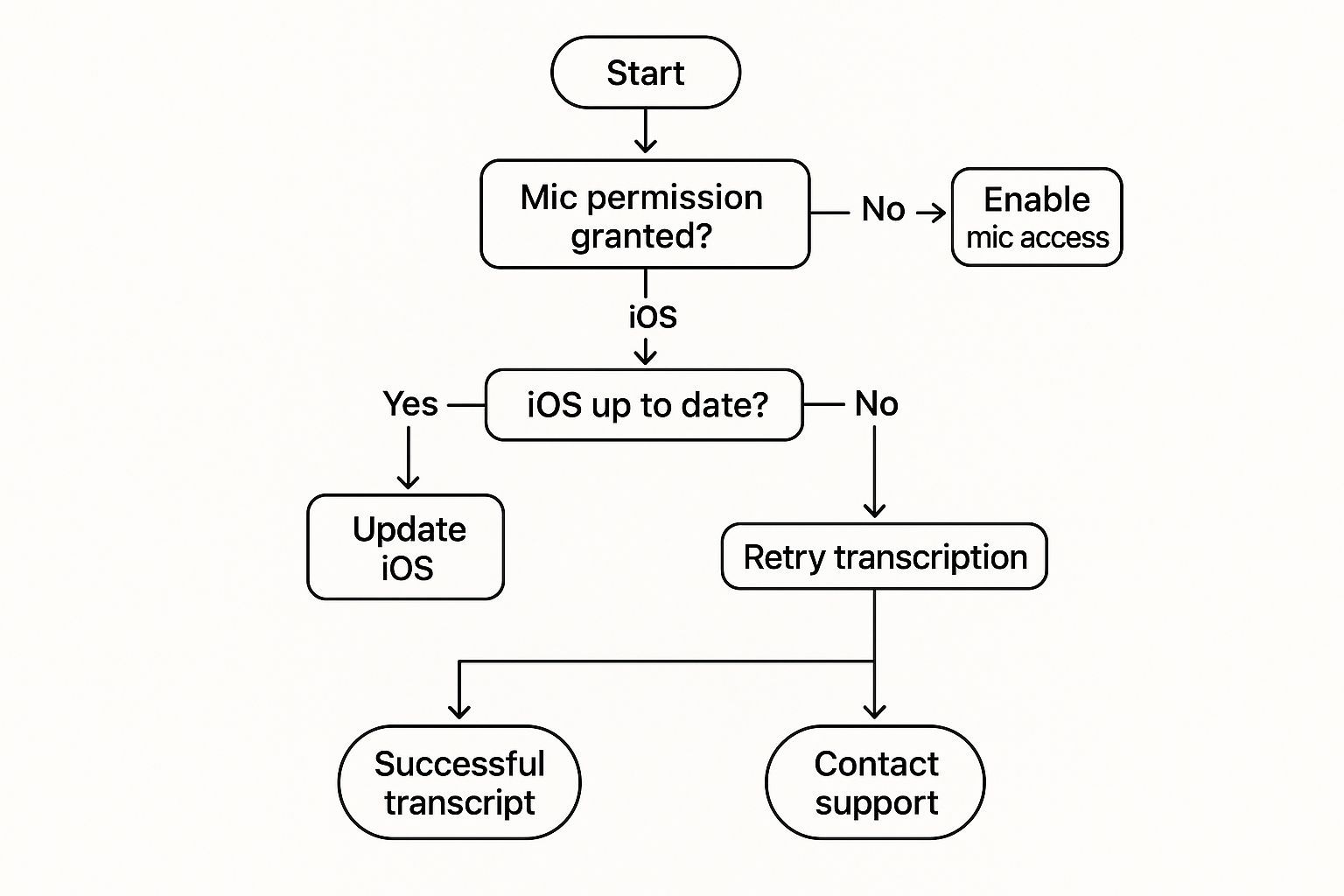
La mayoría de las veces, los fallos de transcripción se reducen a simples configuraciones de permisos o a la necesidad de actualizar tu software, ambos son arreglos afortunadamente fáciles.
Consejos prácticos para transcripciones impecables
¿El factor más importante para una transcripción precisa? La calidad de tu audio. Es así de simple.
Independientemente del método de transcripción que elijas, comenzar con audio limpio te ahorrará una gran cantidad de tiempo de edición más adelante. Es el clásico principio de "basura entra, basura sale" en acción.
Algunos ajustes sencillos antes de presionar grabar pueden marcar una gran diferencia. El micrófono integrado de tu iPhone es sorprendentemente bueno, pero no es magia. Captará cada tos, cada crujido de papel y cada sirena lejana si no tienes cuidado.
Para obtener los mejores resultados, intenta encontrar un espacio tranquilo con el mínimo eco. Piensa en una habitación pequeña con alfombras o cortinas, cualquier cosa para amortiguar la reverberación y hacer que tu voz sea la estrella del espectáculo.
Optimiza tu entorno de grabación
Posicionar tu iPhone correctamente es otra victoria fácil. No lo sostengas justo delante de tu boca, ya que esto puede causar "plosivas", esos sonidos duros de "pop" de letras como 'P' y 'B'. He descubierto que una buena regla general es mantenerlo a unas seis a ocho pulgadas de distancia y ligeramente a un lado.
Aquí tienes algunos consejos profesionales más que siempre sigo para obtener un audio cristalino:
- Habla con claridad y a un ritmo constante: Simplemente habla a una velocidad natural y constante. Cuando te apresuras o murmuras, obligas a la IA a adivinar, y ahí es donde surgen los errores.
- Gestiona múltiples hablantes: Si estás grabando una conversación, haz que sea una regla que cada persona hable una a la vez. Las voces superpuestas son la principal causa de transcripciones confusas e inútiles.
- Minimiza las distracciones: Desactiva las notificaciones. Pon tu teléfono en No Molestar. Cada pequeño pitido y zumbido puede interrumpir el audio y aparecer en tu texto final.
Incluso con la mejor preparación, el ruido de fondo puede colarse. Para grabaciones de misión crítica, aprender cómo eliminar el ruido de fondo antes de transcribir es un cambio de juego para obtener una precisión de nivel profesional.
Adoptar estos pequeños hábitos mejorará drásticamente la salida de cualquier herramienta de transcripción. Para obtener más consejos sobre cómo manejar situaciones de audio complicadas, hemos cubierto una gran cantidad de escenarios en nuestras preguntas frecuentes sobre transcripción.
Preguntas frecuentes sobre transcripción
Incluso con las mejores herramientas a tu alcance, probablemente todavía tengas algunas preguntas sobre cómo transcribir notas de voz en tu iPhone. Abordemos algunas de las más comunes que escucho para que puedas empezar sin problemas.
¿Mis datos están seguros con aplicaciones de terceros?
Esta es una pregunta importante, y con razón. Cuando transcribes reuniones sensibles o pensamientos personales, necesitas saber que tus datos son privados.
Servicios de renombre como Transcript.LOL se basan en una base de seguridad. Tenemos políticas estrictas y nunca usamos tus datos para entrenar nuestros modelos de IA. Tus conversaciones son tuyas, punto. Siempre haz un hábito de revisar la política de privacidad de cualquier aplicación antes de subir audio; vale la pena la tranquilidad.
¿Qué pasa con los diferentes acentos o idiomas?
Otra pregunta común es qué tan bien manejan estas herramientas el habla del mundo real. La función integrada de Apple está mejorando, pero definitivamente funciona mejor con el inglés americano estándar.
Aquí es donde los servicios dedicados realmente brillan. Están diseñados desde cero para comprender una amplia gama de acentos y dialectos globales. Además, a menudo admiten docenas de idiomas, lo que te brinda resultados precisos sin importar quién esté hablando.
¿Cómo manejo grabaciones largas o múltiples hablantes?
Entonces, ¿qué sucede cuando necesitas transcribir esa conferencia de 90 minutos o una reunión de equipo divagante con cinco personas diferentes interviniendo?
Aquí es a menudo donde las herramientas integradas comienzan a flaquear. Pueden agotar el tiempo o volverse lentas con archivos realmente largos. Las plataformas profesionales, por otro lado, están diseñadas para manejar grabaciones de varias horas sin sudar.
La verdadera magia no es solo convertir audio en palabras; se trata de estructurar la conversación. Un servicio profesional puede detectar y etiquetar automáticamente a cada hablante, transformando un muro de texto desordenado en un guion limpio y fácil de leer.
Esto cambia las reglas del juego para los estudiantes que necesitan convertir horas de audio de clase en notas de estudio organizadas. Nuestra guía sobre transcripción de conferencias para estudiantes profundiza en cómo esta única función puede marcar una gran diferencia en tu vida académica.
Al final del día, la herramienta adecuada depende de lo que estés transcribiendo. Para una nota personal rápida, las opciones integradas están bien. Pero para cualquier cosa más compleja, un servicio especializado te brindará una transcripción mucho más precisa y útil.
¿Listo para transcripciones impecables, privadas y rápidas? Transcript.LOL convierte tus notas de voz de iPhone en texto preciso y editable en segundos. Comienza gratis hoy.