
Ihr Leitfaden für ein perfektes Zoom-Meeting-Transkript
Erfahren Sie, wie Sie ein Zoom-Meeting-Transkript erhalten, bearbeiten und verwenden. Unser Leitfaden behandelt die automatische Einrichtung, die Bearbeitung auf Genauigkeit und erweiterte Exportoptionen.
Kate
October 16, 2024
Seien wir ehrlich, Besprechungsnotizen sind ein Chaos. Jemand bekommt die Aufgabe, sie zu machen, wird abgelenkt und wichtige Entscheidungen oder Aktionspunkte gehen im Durcheinander verloren. Ein Zoom-Meeting-Transkript hingegen ist die Geheimwaffe Ihres Teams. Es verwandelt gesprochene Worte in eine durchsuchbare, teilbare und überprüfbare Aufzeichnung dessen, was tatsächlich passiert ist.
Warum Zoom-Transkripte ein strategischer Vorteil sind

Ein Transkript ist weit mehr als nur eine Aufzeichnung eines Gesprächs; es ist ein Werkzeug für Klarheit, Verantwortlichkeit und echte Zusammenarbeit. Für Remote- und hybride Teams ist es ein absoluter Game-Changer, der sicherstellt, dass niemand den kritischen Kontext verpasst.
Denken Sie an das letzte Mal, als ein wichtiger Stakeholder nicht an einem Anruf teilnehmen konnte. Anstatt einer Zusammenfassung aus zweiter Hand können Sie ihm einfach das Transkript geben. Er kann sich in seiner eigenen Zeit vollständig auf den neuesten Stand bringen. Dieser Rohtext wird zur Grundlage für so viel mehr – Kundeninterviews können schnell auf Feedback analysiert werden, und Projekt-Kickoffs werden zu detaillierten Briefings, auf die Sie immer wieder zurückgreifen können.
Schlüsselfunktionen, die Zoom-Transkripte leistungsstark machen
Modernste KI
Angetrieben von OpenAIs Whisper für branchenführende Genauigkeit. Unterstützung für benutzerdefinierte Vokabulare, bis zu 10 Stunden lange Dateien und ultraschnelle Ergebnisse.

Aus mehreren Quellen importieren
Importiere Audio- und Videodateien aus verschiedenen Quellen, einschließlich direktem Upload, Google Drive, Dropbox, URLs, Zoom und mehr.

In mehreren Formaten exportieren
Exportiere deine Transkripte in mehreren Formaten, einschließlich TXT, DOCX, PDF, SRT und VTT mit anpassbaren Formatierungsoptionen.
Produktivität und Zugänglichkeit freischalten
Für die meisten Teams sind die Vorteile sofort spürbar. Ein durchsuchbares Transkript bedeutet, dass jeder eine bestimmte Information in Sekundenschnelle finden kann, ohne eine einstündige Videoaufnahme durchsuchen zu müssen. Die Auswirkungen sind enorm:
- Onboarding: Neue Mitarbeiter können schnell auf den neuesten Stand gebracht werden, indem sie wichtige Projektbesprechungen und Entscheidungen überprüfen.
- Barrierefreiheit: Es ist eine enorme Hilfe für Nicht-Muttersprachler oder schwerhörige Teammitglieder, die ihnen mit absoluter Sicherheit folgen können.
- Compliance: Für alle in einer regulierten Branche ist ein überprüfbarer Textnachweis nicht nur angenehm, sondern für die Dokumentation unerlässlich.
Ein Zoom-Transkript verwandelt flüchtige Gespräche in eine permanente, durchsuchbare Bibliothek. Dieser einfache Wandel ermöglicht es Teams, effizienter zu arbeiten und stellt sicher, dass wertvolle Erkenntnisse aus Besprechungen nie verloren gehen und von jedem jederzeit abgerufen werden können.
Transkripte für Inhalte und Erkenntnisse nutzen
Der wirkliche strategische Wert kommt zum Tragen, wenn Sie erkennen, dass ein Transkript wiederverwendet werden kann. Eine einzige Besprechung kann zur Quellmaterial für Blogbeiträge, Social-Media-Updates oder interne Schulungsdokumente werden. Wir haben tatsächlich einen Leitfaden zu Strategien zur Wiederverwendung von Inhalten verfasst, der sich eingehend damit beschäftigt, wie man aus einem Gespräch mehrere Inhalte erstellt.
Hier verändert auch die KI das Spiel. Bis 2025 ist die KI-gestützte Transkriptanalyse ein Muss, um umsetzbare Erkenntnisse aus Gesprächen zu gewinnen. Sie reduziert die Analysezeit von Tagen auf Minuten und hilft Ihnen, Schlüsselthemen und Entscheidungen mit unglaublicher Genauigkeit zu erkennen.
Für eine tiefere Auseinandersetzung ist dieser umfassende Leitfaden zur Transkription von Zoom-Besprechungen eine großartige Ressource, um die Leistung Ihres Teams zu steigern.
Konfigurieren von Zoom für automatische Transkripte
Ein perfektes Zoom-Besprechungstranskript beginnt lange bevor die Besprechung überhaupt stattfindet. Es geht darum, die richtigen Schalter in Ihrem Zoom-Konto im Voraus umzulegen. Auch wenn das Durchsuchen von Einstellungen mühsam sein kann, zeige ich Ihnen genau, wo Sie im Zoom-Webportal suchen müssen, damit Sie es einrichten und vergessen können.
Das Wichtigste, was Sie verstehen müssen: Die herunterladbare Transkriptdatei, die Sie wünschen, ist direkt mit der Cloud-Aufnahme verbunden. Während Live-Untertitel für die Echtzeit-Barrierefreiheit fantastisch sind, liefern sie Ihnen nicht die bearbeitbare, teilbare Textdatei für Ihre Aufzeichnungen. Um dieses wertvolle Transkript zu erhalten, müssen Sie Ihre Besprechung in der Cloud aufzeichnen.
Navigieren zu Ihren Aufnahmeeinstellungen
Zuerst müssen Sie sich in Ihrem Konto im Zoom-Webportal anmelden, nicht in der Desktop-App. Ihre Fähigkeit, diese Einstellungen zu ändern, hängt von Ihren Berechtigungen ab – Sie sind möglicherweise ein Administrator, der die Dinge für das gesamte Unternehmen verwaltet, oder nur ein Benutzer, der seine eigenen Einstellungen verwaltet.
Sobald Sie angemeldet sind, ist hier der Pfad:
- Klicken Sie im Navigationsbereich auf der linken Seite auf Einstellungen.
- Wählen Sie dann oben die Registerkarte Aufnahme.
- Stellen Sie sicher, dass der Schalter für Cloud-Aufnahme aktiviert ist. Wenn diese Option ausgegraut ist, müssen Sie Ihren Administrator bitten, sie für Sie zu aktivieren.
Dies ist Ihre Kommandozentrale für alles, was mit aufgezeichneten Besprechungen zu tun hat, einschließlich der Transkripte.
Aktivieren der Audio-Transkript-Funktion
Wenn die Cloud-Aufnahme aktiv ist, können Sie nun die spezifische Funktion aktivieren, die das Transkript generiert. Scrollen Sie einfach in derselben Registerkarte "Aufnahme" nach unten, bis Sie den Abschnitt "Erweiterte Cloud-Aufnahmeeinstellungen" finden. Hier geschieht die Magie.
Sie suchen nach einem wichtigen Kontrollkästchen: Audio-Transkript. Kreuzen Sie dieses Kästchen an. Dies weist Zoom an, eine Textdatei aller gesprochenen Audiodaten aus Ihren Cloud-Aufnahmen zu erstellen.
Diese Bildschirmaufnahme zeigt Ihnen die genaue Stelle, an der Sie die Option "Audio-Transkript" finden.
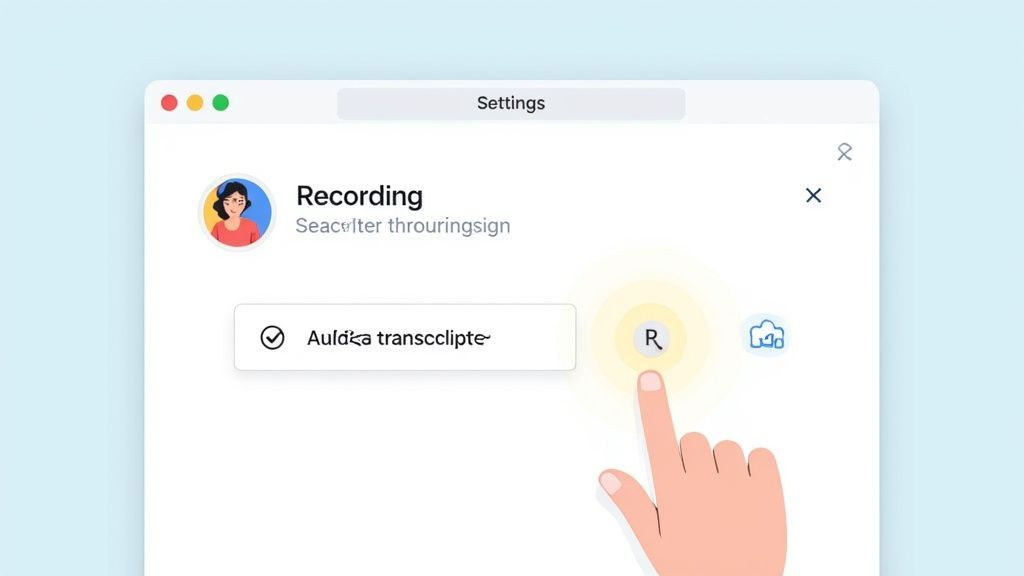
Die Aktivierung stellt sicher, dass Zoom jedes Mal, wenn Sie eine Besprechung in der Cloud aufzeichnen, die Audiodaten automatisch verarbeitet und eine separate Transkriptdatei ausgibt.
Nachdem Sie das Kästchen angekreuzt haben, vergessen Sie nicht, auf die Schaltfläche Speichern zu klicken. Es ist ein überraschend häufiger Fehler – Leute aktivieren die Funktion, vergessen aber zu speichern und fragen sich dann, warum ihre Transkripte nicht angezeigt werden. Dieser eine Klick speichert Ihre Präferenz für alle zukünftigen Aufnahmen.
Profi-Tipp: Wenn Sie Administrator sind, können Sie diese Einstellung für alle in Ihrem Konto sperren. Es ist eine großartige Möglichkeit, die Dokumentation von Besprechungen in Ihrem Unternehmen zu standardisieren und sicherzustellen, dass jedes wichtige Gespräch transkribiert wird, ohne dass sich einzelne Benutzer darauf verlassen müssen, es selbst einzurichten.
Durch die Konfiguration dieser Einstellungen schaffen Sie einen nahtlosen, automatisierten Arbeitsablauf. Von nun an können Sie sich jedes Mal, wenn Sie auf "In der Cloud aufzeichnen" klicken, darauf verlassen, dass ein detailliertes Zoom-Besprechungstranskript kurz nach Ende der Besprechung für Sie bereitsteht. Sie haben gerade die Grundlage für einen zuverlässigen und mühelosen Transkriptionsprozess gelegt.
Auffinden und Herunterladen Ihrer Transkriptdatei
Okay, Ihre Besprechung ist vorbei und Zooms Cloud hat ihre Magie gewirkt. Wo ist also das Transkript?
Glücklicherweise lässt Sie Zoom nicht auf eine digitale Schnitzeljagd gehen. Alles, was Sie brauchen, ist ordentlich im Zoom-Webportal verstaut – denken Sie daran, Sie finden dies nicht in der Desktop-App.
Melden Sie sich zunächst online in Ihrem Zoom-Konto an und gehen Sie direkt zur Registerkarte Aufnahmen auf der linken Seite. Dies ist Ihre persönliche Bibliothek für jede Besprechung, die Sie in der Cloud aufgezeichnet haben, alles nach Datum sortiert.
Auffinden der richtigen Besprechung und des richtigen Transkripts
Scrollen Sie nun und finden Sie die spezifische Besprechung, die Sie suchen. Sobald Sie auf das Thema der Besprechung klicken, gelangen Sie zu einer Seite, auf der alle mit dieser Aufnahme verbundenen Dateien aufgeführt sind.
Sie sehen hier ein paar verschiedene Dateien – Video, nur Audio und die, die wir wollen: das Audio-Transkript. Zoom generiert dies automatisch als .VTT (Video Text Tracks)-Datei. Es ist ein Standardformat für Untertitel, aber es ist auch der Rohtext Ihres gesamten Gesprächs.
Bevor Sie es überhaupt herunterladen, können Sie es direkt in Ihrem Browser kurz überprüfen. Wenn Sie auf die Transkriptdatei klicken, öffnet sich ein interaktiver Betrachter, in dem der Text synchron mit der Videowiedergabe scrollt. Es ist eine fantastische Möglichkeit, schnell zu überprüfen, ob Sie die richtige Datei haben.
Der In-Browser-Betrachter ist ein echter Zeitsparer. Sie können nach Schlüsselwörtern suchen, um direkt zu einem bestimmten Zeitpunkt zu springen, ohne das gesamte Video durchsuchen zu müssen. Super praktisch.
In dieser Vorschau sehen Sie auch die Zeitstempel und grundlegenden Sprecherbezeichnungen (wie "Sprecher 1", "Sprecher 2"), die dem Gespräch seine Struktur geben.
Herunterladen und Vorbereiten Ihrer Datei
Wenn Sie bereit sind, klicken Sie einfach auf die Schaltfläche Herunterladen. Dies speichert die .VTT-Datei direkt auf Ihrem Computer. Lassen Sie sich von der Dateiendung nicht einschüchtern; es ist nur eine einfache Textdatei, die Sie mit jedem einfachen Texteditor wie Notepad oder TextEdit öffnen können.
Mit dieser heruntergeladenen Datei sind Sie bereit, mit der Verfeinerung zu beginnen. Sie können sie auf Genauigkeit prüfen oder, noch besser, sie in ein leistungsfähigeres Tool zur Analyse und Formatierung importieren. Dienste wie unserer können diese Rohdatei nehmen und sie viel nützlicher machen.
Wenn Sie sehen möchten, wie einfach das ist, sehen Sie sich unseren Leitfaden zum Importieren Ihres Zoom-Transkripts in Transcript.LOL an. Die .VTT-Datei ist der Schlüssel, der all diese intelligenteren Arbeitsabläufe freischaltet, sodass Sie den endgültigen Text bearbeiten, Sprecher richtig kennzeichnen und in jedem gewünschten Format exportieren können.
Polieren Ihres Transkripts für maximale Genauigkeit
Seien wir ehrlich: Automatisierte Transkription ist eine Rettung, aber selbst die beste KI ist nicht perfekt. Die Rohtextdatei, die Sie von Zoom herunterladen, ist ein fantastischer erster Entwurf, nicht das fertige Produkt. Wenn Sie ein paar Minuten investieren, um Ihr Zoom-Besprechungstranskript zu polieren, können Sie es von einer groben Aufzeichnung in ein professionelles, zuverlässiges Dokument verwandeln, das Sie vertrauensvoll teilen können.
Der erste KI-Durchlauf erledigt die schwere Arbeit, aber menschliche Aufsicht fängt die Nuancen auf, die Maschinen übersehen. Ihr erster Bearbeitungsschritt sollte sich auf die häufigsten Fehler konzentrieren, die automatisierte Systeme machen.
Das bedeutet, falsch interpretierte Fachbegriffe zu korrigieren, falsch geschriebene Firmennamen zu beheben und sicherzustellen, dass die Zeichensetzung tatsächlich den Gesprächsfluss widerspiegelt. Es ist erstaunlich, wie ein einziger falsch gesetzter Komma die gesamte Bedeutung eines Satzes verändern kann.
Korrigieren von Sprecherbezeichnungen und Zeitstempeln
Eines der ersten Dinge, die Sie in einem Roh-Transkript wahrscheinlich bemerken werden, ist die Sprecheridentifizierung. Zoom tut sein Bestes, um Stimmen zu unterscheiden, aber oft greift es auf generische Bezeichnungen wie "Sprecher 1" und "Sprecher 2" zurück. Das manuelle Aktualisieren dieser mit den tatsächlichen Namen der Teilnehmer ist ein Muss für Klarheit.
Im integrierten Editor von Zoom ist das ziemlich einfach:
- Fahren Sie mit der Maus über den Namen des Sprechers.
- Klicken Sie auf das kleine Stiftsymbol, das erscheint.
- Geben Sie den korrekten Namen ein und speichern Sie Ihre Änderungen.
Das Schöne daran ist, dass die Änderung überall dort angewendet wird, wo die Stimme dieses Sprechers identifiziert wurde, was Ihnen viel mühsame Arbeit erspart. Dieser einfache Schritt macht das endgültige Transkript unendlich lesbarer und nützlicher.
Verbesserung der Lesbarkeit und des Flusses
Über grundlegende Korrekturen hinaus ist das eigentliche Ziel, das allgemeine Leseerlebnis zu verbessern. Dies erfordert etwas mehr Fingerspitzengefühl und verwandelt eine wörtliche Wort-für-Wort-Aufzeichnung in einen sauberen, kohärenten Text, der leicht zu verfolgen ist.
Die Kunst der Transkriptbearbeitung besteht nicht nur darin, das Falsche zu korrigieren, sondern auch das Unnötige zu entfernen. Ein großartiges Transkript priorisiert Klarheit gegenüber einer wortgetreuen Wiedergabe jedes einzelnen Geräuschs.
Beginnen Sie damit, Füllwörter zu streichen – die endlosen "Ähms", "Ähs" und "Weißt du", die natürliche Sprache durchdringen, aber das geschriebene Wort nur verstopfen. Ich füge auch gerne kurze, abgehackte Sätze zu vollständigeren Gedanken zusammen, um den Lesefluss des Dokuments zu verbessern. Allein dieser Schritt kann das professionelle Gefühl Ihres Zoom-Besprechungstranskripts dramatisch verbessern.
Selbst mit großartigen Werkzeugen kann die Genauigkeit variieren. Das Verständnis der Faktoren, die die Genauigkeit von Sprache-zu-Text beeinflussen, hilft Ihnen, häufige Fehler vorherzusehen und schnell zu beheben. Zooms eigene automatische Spracherkennung (ASR) ist ein Spitzenreiter und meldet durchweg niedrige Wortfehlerraten in verschiedenen Besprechungsszenarien. Ihr System ist besonders gut darin, Gespräche mit mehreren Sprechern und spezialisierte Terminologie zu verarbeiten, was Ihnen einen qualitativ hochwertigen Ausgangspunkt bietet. Weitere Informationen zu ihren neuesten Ergebnissen zur KI-Qualität finden Sie auf der Zoom-Website.
Fortgeschrittene Arbeitsabläufe und Exportoptionen
Sobald Sie Ihr Zoom-Besprechungstranskript bereinigt haben, sind Sie bereit, es über einfache Notizen hinaus zu nutzen. Der Rohtext ist nur der Anfang; seine wahre Kraft entfaltet sich, wenn Sie ihn in ein Format exportieren, das für Ihr spezifisches Ziel konzipiert ist, sei es die Erstellung von Marketinginhalten, der Aufbau von Schulungsmaterialien oder einfach nur die Führung formeller Aufzeichnungen.
Für die meisten alltäglichen Aufgaben ist ein standardmäßiges KI-Transkript ein fantastischer Ausgangspunkt. Aber was ist mit Hochrisikosituationen, wie einer juristischen Aussage oder einem Video, das Sie Tausenden von Menschen veröffentlichen? Dann benötigen Sie eine nahezu perfekte Genauigkeit.
Hier glänzen Drittanbieterdienste. In unserem Leitfaden zu den https://transcript.lol/blog/best-meeting-transcription-software finden Sie einige ausgezeichnete Optionen, die oft professionelle Überprüfung oder ausgefeiltere Sprechererkennung anbieten. Für wirklich spezialisierte Arbeiten können dedizierte Video-zu-Skript-Konverter-Tools ebenfalls dabei helfen, Ihre Rohaufnahmen in polierte, gebrauchsfertige Skripte zu verwandeln.
Auswahl des besten Exportformats
Das Dateiformat, das Sie wählen, hat einen enormen Einfluss darauf, was Sie später mit Ihrem Transkript machen können. Betrachten Sie es wie die Wahl des richtigen Werkzeugs für eine Aufgabe – die Wahl des richtigen Formats von Anfang an erspart Ihnen viele Kopfschmerzen. Es gibt keine einzelne "beste" Option, nur diejenige, die Ihren unmittelbaren Bedürfnissen entspricht.
Hier ist eine kurze Übersicht über die gängigsten Formate, denen Sie begegnen werden:
- .TXT (Plain Text): Dies ist Ihre einfache, unkomplizierte Option. Es ist perfekt, wenn Sie nur den Rohtext benötigen, um ihn in eine E-Mail zu kopieren, in ein Dokument einzufügen oder in ein anderes KI-Tool für eine schnelle Zusammenfassung einzuspeisen.
- .DOCX (Word-Dokument): Wenn Sie etwas Formelleres benötigen, ist .DOCX die richtige Wahl. Es ist ideal für die Erstellung offizieller Besprechungsprotokolle, Berichte oder jedes Dokuments, in dem Sie möglicherweise Branding hinzufügen und mit anderen über Änderungen nachverfolgen zusammenarbeiten möchten.
- .SRT / .VTT (Untertiteldateien): Diese sind für Videos absolut unerlässlich. Sie enthalten nicht nur den Text, sondern auch die entscheidenden Zeitstempel, die die Wörter mit der Videowiedergabe synchronisieren. Wenn Sie Untertitel für soziale Medien, Schulungsvideos oder Webinare erstellen, sind dies die Formate, die Sie benötigen.
Das endgültige Ziel Ihres Transkripts bestimmt sein Format. Denken Sie im Voraus darüber nach, wie Sie den Text verwenden werden – als durchsuchbares Dokument, als Video-Untertitel oder als Quellmaterial für einen Blogbeitrag – und exportieren Sie entsprechend, um sich Zeit und Frustration zu ersparen.
Bevor wir fortfahren, fassen wir diese Informationen in einer praktischen Tabelle zusammen, um die Entscheidung noch einfacher zu gestalten.
Auswahl des richtigen Transkript-Exportformats
Ein Vergleich gängiger Transkript-Dateiformate und ihrer primären Anwendungsfälle, um Ihnen bei der Auswahl der besten Option für Ihre Bedürfnisse zu helfen.
| Dateiformat | Am besten geeignet für | Hauptmerkmale |
|---|---|---|
| .TXT | Schnelle Notizen, Daten für KI-Tools, einfacher Textaustausch | Universelle Kompatibilität, geringe Dateigröße, keine Formatierung. |
| .DOCX | Formelle Berichte, Besprechungsprotokolle, kollaboratives Bearbeiten | Rich-Text-Formatierung, Änderungen nachverfolgen, einfach zu drucken/teilen. |
| .SRT / .VTT | Video-Untertitel für jede Plattform | Enthält Zeitstempel, weit verbreitet von Videoplayern unterstützt. |
Die Wahl des richtigen Formats von Anfang an ist ein einfacher Schritt, der Ihren gesamten Arbeitsablauf optimiert und sicherstellt, dass Ihr Transkript für alles bereit ist, was Sie als Nächstes vorhaben.
Erweiterte Funktionen für Bearbeitung und Wiederverwendung

Sprechererkennung
Identifiziere automatisch verschiedene Sprecher in deinen Aufnahmen und beschrifte sie mit ihren Namen.

Bearbeitungswerkzeuge
Bearbeite Transkripte mit leistungsstarken Werkzeugen wie Suchen und Ersetzen, Sprecherzuordnung, Rich-Text-Formate und Hervorhebungen.
Zusammenfassungen und Chatbot
Erstelle Zusammenfassungen und andere Erkenntnisse aus deinem Transkript, wiederverwendbare benutzerdefinierte Prompts und Chatbot für deine Inhalte.
Visualisierung Ihres Bearbeitungs-Workflows
Eine häufige Frage, die wir erhalten, lautet: „Wie viel sollte ich mein KI-Transkript bearbeiten?“
Best Practices für die Bearbeitung Ihres Transkripts
Füllwörter entfernen
Entfernen Sie „ähm“, „äh“ und wiederholte Füllwörter, um den Fluss und die Lesbarkeit zu verbessern.
Sprechernamen korrigieren
Ersetzen Sie generische Bezeichnungen wie „Sprecher 1“ durch tatsächliche Namen für Klarheit und Kontext.
Satzzeichen & Grammatik korrigieren
Die richtige Zeichensetzung sorgt dafür, dass Ihr Transkript wie ein poliertes, professionelles Dokument gelesen wird.
Kurze Sätze zusammenführen
Kombinieren Sie fragmentierte Sprache zu vollständigen, leicht lesbaren Absätzen für ein besseres Verständnis.
Die Antwort hängt wirklich davon ab, wofür Sie es verwenden. Dieser einfache Entscheidungsbaum zeigt einen typischen Weg von der rohen KI-Ausgabe zu einem fertigen, polierten Dokument.
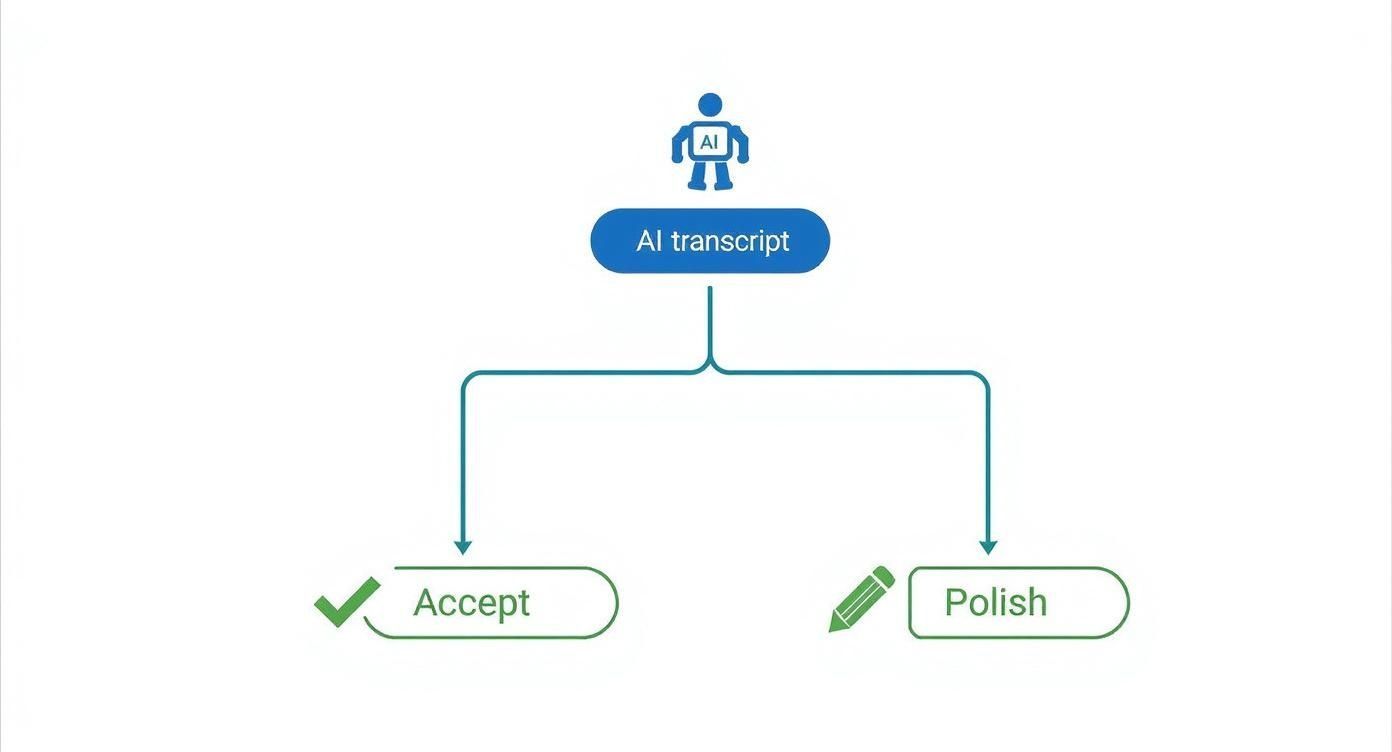
Wie Sie sehen können, besteht die Hauptabzweigung darin, zu entscheiden, ob das anfängliche Transkript für Ihren Zweck "gut genug" ist oder ob es menschliches Eingreifen erfordert, um Genauigkeit und Fluss zu verbessern. Die Verwendung einer Plattform wie Transcript.LOL ermöglicht es Ihnen, diese Bearbeitungen einfach vorzunehmen und Ihre Arbeit dann in eines der von uns besprochenen Formate zu exportieren, wodurch Ihr gesamter Prozess nahtlos miteinander verbunden wird.
Häufig gestellte Fragen zu Zoom-Transkripten
Selbst bei einem optimierten Prozess tauchen immer wieder einige Fragen auf, wenn es darum geht, ein perfektes Zoom-Meeting-Transkript zu erhalten. Lassen Sie uns einige der häufigsten Hürden aus dem Weg räumen, damit Ihr Transkriptions-Workflow so reibungslos wie möglich verläuft.
Viele Leute fragen, ob sie ein Transkript erhalten können, ohne das gesamte Meeting aufzuzeichnen. Das ist ein guter Gedanke, aber die Antwort ist ein klares Nein.
Um diese herunterladbare, bearbeitbare Textdatei (die .VTT-Datei) zu erhalten, müssen Sie Ihr Meeting unbedingt in der Cloud aufzeichnen.
Cloud-Aufnahme ist obligatorisch für das Speichern von Transkripten. Live-Untertitel allein generieren keine permanente Datei.
Sie können zwar die Live-Transkription für Echtzeit-Untertitel während des Anrufs aktivieren – was fantastisch für die Barrierefreiheit ist –, aber diese Funktion erstellt keine dauerhafte Datei, die Sie später speichern können. Für ein Transkript nach dem Meeting ist die Cloud-Aufzeichnung der einzige Weg.
Wie lange dauert es, bis mein Transkript fertig ist?
Eine weitere Frage, die ich ständig höre, betrifft die Verarbeitungszeit. Sie haben gerade ein großartiges Meeting beendet und sind bereit, mit der Arbeit am Transkript zu beginnen – wie lange wird es dauern?
Als Faustregel gilt, dass das Transkript etwa die doppelte Dauer des Meetings selbst in Anspruch nimmt. Eine kurze 30-minütige Besprechung hat ihr Transkript möglicherweise in einer Stunde fertig, während ein zweistündiges Deep-Dive-Meeting natürlich etwas länger dauert. Keine Sorge, Zoom sendet Ihnen eine E-Mail, sobald Ihre Aufzeichnung und Ihr Transkript fertig sind.
Dieser Puffer gibt der KI von Zoom die Zeit, die sie benötigt, um den Ton richtig zu analysieren und den genauesten Text zu erstellen, den sie kann.
Hauptunterschiede zwischen Live- und Audio-Transkripten
Es ist leicht, die beiden Haupttranskriptionsfunktionen, die Zoom anbietet, zu verwechseln, aber sie dienen völlig unterschiedlichen Zwecken. Wenn Sie dies richtig verstehen, stellen Sie sicher, dass Sie das erhalten, was Sie tatsächlich benötigen.
Hier ist die Aufschlüsselung:
- Live-Transkription: Hierbei handelt es sich um Echtzeit-Untertitel auf dem Bildschirm während eines Live-Meetings. Ihre Hauptaufgabe ist die Barrierefreiheit und hilft Teilnehmern, die gehörlos oder schwerhörig sind, oder jedem, der von einem lauten Ort aus anruft.
- Audio-Transkript: Dies ist die vollständige, herunterladbare Textdatei (.VTT), die nach dem Meeting aus Ihrer Cloud-Aufzeichnung generiert wird. Diese Datei ist Ihre dauerhafte, durchsuchbare und bearbeitbare Aufzeichnung des Gesprächs.
Stellen Sie es sich so vor: Die Live-Transkription ist ein temporärer Assistent für die Live-Veranstaltung, während das Audio-Transkript das bleibende, strategische Asset ist, das Sie für Notizen, Content-Erstellung und offizielle Aufzeichnungen verwenden können.
Die schiere Größe von Zoom zeigt, wie wichtig diese Funktionen sind. Die Plattform verzeichnete im Jahr 2025 weiterhin beeindruckende 300 Millionen tägliche aktive Nutzer in Meetings und summierte sich auf über 3,3 Billionen jährliche Meeting-Minuten. Dieses massive Volumen macht deutlich, warum ein zuverlässiges Zoom-Meeting-Transkript nicht mehr nur ein nettes Extra ist, sondern ein Kernbestandteil moderner Arbeit. Weitere Zoom-Benutzerstatistiken finden Sie bei Search Logistics.
Sind Sie bereit, Ihre rohen Zoom-Transkripte in Sekundenschnelle in polierte, umsetzbare Dokumente zu verwandeln? Transcript.LOL verwendet fortschrittliche KI, um hochgenaue, bearbeitbare Transkripte mit Sprecherkennzeichnung, Zusammenfassungen und mehreren Exportoptionen zu liefern. Hören Sie auf, Zeit mit manueller Bereinigung zu verschwenden, und beginnen Sie noch heute, den vollen Wert Ihrer Gespräche zu erschließen.
Wählen Sie einen intelligenten KI-Transkript-Assistenten
Wählen Sie ein Tool, das von intelligenter KI angetrieben wird – eines, das Ihnen saubere, bearbeitbare Transkripte mit Sprecherbeschriftungen, Zusammenfassungen und flexiblen Exportoptionen bietet.