
Apps for recording lectures: 2026 Guide to the Best Tools
Apps for recording lectures: discover top tools for mobile, desktop, and AI transcription to capture lessons in 2026.
Kate, Praveen
March 4, 2026
The shift to hybrid learning and the need for focused study sessions has made capturing lectures more critical than ever. It's not just about hitting 'record'; it's about choosing a tool that fits your workflow, whether you're in a vast lecture hall or attending a class remotely. The right app can turn a passive listening experience into an active, searchable, and reviewable knowledge base.
Recording Alone Isn’t Enough
Saving audio is not equivalent to learning from it. Without search, transcript, and note-taking capabilities, audio lectures become long and unwieldy files you rarely revisit. The key is making lectures available as text, summaries, and easily reviewable information.
However, with hundreds of options, from simple voice memos to AI-powered transcription suites, finding the perfect fit is a challenge. Students, professionals, and lifelong learners need reliable apps for recording lectures that ensure clear audio over long sessions and help turn those recordings into actionable notes.
Make Your Recordings Instantly Useful
State-of-the-art AI
Powered by OpenAI's Whisper for industry-leading accuracy. Support for custom vocabularies, up to 10 hours long files, and ultra fast results.

Import from multiple sources
Import audio and video files from various sources including direct upload, Google Drive, Dropbox, URLs, Zoom, and more.

Export in multiple formats
Export your transcripts in multiple formats including TXT, DOCX, PDF, SRT, and VTT with customizable formatting options.
This guide cuts through the noise. We will provide an in-depth analysis of the 12 best apps for recording lectures, categorized by their primary function:
- Integrated Note-Taking (e.g., Notability, OneNote)
- High-Quality Audio Capture (e.g., Dolby On, Audio Hijack)
- Advanced Transcription & Summarization (e.g., Otter.ai, Rev)
We will assess each tool based on real-world scenarios, highlighting practical features, hidden limitations, and the best workflows for efficient study. Pairing a reliable lecture recorder with a suite of other top productivity tools for college students can significantly boost your academic efficiency and overall study experience. Inside this guide, you will discover which apps sync audio to your handwritten notes, which ones use AI to clean up background noise, and which are best for creating a complete, searchable archive of your course material. Each recommendation includes direct links and screenshots to help you make a confident choice.
Smart Lecture Recording Habits That Save Hours
🎯 Start Recording Early
A few minutes before the lecture, you should begin recording to capture the important information given before the lecture officially begins.
🔋 Protect Battery Life
Long lectures can drain the batteries of your devices, so you need to be strategic to ensure that your app does not shut down halfway through the lecture.
🗂 Name Files Immediately
It is important to name your recordings immediately after the lecture to avoid confusion later, especially during your exams.
✂ Review Within 24 Hours
Reviewing your lecture within 24 hours will greatly help you remember the information, thus avoiding cramming later on.
1. Otter.ai
Otter.ai is more than just an app for recording lectures; it’s an AI-powered assistant designed to turn spoken words into searchable, shareable notes. Its primary strength lies in its real-time transcription, which allows students to follow along with a live transcript while the lecture is happening. This feature is a game-changer for accessibility and for reinforcing complex topics as they are discussed. The platform automatically identifies different speakers, which is especially useful for panel discussions or group study sessions.
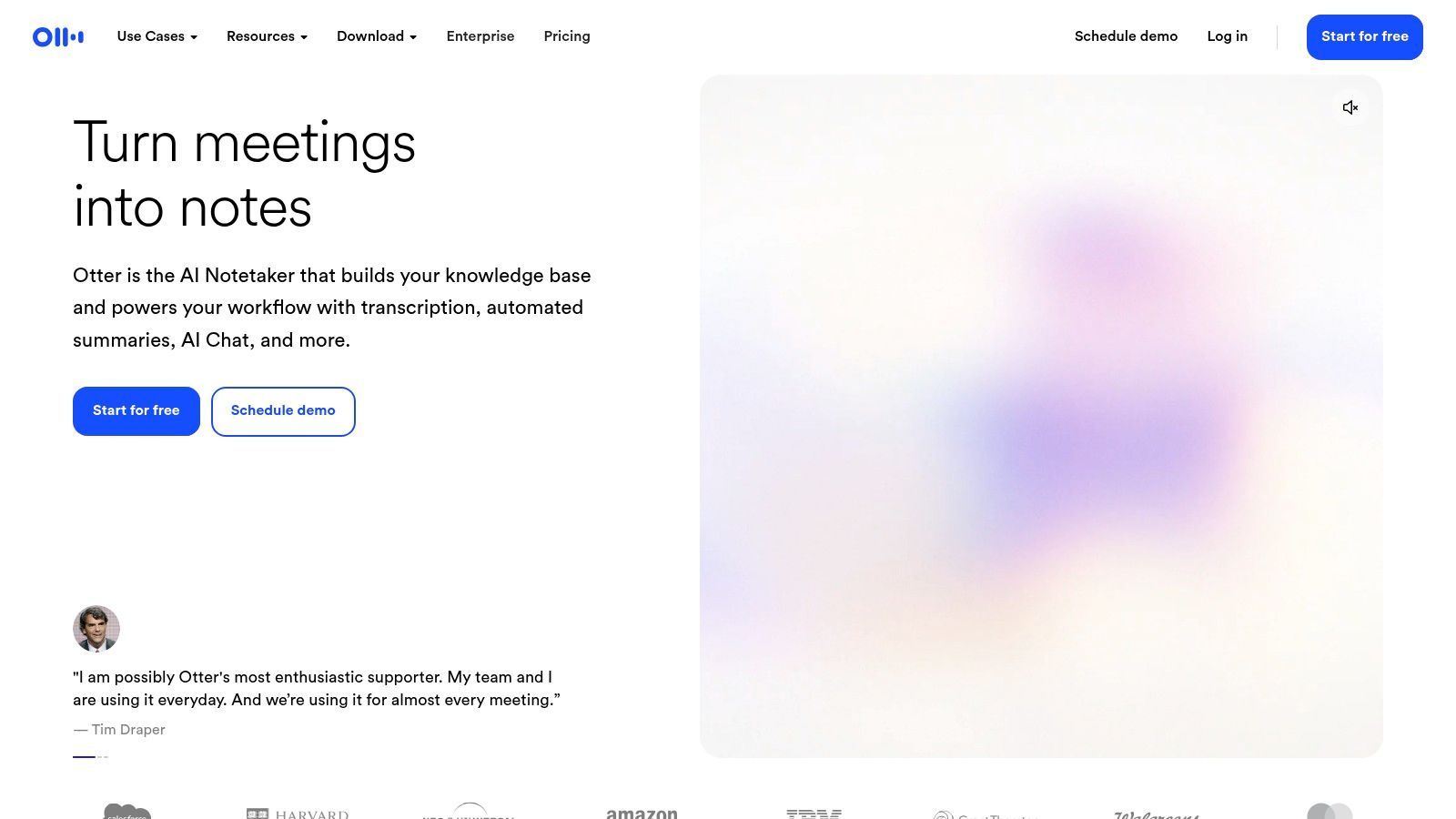
The ability to record directly on mobile or web, or to send an "OtterPilot" bot to join Zoom, Google Meet, or Microsoft Teams meetings, provides incredible flexibility. After the lecture, the transcript is fully searchable, allowing you to instantly find keywords or specific concepts without scrubbing through hours of audio. While the transcription is fast and generally accurate for clear audio, it's not perfect. For projects requiring near-flawless accuracy, you might explore some of the best AI transcription software options or use a dedicated service like Transcript.LOL.
Key Features & Considerations
- Live Transcription: Generates a real-time text version of the lecture with speaker labels.
- Meeting Integration: Sends a bot to record and transcribe online classes automatically.
- Search & Collaboration: Transcripts are searchable, highlightable, and can be shared with classmates.
- Pricing: A free plan exists but is limited in monthly transcription minutes and file import options. The Pro and Business plans unlock more advanced features and higher usage caps.
- Best Use Case: Ideal for students who want an automated, searchable record of both in-person and online lectures for review and study.
2. Notability
Notability has long been a favorite in the academic world, creating a powerful link between handwritten notes and recorded audio. Its core function allows you to record a lecture's audio while you simultaneously type or handwrite notes on your iPad or Mac. The magic happens during playback; tapping on any word or sketch you made will jump the audio to the exact moment you wrote it. This time-synced playback is exceptional for clarifying a quick scribble or understanding the context behind a complex diagram.
While the app's strength is in active note-taking, recent updates have expanded its capabilities, making it one of the better apps for recording lectures with added intelligence. Higher-tier plans now include audio transcription, AI-powered summaries, and even quiz generation from your notes. This transforms Notability from a simple recorder into a full-fledged study tool. The primary downside is its Apple-centric ecosystem, with limited functionality outside of iOS and macOS. For those invested in active learning, combining this tool with effective note-taking methods can significantly improve retention.
Key Features & Considerations
- Time-Synced Audio: Playback is linked directly to your handwritten or typed notes, providing crucial context during review.
- Handwriting & PDF Annotation: A robust toolset for drawing, highlighting, and marking up lecture slides or documents.
- AI Enhancements: Paid tiers offer transcription, AI note summaries, and other "Smart Notes" features.
- Pricing: A free version is available with core functionality. The Plus and Classic plans unlock unlimited editing, advanced features like transcription, and cloud sync.
- Best Use Case: Perfect for visual learners and dedicated note-takers within the Apple ecosystem who want to connect what they heard with what they wrote.
3. GoodNotes 6
GoodNotes 6 transforms the digital note-taking experience by integrating audio recording directly with your handwritten notes. This app for recording lectures shines by allowing you to tap on any part of your written notes to jump to the exact moment in the audio when you wrote them. This synchronized playback is incredibly effective for reviewing complex topics, as you can re-listen to the professor's explanation while seeing the context of your own notes. Primarily designed for the Apple ecosystem, its best-in-class handwriting experience with the Apple Pencil makes it feel like writing on real paper.
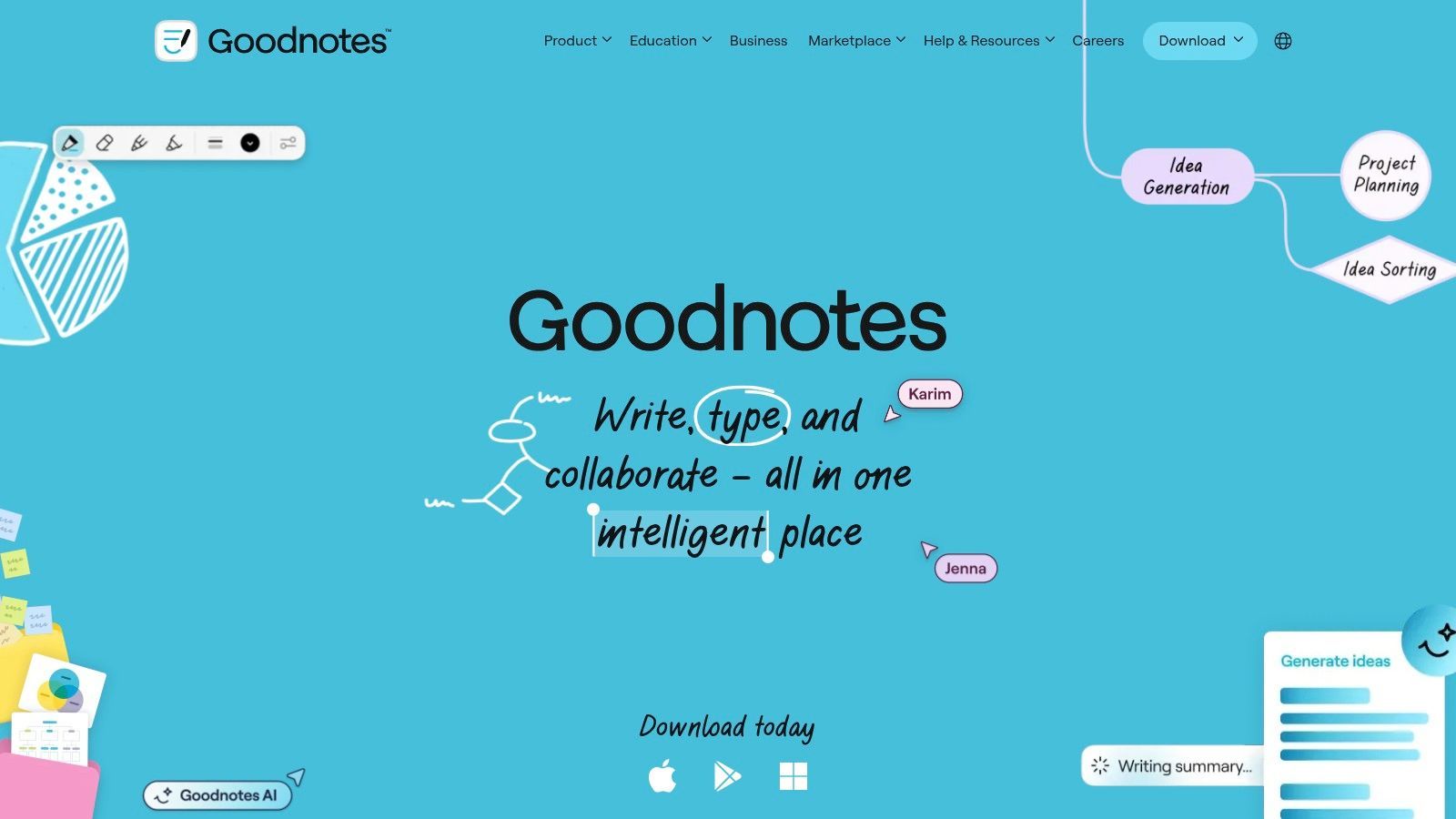
The platform offers unlimited audio recording, which is a significant advantage for students taking multiple long classes. While the core functionality is strong, GoodNotes has moved some advanced features, like AI-powered audio transcription, into a separate, paid tier. This means getting a text version of your lecture recordings will cost extra. Its deep integration within iOS, iPadOS, and macOS provides a seamless experience for Apple users, but functionality on other platforms like Windows and Android is more limited.
Key Features & Considerations
- Note-Synced Audio: Play back audio recordings by tapping on the corresponding handwritten or typed notes on the page.
- Handwriting & PDF Markup: Excellent writing feel with the Apple Pencil, plus robust tools for annotating lecture slides and documents.
- Optional AI Transcription: The paid AI add-on can convert spoken lectures into text directly within your notes.
- Pricing: The core app is a one-time purchase or yearly subscription. AI features require an additional subscription, which can increase the overall cost.
- Best Use Case: Perfect for iPad-using students who prefer handwriting notes and want to link them directly to the lecture audio for contextual review.
4. Microsoft OneNote
For students deeply integrated into the Microsoft ecosystem, OneNote offers a unique and powerful way to record lectures by embedding audio directly within their notes. It functions as a freeform digital notebook where you can type, draw, and, most importantly, insert audio recordings onto any part of a page. This contextual recording is OneNote's standout feature; you can start an audio recording and as you type notes, OneNote timestamps them to the corresponding part of the audio. During playback, you can click on a line of text, and the audio will jump to the exact moment it was recorded.
This method of synchronizing typed notes with recorded audio is exceptional for reviewing complex material. Instead of scrubbing through a long audio file, you can simply find your written note on a specific concept and instantly hear what the professor was saying at that moment. As it syncs across all devices via a Microsoft account, your notes and their embedded recordings are available on your laptop, tablet, and phone. While it lacks the advanced transcription features of dedicated services, its strength lies in organizing audio recordings alongside other forms of notes, making it one of the best integrated apps for recording lectures.
Don’t Rely Only on Raw Audio
Audio recordings build up fast and are difficult to access later on. Listening through hours of recorded lectures is a waste of study time. Always use recording apps in conjunction with transcription or summary apps to make your content useful.
Key Features & Considerations
- Synced Audio and Notes: Automatically timestamps typed notes to the audio recording for easy playback and review.
- Cross‑Platform Sync: Notebooks and recordings are available across Windows, macOS, iOS, Android, and the web via a Microsoft account.
- Freeform Canvas: Insert audio recordings anywhere on the page alongside text, images, and drawings for rich, contextual notes.
- Pricing: Free for personal use with a Microsoft account. It is often included in Microsoft 365 subscriptions provided by educational institutions.
- Best Use Case: Excellent for students who prefer to type their notes during a lecture and want to link them directly to the corresponding audio for focused studying.
5. Apple Voice Memos
For students deeply integrated into the Apple ecosystem, the most effective app for recording lectures might already be on your device. Apple's Voice Memos is a free, built-in tool on every iPhone, iPad, and Mac that provides a surprisingly robust and reliable recording experience. Its strength lies in its simplicity and seamless integration; you can start recording with a single tap, making it perfect for capturing a lecture at a moment's notice without fumbling through complex settings.
The app offers basic but essential editing tools, like trimming dead air from the start or end of a recording. A standout function is the "Enhance Recording" feature, which uses computational audio to reduce background noise and room echo, significantly improving the clarity of a professor's voice in a large lecture hall. Because all recordings sync automatically via iCloud, you can record a lecture on your iPhone and have it instantly available for review on your Mac or iPad when you get back to your dorm. While it lacks native transcription, its high-quality audio files are perfect for exporting to a dedicated service like Transcript.LOL for an accurate text version.
Key Features & Considerations
- One-Tap Recording: Simple interface for quick and easy audio capture without any setup.
- Enhance Recording: An impressive feature for a free tool that cleans up audio by minimizing noise and reverberation.
- iCloud Sync: Recordings are automatically available across all your linked Apple devices for convenient access.
- Pricing: Completely free and pre-installed on Apple hardware with no feature limitations or hidden costs.
- Best Use Case: Excellent for Apple users who need a simple, dependable, and free recording solution and plan to use a separate service for transcription.
6. Google Recorder
For students with a Google Pixel phone, Google Recorder is one of the most powerful and convenient apps for recording lectures. Its standout feature is its on-device live transcription, which works offline on supported models. This means you can get an instant, searchable transcript of a lecture without needing a Wi-Fi or data connection, making it exceptionally reliable in classrooms with spotty internet. The app automatically suggests tags like "Lecture" or "Meeting" and can even generate a quick summary on newer Pixel devices.
The accuracy of the transcription is impressive for a built-in tool, and the ability to search within recordings for specific terms is a huge time-saver for studying. While its tight integration with Pixel hardware provides a smooth experience, its exclusivity is its biggest drawback. If you need to share transcripts or work across different devices, you can export the audio and text files. For more polished documents or complex academic projects, consider pairing it with a dedicated service; you can find more strategies in our guide on lecture transcription for students.
Key Features & Considerations
- On-Device Live Transcription: Generates accurate, real-time transcripts that work entirely offline on supported Pixel models.
- Search & Auto-Labels: All recordings are fully searchable by keyword, and the app automatically suggests relevant tags for organization.
- Platform Availability: This is a major limitation as the app is available exclusively on Google Pixel phones, with feature sets varying by device model.
- Pricing: The app is free and pre-installed on Pixel phones.
- Best Use Case: Perfect for Pixel-owning students who need a simple, reliable, and free tool for capturing and searching in-person lectures without relying on an internet connection.
7. Easy Voice Recorder
For students who prioritize simplicity and dependability, Easy Voice Recorder is a standout option among apps for recording lectures. Its core function is to capture clear audio reliably, making it a workhorse for students who need to record multi-hour classes without worrying about crashes or complex settings. It’s particularly favored for its background recording capability, allowing you to take notes on your device or turn off the screen to save battery during a long lecture.
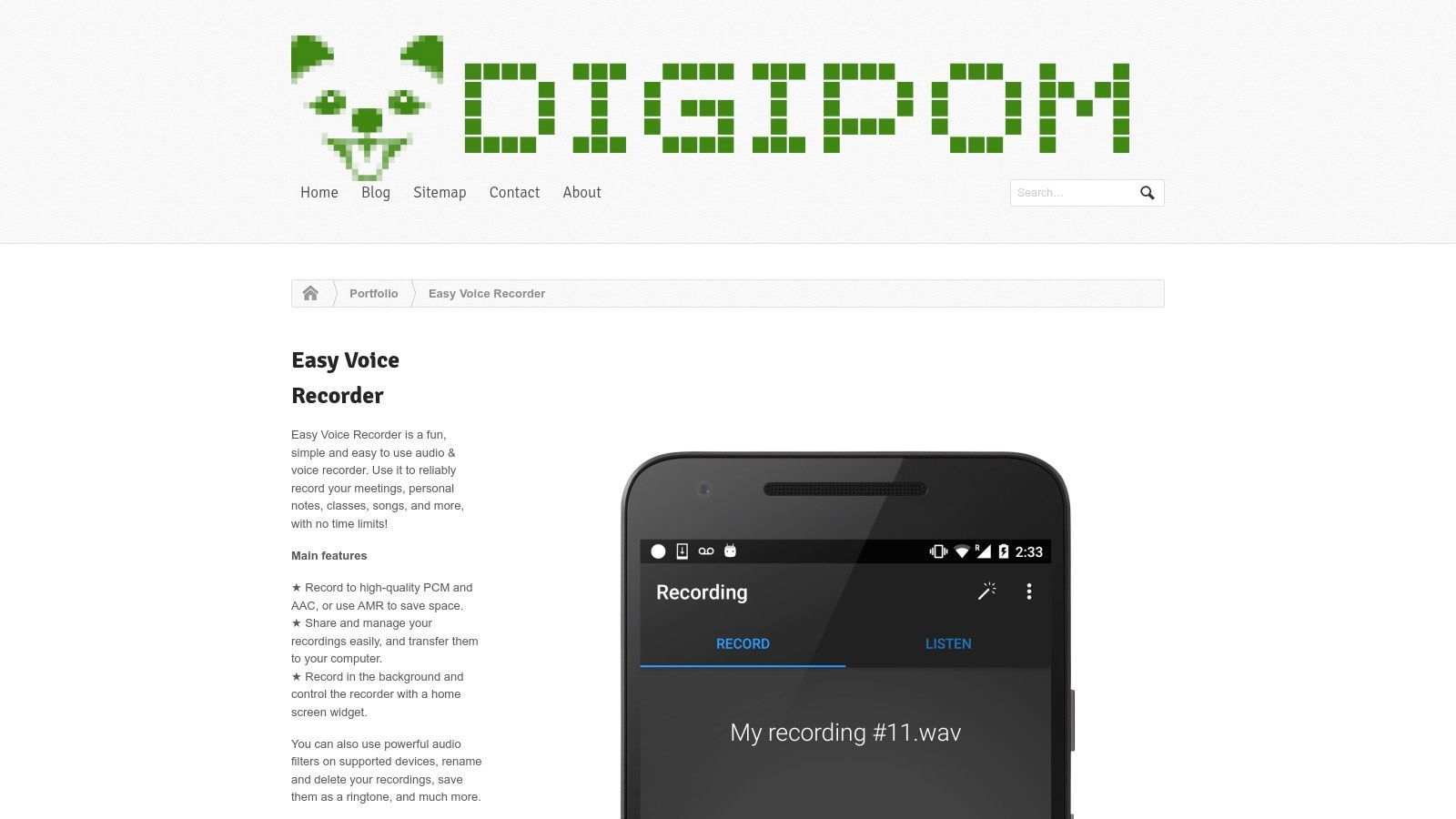
While the free version is robust, the Pro upgrade unlocks features that give you greater control over your recordings. You can connect a Bluetooth microphone for better audio capture, record in stereo, and adjust input gain. A key feature for lengthy lectures is the ability to automatically skip silence, which significantly reduces file size and saves time during playback. However, its utilitarian interface lacks advanced organizational tools like tags or nested folders, and it has no built-in transcription. For accurate transcripts of your recordings, you'll need to export the audio file and use a dedicated service like Transcript.LOL.
Key Features & Considerations
- Recording Formats: Save recordings as high-quality PCM, space-saving AAC, or battery-efficient AMR.
- Background Operation: Record discreetly with your screen off or while using other apps, supported by home-screen widgets for quick access.
- Pro Version Features: Adds stereo recording, Bluetooth microphone support, silence skipping, and folder organization.
- Pricing: The core app is free with ads. A one-time purchase for the Pro version unlocks all advanced features and removes ads.
- Best Use Case: Excellent for students needing a simple, stable audio recorder for long, in-person lectures where file size and battery life are concerns.
8. Dolby On
When audio quality is your top priority, Dolby On stands out among apps for recording lectures. Developed by the audio experts at Dolby, this free mobile app is designed to capture sound with exceptional clarity, even in less-than-ideal environments like a bustling lecture hall or a room with poor acoustics. It uses sophisticated post-processing technology, including noise reduction, dynamic EQ, and spatial audio, to automatically clean up and enhance your recordings, making the speaker’s voice crisp and clear. This focus on pure audio fidelity is its main differentiator.
While Dolby On excels at capturing high-quality sound and even includes basic video recording and livestreaming options, it is not a dedicated note-taking or transcription platform. Its toolset is centered on audio enhancement, not organization. For students who need a searchable text record, the best workflow is to record with Dolby On to get the cleanest audio possible and then export the file. You can then upload this superior audio file to a specialized service like Transcript.LOL to generate a highly accurate transcription, combining the best of both worlds.
Key Features & Considerations
- Advanced Audio Processing: Automatically applies noise reduction, dynamic EQ, and stereo widening to make recordings sound professional.
- Audio & Video: Can record audio-only or capture video with the same high-quality sound processing.
- Editing & Sharing: Offers basic trimming tools and easy sharing to other apps or cloud storage.
- Pricing: The app and all its core audio enhancement features are completely free to use.
- Best Use Case: Perfect for students in noisy lecture halls who need the clearest possible audio recording for later review or transcription.
9. Rev: Record & Transcribe
Rev’s mobile app, "Record & Transcribe," approaches lecture recording from a service-oriented perspective. While many apps focus solely on the recording and AI transcription process, Rev integrates its core business-human-powered transcription-directly into the workflow. This makes it an excellent choice for students who anticipate needing near-perfect transcripts for critical projects, theses, or when studying complex subjects where accuracy is non-negotiable. You can record a lecture directly in the app and, with a few taps, order a transcript created by a professional human transcriber.
The app also offers an automated AI transcription option, which is faster and cheaper, providing flexibility based on your needs and budget. The interface is clean and straightforward, focusing on capturing high-quality audio and then connecting you to Rev’s transcription services. This centralized workflow is its main advantage, saving you the step of recording with one app and uploading the file to a separate service. While this dual-service model is powerful, students should be mindful that the cost of human transcription can accumulate quickly for multiple long lectures.
Key Features & Considerations
- Dual Transcription Options: Choose between fast, affordable AI transcription or order a 99%+ accurate human-powered transcript directly from the recording.
- High-Quality Recording: The app is designed to capture clear audio on your mobile device, which improves the accuracy of any resulting transcript.
- Integrated Workflow: Go from recording to a finished, professional-grade transcript all within a single application, without file transfers.
- Pricing: The app itself is free to use for recording. AI transcription is billed per minute at a competitive rate, while human transcription costs a higher per-minute fee.
- Best Use Case: Perfect for students in law, medicine, or research fields who need verbatim, highly accurate transcripts for citations, dissertations, or detailed study guides.
10. Zoom
While known primarily as a video conferencing tool, Zoom has become a default platform for recording lectures in higher education, especially for remote and hybrid learning. Its ubiquity means most students and instructors are already familiar with its interface, removing any significant learning curve. The core strength for lecture capture lies in its ability to record video, audio, and screen sharing directly to a local file or the cloud, creating a complete record of the class session.
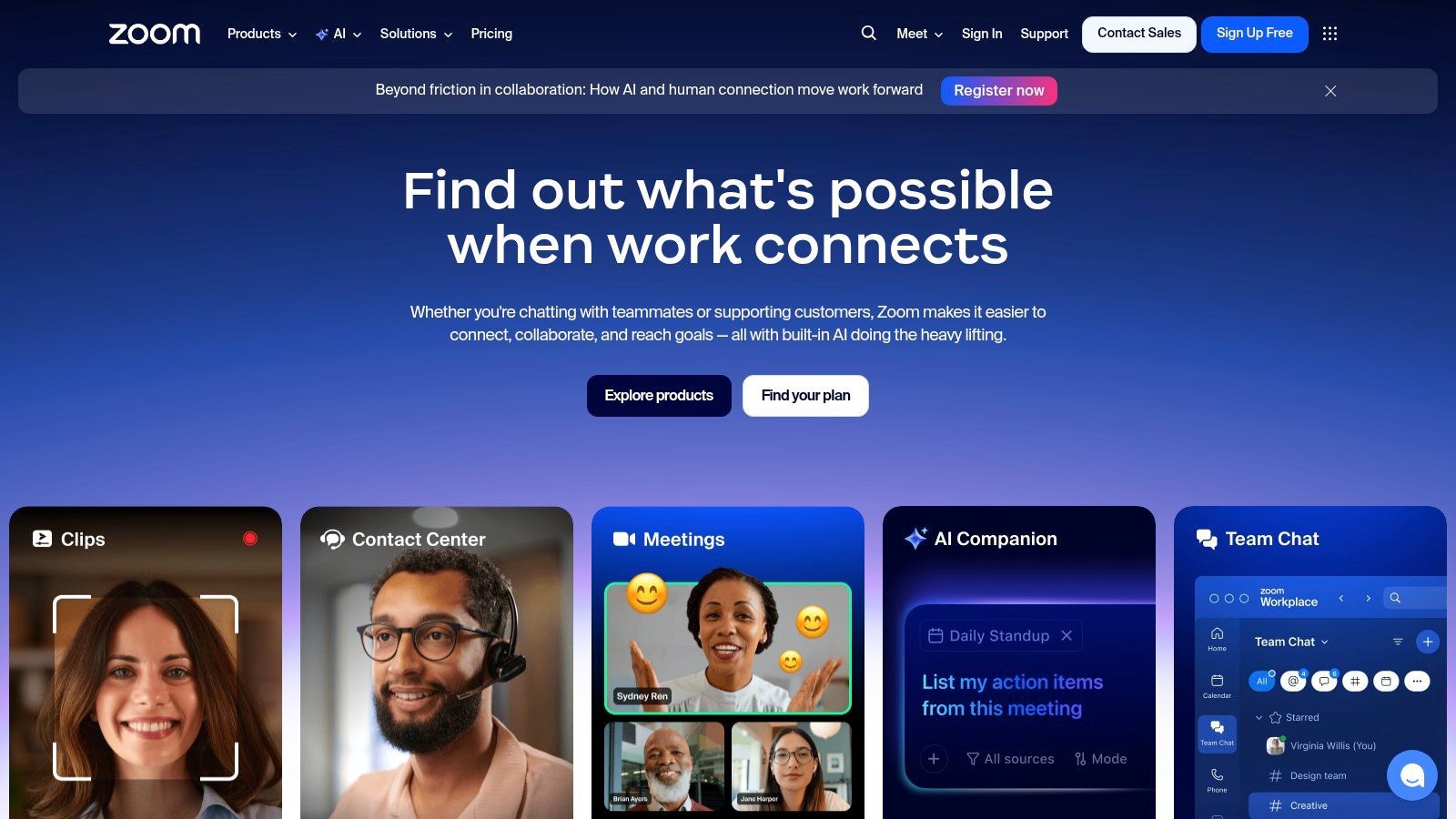
Many universities provide institutional plans that give students and faculty access to premium features. Cloud recording is particularly valuable, as it automatically saves the lecture online and can generate a transcript, making the content accessible and searchable. These recordings are often centralized in a course portal for easy access. For those looking to get more out of their recordings, understanding how to effectively manage and transcribe them is key; you can explore a detailed guide on Zoom meeting transcription to improve your workflow. If your institution's plan lacks transcription, you can easily use a service like Transcript.LOL to process your downloaded recordings.
Key Features & Considerations
- Local & Cloud Recording: Offers the flexibility to save recordings directly to your computer or to the cloud for easy sharing and access.
- Widespread Adoption: Most educational institutions have integrated Zoom, so there’s often no setup required for students.
- Automated Transcription: Many paid plans include automated audio transcription, which adds captions and makes content searchable.
- Pricing: A free plan is available but has limitations on meeting length and recording options. Paid Pro, Business, and Enterprise plans, often provided by universities, unlock cloud recording, longer meetings, and transcription.
- Best Use Case: Perfect for students in online or hybrid classes where the instructor is already using Zoom to deliver and record lectures.
11. OBS Studio
For students who need professional-grade control over their recordings, OBS Studio (Open Broadcaster Software) is the gold standard. This free, open-source software is widely used by streamers and content creators, but its powerful features make it an exceptional tool for recording lectures. OBS allows you to create scenes from multiple sources, meaning you can capture your professor's projected slides, your own webcam for picture-in-picture notes, and high-quality microphone audio all at the same time.
Unlike simple mobile apps for recording lectures, OBS gives you granular control. You can set up different audio tracks to separate your microphone from the system audio, making post-lecture editing much cleaner. The ability to apply audio filters like noise suppression in real-time is a significant advantage in a noisy lecture hall. While its extensive configuration options present a steeper learning curve than one-click recorders, the investment in learning pays off with watermark-free, unlimited-length recordings of the highest quality.
Key Features & Considerations
- Multi-Source Capture: Combine screen capture, window capture, webcams, and multiple audio inputs into a single recording.
- Advanced Audio Control: Use multi-track audio and apply filters like noise gates and suppression for crystal-clear sound.
- Highly Configurable: Customize everything from output resolution and frame rate to encoding settings and hotkeys for seamless operation.
- Pricing: Completely free and open-source with no limitations, watermarks, or hidden costs.
- Best Use Case: Perfect for technically inclined students who want to create high-fidelity, multi-source video recordings of in-person or online lectures from a desktop or laptop.
12. Audio Hijack
For macOS users who require absolute control over their audio sources, Audio Hijack is a professional-grade recording tool. It’s less of a simple recorder and more of a complete audio routing studio, making it one of the most powerful apps for recording lectures, especially complex online ones. Its core strength is the ability to "hijack" audio from any application on your Mac, including web browsers like Chrome or Safari, communication apps like Zoom, or even system sounds. This means you can create a high-fidelity recording of a streamed lecture and your own microphone commentary simultaneously.
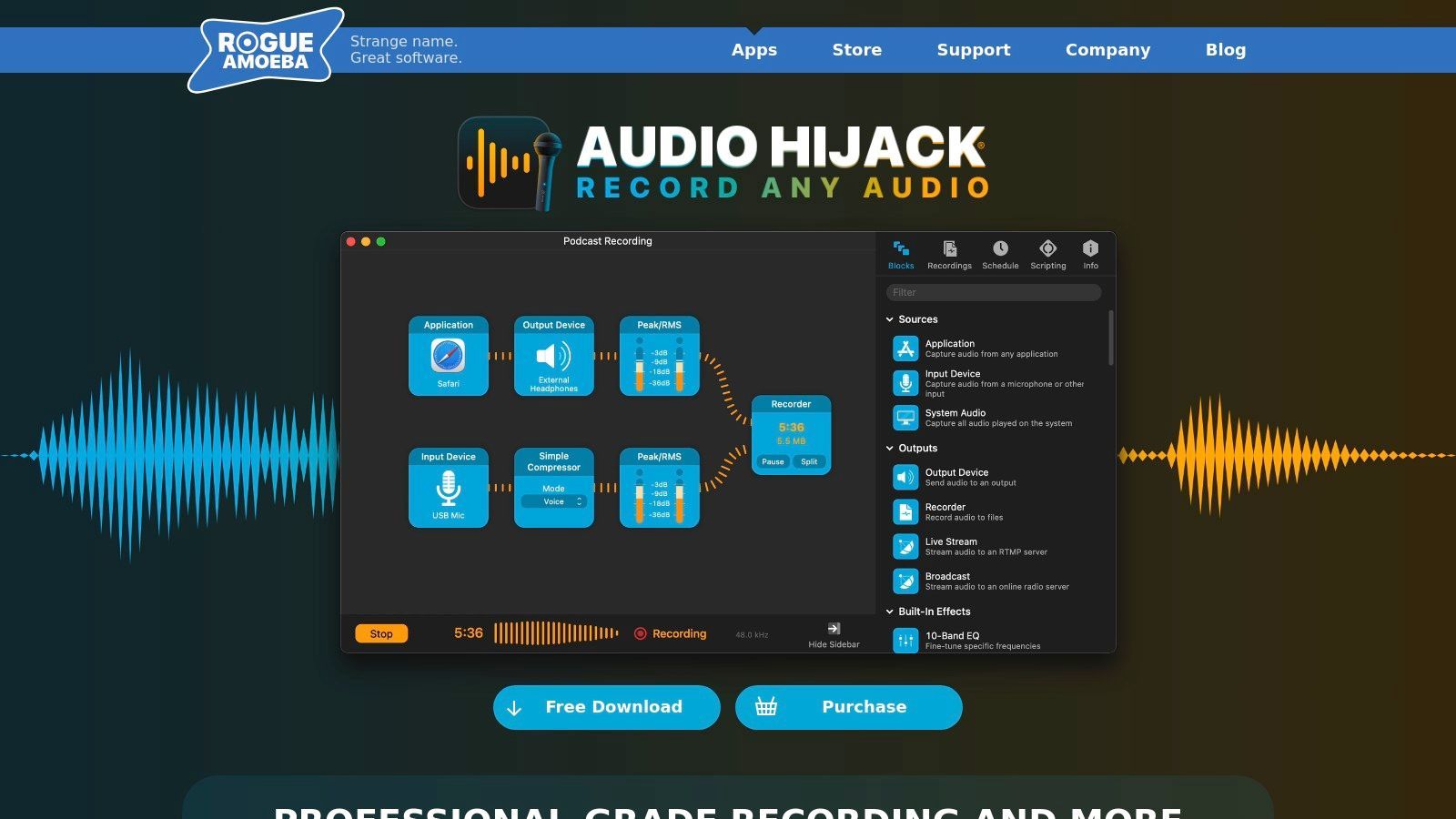
The platform operates on a block-based pipeline system where you drag and drop sources, effects, and outputs to build a custom recording session. You can add audio effects to clean up noise, use a scheduler to automatically start and stop recordings for your class schedule, and even add a "Transcribe" block for local speech-to-text processing. While its power brings a steeper learning curve than a simple mobile app, its reliability for long-form recordings is exceptional. For those needing a clean audio source to send to a service like Transcript.LOL, Audio Hijack provides the pristine input required for the best possible accuracy.
Key Features & Considerations
- Application & System Audio Capture: Record audio directly from any Mac application or your entire system's output.
- Block-Based Pipeline: Build custom recording workflows with inputs, effects (like noise reduction), meters, and timers.
- Long-Form Reliability: Engineered for stability, making it dependable for multi-hour lectures without crashing or data loss.
- Pricing: Audio Hijack is a one-time purchase, currently priced at $64. A free trial with noise-overlaid recordings is available to test functionality. It is macOS only.
- Best Use Case: Perfect for advanced users on macOS who need to capture high-quality audio from multiple digital sources for detailed study or content creation.
Lecture Recording Apps: 12-Tool Comparison
| Product | Core features | UX & quality ★ | Unique value ✨🏆 | Target audience 👥 | Price 💰 |
|---|---|---|---|---|---|
| Otter.ai | Live transcription, speaker ID, integrations | ★★★★☆ Fast, readable, collaborative | ✨ Meeting bots & searchable highlights | 👥 Students • Teams • Professionals | 💰 Freemium (limits); subscription for full features |
| Notability | Time‑synced audio + handwriting, PDF markup | ★★★★☆ Stable; great review workflow | ✨ Smart Notes, quizzes (paid tiers) | 👥 Students • Note‑takers | 💰 Paid app; AI features in higher tiers |
| GoodNotes 6 | Handwriting, page‑linked audio, templates | ★★★★☆ Best Apple Pencil experience | ✨ Page‑linked audio + optional AI 🏆 | 👥 iPad/iPhone users • Creatives • Students | 💰 App + AI add‑on (paid) |
| Microsoft OneNote | Insert audio into pages, cross‑platform sync | ★★★★ Integrated; familiar UI | ✨ Freeform notebooks in MS ecosystem | 👥 Schools • Microsoft 365 users | 💰 Free / included with Microsoft 365 |
| Apple Voice Memos | One‑tap record, trim, Enhance Recording | ★★★★ Reliable, simple edits | ✨ Noise/echo reduction + iCloud sync | 👥 Apple device users • Quick capture | 💰 Free (Apple devices) |
| Google Recorder | On‑device live transcription, search, summaries | ★★★★★ Accurate offline on supported Pixels | ✨ Offline transcription & instant summaries 🏆 | 👥 Pixel users • Offline-first users | 💰 Free (Pixel only) |
| Easy Voice Recorder | Multiple formats, background recording, skip‑silence | ★★★★ Stable for multi‑hour sessions | ✨ Skip‑silence, stereo/Bluetooth (Pro) | 👥 Students • Long‑form recorders | 💰 Freemium; Pro unlocks advanced features |
| Dolby On | Noise reduction, EQ, automatic level control | ★★★★ Cleaner audio in noisy rooms | ✨ Pro audio processing for mobile (free) | 👥 Mobile recorders • Musicians • Lecturers | 💰 Free |
| Rev: Record & Transcribe | In‑app recording; AI preview + human transcripts | ★★★★★ Human‑grade accuracy option | ✨ Human transcripts (99%+) & centralized workflow 🏆 | 👥 Journalists • Researchers • Pros needing accuracy | 💰 AI low‑cost; Human per‑minute fees |
| Zoom | Local/cloud recording; auto transcription (paid) | ★★★★ Ubiquitous; easy for hosts | ✨ Cloud captions & centralized storage | 👥 Universities • Remote/hybrid classes | 💰 Freemium; paid plans for cloud/transcripts |
| OBS Studio | Multi‑source capture; multi‑track audio/video | ★★★★★ Pro control; steeper learning curve | ✨ Free professional‑level capture & routing 🏆 | 👥 Creators • Tech‑savvy lecturers | 💰 Free, open‑source |
| Audio Hijack | Capture any macOS app/system audio; effects & routing | ★★★★★ Extremely reliable; advanced control | ✨ Block‑based pipeline + Loopback integration 🏆 | 👥 macOS pros • Podcasters • AV techs | 💰 Paid macOS app |
From Recording to Review: Turning Your Lectures into Actionable Knowledge
Selecting one of the excellent apps for recording lectures we've detailed is a crucial first move, but it's only the beginning. The true power lies in transforming those captured audio and video files from a passive backup into an active, dynamic study resource. You've navigated a wide array of options, from the integrated note-taking powerhouses like Notability and GoodNotes to dedicated audio workhorses like Dolby On and Audio Hijack. Each tool serves a distinct purpose, and choosing the right one is your first victory.
The decision-making process hinges on understanding your specific environment and goals.
- Are you in a large, noisy lecture hall? An app with superior noise reduction like Dolby On or a setup with OBS Studio and an external microphone might be your best bet.
- Do you need to sync handwritten notes with audio? Notability and GoodNotes 6 are built precisely for this workflow, creating a rich, contextual review experience.
- Is simplicity your top priority? Apple Voice Memos and Google Recorder offer a frictionless, one-tap recording experience that's hard to beat for pure audio capture.
- Are you recording remote lectures or meetings? Zoom's built-in recording is the standard, while a tool like Audio Hijack can give you more control over routing audio from multiple sources on a Mac.
Bridging the Gap from Recording to Understanding
Once the recording is secure, the next phase is converting that raw information into digestible knowledge. While apps like Otter.ai offer convenient built-in transcription, they may not always provide the accuracy or the advanced analysis features needed for dense academic material. This is where a dedicated, post-recording workflow becomes essential.
For recordings captured with apps that prioritize audio quality over transcription, such as Easy Voice Recorder or OBS Studio, pairing them with a specialized service unlocks their full potential. This "record first, transcribe second" strategy gives you the best of both worlds: you capture pristine audio with the ideal tool for the situation, and then you process it with a powerful AI engine designed for accuracy and analysis.
Turn Lectures Into Study Materials Automatically
Export transcripts as DOCX or SRT, generate instant summaries and clean filler words or mistakes inside a built-in editor. Your lecture becomes organized notes, flashcards, and shareable documents in minutes.

Editing tools
Edit transcripts with powerful tools including find & replace, speaker assignment, rich text formats, and highlighting.
Export in multiple formats
Export your transcripts in multiple formats including TXT, DOCX, PDF, SRT, and VTT with customizable formatting options.
Summaries and Chatbot
Generate summaries & other insights from your transcript, reusable custom prompts and chatbot for your content.
Turning Transcripts into Study Tools
A high-quality transcript is more than just a wall of text. It's the foundation for a suite of study aids. By uploading your lecture audio to a dedicated platform, you can receive a highly accurate, speaker-labeled transcript that you can then edit and export in various formats (TXT, DOCX, SRT). The real advantage, however, is the ability to generate derivative content from that transcript.
Imagine turning a two-hour economics lecture into:
- A concise, one-page summary of the main arguments.
- A list of key concepts and definitions.
- A set of quiz questions to test your comprehension.
- A mind map to visually connect different theories and examples.
This process elevates your recording from a simple safety net to the central hub of your entire study process. It ensures you not only capture every word spoken but also have the tools to efficiently break down, understand, and retain that information. For more in-depth advice on processing and repurposing your lecture recordings, you might want to explore further strategies for managing recorded content. Ultimately, the best app for recording lectures is the one that fits seamlessly into a workflow that ends with genuine understanding, not just a folder full of audio files.
Ready to turn your lecture recordings into powerful study materials? Transcript.LOL makes it easy to get fast, accurate transcripts from any audio or video file. Simply upload your recordings from apps like Voice Memos, OBS, or Zoom and let our AI generate summaries, key points, and more to supercharge your learning at Transcript.LOL.